Download and Install FxPro Desktop App on Windows & macOS

Below you'll find clear, platform-specific download and install steps for both Windows and macOS, plus guidance on permissions, common error messages and quick fixes, and how to update or remove the app safely. Practical tips cover verifying the installation, confirming server connectivity, and basic security checks to reduce setup friction so you can access demo or live trading without delays.

Windows
Download and Installation MT4 for Windows
To set up MetaTrader 4 on a Windows device:
-
Run the installation file from your browser or locate it in your downloads folder and double-click to start the setup.
-
If you wish to choose a specific installation location, click on "Settings" to customize. Otherwise, click "Next" to accept the End-User License Agreement and proceed.
-
Once the installation is finished, click "Finish" to launch MT4 automatically.
-
For your initial login, close the “Open an account” window by clicking "Cancel". A login window will then appear, prompting you to enter your Login Credentials.
Logging in to MT4
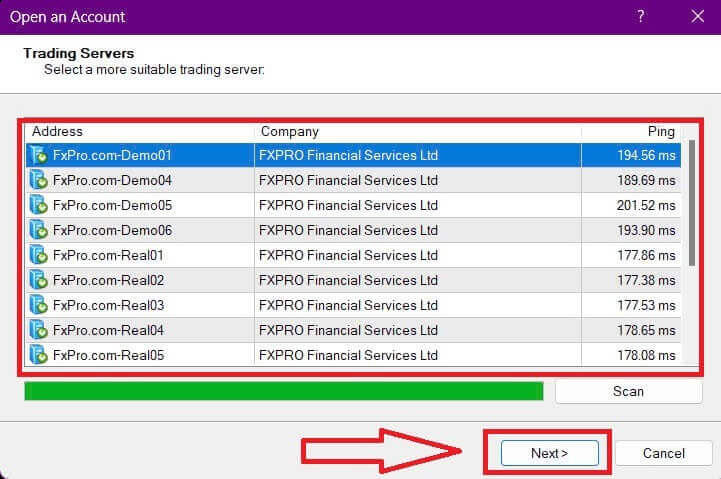
First, please open MT4 and start by choosing the server (please note that the server must match the server specified in your login credentials from the registration email).
Once you finish, please click "Next" to proceed.
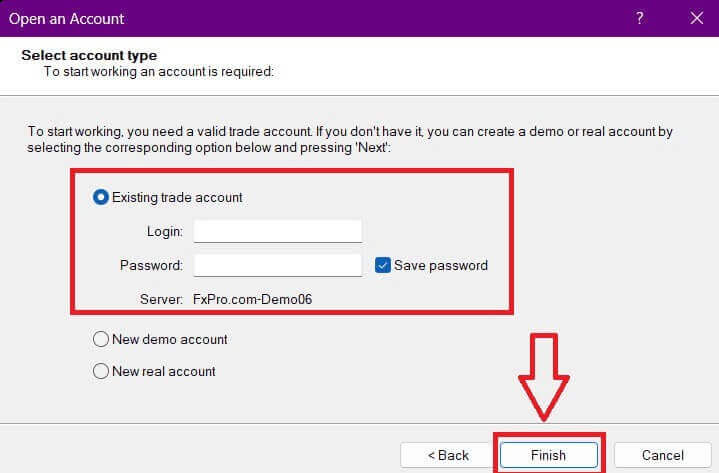
Then, in the second window that appears, select "Existing trade account" and enter your login credentials into the corresponding fields.
Click "Finish" after completing the information.
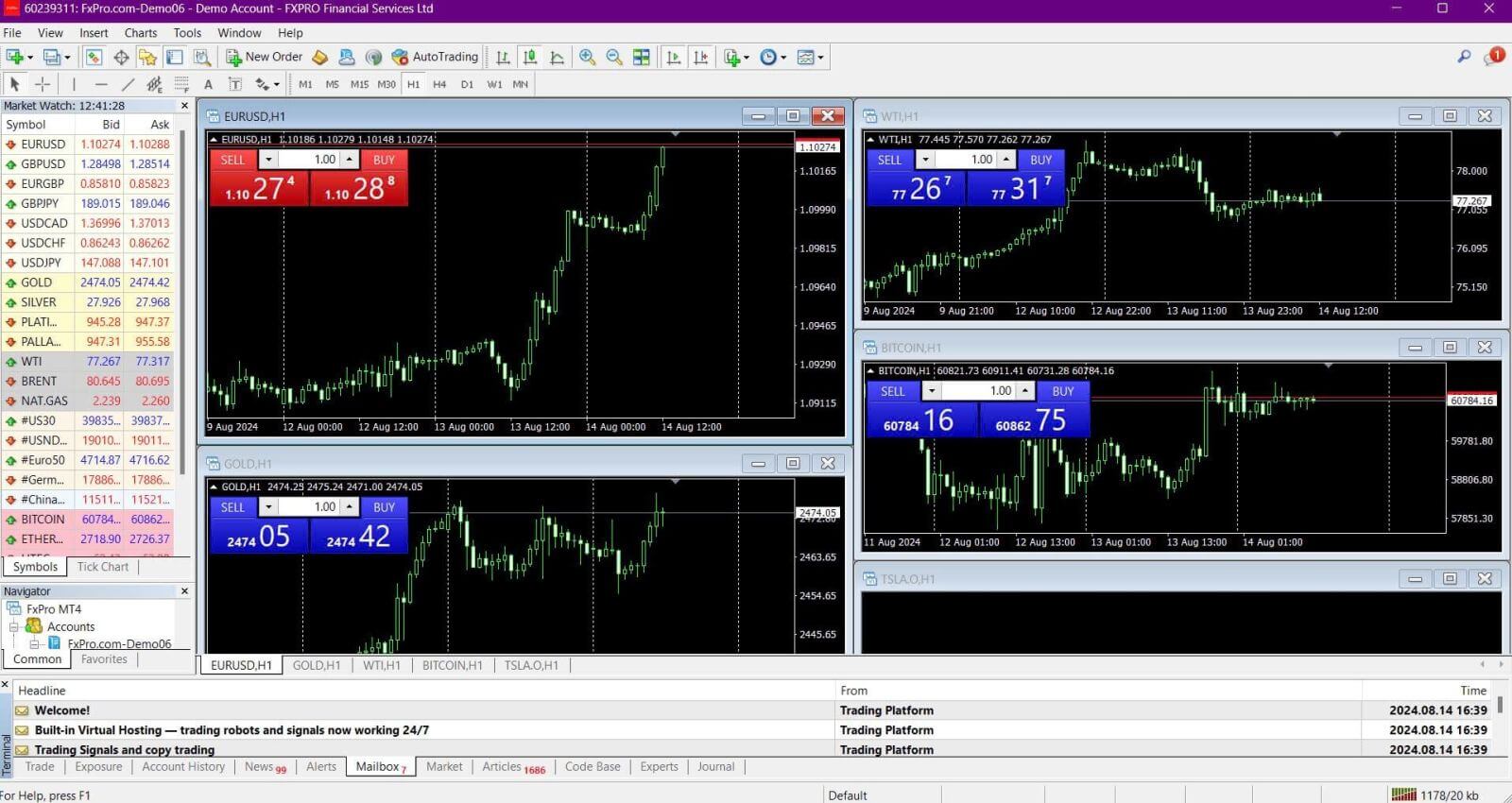
Congratulations! Now you can trade on MT4.
Download and Installation MT5 for Windows
To install MetaTrader 5 on a Windows computer, follow these steps:
-
Double-click the downloaded installation file to start the setup.
-
Review the License Agreement. If you agree to the terms, check the box next to "Yes, I agree with all the terms of the license agreement", and then click "Next".
-
Choose the installation folder for the program. To use the default folder, click "Next". Otherwise, click "Browse", select a different folder, and then click "Next".
-
In the next window, select the group name under which the program will appear in the Programs menu, and click "Next".
-
Click "Next" to proceed with the installation of the MetaTrader trading platform, or click "Back" to make any changes. Wait for the installation to complete.
-
Once the installation is finished, you can start the platform by clicking on "Launch MetaTrader" and then clicking "Finish".
Logging in to MT5
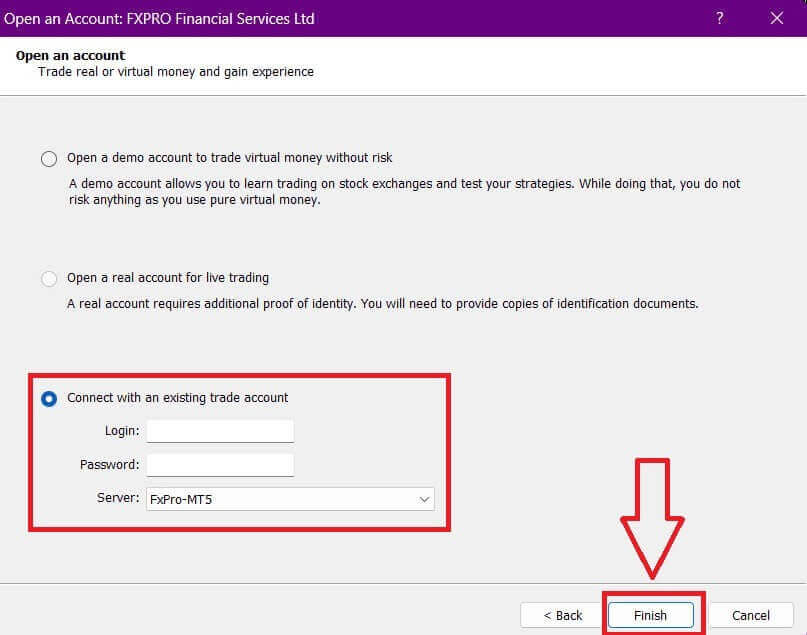
After accessing MT5, select the option "Connect with an existing trade account" and enter your login information as well as choose the server that matches the one in your email. Then, click "Finish" to complete the process.
Congratulations on successfully logging into MT5 with FxPro. Wishing you great success on your journey to becoming a trading master!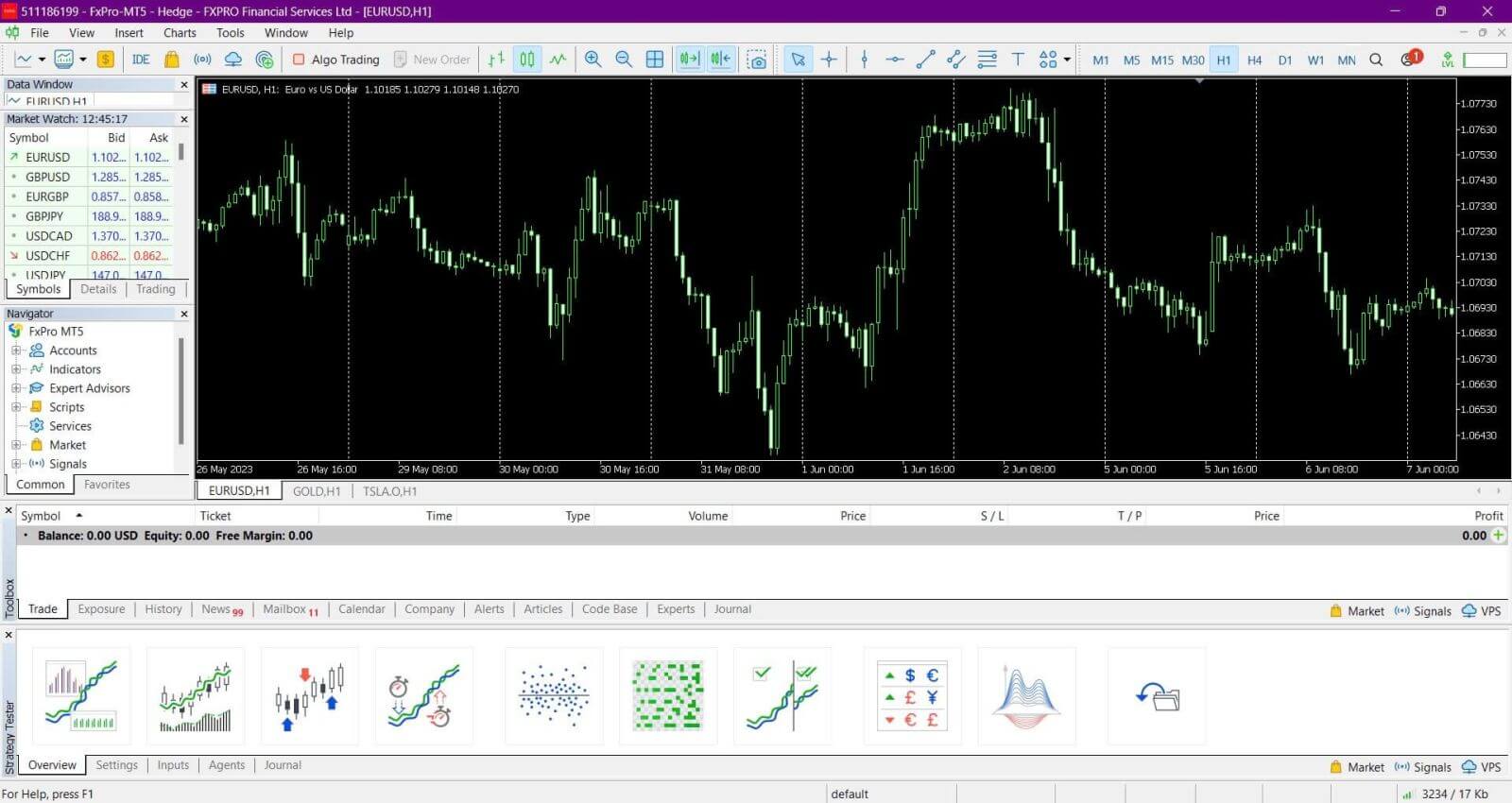
macOS
For macOS users, accessing MetaTrader 4 or MetaTrader 5 is simple. You can use the web terminal available on our website. Just sign in using your account number, password, and server details to access the platform directly through your web browser.
Alternatively, you can download the MetaTrader 4 or MetaTrader 5 mobile apps, which are available for both iOS and Android devices. This allows you to trade on the go, providing flexibility and convenience.
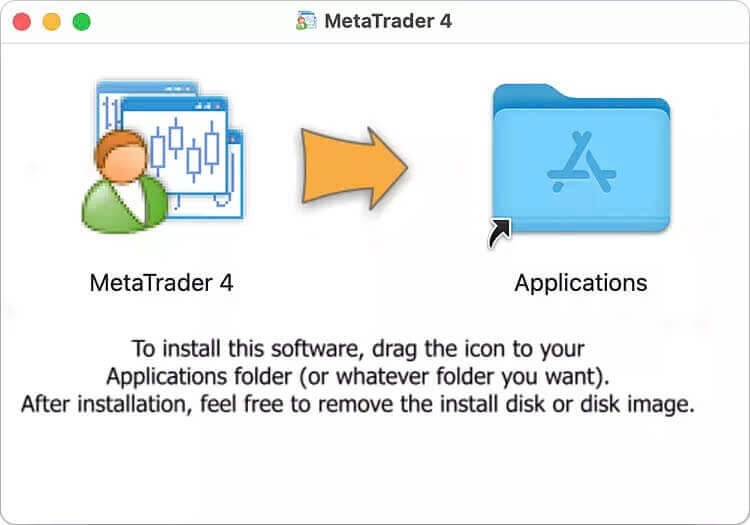
To download the MetaTrader 4 or MetaTrader 5 mobile apps, simply click on the link below: How to Download and Install FxPro Application for Mobile Phone (Android, iOS)
Conclusion: Trade Anytime with FxPro’s Desktop Application
Downloading and installing the FxPro application on your laptop or PC is straightforward and enhances your trading experience by providing a reliable, easy-to-use platform. Whether you use Windows or macOS, the FxPro app gives you direct access to trading tools, real-time data, and account management features. With the desktop application, you can seamlessly manage your trades and take advantage of market opportunities, all from the comfort of your computer.