FxPro Login and Trading: Access Your Account and Trade Forex


How to Login to FxPro
How to Login to FxPro [Web]
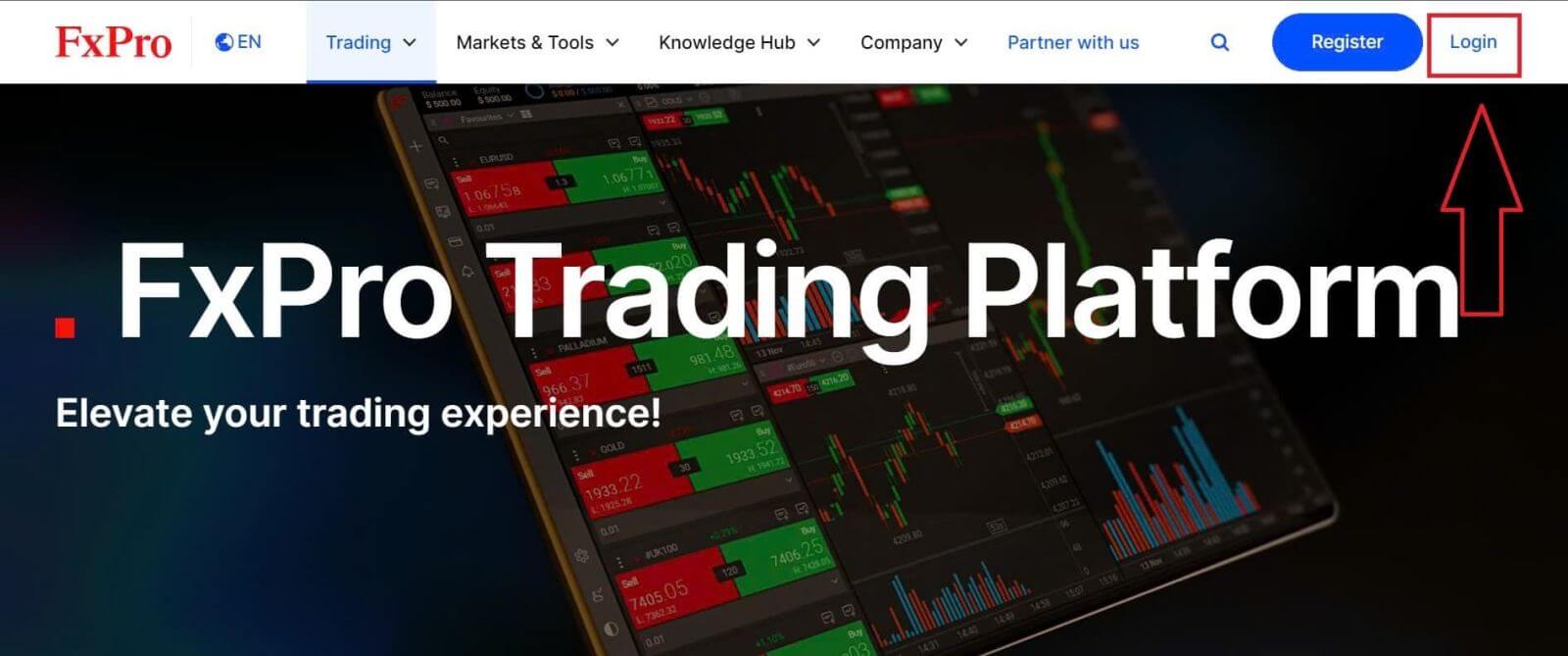
First, visit the FxPro homepage and click the "Login" button at the top right corner of the screen to be directed to the login page.
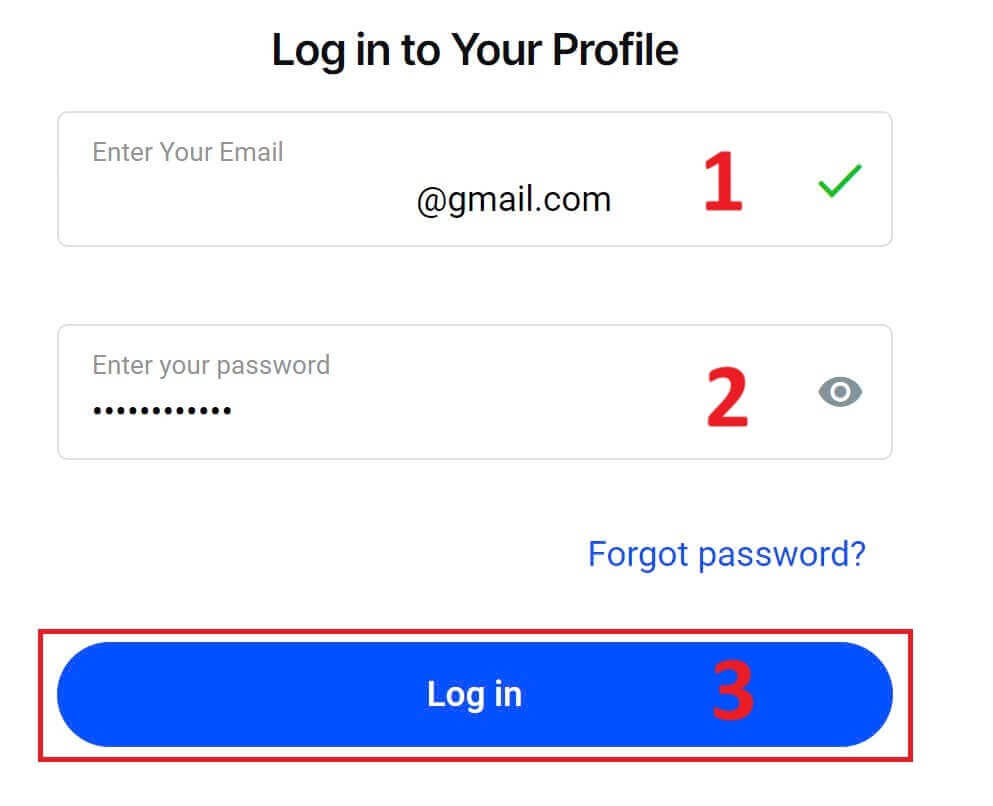
You will then be directed to the login page where you will log in with the email address and password you used to register. Once you finished, click "Log in" to complete the login process.
If you don’t have an account with FxPro yet, follow the instructions in the following article: How to Register Account on FxPro.
Logging into FxPro is easy—join us now!
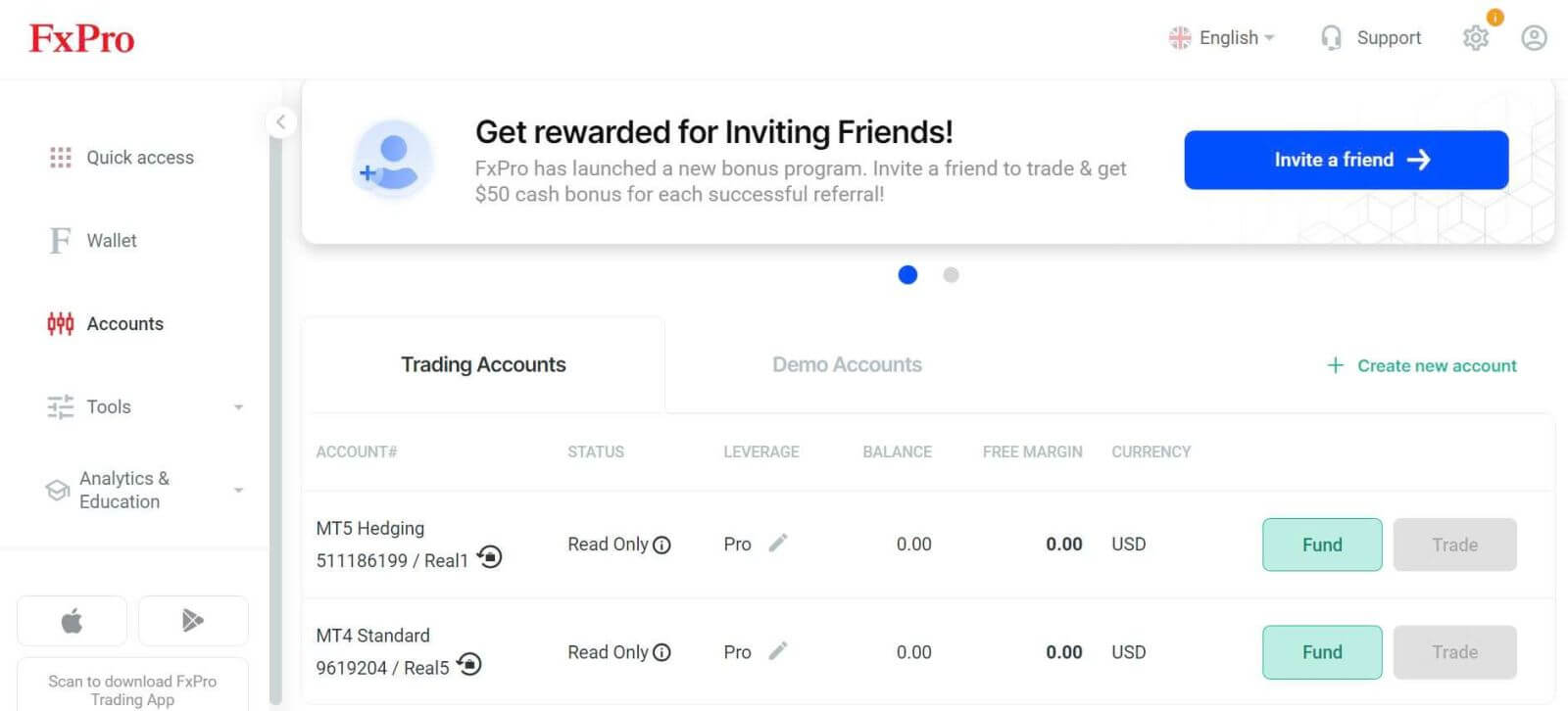
How to Login to Trading Platform: MT4
To log in to FxPro MT4, you first need the login credentials that FxPro sent to your email when you registered your account and created new trading accounts. Be sure to check your email carefully.
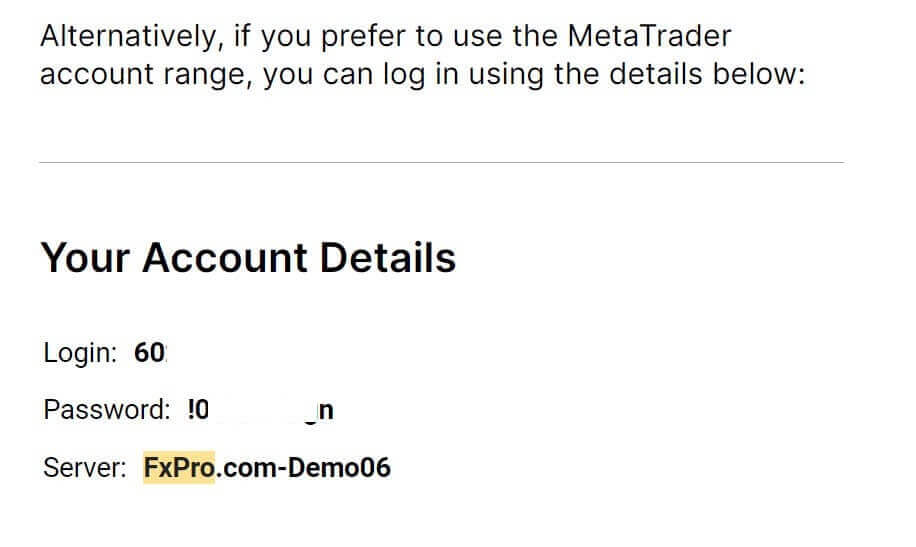
Right below your login information, select the "OPEN DOWNLOAD CENTRE" button to access the trading platform.
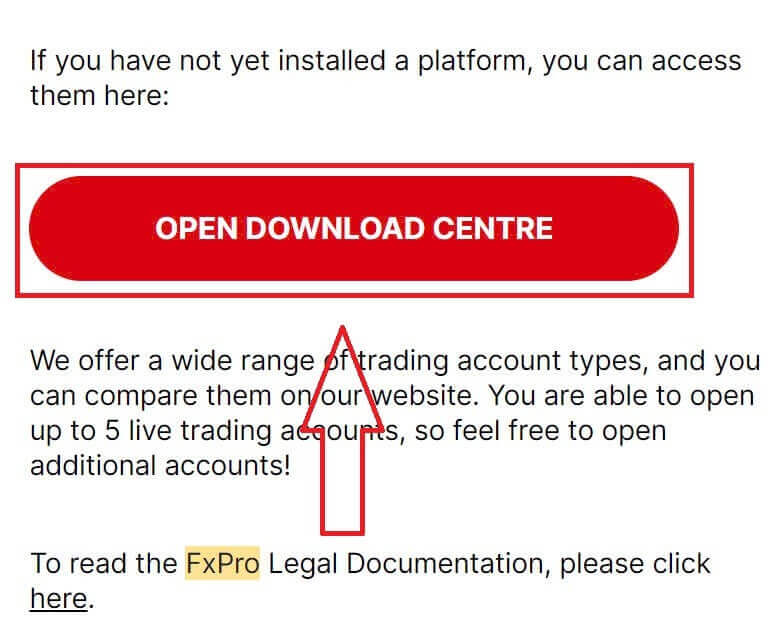
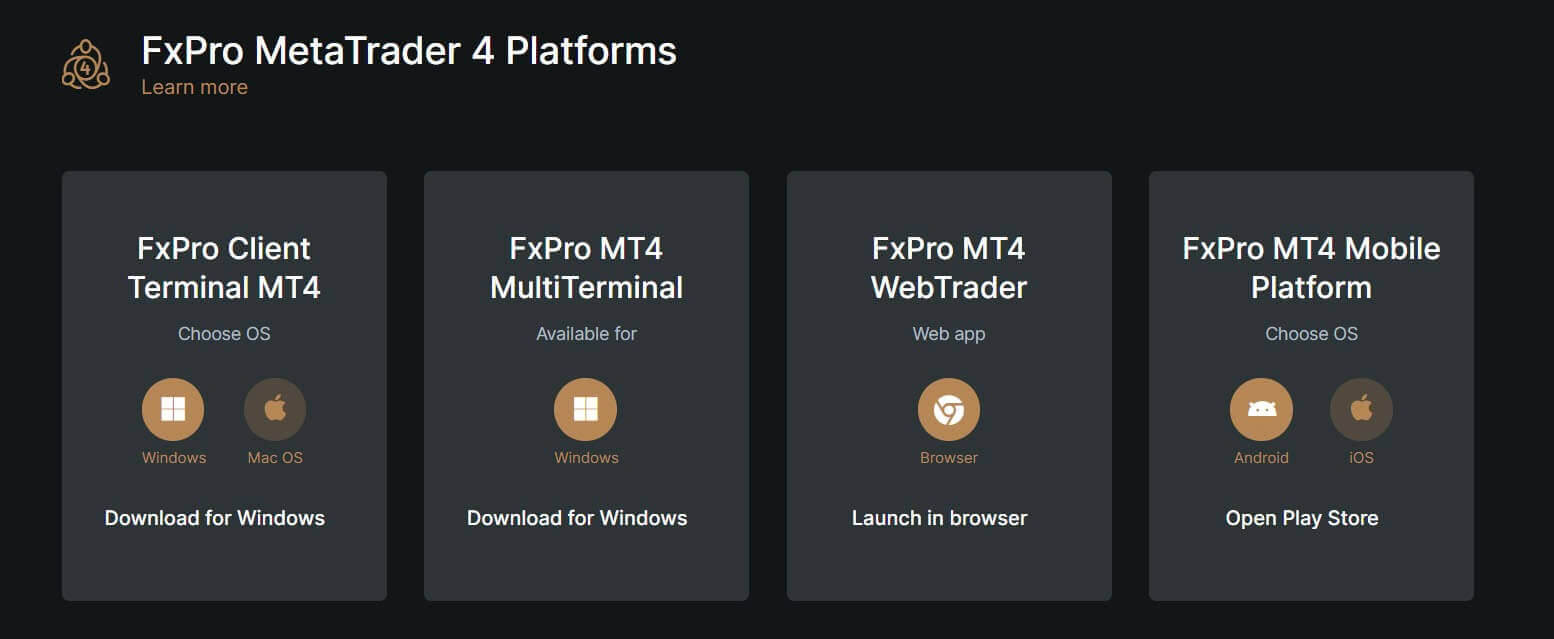
Depending on the platform, FxPro supports users with various trading options to ensure the most convenient experience, including:
-
Client Terminal Download.
-
MultiTerminal Download.
-
WebTrader Browser.
-
Mobile Platform.
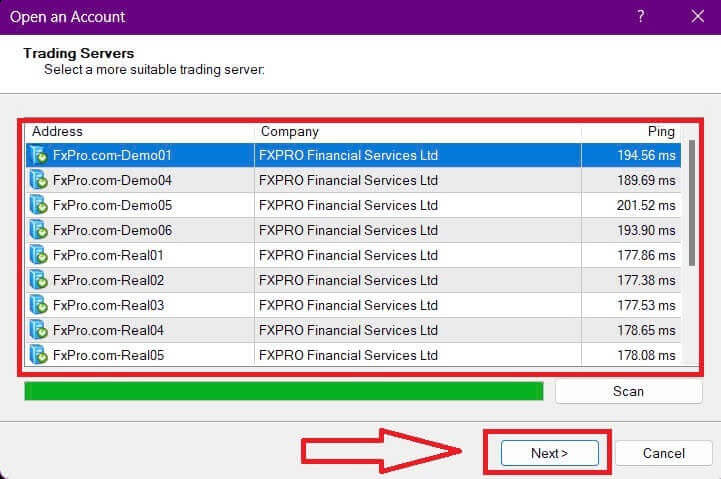
After selecting the most convenient option for yourself, open MT4 and start by choosing the server (please note that the server must match the server specified in your login credentials from the registration email).
Once you finish, please click "Next" to proceed.
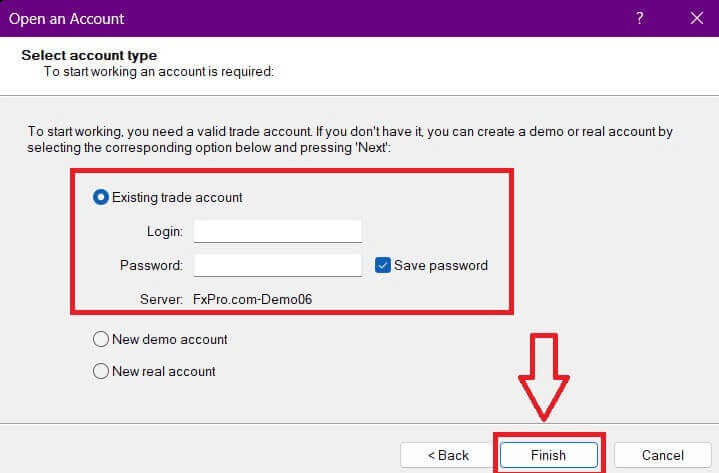
Then, in the second window that appears, select "Existing trade account" and enter your login credentials into the corresponding fields.
Click "Finish" after completing the information.
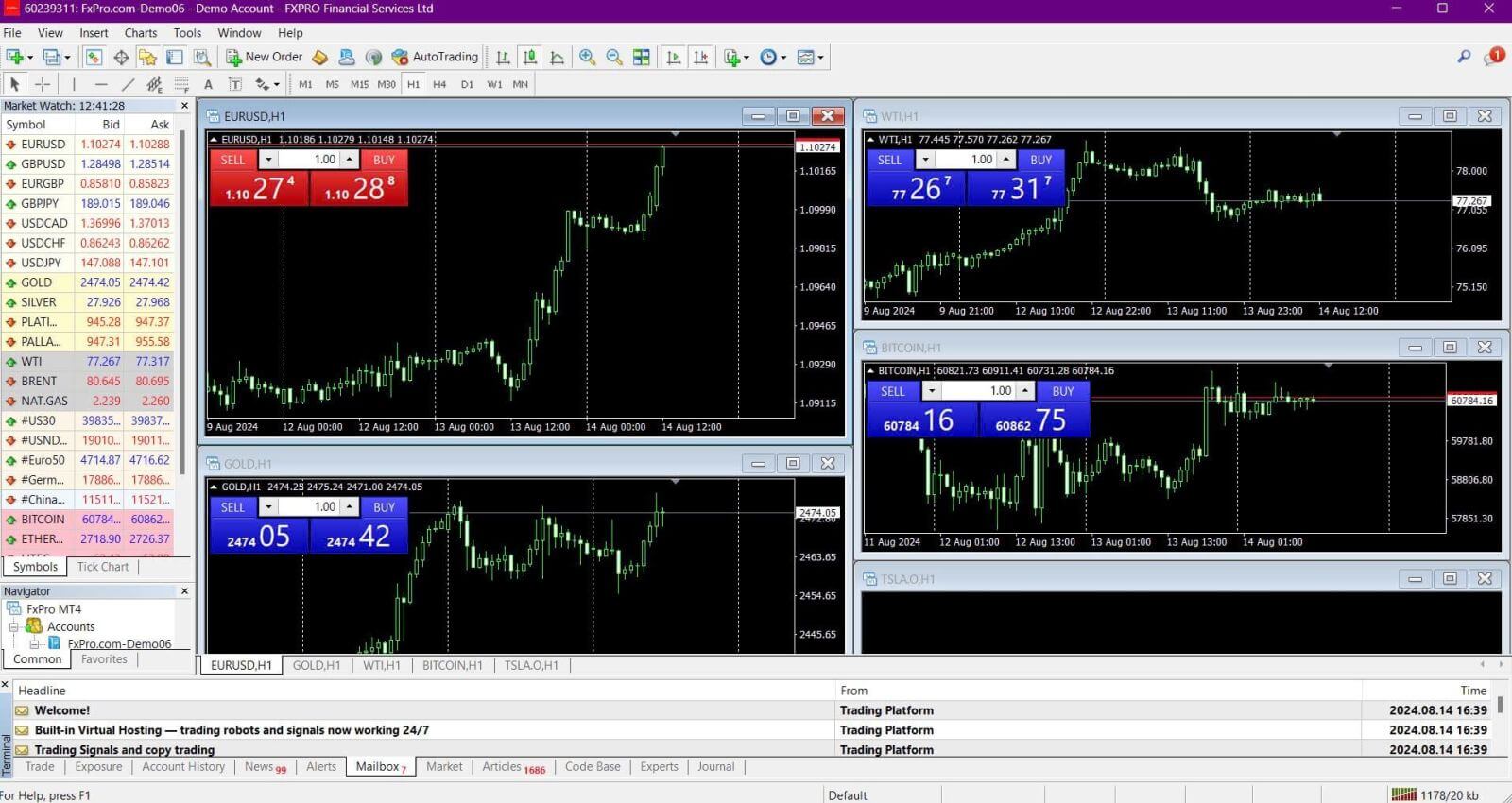
Congratulations! Now you can trade on MT4.
How to Login to Trading Platform: MT5
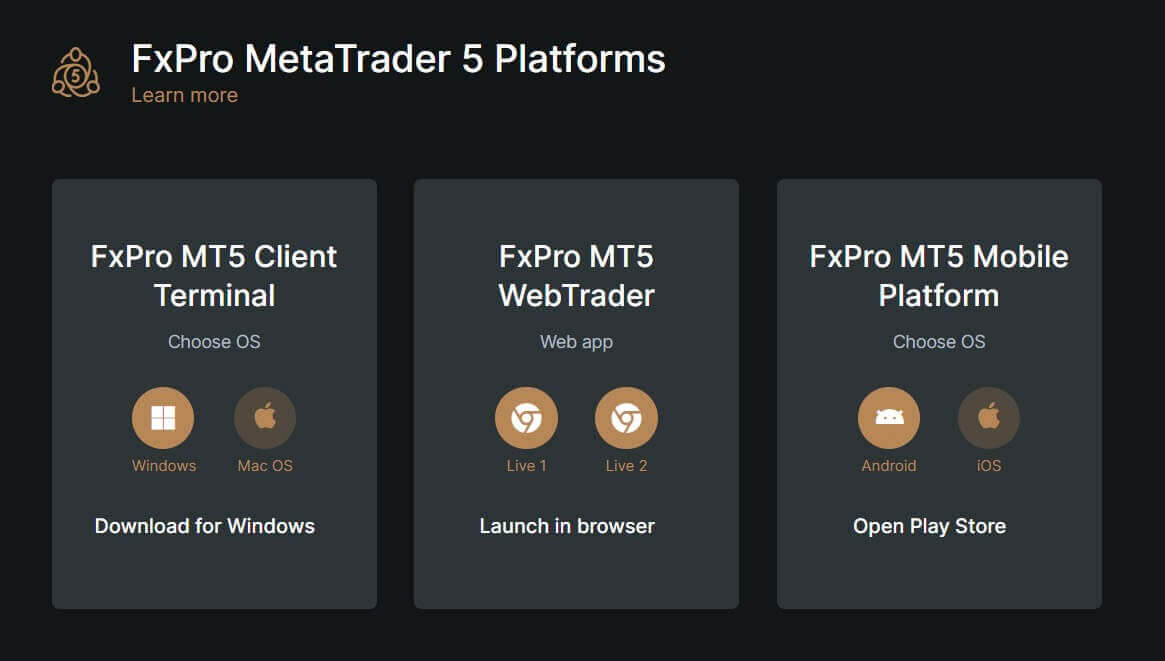
To log in to FxPro MT5, you’ll need the login credentials that FxPro sent to your email when you registered and set up your trading accounts. Make sure to check your email thoroughly.
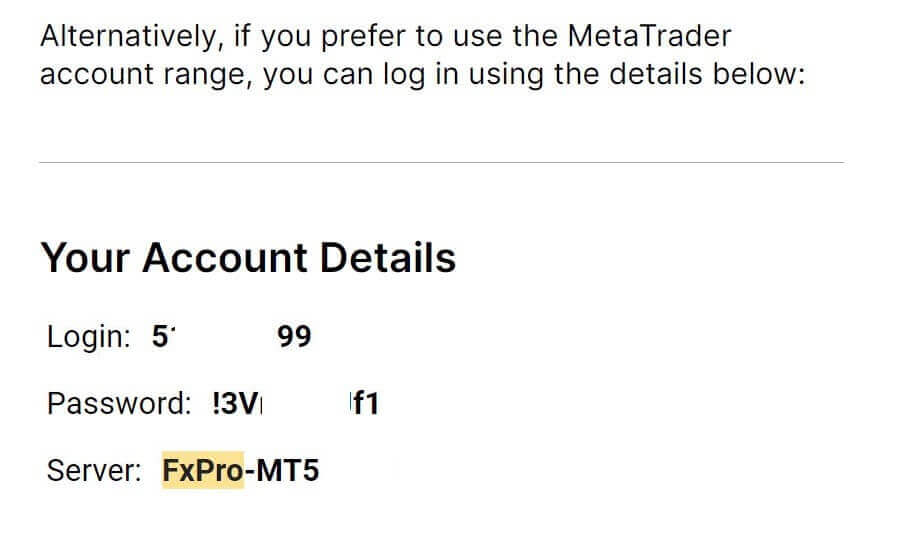
Just below your login information, click the "OPEN DOWNLOAD CENTRE" button to access the trading platform.
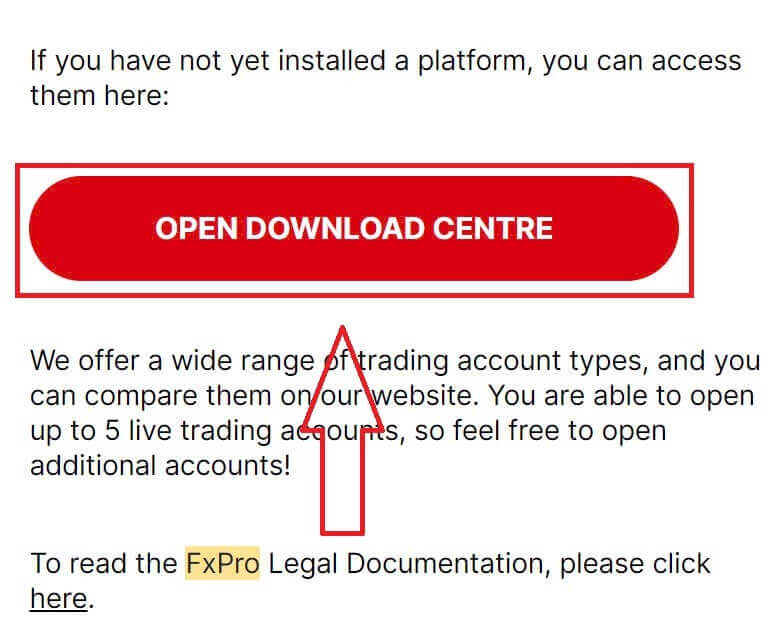
Depending on the platform, FxPro offers several trading options to provide a convenient experience, including:
-
Client Terminal Download.
-
MultiTerminal Download.
-
WebTrader Browser.
-
Mobile Platform.
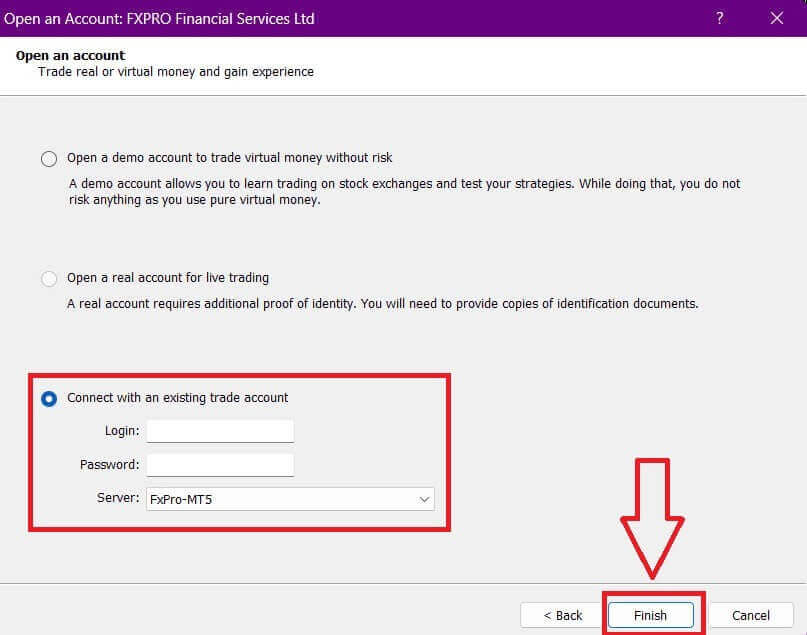
After accessing MT5, select the option "Connect with an existing trade account" and enter your login information as well as choose the server that matches the one in your email. Then, click "Finish" to complete the process.
Congratulations on successfully logging into MT5 with FxPro. Wishing you great success on your journey to becoming a trading master!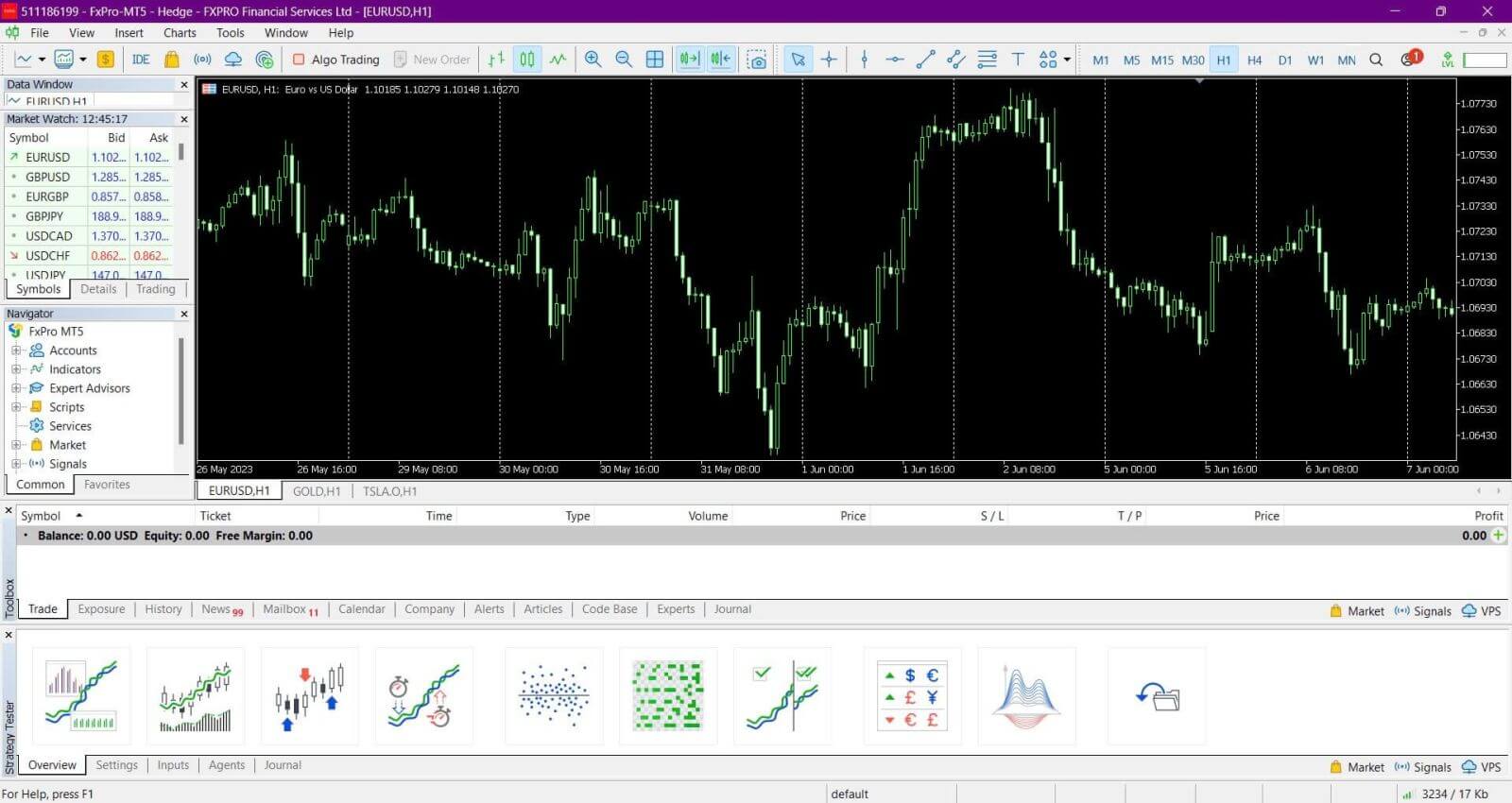
How to Login to FxPro [App]
First, open the App Store or Google Play on your mobile device, then search for "FxPro: Online Trading Broker" and download the app.
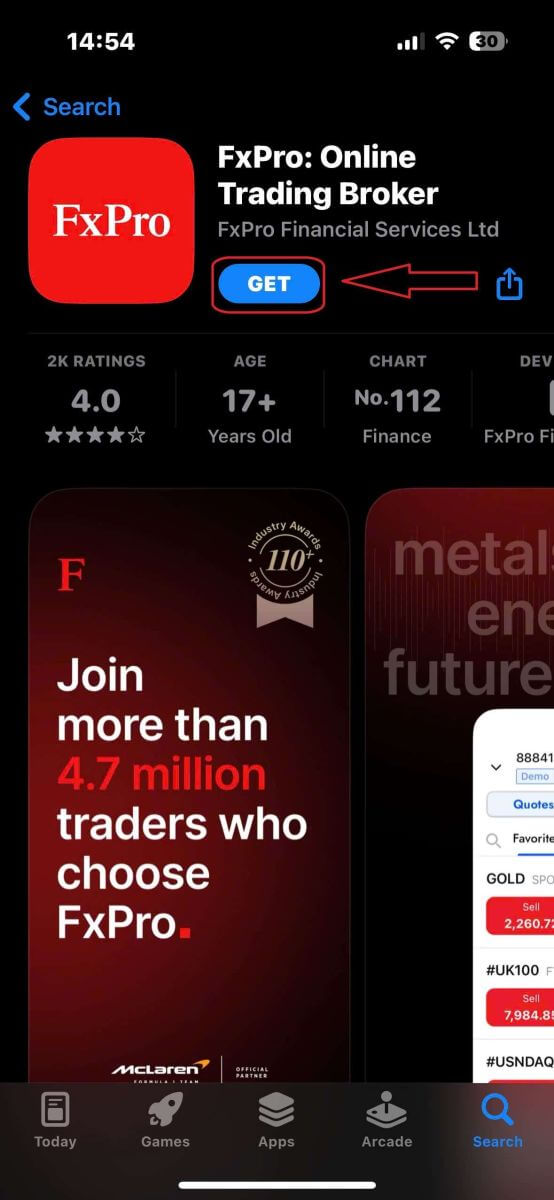
After installing the app, open it and select "Register with FxPro" to begin the account registration process.
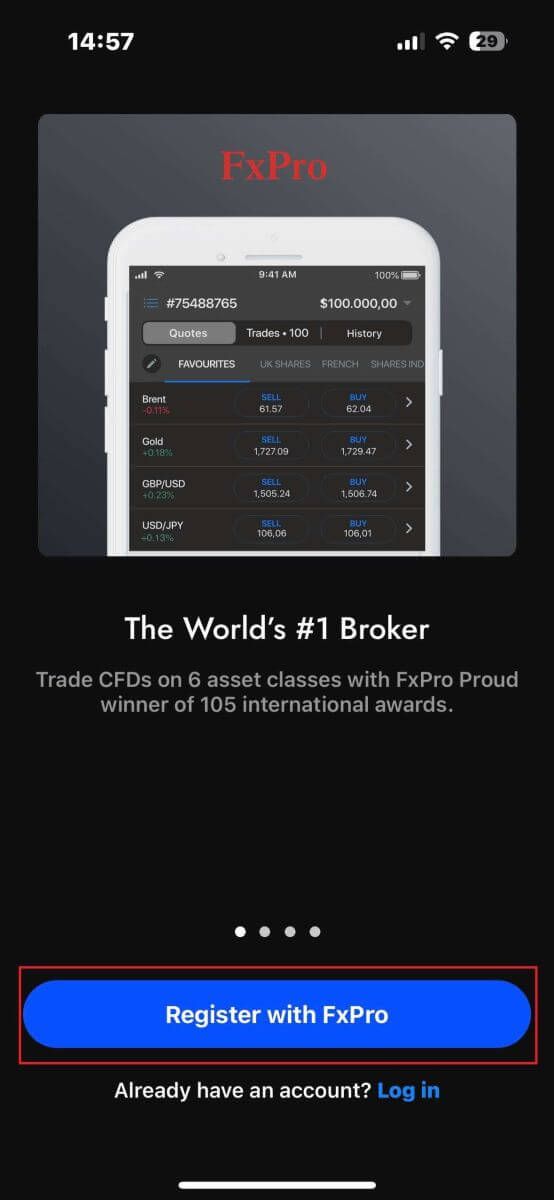
Having installed the mobile app, please log in with the email address and password you used to register. Once you finished, tap "Log in" to complete the login process.
If you don’t have an account with FxPro yet, follow the instructions in the following article: How to Register Account on FxPro.
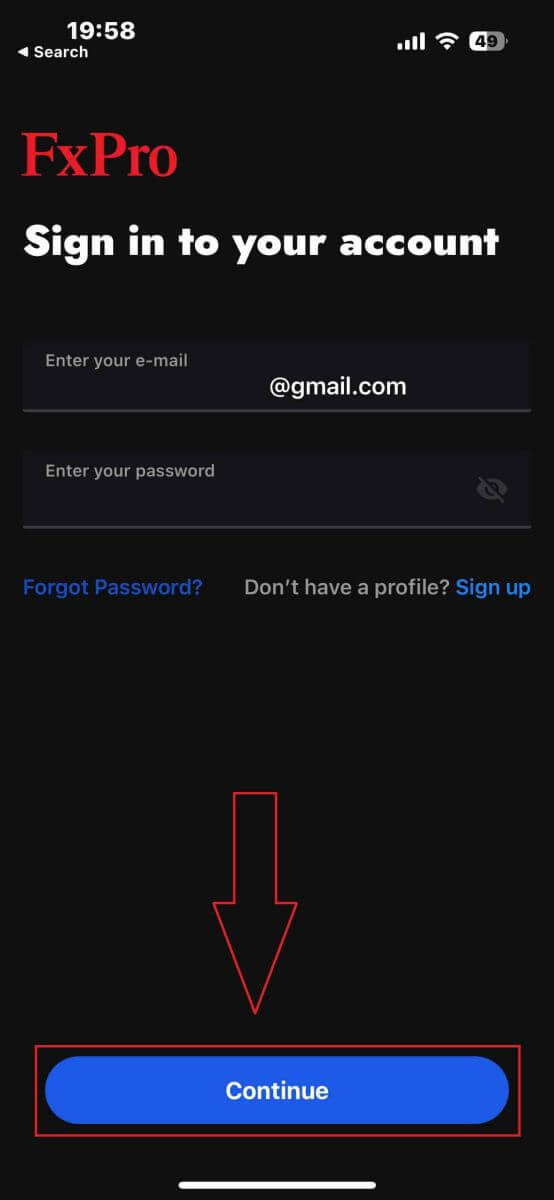
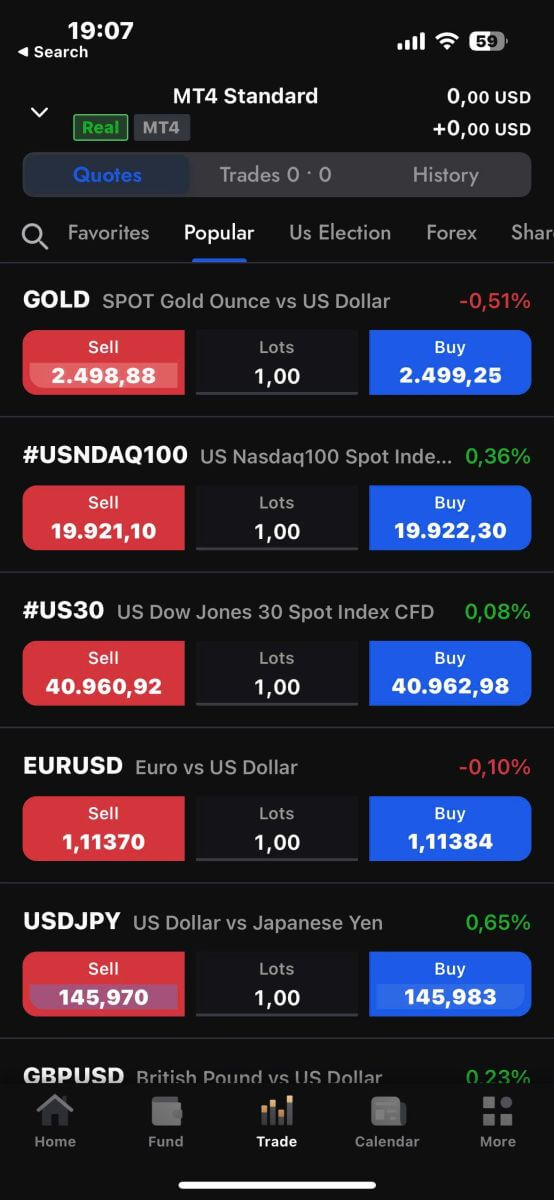
Congratulations on successfully logging into the FxPro Mobile App. Join us and trade anytime, anywhere!
How to Recover your FxPro password
To recover your password, start by visiting the FxPro website and clicking the "Login" button at the top right corner of the page.
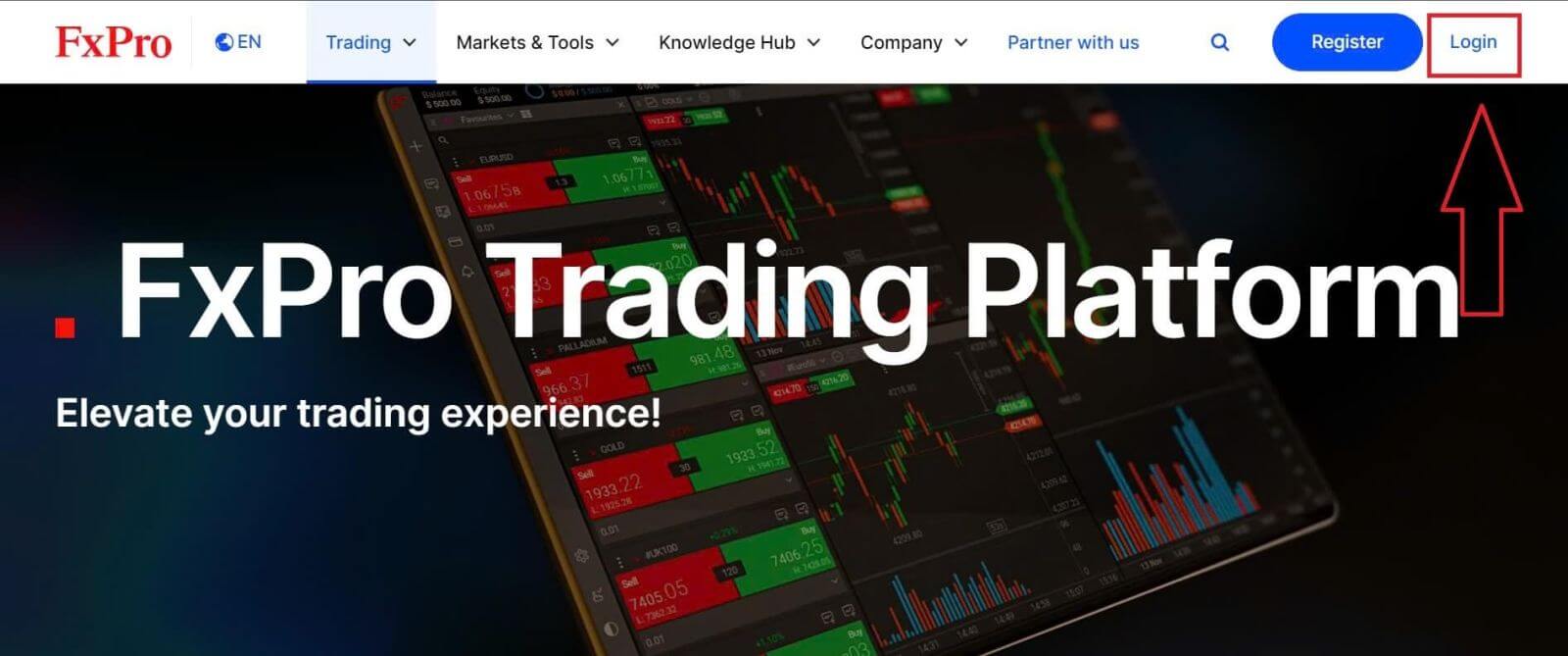
You will then be directed to the login page. Here, click on the "Forgot password?" link (as shown in the descriptive image) to start the process.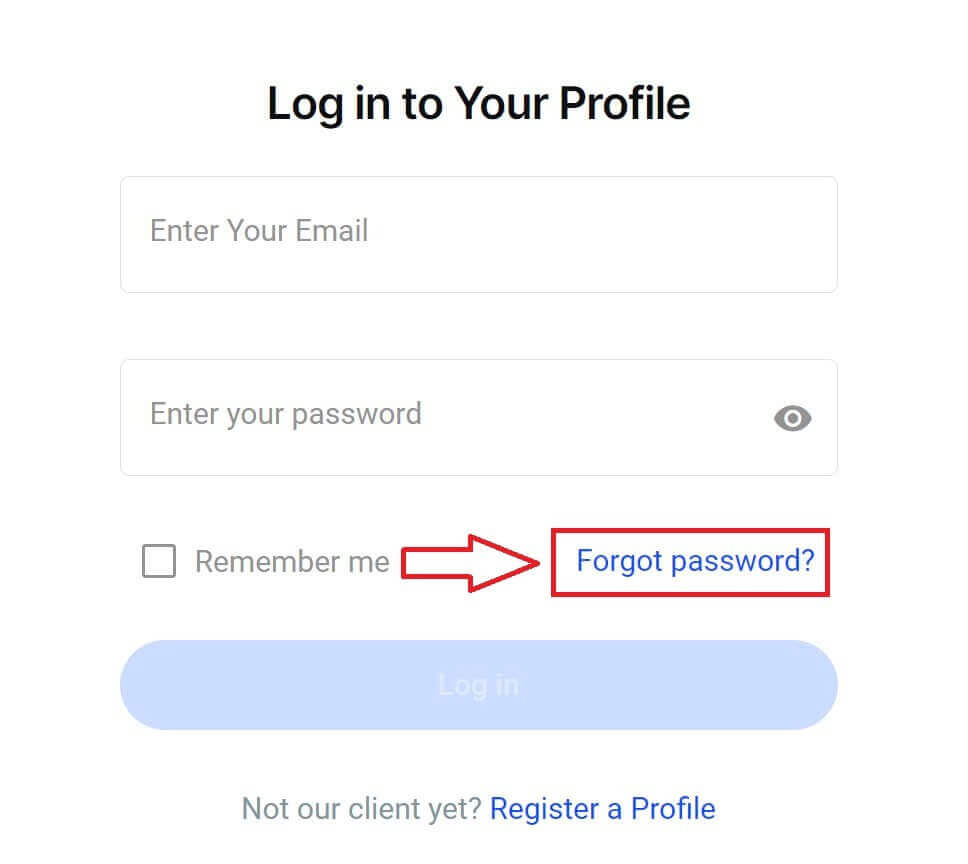
To begin, first, enter the email address you used to register your account. Then select "Reset Password."
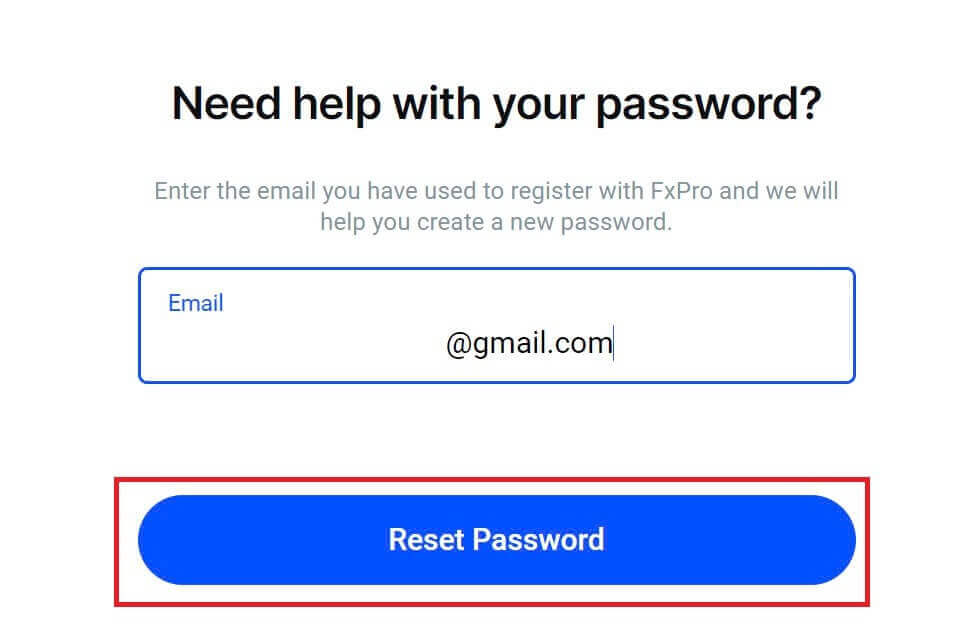
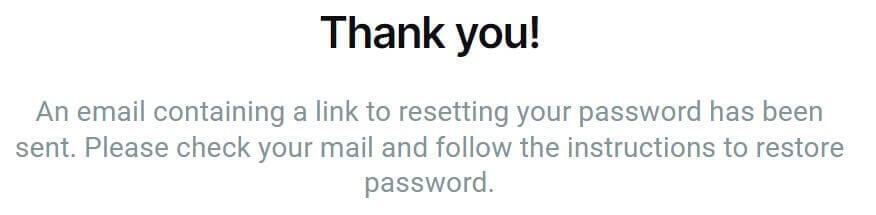
Immediately, an email with instructions to reset your password will be sent to that email address. Be sure to check your inbox carefully.
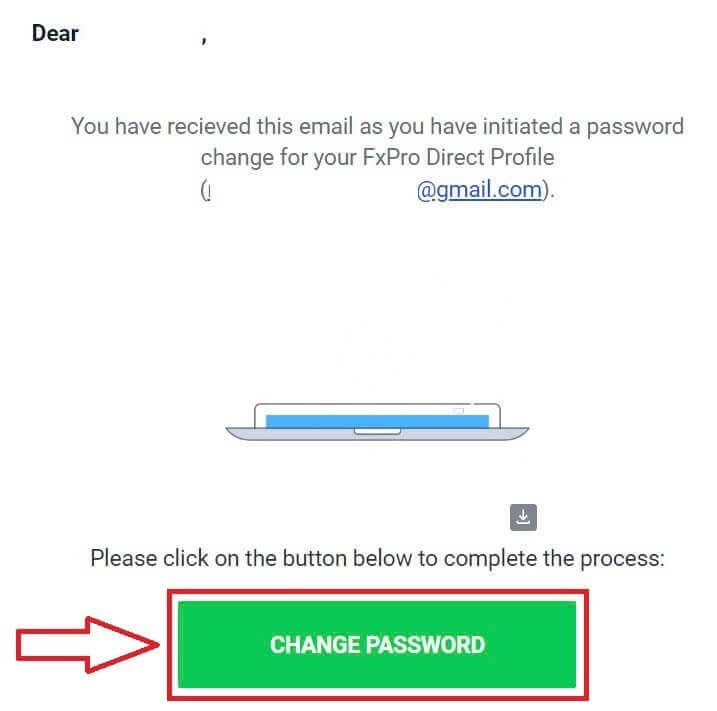
In the email you just received, scroll down and click the "CHANGE PASSWORD" button to be directed to the password reset page.
On this page, enter your new password into both fields (note that your password must be at least 8 characters long, including at least 1 uppercase letter, 1 number, and 1 special character—this is a mandatory requirement).
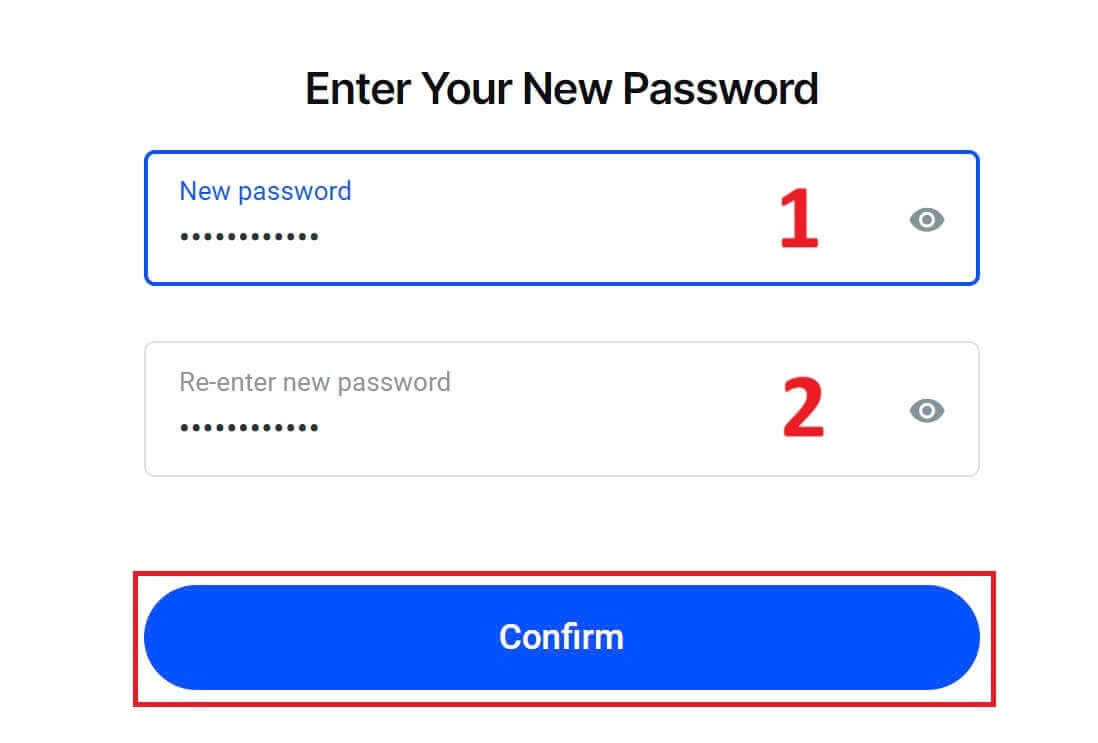
Congratulations on successfully resetting your password with FxPro. It’s great to see that FxPro prioritizes the safety and security of its users.

I can’t log in to my FxPro Dashboard
Experiencing difficulties logging into your Dashboard can be frustrating, but here’s a checklist to help you resolve the issue:
Username Check
Ensure you use your full registered email address as the username. Do not use a trading account number or your name.
Password Check
Use the PA password you set during registration.
-
Verify that there are no extra spaces added unintentionally, especially if you copied and pasted the password. Try entering it manually if problems persist.
-
Check if Caps Lock is on, as passwords are case-sensitive.
If you’ve forgotten your password, you can reset it using this link to reset your Personal Area password.
Account Check
If your account was previously terminated with FxPro, you will not be able to use that PA or email address again. Create a new PA with a different email address to register afresh.
We hope this helps! If you encounter any further issues, please contact our Support Team for assistance.
Frequently Asked Questions (FAQ)
How do I change the leverage of my trading account?
Log in to FxPro Direct, go to ‘My Accounts’, click on the Pencil icon next to your account number, and select ‘Change Leverage’ from the drop-down menu.
Please note that for the leverage of your trading account to be changed, all open positions must be closed.
Note: The maximum leverage available to you may vary depending on your jurisdiction.
How can I reactivate my account?
Please note that live accounts are disabled after 3 months of inactivity, but you may, however, reactivate them. Unfortunately, demo accounts cannot be reactivated, but you may open additional ones via FxPro Direct.
Are your platforms compatible with Mac?
The FxPro MT4 and FxPro MT5 trading platforms are both compatible with Mac and can be downloaded from our Download Centre. Please note that the web-based FxPro cTrader and FxPro cTrader platforms are also available on MAC.
Do you allow the use of trading algorithms on your platforms?
Yes. Expert Advisors are fully compatible with our FxPro MT4 and FxPro MT5 platforms, and cTrader Automate can be used on our FxPro cTrader platform. If you have any questions regarding Expert Advisors and cTrader Automate, please contact our Customer Support at [email protected].
How to download trading platforms MT4-MT5?
After you register and log into FxPro Direct, you will see the relevant platform links conveniently displayed on your ’Accounts’ page, next to each account number. From there you can directly install desktop platforms, open webtrader, or install mobile apps.
Alternatively, from the main website, go to the “All Tools” section and open the “Download Centre”.
Scroll down to see all the platforms available. Several types of terminals are provided: for the desktop, web version, and mobile application.
Select your operating system and click “Download”. The platform upload will start automatically.
Run the setup program from your computer and follow the prompts by clicking “Next”.
After the installation is complete, you can log in with the specific account details that you received in your email after the trading account registration at FxPro Direct. Now your trading with FxPro can begin!
How do I log in to the cTrader platform?
Your cTrader cTID is sent to you via email once the creation of your account has been confirmed.
cTID allows access to all FxPro cTrader accounts (demo live) using only one login and password.
By default, your cTID email will be the registered email address of your profile, and you can change the password to your own preference.
Once logged in with the cTID, you will be able to switch between any FxPro cTrader accounts registered under your profile.
How to Trade on FxPro
How to place a New Order on FxPro MT4
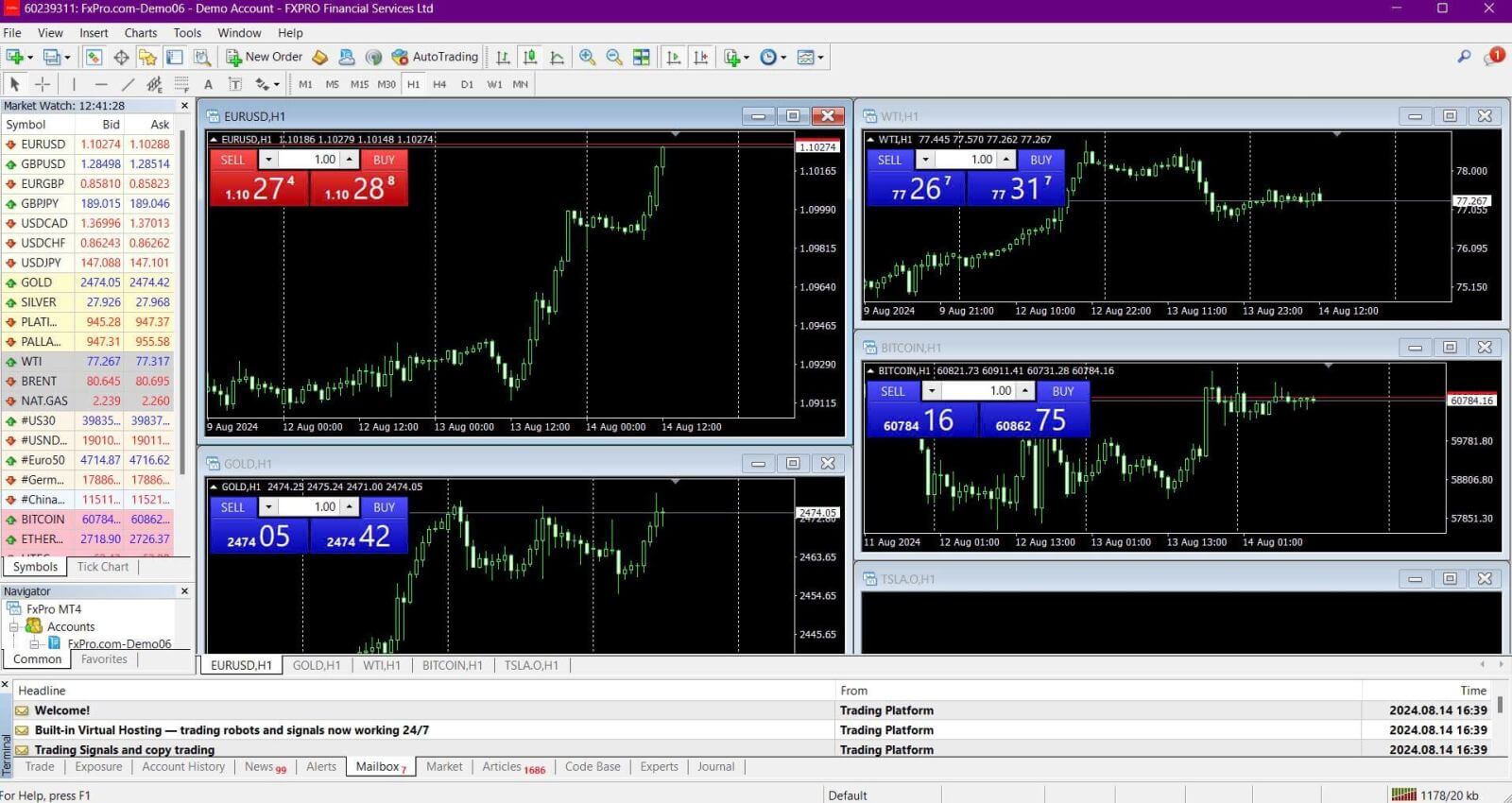
Initially, please download and log in to your FxPro MT4. If you don’t know how to do so, please refer to this article with detailed and simple instructions: How to Login to FxPro
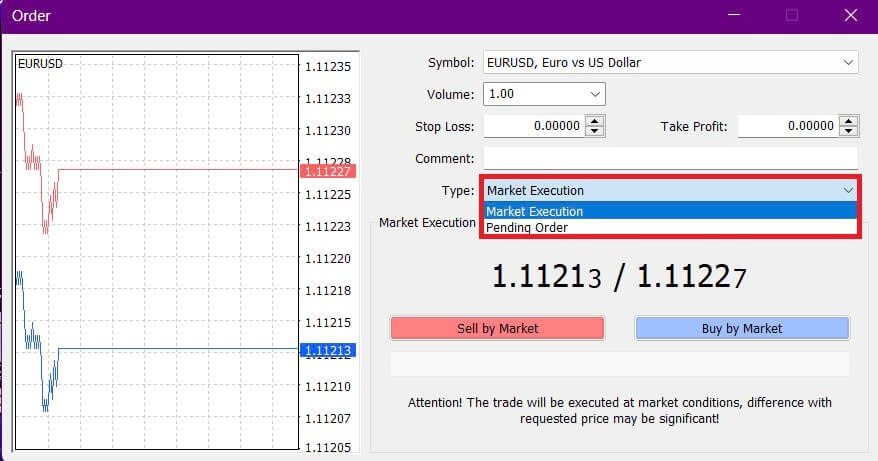
Please right-click on the chart, then click “Trading” and select “New Order” or double-click on the currency you want to place an order on in MT4, then the Order window will appear.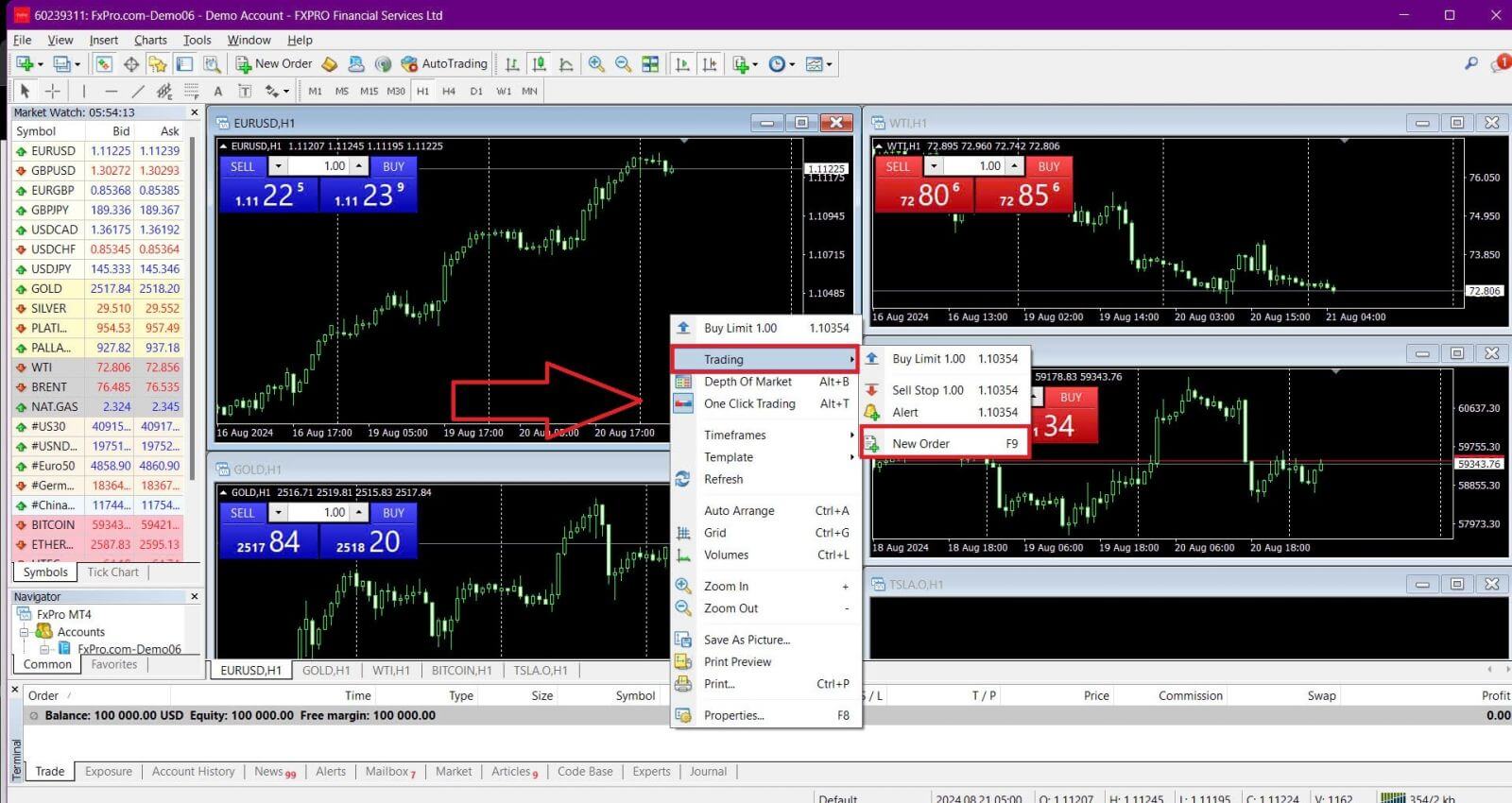
Symbol: Ensure that the currency symbol you wish to trade is displayed in the symbol box.
Volume: Decide the size of your contract. You can either click the arrow to choose the volume from the drop-down options or left-click in the volume box and type in the desired value. Remember that your contract size directly impacts your potential profit or loss.
Comment: This section is optional, but you can use it to add comments to identify your trades.
Type: The type is set to Market Execution by default:
-
Market Execution: Executes orders at the current market price.
-
Pending Order: Allows you to set a future price at which you intend to open your trade.
Finally, choose the order type to open — either a sell or a buy order:
-
Sell by Market: Opens at the bid price and closes at the ask price. This order type may bring profit if the price goes down.
-
Buy by Market: Opens at the asking price and closes at the bid price. This order type may bring profit if the price goes up.
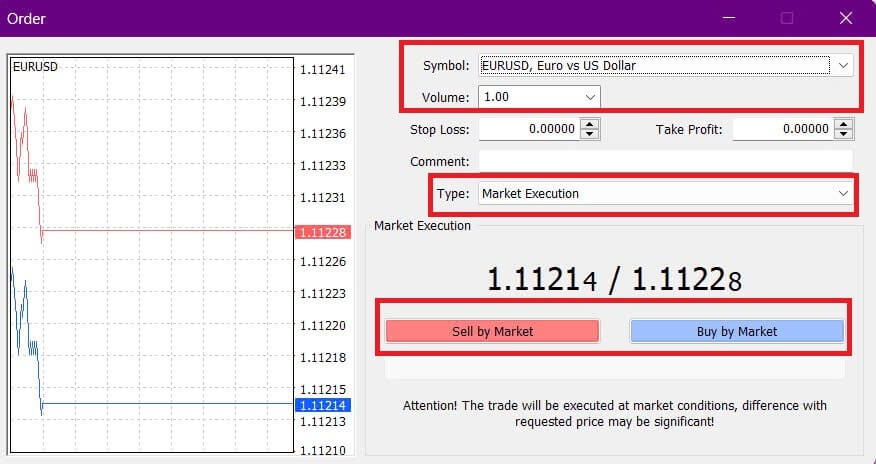
Once you click on either Buy or Sell, your order will be processed immediately. You can check the status of your order in the Trade Terminal.

How to place a Pending Order on FxPro MT4
How Many Pending Orders
Unlike instant execution orders, where trades are placed at the current market price, pending orders allow you to set orders that will be executed once the price reaches a specific level chosen by you. There are four types of pending orders, which can be grouped into two main categories:
-
Orders expecting to break a certain market level.
-
Orders are expected to bounce back from a certain market level.
Buy Stop
This order allows you to set a buy order above the current market price. For example, if the current market price is $20 and you set a Buy Stop at $22, a buy (or long) position will be opened once the market reaches $22.
Sell Stop
This order allows you to set a sell order below the current market price. For instance, if the current market price is $20 and you set a Sell Stop at $18, a sell (or short) position will be opened once the market reaches $18.
Buy Limit
This order is the opposite of a Buy Stop, allowing you to set a buy order below the current market price. For example, if the current market price is $20 and you set a Buy Limit at $18, a buy position will be opened once the market reaches the $18 level.
Sell Limit
This order allows you to set a sell order above the current market price. For instance, if the current market price is $20 and you set a Sell Limit at $22, a sell position will be opened once the market reaches the $22 level.
Opening Pending Orders
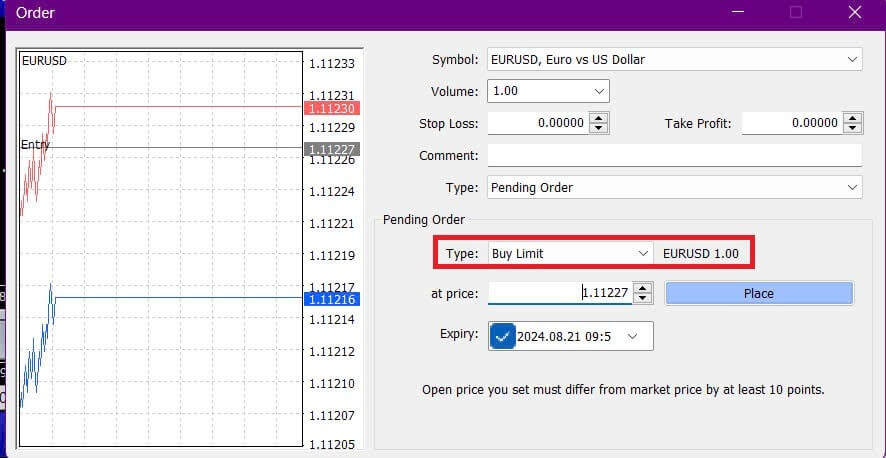
You can open a new pending order by double-clicking on the name of the market in the Market Watch module. This will open the new order window, where you can change the order type to "Pending Order".
Next, choose the market level at which the pending order will be activated and set the position size based on the volume.
If needed, you can also set an expiration date (Expiry). Once you have configured all these parameters, select the desired order type based on whether you want to go long or short and whether you’re using a stop or limit order. Finally, click the "Place" button to complete the process.
Pending orders are powerful features of MT4. They are especially useful when you can’t constantly monitor the market for your entry point or when the price of an instrument changes quickly, ensuring you don’t miss the opportunity.
How to close Orders on FxPro MT4
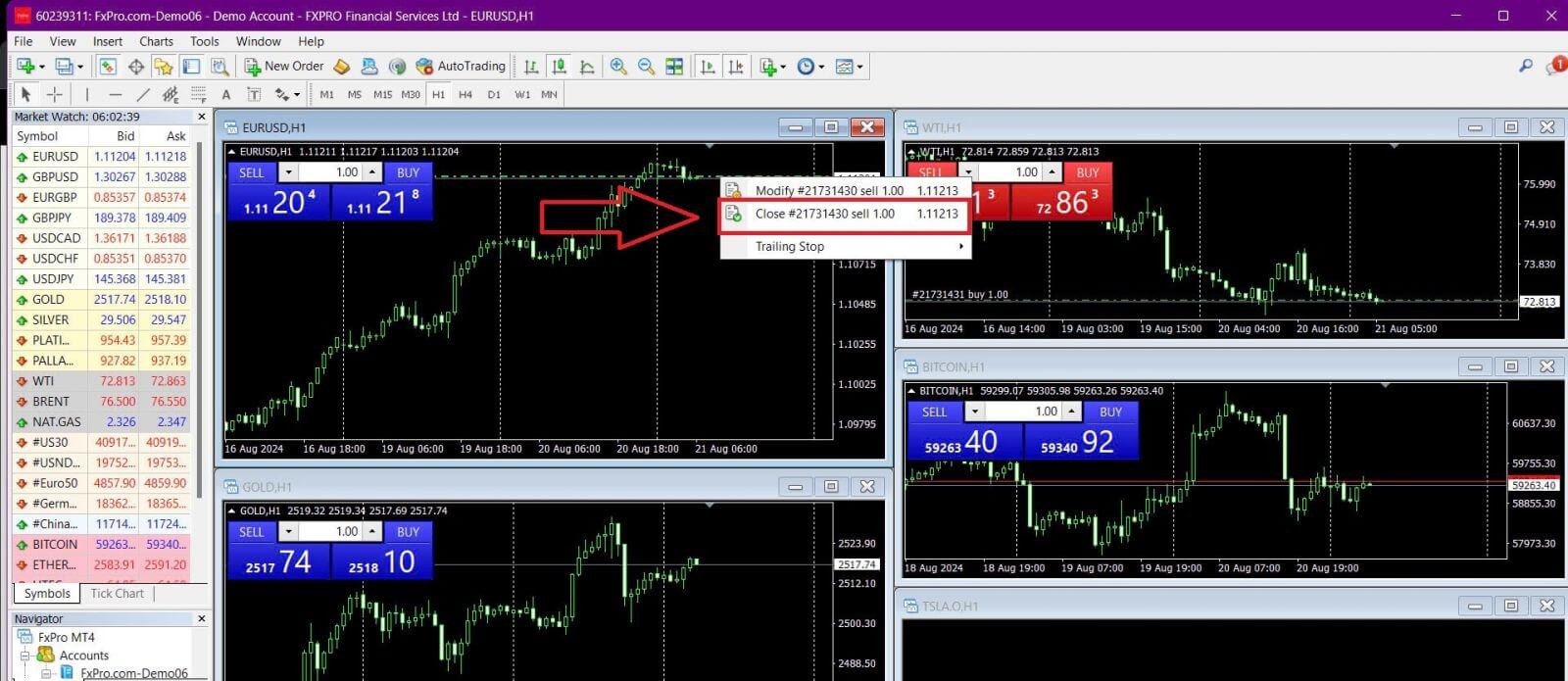
To close an open position, click the "x" in the Trade tab of the Terminal window.

Alternatively, right-click the line order on the chart and select "Close".
If you want to close only a part of your position, right-click on the open order and select "Modify". In the Type field, choose instant execution and specify the portion of the position you want to close.
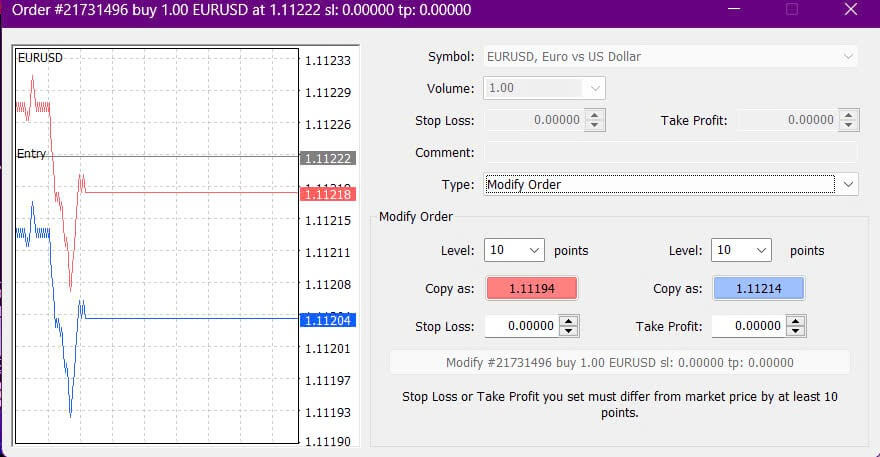
As you can see, opening and closing trades on MT4 is very intuitive and can be done with just one click.
Using Stop Loss, Take Profit, and Trailing Stop on FxPro MT4
One of the keys to long-term success in financial markets is effective risk management. Therefore, incorporating stop losses and taking profits into your trading strategy is essential.
Let’s explore how to use these features on the MT4 platform to help you limit risk and maximize your trading potential.
Setting Stop Loss and Take Profit
The simplest way to add a Stop Loss or Take Profit to your trade is by setting it up when placing new orders.
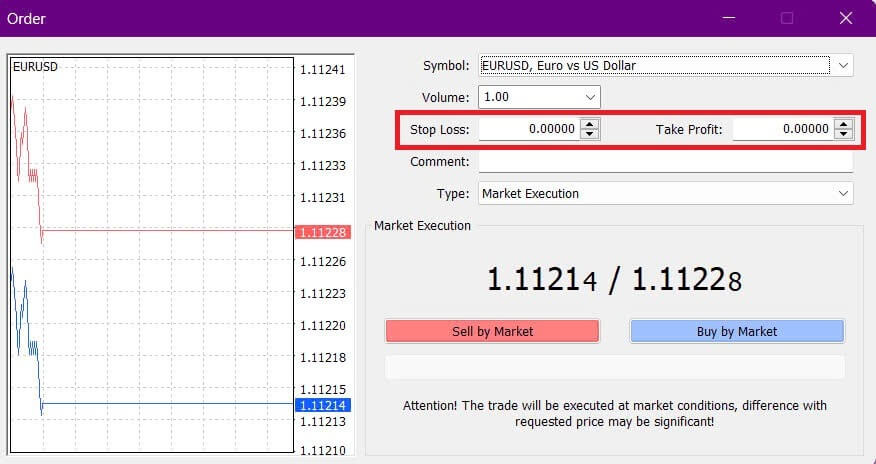
To set a Stop Loss or Take Profit when placing a new order, simply enter your desired price levels in the Stop Loss and Take Profit fields. The Stop Loss will automatically trigger if the market moves against your position, while the Take Profit will trigger when the price reaches your specified target. You can set the Stop Loss level below the current market price and the Take Profit level above it.
Remember, a Stop Loss (SL) or Take Profit (TP) is always linked to an open position or a pending order. You can adjust these levels after opening a trade while monitoring the market. Although they are not mandatory when opening a new position, adding them is highly recommended to protect your trades.
Adding Stop Loss and Take Profit Levels
The easiest way to add SL/TP levels to an already open position is by using the trade line on the chart. Simply drag and drop the trade line up or down to your desired level.
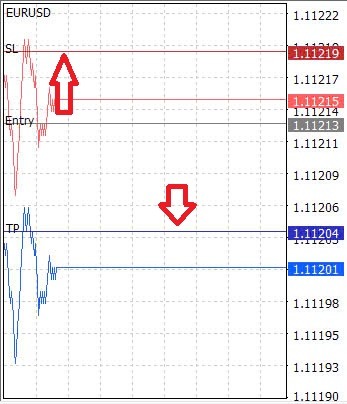
Once you’ve set the SL/TP levels, the SL/TP lines will appear on the chart, allowing you to easily modify them as needed.
You can also adjust SL/TP levels from the bottom "Terminal" module. To do this, right-click on your open position or pending order and select "Modify" or "Delete" order.
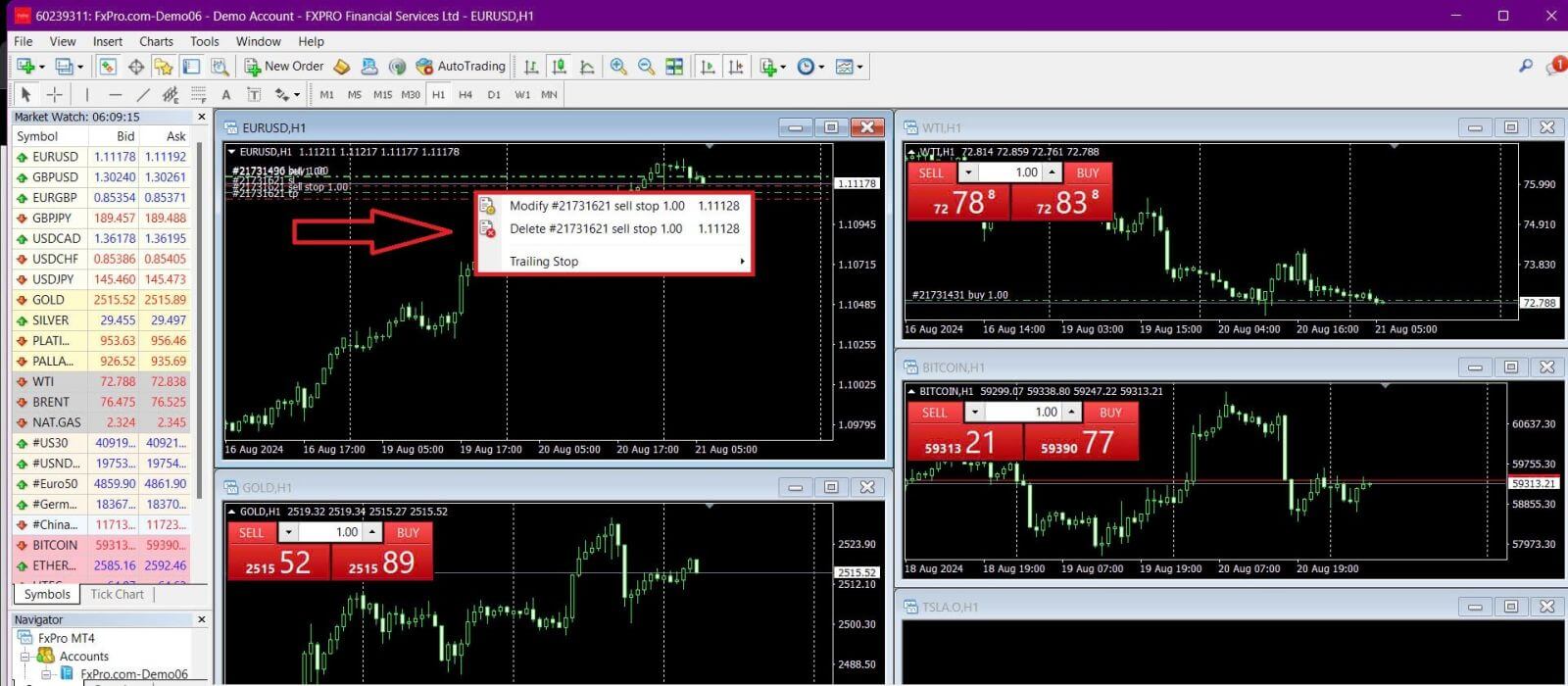
The order modification window will appear, allowing you to enter or adjust SL/TP levels either by specifying the exact market price or by defining the points range from the current market price.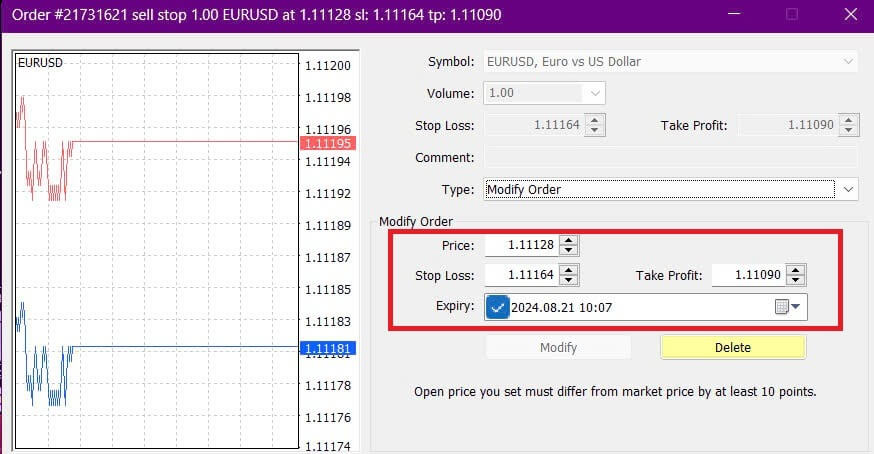
Trailing Stop
Stop Losses are designed to limit losses when the market moves against your position, but they can also help you lock in profits.
While it may seem counterintuitive, this concept is easy to understand. For example, if you’ve opened a long position and the market moves favorably, making your trade profitable, you can move your original Stop Loss (set below your open price) to your open price to break even, or even above the open price to secure a profit.
To automate this process, you can use a Trailing Stop. This tool is particularly useful for managing risk when price movements are rapid or when you can’t constantly monitor the market. As soon as your position becomes profitable, the Trailing Stop will automatically follow the price, maintaining the previously set distance.
Please remember that your trade must be profitable by a sufficient amount for the Trailing Stop to move above your open price and guarantee a profit.
Trailing Stops (TS) are linked to your open positions, but keep in mind that MT4 needs to be open for the Trailing Stop to be executed successfully.
To set a Trailing Stop, right-click the open position in the "Terminal" window and specify your desired pip value for the distance between the TP level and the current price in the Trailing Stop menu.
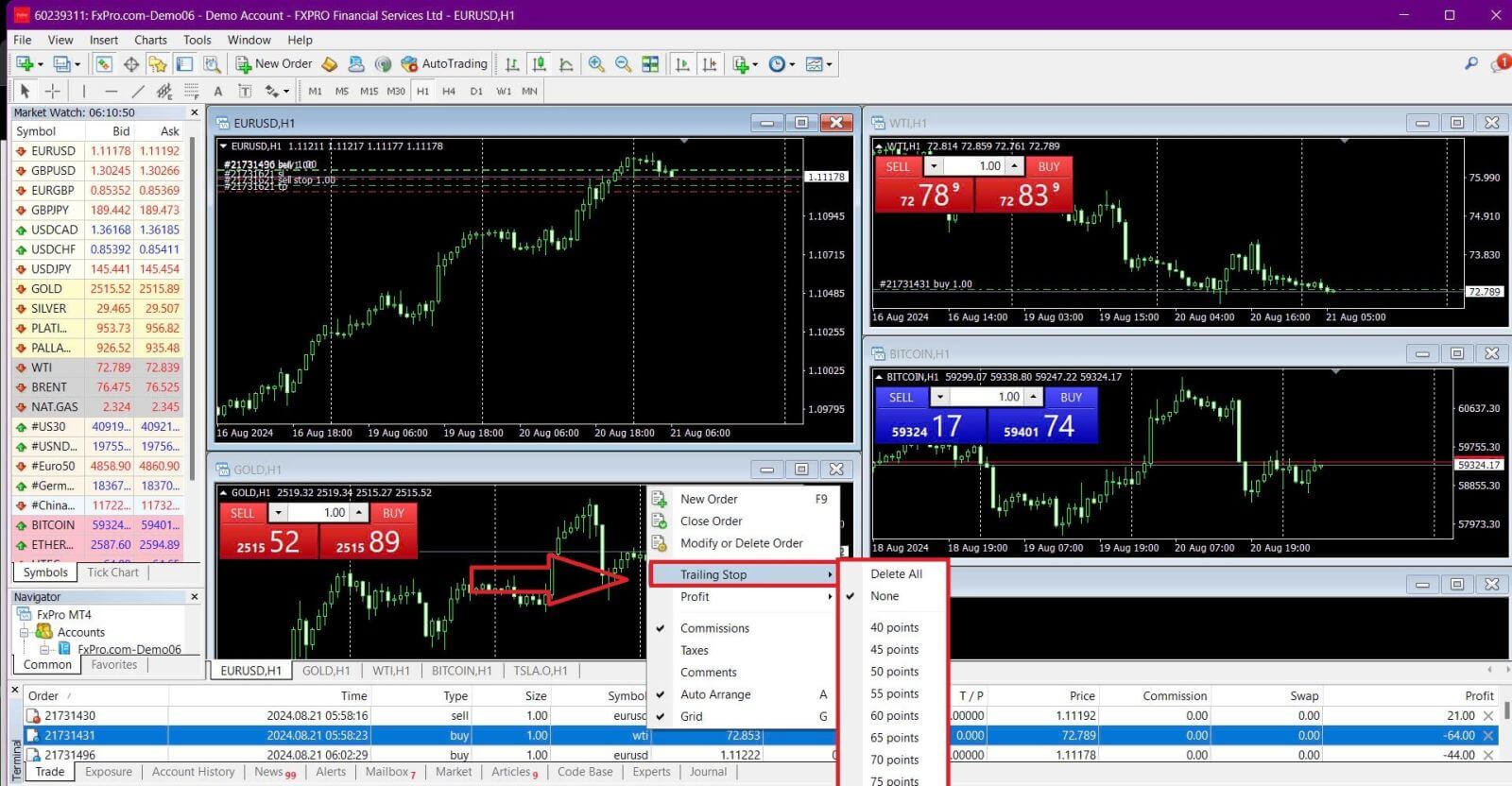
Your Trailing Stop is now active, meaning it will automatically adjust the stop loss level if the price moves in your favor.
You can easily disable the Trailing Stop by selecting "None" in the Trailing Stop menu. To quickly deactivate it for all open positions, choose "Delete All".
MT4 offers multiple ways to protect your positions quickly and efficiently.
While Stop Loss orders are effective for managing risk and keeping potential losses in check, they don’t offer 100% security.
Stop losses are free to use and help protect your account from adverse market moves, but they cannot guarantee execution at your desired level. In volatile markets, prices may gap beyond your stop level (jump from one price to the next without trading in between), which can result in a worse closing price than expected. This is known as price slippage.
Guaranteed Stop Losses, which ensure your position is closed at the requested Stop Loss level without the risk of slippage, are available for free with a basic account.
Frequently Asked Questions (FAQ)
Currency Pair, Cross Pairs, Base Currency, and Quote Currency
Currency pairs represent the exchange rate between two currencies in the foreign exchange market. For example, EURUSD, GBPJPY, and NZDCAD are currency pairs.
A currency pair that does not include USD is referred to as a cross pair.
In a currency pair, the first currency is known as the "base currency," while the second currency is called the "quote currency."
Bid Price and Ask Price
The Bid Price is the price at which a broker will buy the base currency of a pair from the client. Conversely, it is the price at which clients sell the base currency.
The Ask Price is the price at which a broker will sell the base currency of a pair to the client. Similarly, it is the price at which clients buy the base currency.
Buy orders are opened at the Ask Price and closed at the Bid Price.
Sell orders are opened at the Bid Price and closed at the Ask Price.
Spread
The spread is the difference between the Bid and Ask prices of a trading instrument and is the primary source of profit for market maker brokers.
The spread value is measured in pips.FxPro provides both dynamic and stable spreads across its accounts.
Lot and Contract Size
A lot is a standard unit size of a transaction. Generally, one standard lot equals 100,000 units of the base currency.
Contract size refers to the fixed amount of base currency in one lot. For most forex instruments, this is set at 100,000 units.
Pip, Point, Pip Size, and Pip Value
A point represents a price change in the 5th decimal place, while a pip signifies a price change in the 4th decimal place.
In other words, 1 pip equals 10 points.
For example, if the price moves from 1.11115 to 1.11135, the change is 2 pips or 20 points.
Pip size is a fixed number that indicates the position of the pip in the instrument’s price. For most currency pairs, such as EURUSD, where the price is displayed as 1.11115, the pip is at the 4th decimal place, so the pip size is 0.0001.
Pip Value represents the monetary gain or loss for a one-pip movement. It is calculated using the formula:
Pip Value = Number of Lots x Contract Size x Pip Size.
Our trader’s calculator can help you determine these values.
Leverage and Margin
Leverage is the ratio of equity to borrowed capital and directly affects the margin required for trading an instrument. FxPro provides up to 1
leverage on most trading instruments for both MT4 and MT5 accounts.
Margin is the amount of funds held in the account currency by a broker to keep an order open.
Higher leverage results in a lower margin requirement.
Balance, Equity, and Free Margin
Balance is the total financial result of all completed transactions and deposit/withdrawal operations in an account. It represents the amount of funds available before opening any orders or after closing all open orders.
The balance remains unchanged while orders are open.
When an order is opened, the balance combined with the profit or loss of the order equals Equity.
Equity = Balance +/- Profit/Loss
Part of the funds is held as a Margin when an order is open. The remaining funds are referred to as Free Margin.
Equity = Margin + Free Margin
Balance is the total financial result of all completed transactions and deposit/withdrawal operations in an account. It represents the amount of funds available before opening any orders or after closing all open orders.
The balance remains unchanged while orders are open.
When an order is opened, the balance combined with the profit or loss of the order equals Equity.
Equity = Balance +/- Profit/Loss
Part of the funds is held as a Margin when an order is open. The remaining funds are referred to as Free Margin.
Equity = Margin + Free Margin
Profit and Loss
Profit or Loss is determined by the difference between the closing and opening prices of an order.
Profit/Loss = Difference between closing and opening prices (in pips) x Pip Value
Buy orders profit when the price rises, whereas Sell orders profit when the price falls.
Conversely, Buy orders incur a loss when the price drops, while Sell orders lose when the price increases.
Margin Level, Margin Call, and Stop Out
The Margin Level represents the ratio of equity to margin, expressed as a percentage.
Margin Level = (Equity / Margin) x 100%
A Margin Call is a warning issued in the trading terminal, indicating that additional funds need to be deposited or positions need to be closed to prevent a stop-out. This alert is triggered when the Margin Level reaches the Margin Call threshold set by the broker.
A Stop Out occurs when the broker automatically closes positions once the Margin Level drops to the Stop Out level established for the account.
How to check your trading history
To access your trading history:
From Your Trading Terminal:
-
MT4 or MT5 Desktop Terminals: Navigate to the Account History tab. Note that MT4 archives history after a minimum of 35 days to reduce server load, but you can still access your trading history through log files.
-
MetaTrader Mobile Applications: Open the Journal tab to view the history of trades performed on your mobile device.
From Monthly/Daily Statements: FxPro sends account statements to your email daily and monthly (unless unsubscribed). These statements include your trading history.
Contacting Support: Reach out to the Support Team via email or chat. Provide your account number and secret word to request account history statements for your real accounts.
Is it possible to lose more money than I deposited?
FxPro offers Negative Balance Protection (NBP) for all clients, regardless of their categorization jurisdiction, thereby ensuring that you cannot lose more than your total deposits.
For more details please refer to our ‘Order Execution Policy’.
FxPro also provides a stop-out level, which will cause trades to be closed when a certain margin level % is reached. The stop-out level will depend on the account type and jurisdiction under which you are registered.
Conclusion: Fast-Track Your Forex Trading with FxPro
Logging in to FxPro and beginning your forex trading journey is a quick and straightforward process. With a user-friendly interface and powerful trading tools at your disposal, FxPro ensures that you can dive into the forex markets with ease. Whether you’re executing your first trade or managing an extensive portfolio, FxPro provides the speed and reliability needed to maximize your trading potential.