FxPro Login and Verification: Account Access & KYC Steps

Account verification is the compliance gate that enables full trading and withdrawal privileges—prepare a government ID and a recent proof of address, upload clear scans, and match the data on your profile to avoid rejections. Verification reviews typically complete within a few business days but can be delayed by unreadable documents, name mismatches, or PO boxes on address proofs. Keep files within the stated size and format limits, monitor verification status in your dashboard, and use the secure upload tools to protect personal data while waiting for approval.

How to Login to FxPro
How to Login to FxPro [Web]
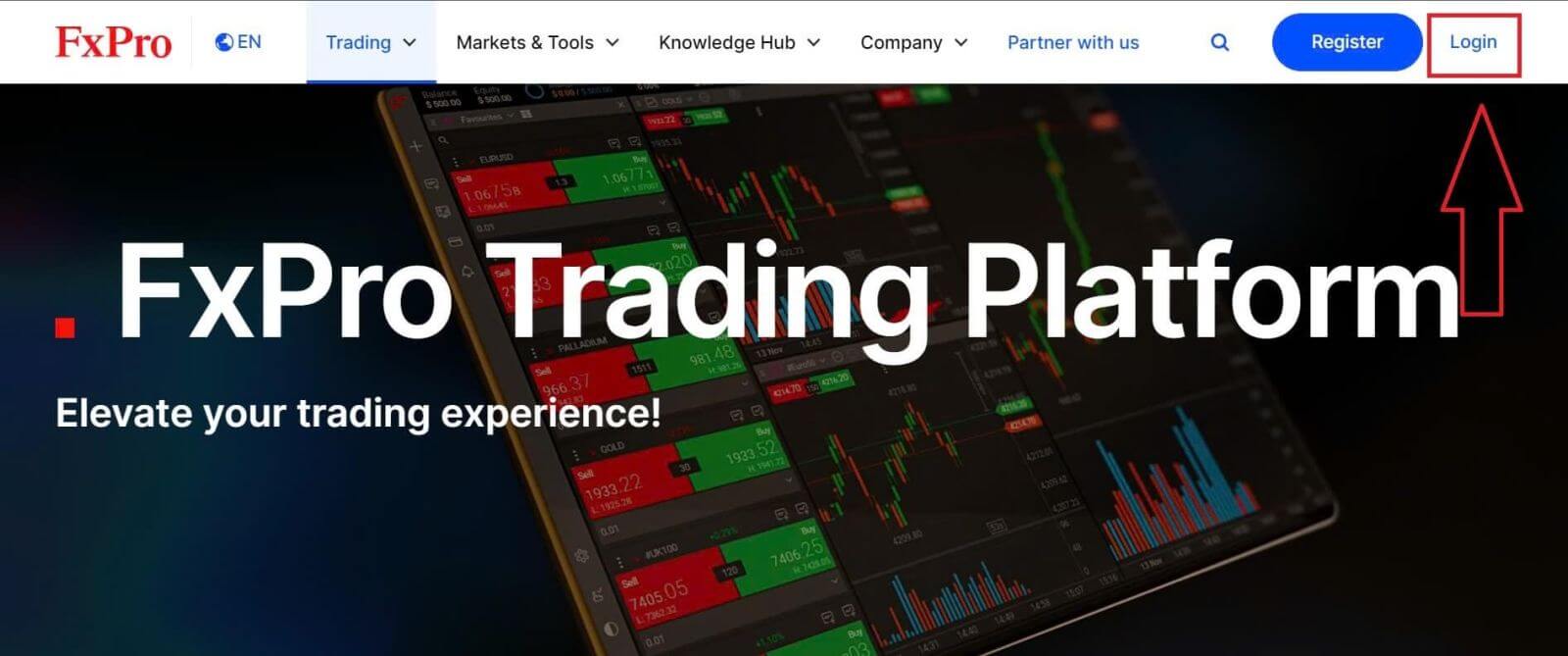
First, visit the FxPro homepage and click the "Login" button at the top right corner of the screen to be directed to the login page.
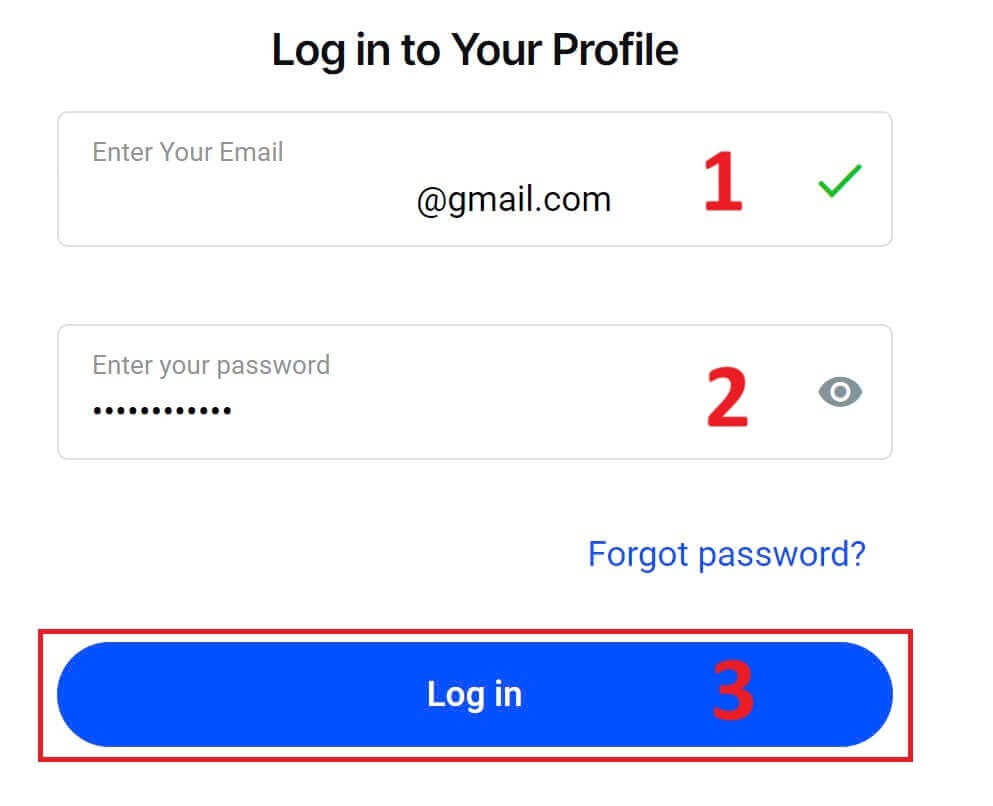
You will then be directed to the login page where you will log in with the email address and password you used to register. Once you finished, click "Log in" to complete the login process.
If you don’t have an account with FxPro yet, follow the instructions in the following article: How to Register Account on FxPro.
Logging into FxPro is easy—join us now!
How to Login to Trading Platform: MT4
To log in to FxPro MT4, you first need the login credentials that FxPro sent to your email when you registered your account and created new trading accounts. Be sure to check your email carefully.
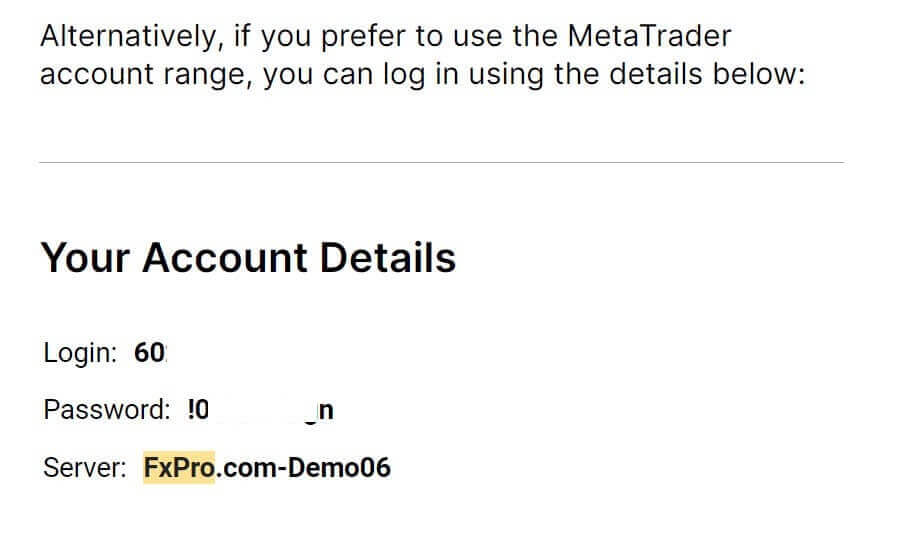
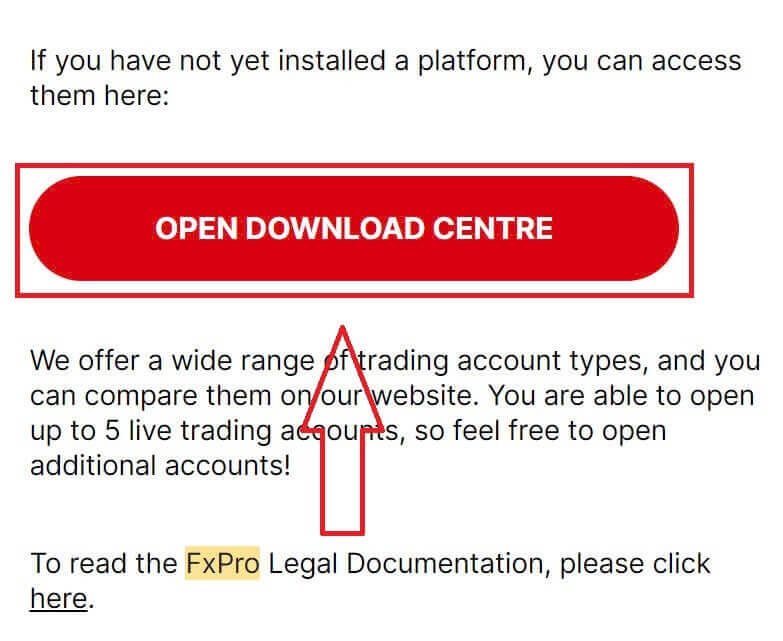
Right below your login information, select the "OPEN DOWNLOAD CENTRE" button to access the trading platform.
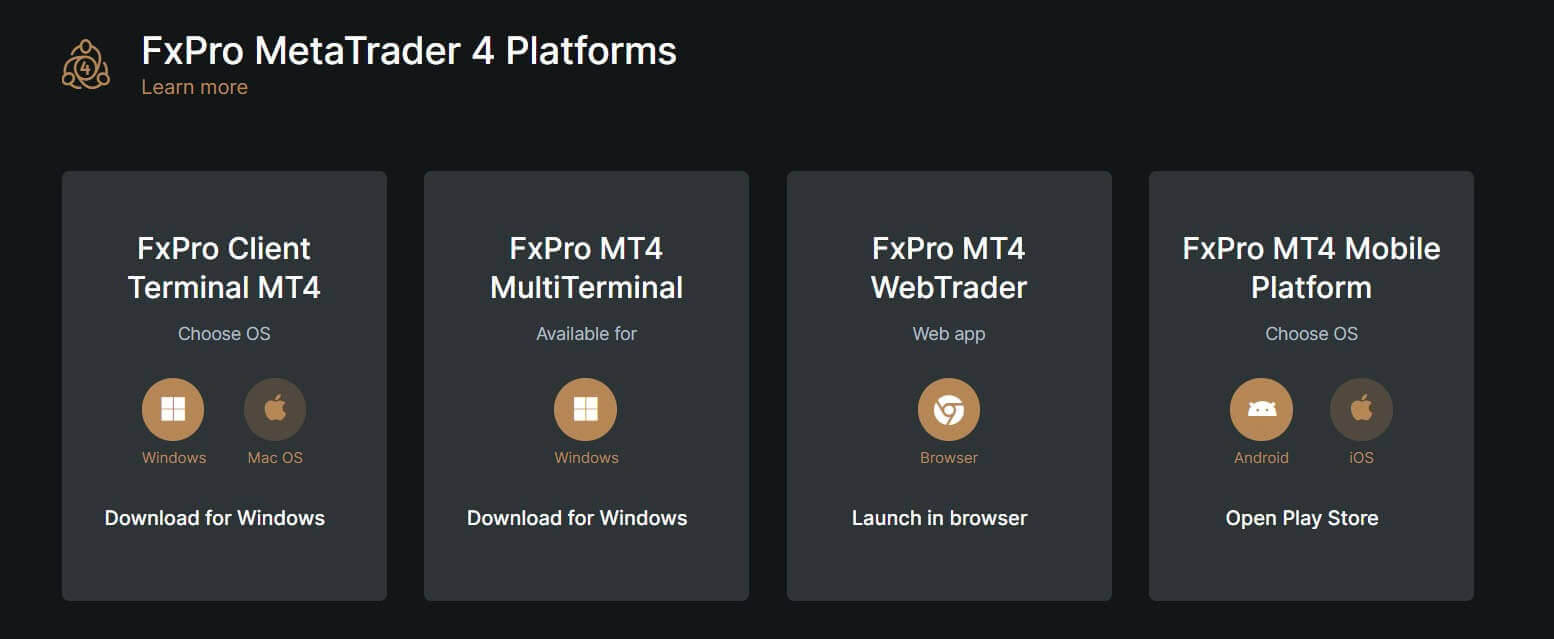
Depending on the platform, FxPro supports users with various trading options to ensure the most convenient experience, including:
-
Client Terminal Download.
-
MultiTerminal Download.
-
WebTrader Browser.
-
Mobile Platform.
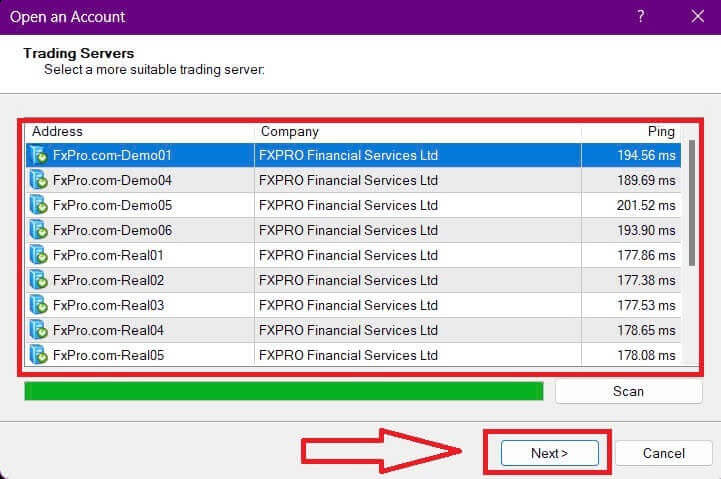
After selecting the most convenient option for yourself, open MT4 and start by choosing the server (please note that the server must match the server specified in your login credentials from the registration email).
Once you finish, please click "Next" to proceed.
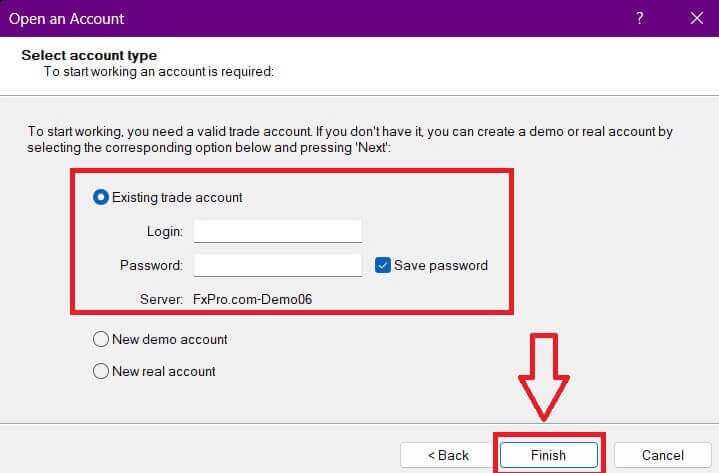
Then, in the second window that appears, select "Existing trade account" and enter your login credentials into the corresponding fields.
Click "Finish" after completing the information.
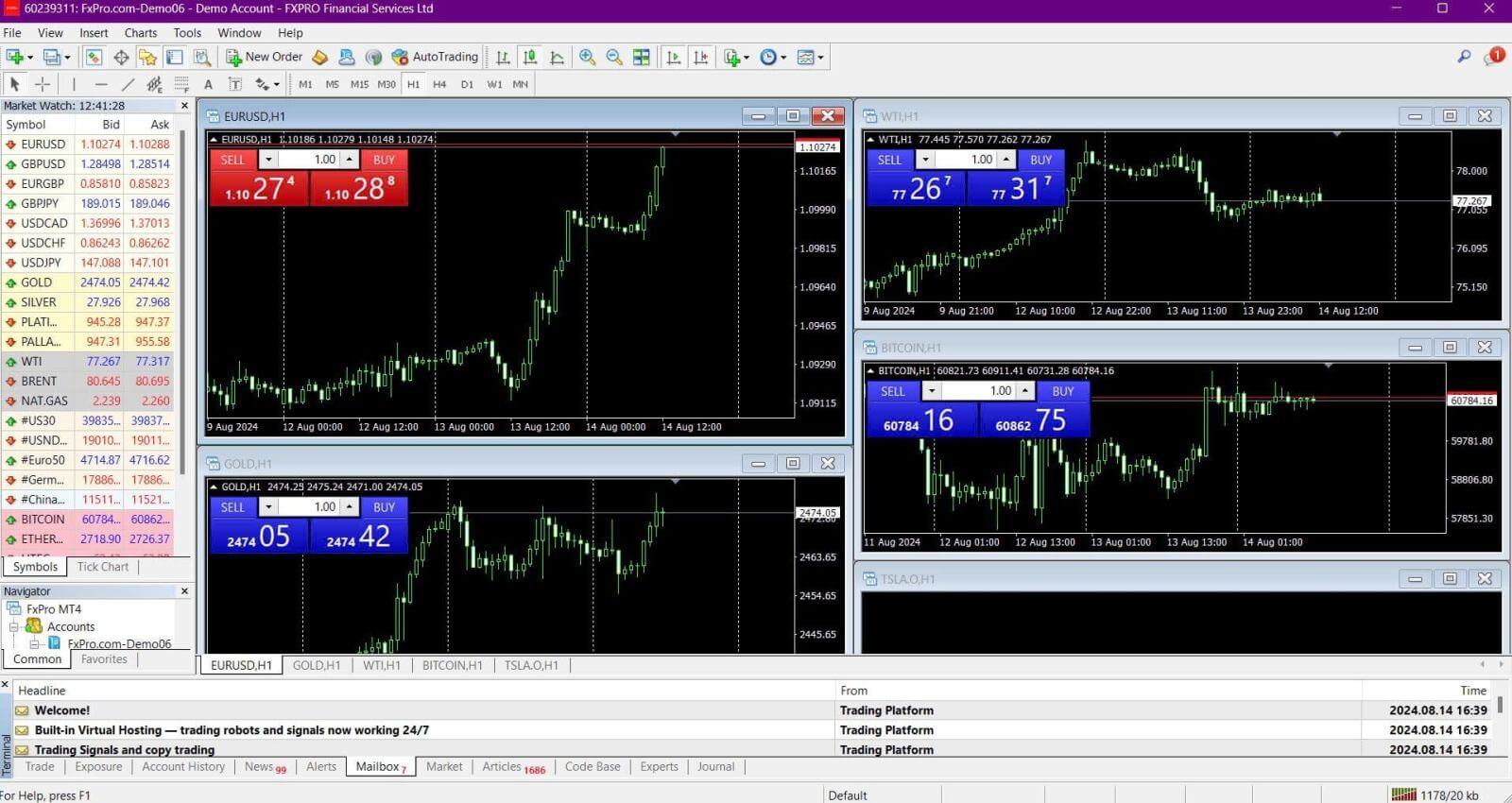
Congratulations! Now you can trade on MT4.
How to Login to Trading Platform: MT5
To log in to FxPro MT5, you’ll need the login credentials that FxPro sent to your email when you registered and set up your trading accounts. Make sure to check your email thoroughly.
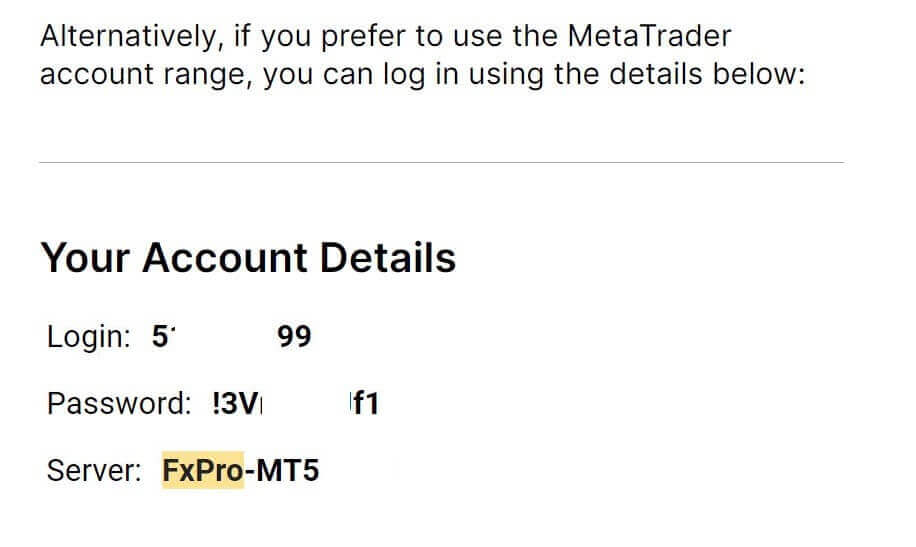
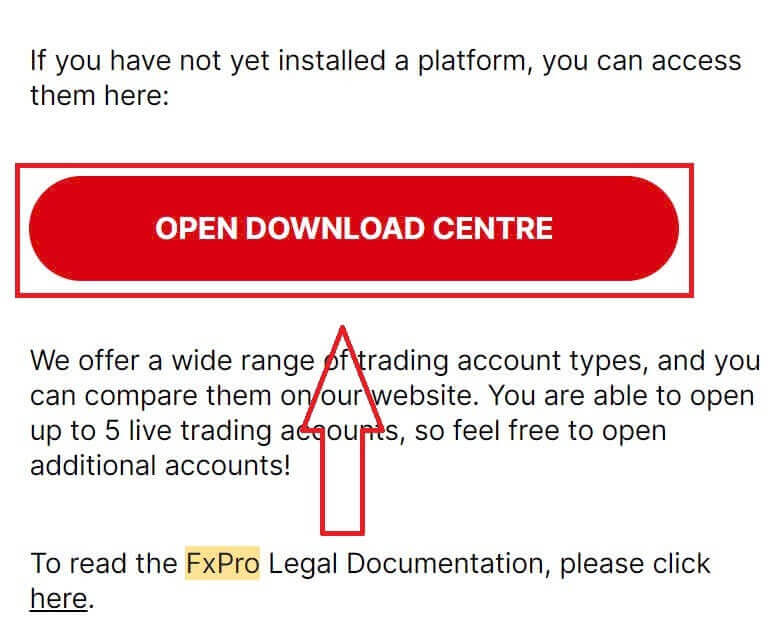
Just below your login information, click the "OPEN DOWNLOAD CENTRE" button to access the trading platform.
Depending on the platform, FxPro offers several trading options to provide a convenient experience, including:
-
Client Terminal Download.
-
MultiTerminal Download.
-
WebTrader Browser.
-
Mobile Platform.
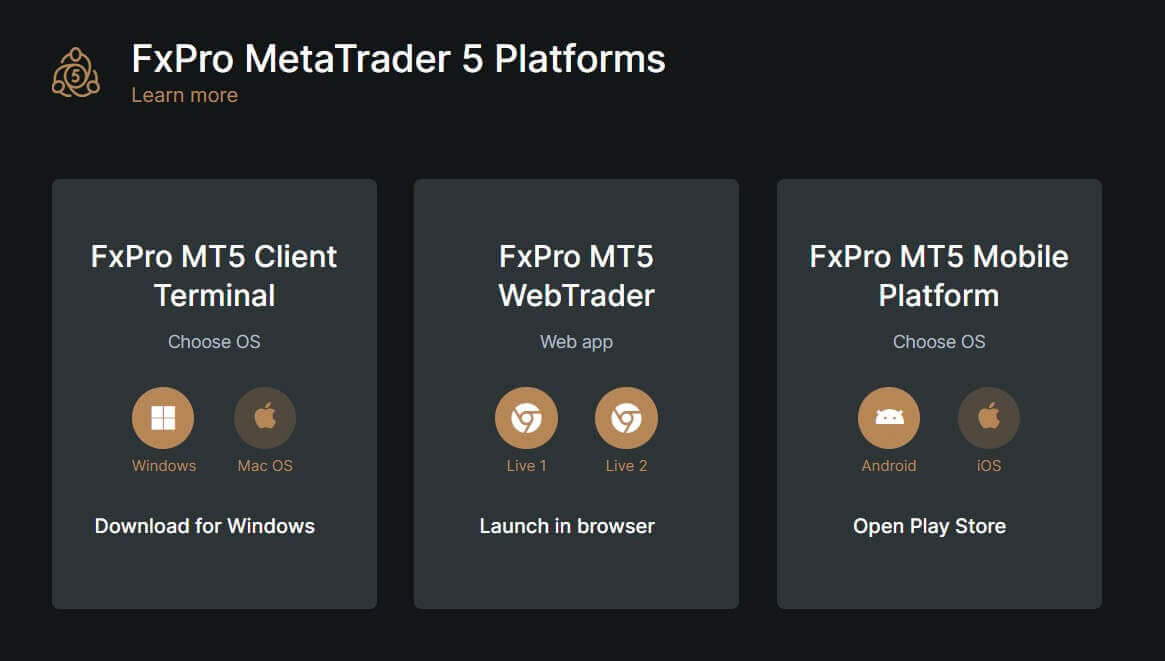
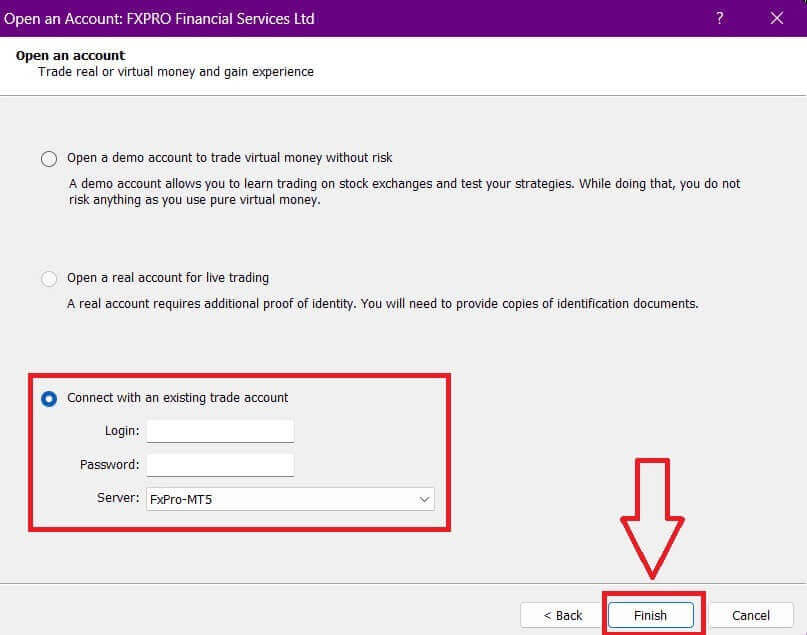
After accessing MT5, select the option "Connect with an existing trade account" and enter your login information as well as choose the server that matches the one in your email. Then, click "Finish" to complete the process.
Congratulations on successfully logging into MT5 with FxPro. Wishing you great success on your journey to becoming a trading master!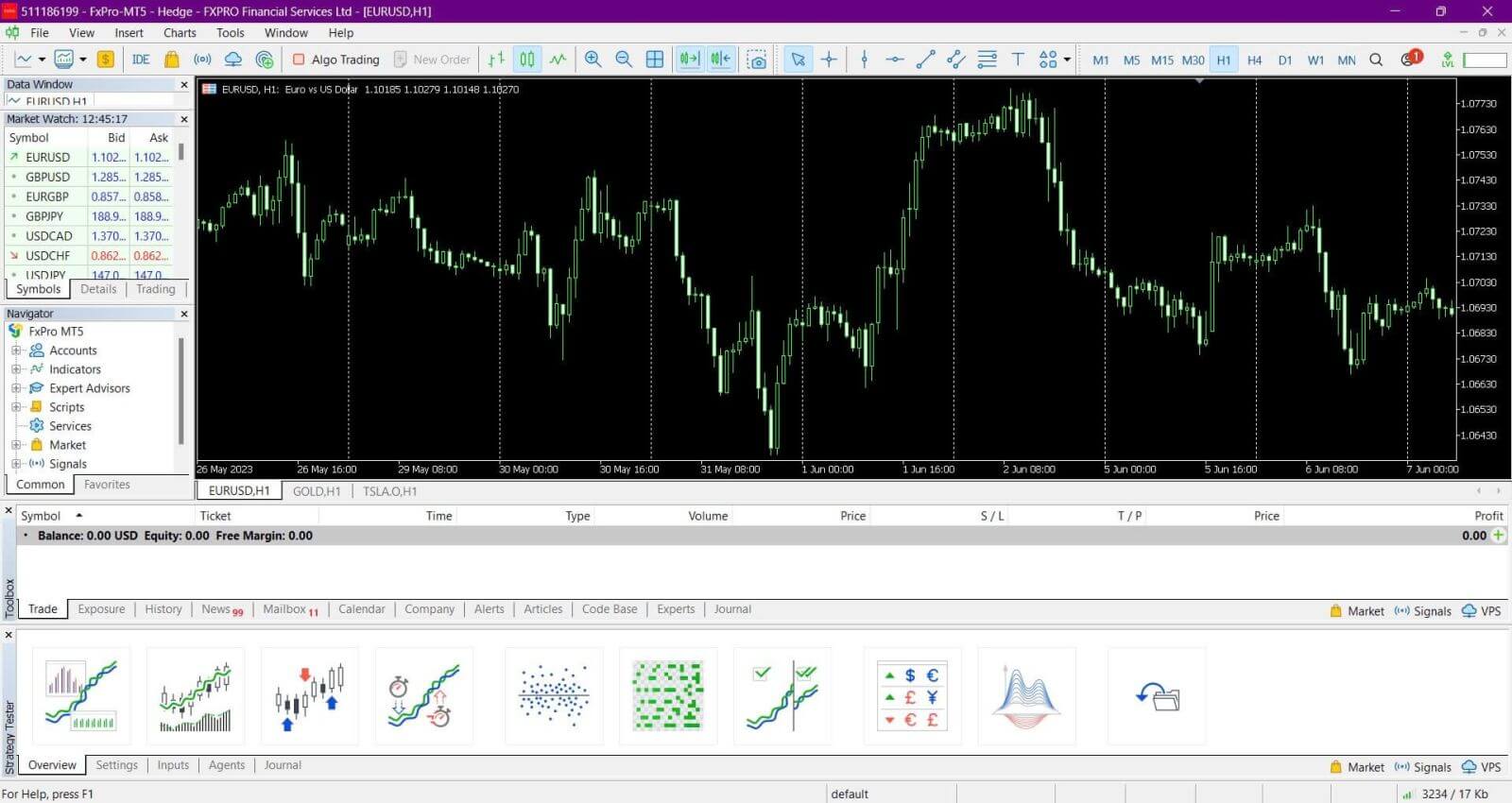
How to Login to FxPro [App]
First, open the App Store or Google Play on your mobile device, then search for "FxPro: Online Trading Broker" and download the app.
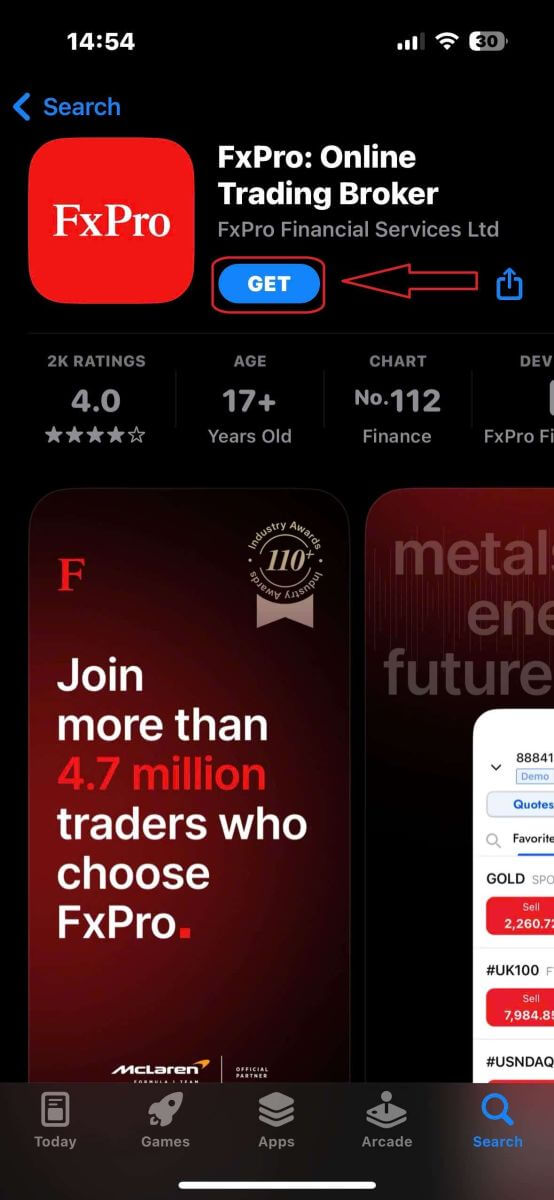
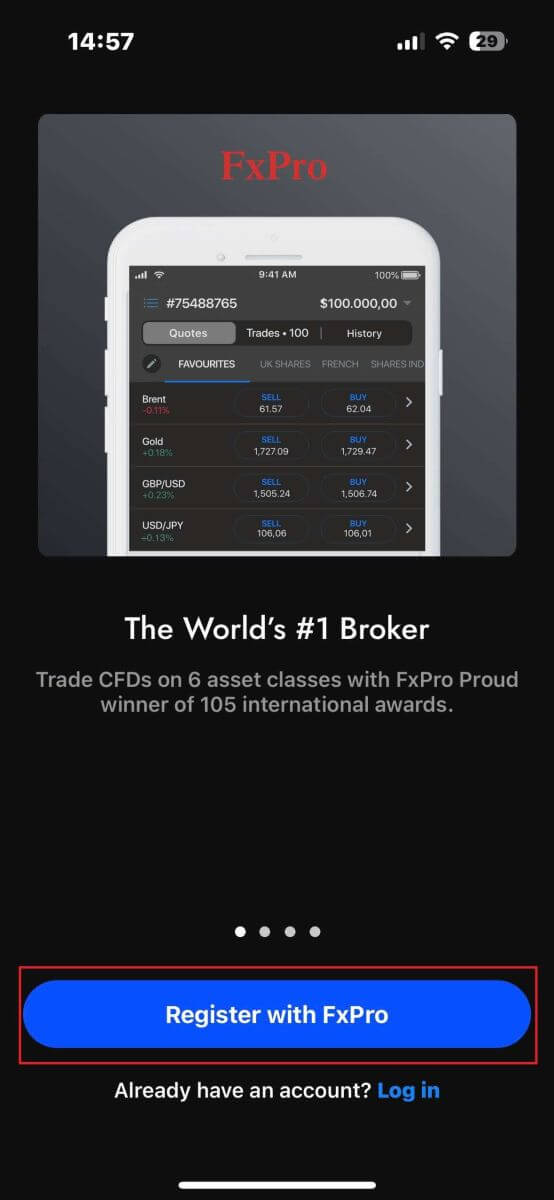
After installing the app, open it and select "Register with FxPro" to begin the account registration process.
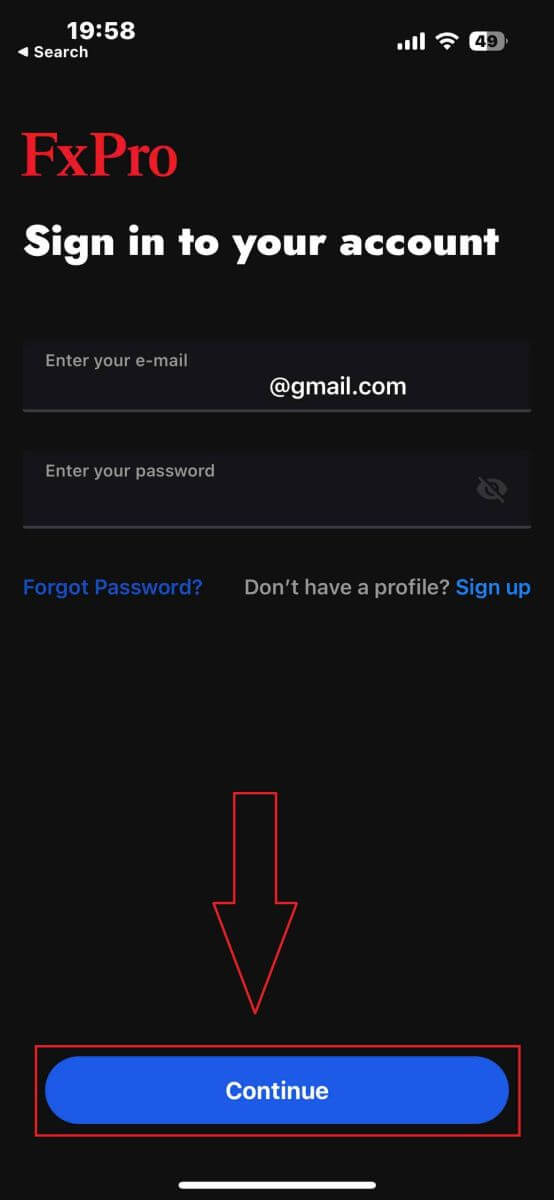
Having installed the mobile app, please log in with the email address and password you used to register. Once you finished, tap "Log in" to complete the login process.
If you don’t have an account with FxPro yet, follow the instructions in the following article: How to Register Account on FxPro.
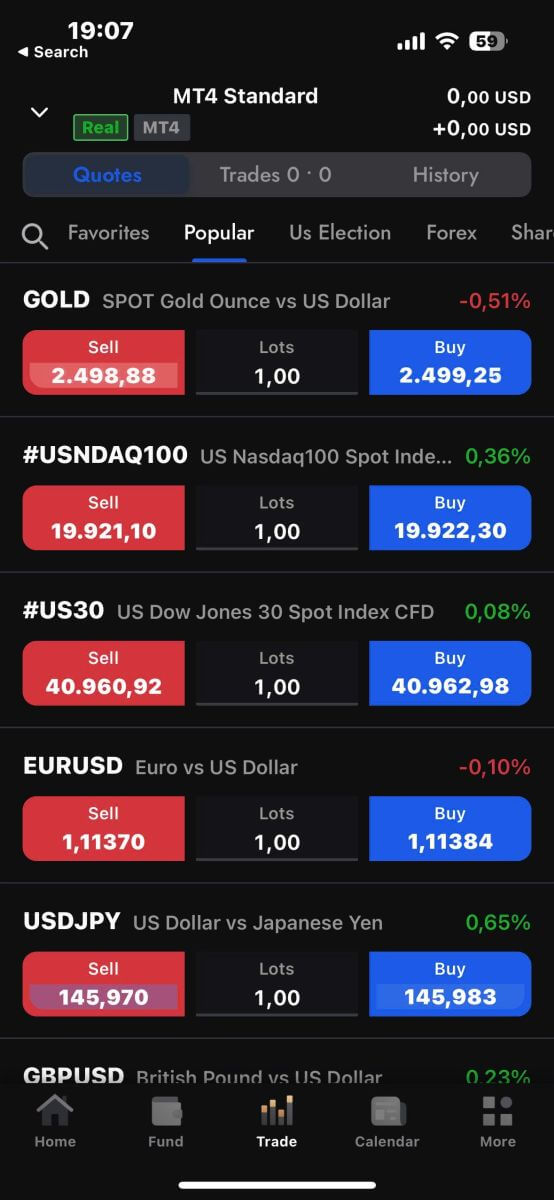
Congratulations on successfully logging into the FxPro Mobile App. Join us and trade anytime, anywhere!
How to Recover your FxPro password
To recover your password, start by visiting the FxPro website and clicking the "Login" button at the top right corner of the page.
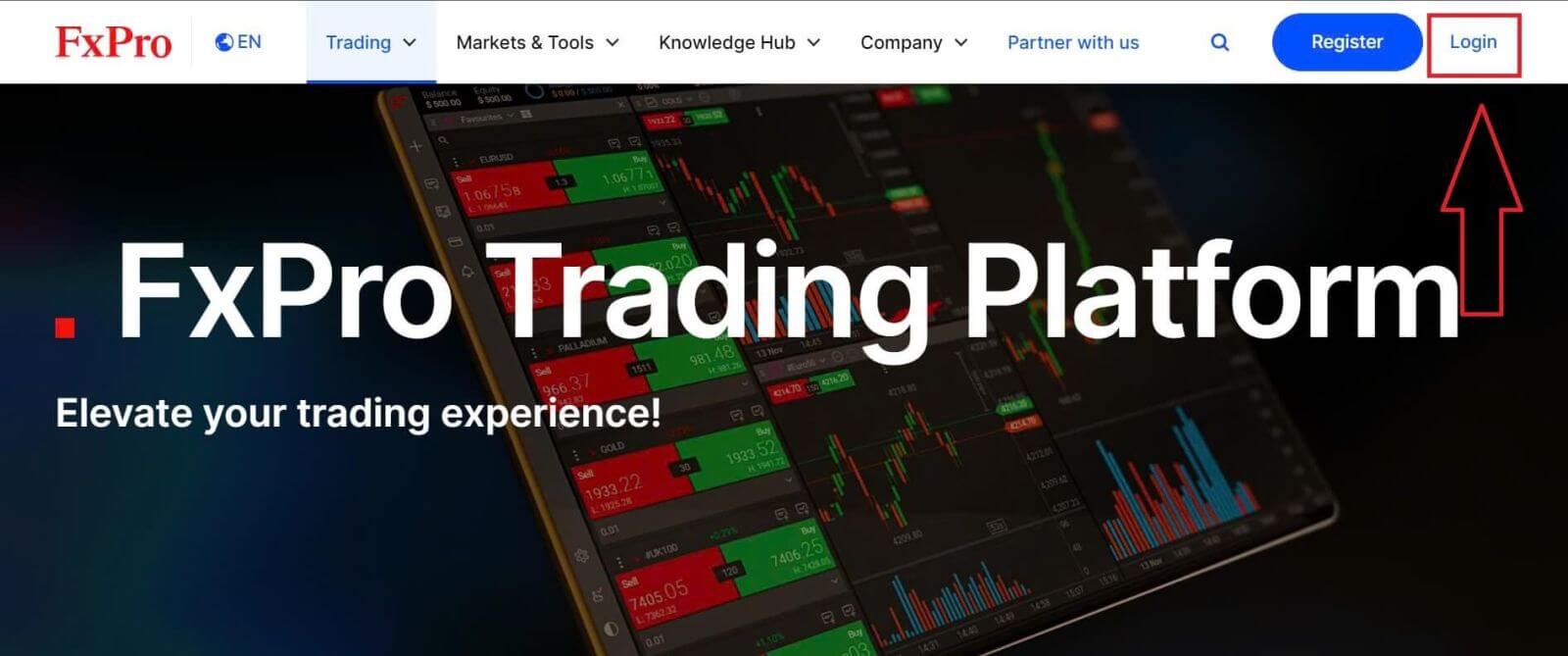
You will then be directed to the login page. Here, click on the "Forgot password?" link (as shown in the descriptive image) to start the process.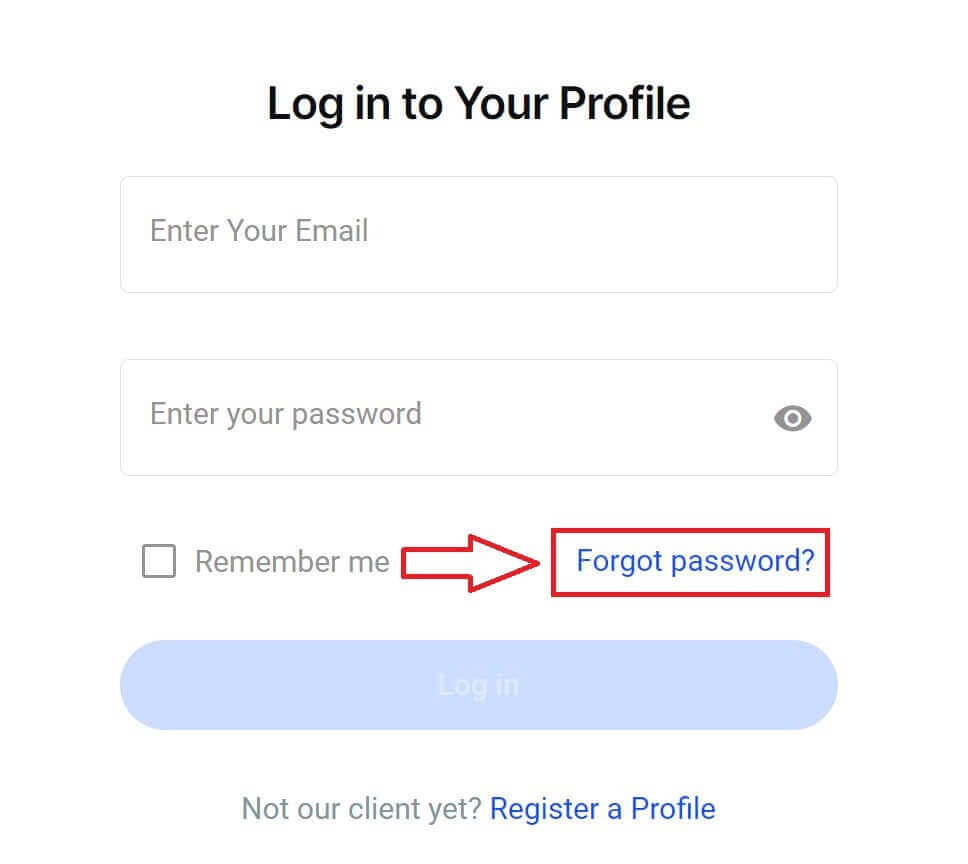
To begin, first, enter the email address you used to register your account. Then select "Reset Password."
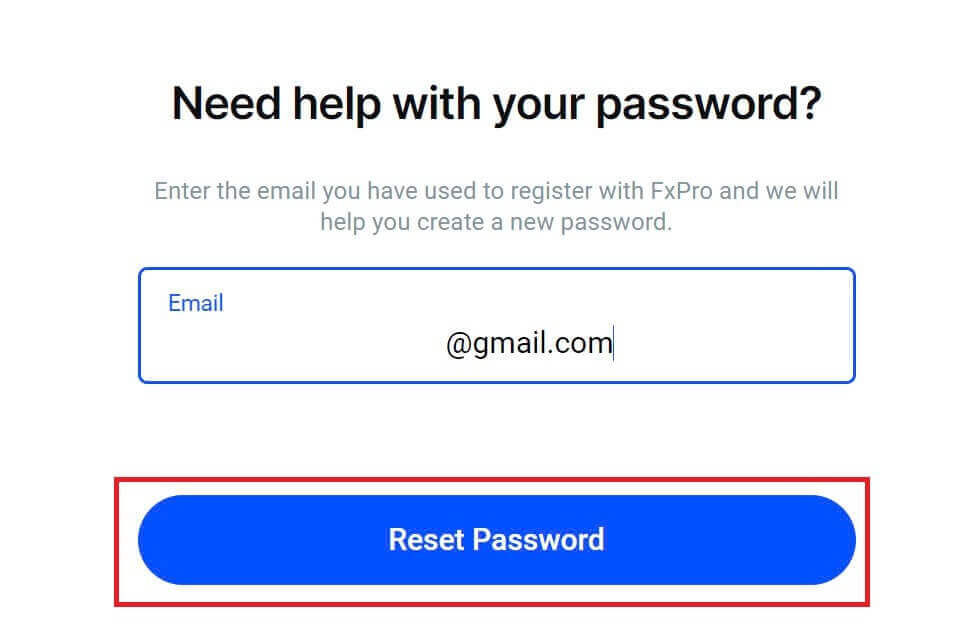
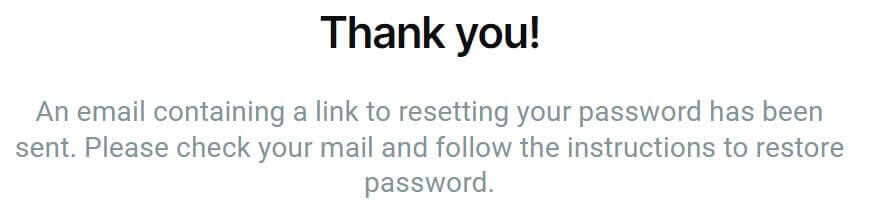
Immediately, an email with instructions to reset your password will be sent to that email address. Be sure to check your inbox carefully.
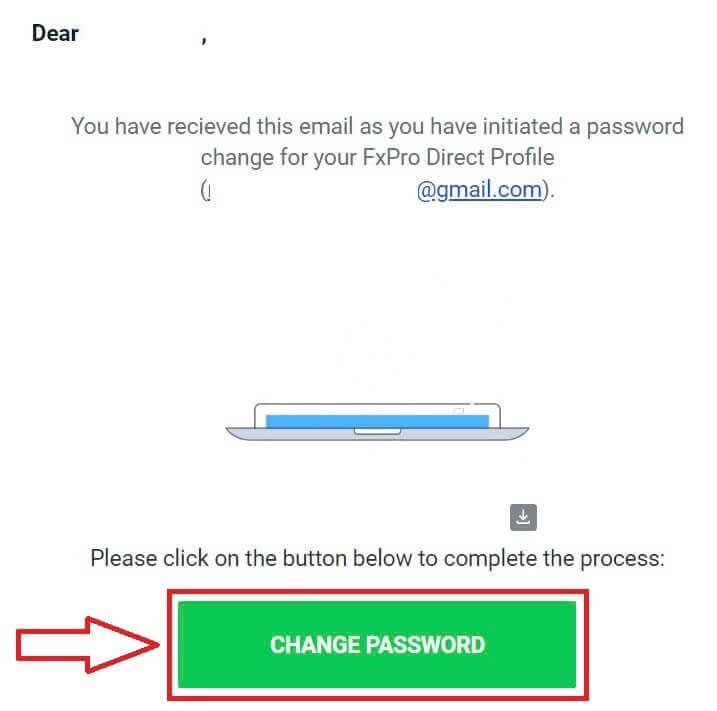
In the email you just received, scroll down and click the "CHANGE PASSWORD" button to be directed to the password reset page.
On this page, enter your new password into both fields (note that your password must be at least 8 characters long, including at least 1 uppercase letter, 1 number, and 1 special character—this is a mandatory requirement).
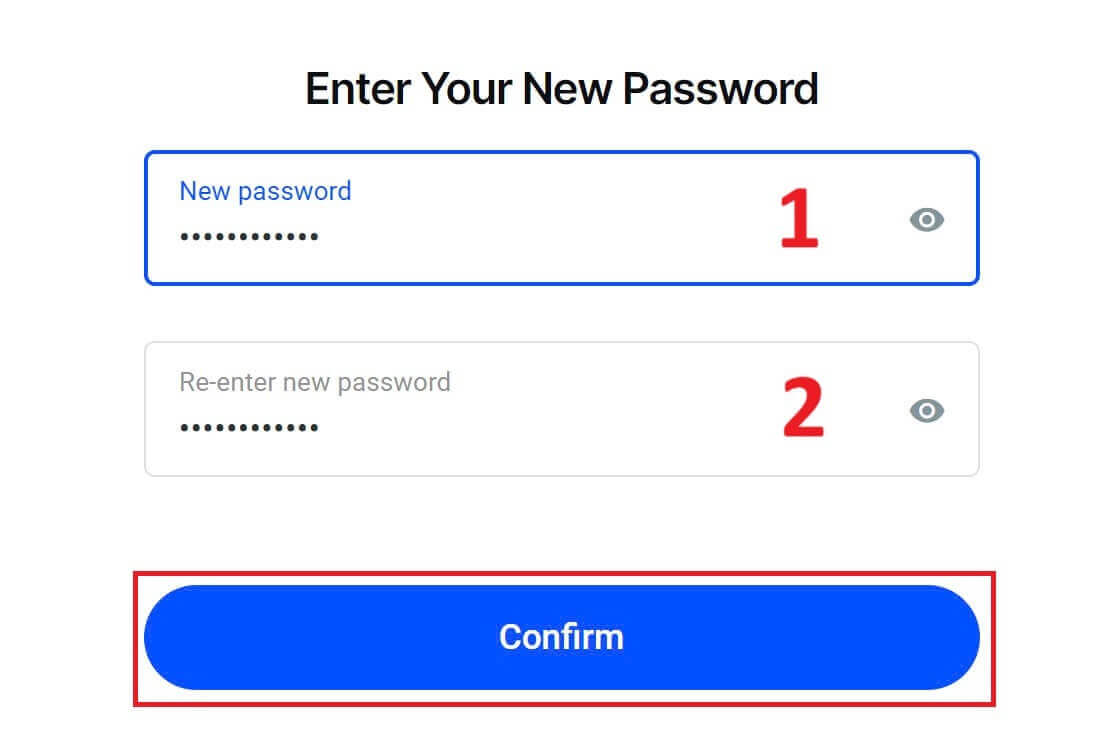
Congratulations on successfully resetting your password with FxPro. It’s great to see that FxPro prioritizes the safety and security of its users.

I can’t log in to my FxPro Dashboard
Experiencing difficulties logging into your Dashboard can be frustrating, but here’s a checklist to help you resolve the issue:
Username Check
Ensure you use your full registered email address as the username. Do not use a trading account number or your name.
Password Check
Use the PA password you set during registration.
-
Verify that there are no extra spaces added unintentionally, especially if you copied and pasted the password. Try entering it manually if problems persist.
-
Check if Caps Lock is on, as passwords are case-sensitive.
If you’ve forgotten your password, you can reset it using this link to reset your Personal Area password.
Account Check
If your account was previously terminated with FxPro, you will not be able to use that PA or email address again. Create a new PA with a different email address to register afresh.
We hope this helps! If you encounter any further issues, please contact our Support Team for assistance.
Frequently Asked Questions (FAQ)
How do I change the leverage of my trading account?
Log in to FxPro Direct, go to ‘My Accounts’, click on the Pencil icon next to your account number, and select ‘Change Leverage’ from the drop-down menu.
Please note that for the leverage of your trading account to be changed, all open positions must be closed.
Note: The maximum leverage available to you may vary depending on your jurisdiction.
How can I reactivate my account?
Please note that live accounts are disabled after 3 months of inactivity, but you may, however, reactivate them. Unfortunately, demo accounts cannot be reactivated, but you may open additional ones via FxPro Direct.
Are your platforms compatible with Mac?
The FxPro MT4 and FxPro MT5 trading platforms are both compatible with Mac and can be downloaded from our Download Centre. Please note that the web-based FxPro cTrader and FxPro cTrader platforms are also available on MAC.
Do you allow the use of trading algorithms on your platforms?
Yes. Expert Advisors are fully compatible with our FxPro MT4 and FxPro MT5 platforms, and cTrader Automate can be used on our FxPro cTrader platform. If you have any questions regarding Expert Advisors and cTrader Automate, please contact our Customer Support at [email protected].
How to download trading platforms MT4-MT5?
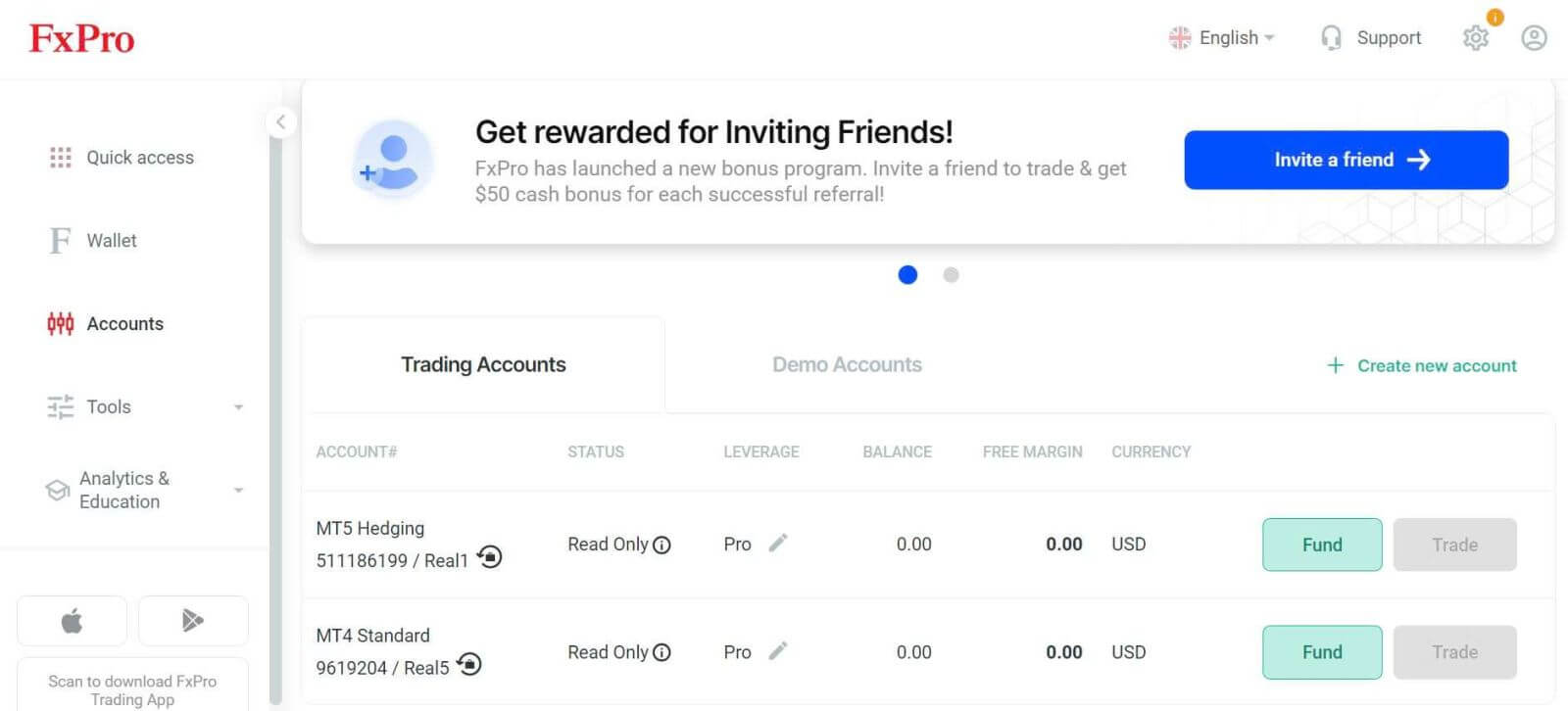
After you register and log into FxPro Direct, you will see the relevant platform links conveniently displayed on your ’Accounts’ page, next to each account number. From there you can directly install desktop platforms, open webtrader, or install mobile apps.
Alternatively, from the main website, go to the “All Tools” section and open the “Download Centre”.
Scroll down to see all the platforms available. Several types of terminals are provided: for the desktop, web version, and mobile application.
Select your operating system and click “Download”. The platform upload will start automatically.
Run the setup program from your computer and follow the prompts by clicking “Next”.
After the installation is complete, you can log in with the specific account details that you received in your email after the trading account registration at FxPro Direct. Now your trading with FxPro can begin!
How do I log in to the cTrader platform?
Your cTrader cTID is sent to you via email once the creation of your account has been confirmed.
cTID allows access to all FxPro cTrader accounts (demo live) using only one login and password.
By default, your cTID email will be the registered email address of your profile, and you can change the password to your own preference.
Once logged in with the cTID, you will be able to switch between any FxPro cTrader accounts registered under your profile.
How to Verify Account on FxPro
Verify Account on FxPro [Web]
First, log in to the FxPro Dashboard, select the icon at the top right corner of the screen, and then choose "Upload Document" to be directed to the verification page.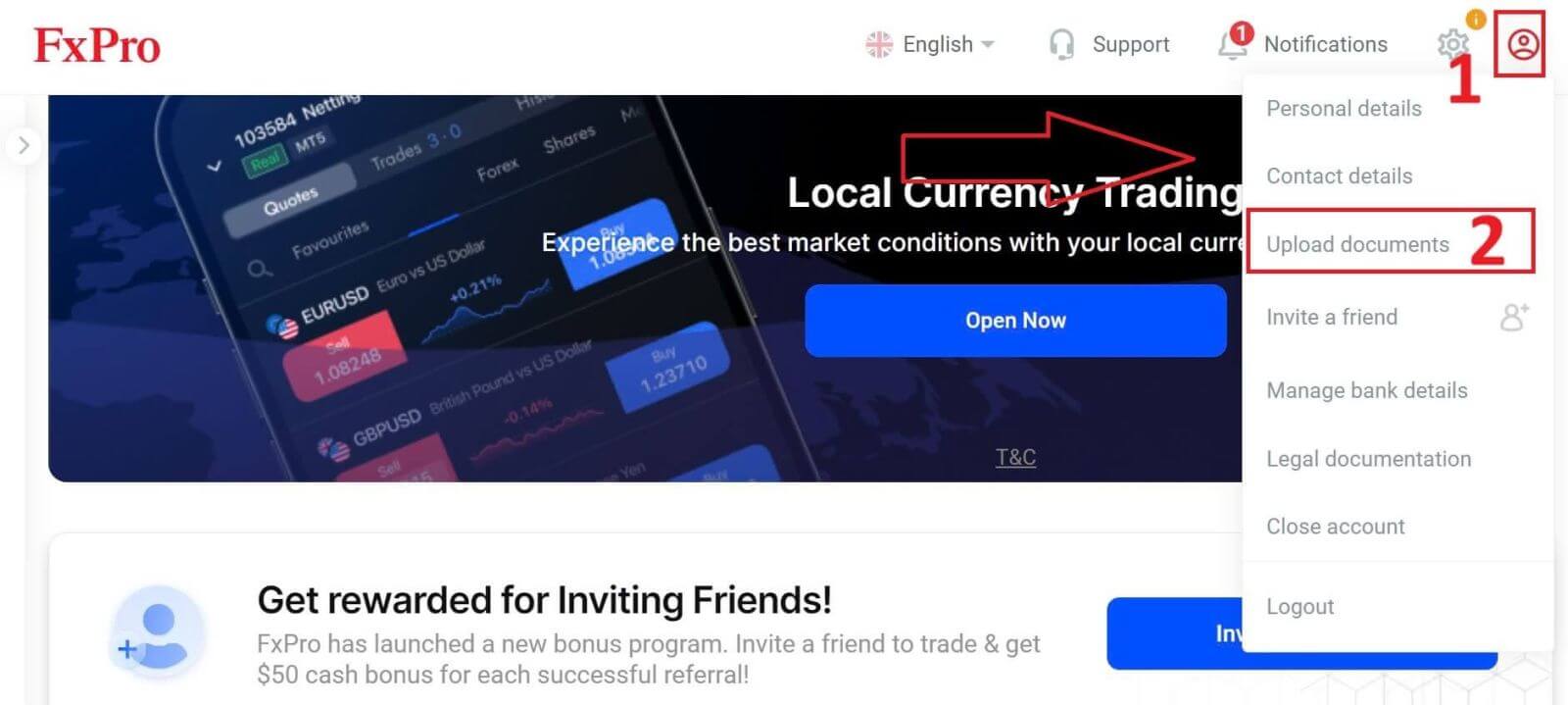
The verification process consists of two steps as follows:
-
Upload the photo of your ID or driver’s license.
-
Make a selfie.
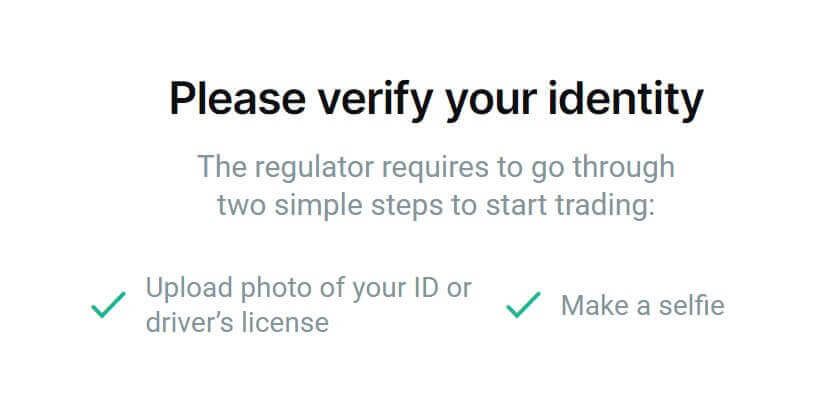
We support two methods for you to complete the verification process (but we recommend using the mobile app due to its convenience and optimization for verification):
- If you choose to upload documents using a mobile device, open the camera and scan the QR code displayed on the screen to be directed to the verification page, where you can complete the entire process on your mobile device.
-
Alternatively, you can complete the process on your web browser by selecting the "Stay and verify via browser" button.
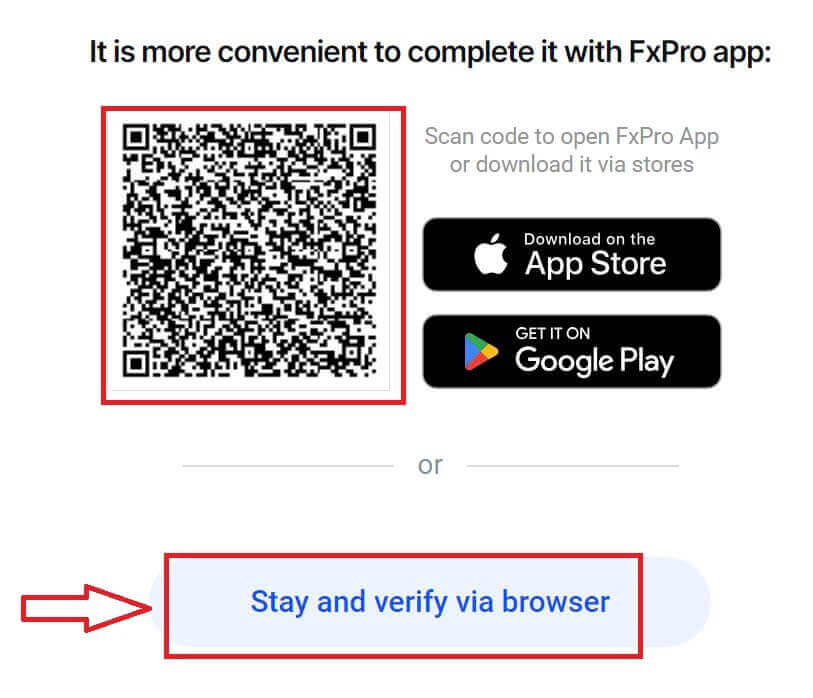
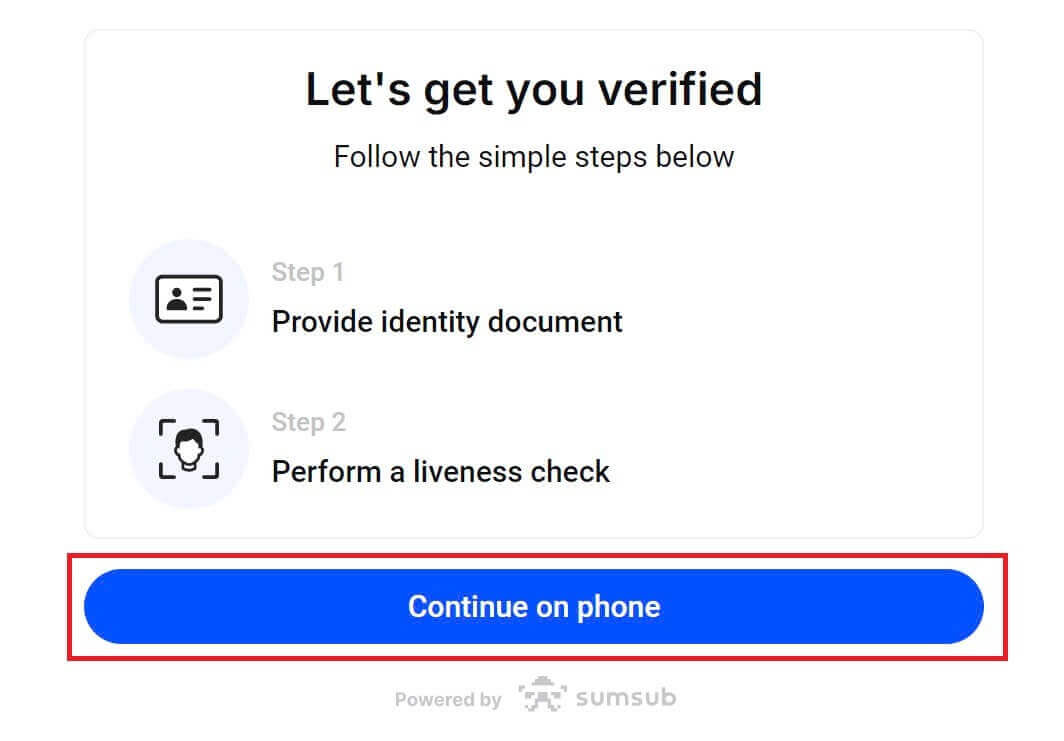
Select the "Continue on phone" button on the next page to proceed with the verification process.
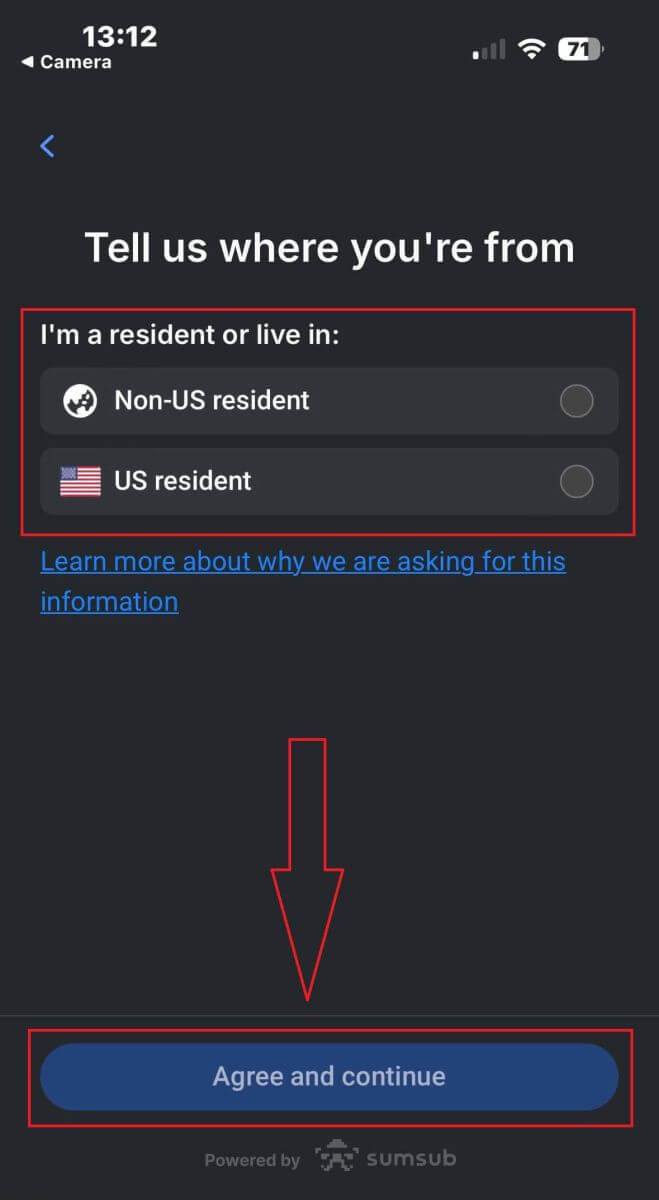
First, let FxPro know whether you are a US resident, as there are special policies for the verification process for US residents. After making your selection, tap "Agree and continue" to move to the next page.
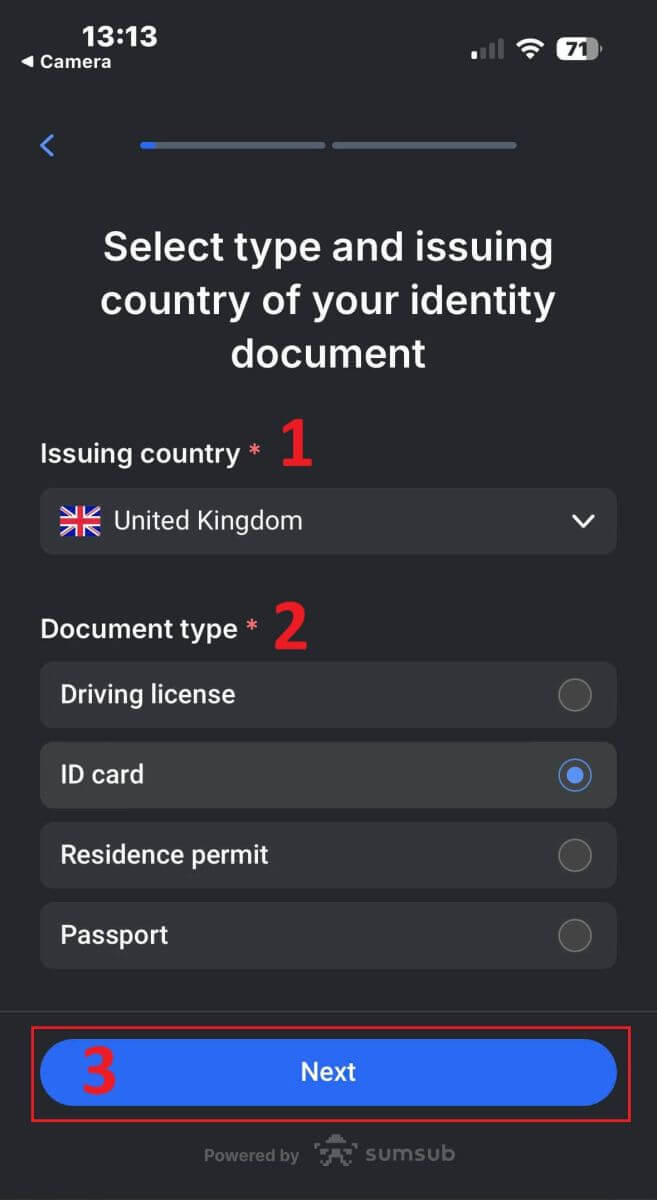
On this page, you will select:
-
The Issuing country.
-
The document type (Driving license/ ID Card/ Residence permit/ Passport).
Once you finish, tap "Next" to proceed.
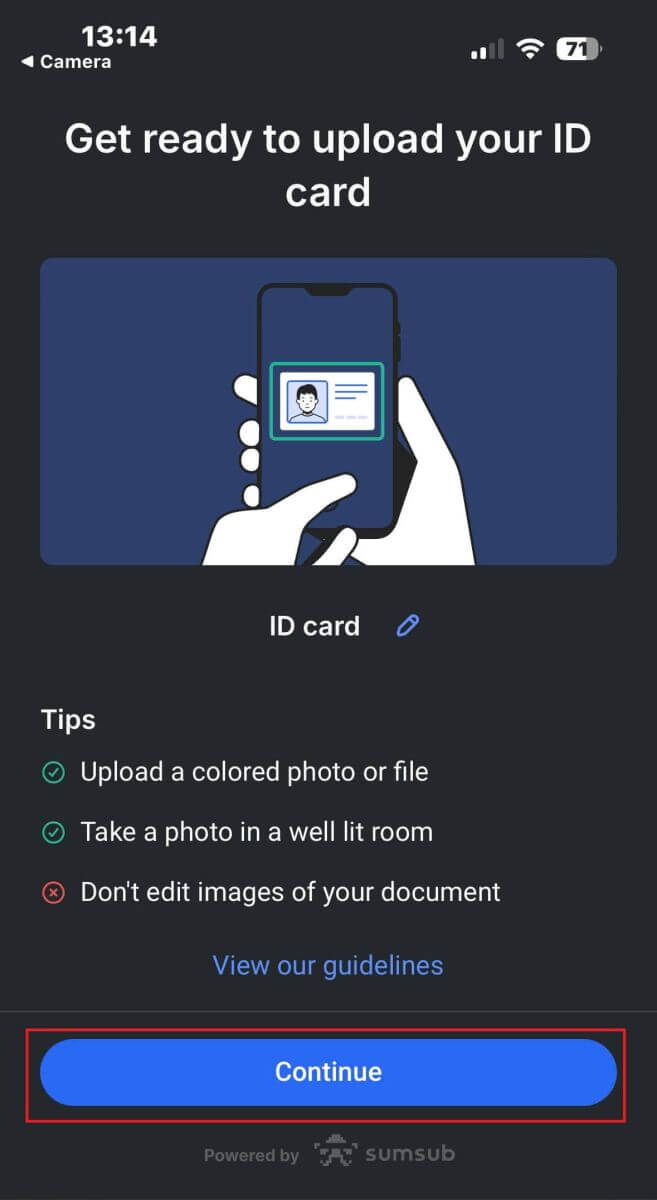
Now you’ll reach the step where you upload documents using images. You will have two options:
-
Upload a colored photo or file.
-
Take a photo in a well-lit room.
-
Please don’t edit images of your documents.
Please take note carefully, then tap "Continue" to begin uploading.
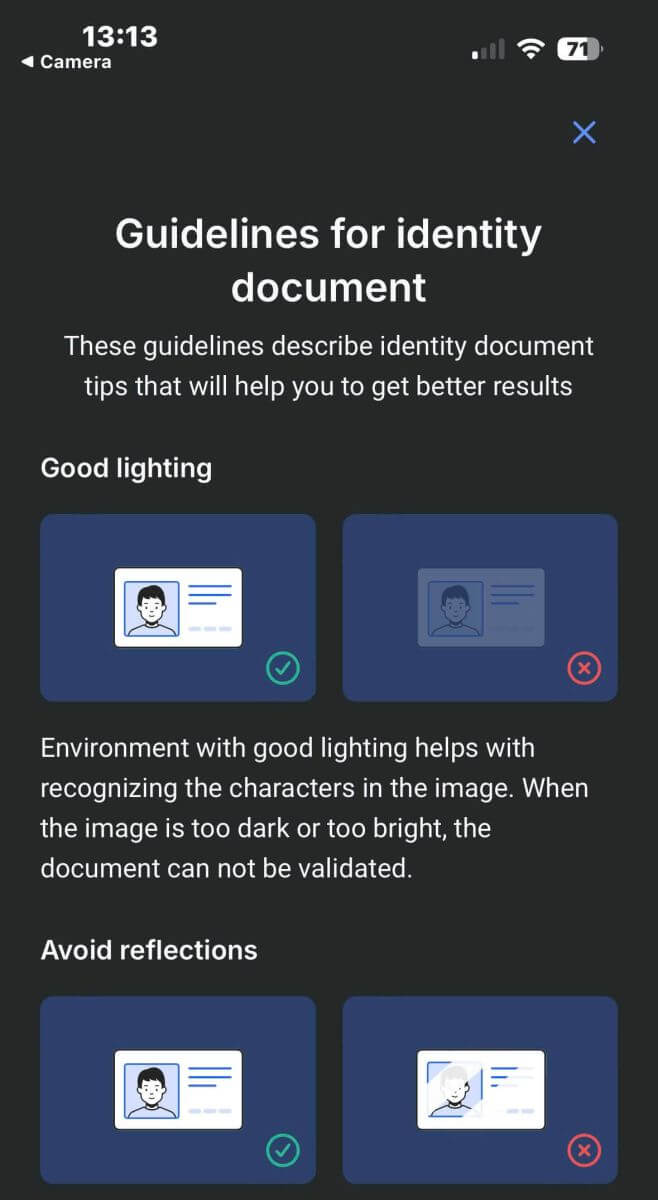
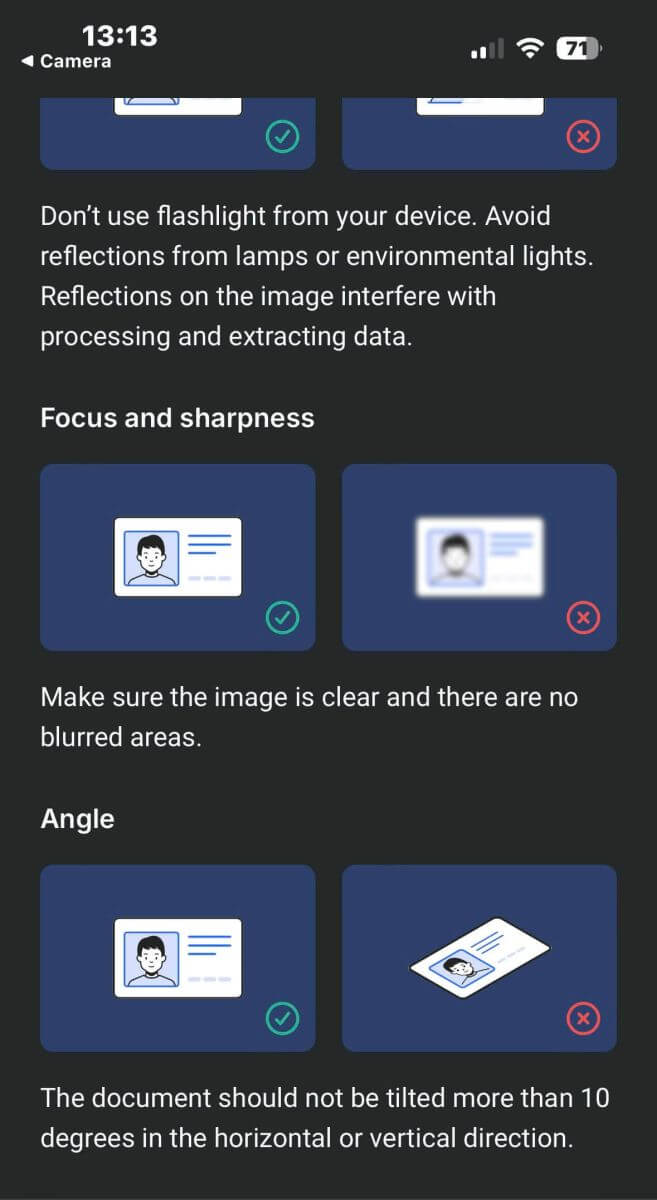
Below are some tips for you to get better results:
Good Lightning
The environment with good lighting helps with recognizing the characters in the image. When the image is too dark or too bright, the document can be not validated.
Avoid Reflections
Don’t use the flashlight from your device. Avoid reflections from lamps or environmental lights. Reflections on the image interfere with processing and extracting data.
Focus and Sharpness
Make sure the images are clear and there are no blurred areas.
Angle
The document should not be titled more than 10 degrees in the horizontal or vertical direction.
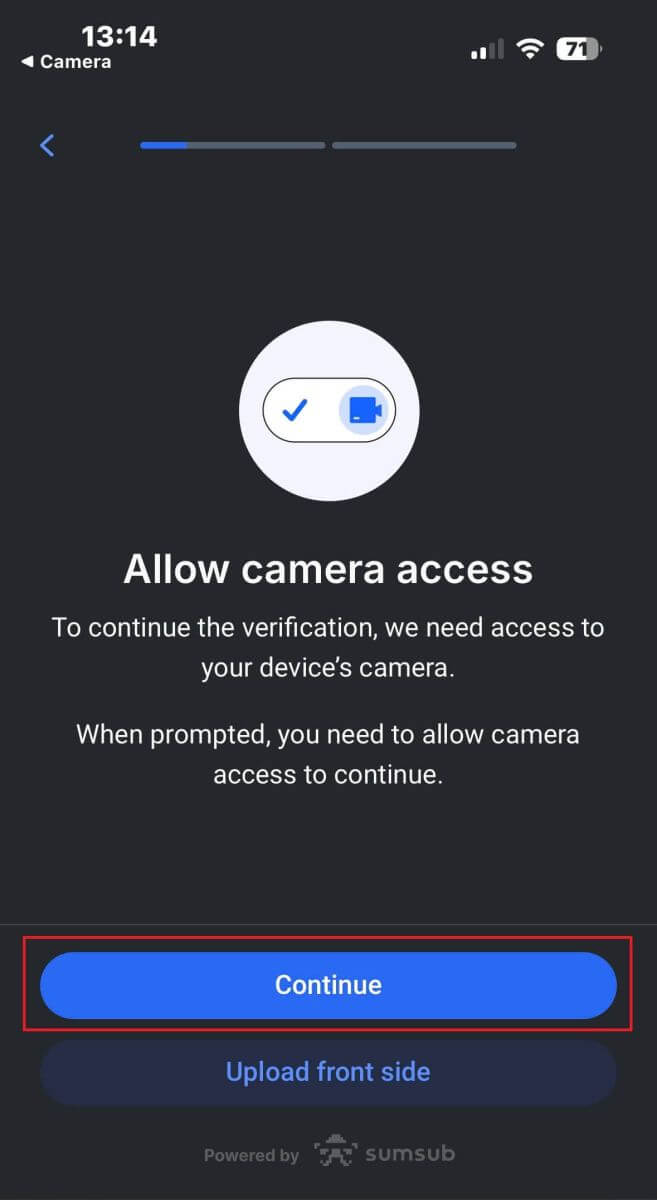
Additionally, please remember to allow the device’s camera access (this is a mandatory requirement).
Then tap "Continue" to begin uploading
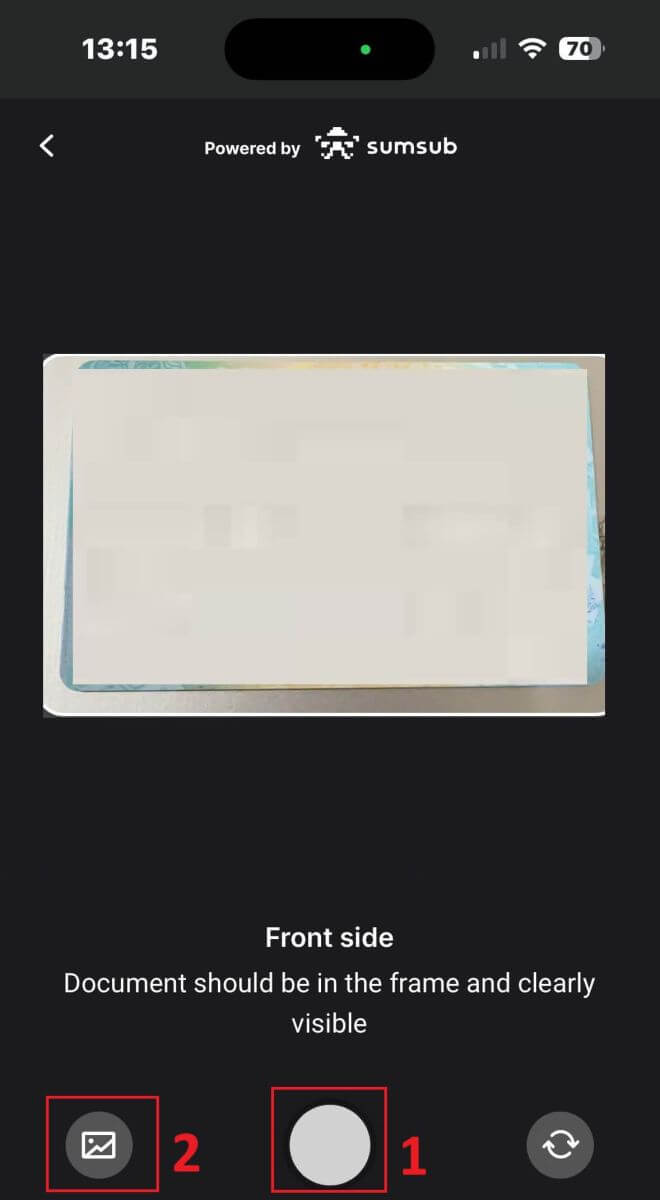
You will be offered two ways to upload your document images:
-
Align the document within the frame on the screen, then tap the white circular button at the bottom (labeled as number 1 in the image) to capture and save the image.
-
Select the button with the icon shown in the image (labeled as number 2) to upload a photo from your device’s existing photo library.
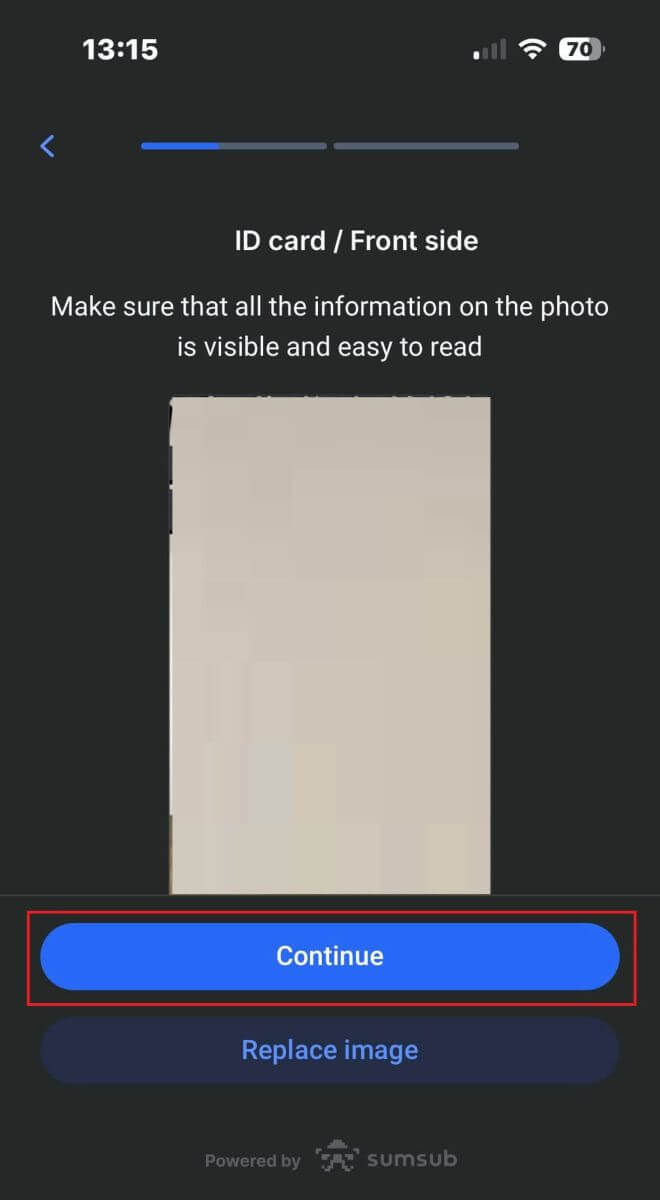
Then, verify that the image is clearly visible and readable. Then, proceed with the same process for the remaining sides of the document (the number of sides required will depend on the type of verification document you initially selected).
If it meets the standards, select "Continue" to proceed to the next step.
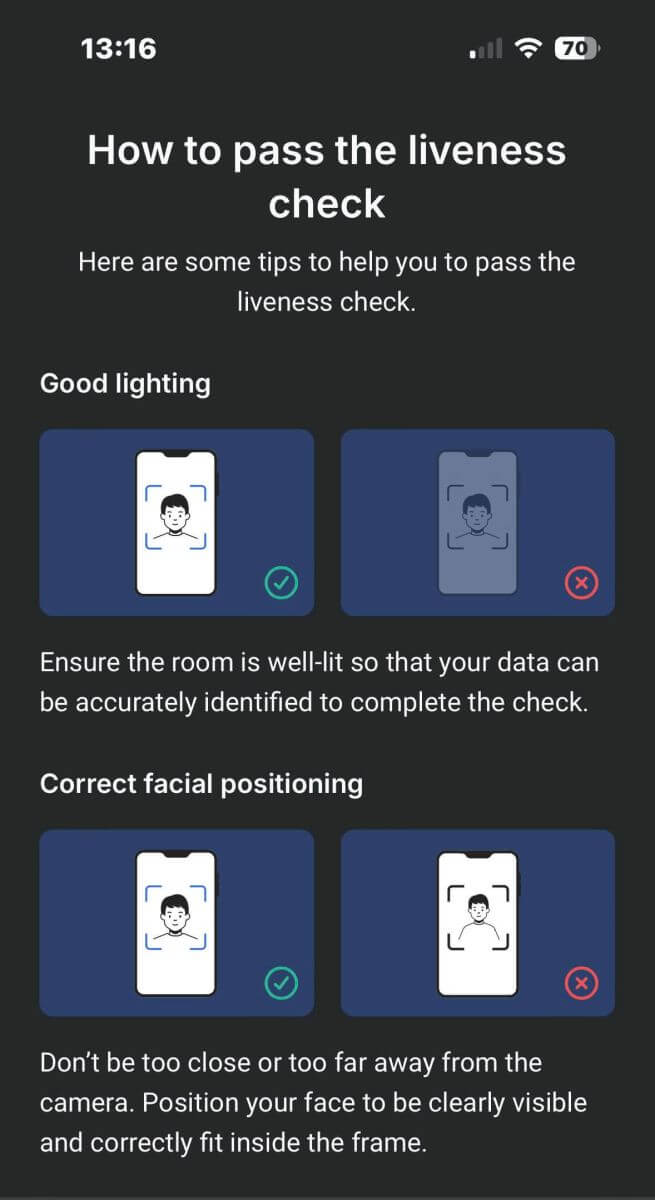
The next step will be the Liveness Check. Below are some tips to help you complete this step smoothly:
Good Lighting
Ensure the room is well-lit so that your data can be accurately identified to complete the check.
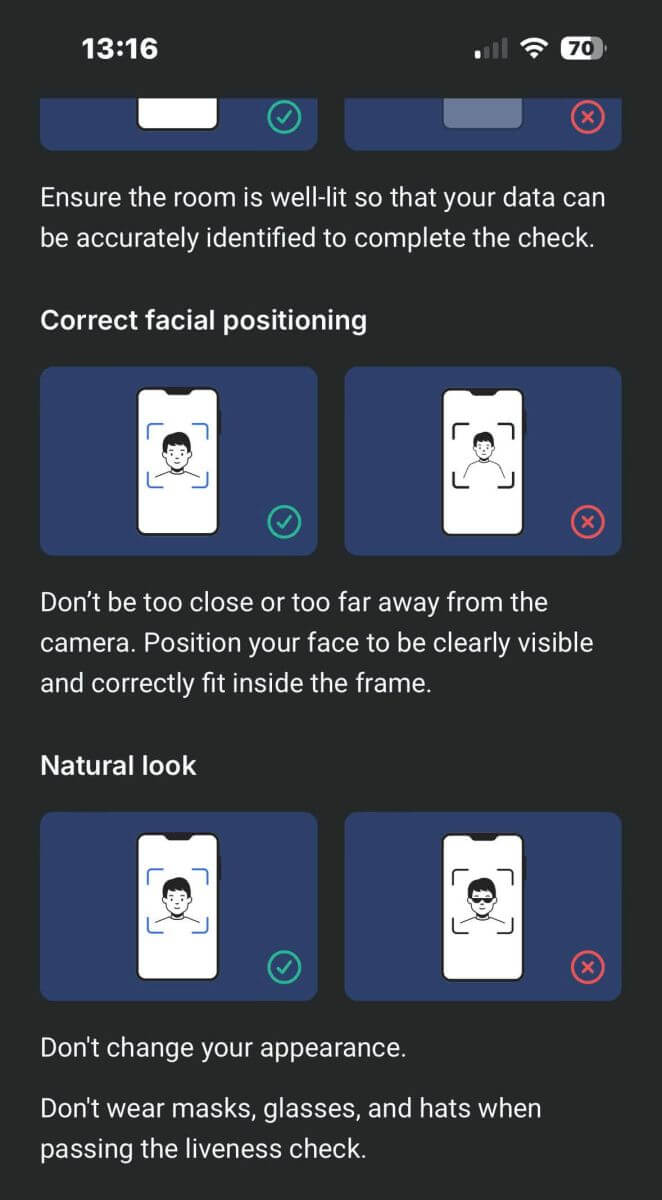
Correct facial positioning
Please don’t be too close or too far away from the camera. Position your face to be clearly visible and correctly fit inside the frame.
Natural Look
Don’t change your appearance. Don’t wear masks, glasses, and hats when passing the liveness check.
Please position your face within the frame then stay still for 2 - 5 seconds for the system to identify you. If you succeed, you will be automatically directed to the next screen.
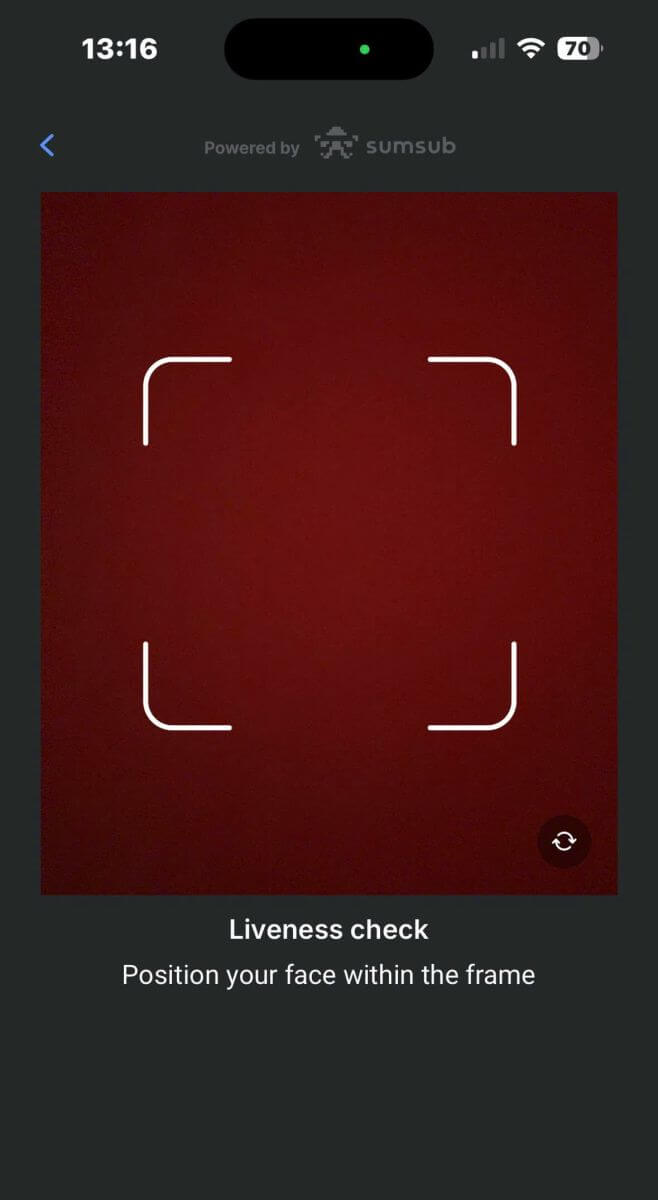
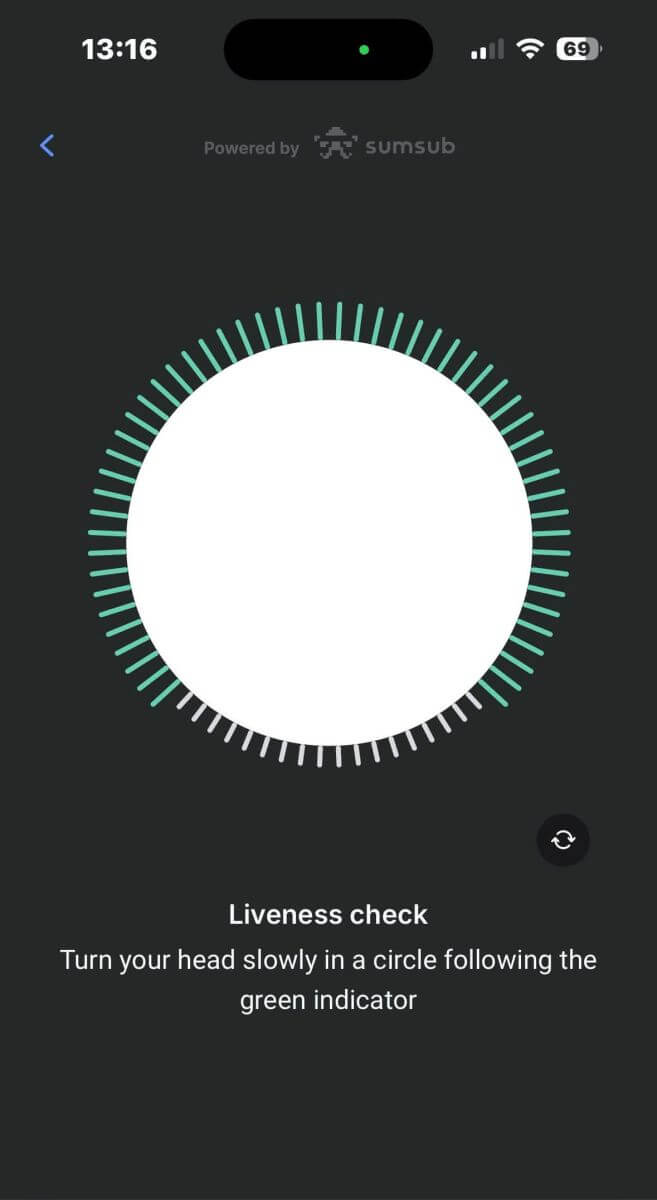
On this page, keep your face within the frame and turn your head slowly in a circle following the green indicator.
Congratulations on successfully passing the Liveness Check.
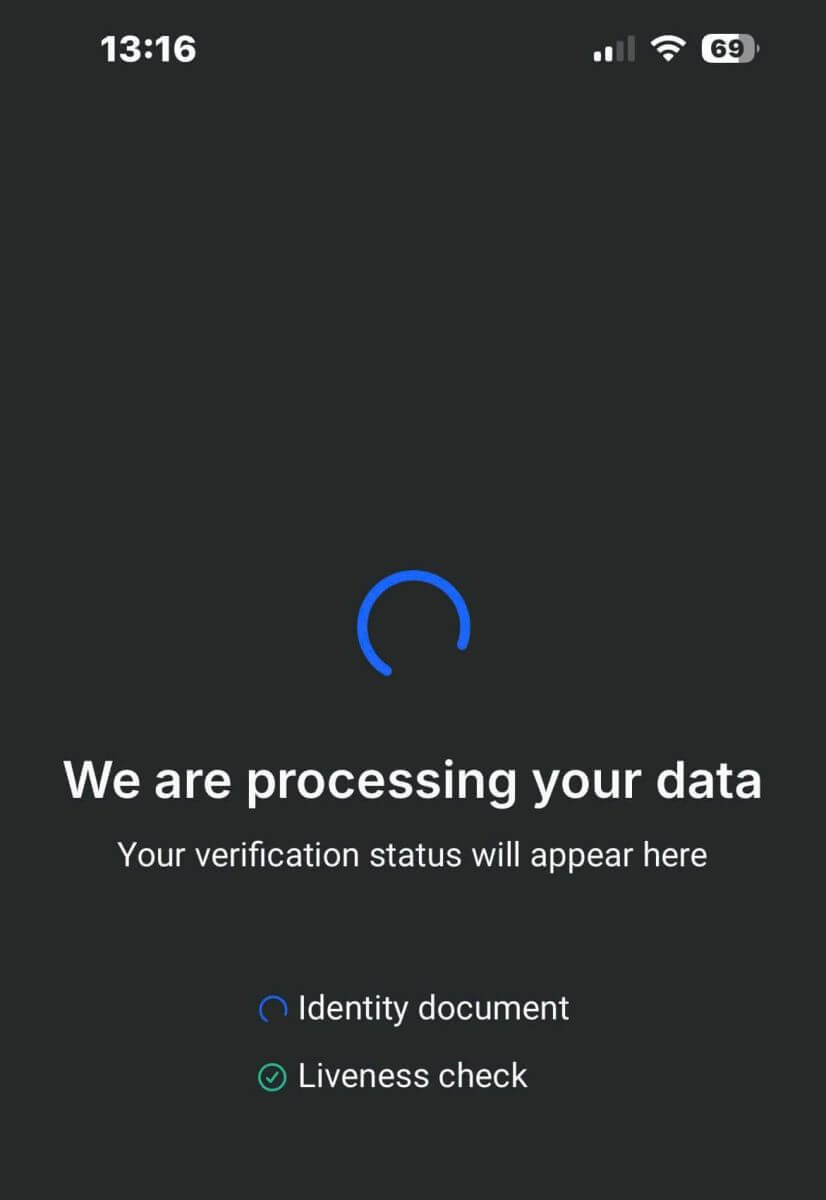
Now please wait from 5 to 10 seconds for the system to process your data and display the results on the screen.
Congratulations on successfully verifying your profile with FxPro. It was simple and quick.
Verify Account on FxPro [App]
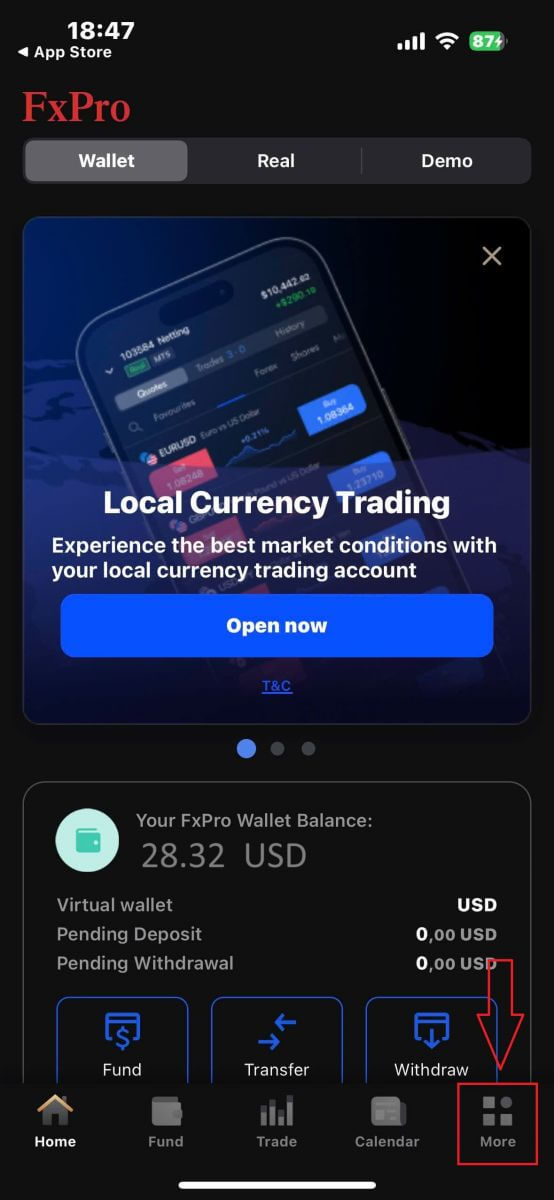
First, open the FxPro Mobile App on your mobile device, then select "More" at the bottom right corner of the screen.
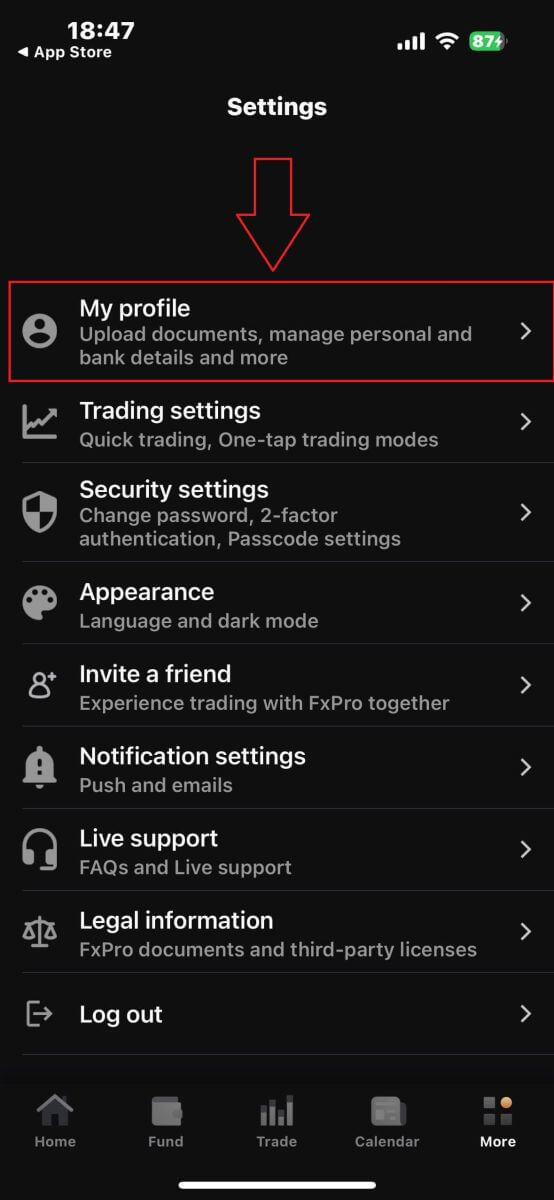
There, continue by selecting "My profile".
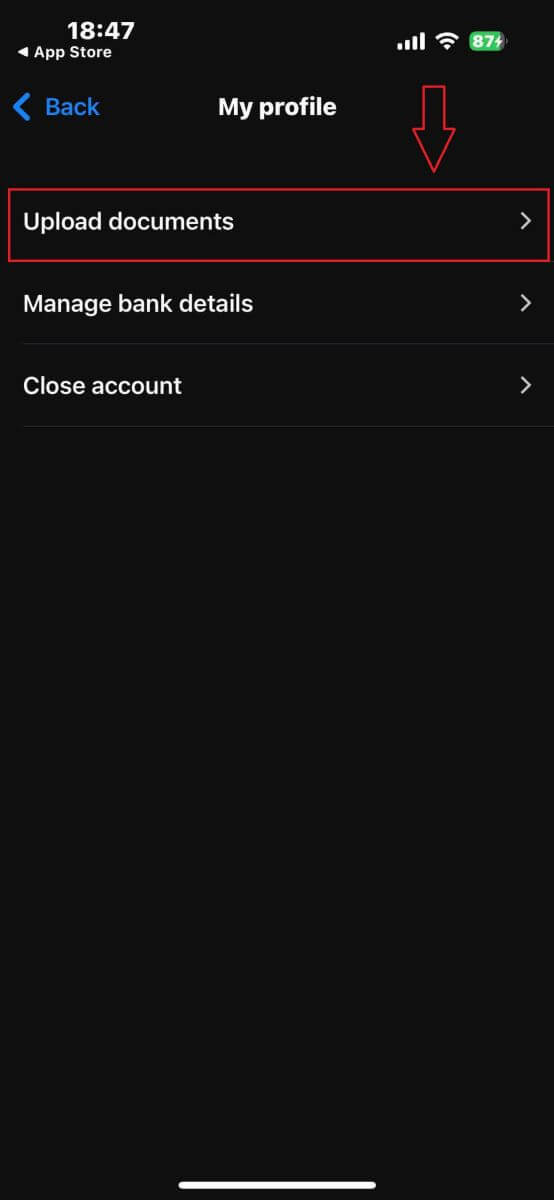
Then, please choose the "Upload documents" section to begin the verification process.
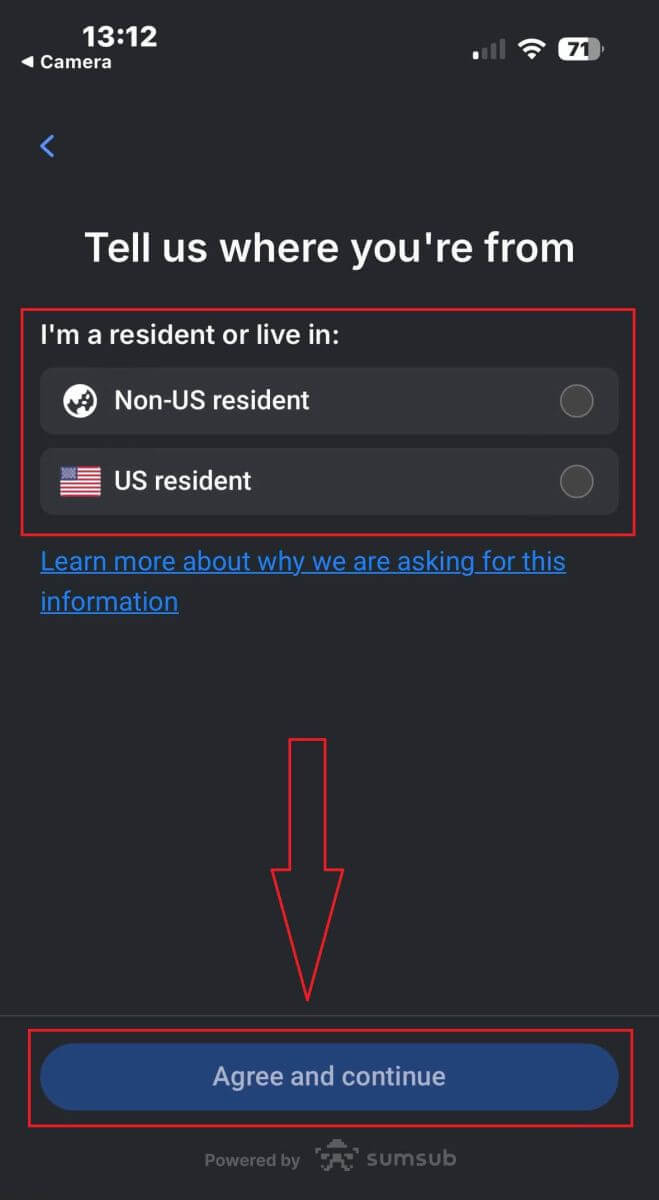
First, inform FxPro whether you are a US resident, as there are specific verification policies for US residents.
Once you make your selection, tap "Agree and continue" to proceed to the next page.
On this page, you will need to select:
-
The issuing country.
-
The document type (Driving license, ID Card, Residence permit, or Passport).
After completing these selections, tap "Next" to continue.
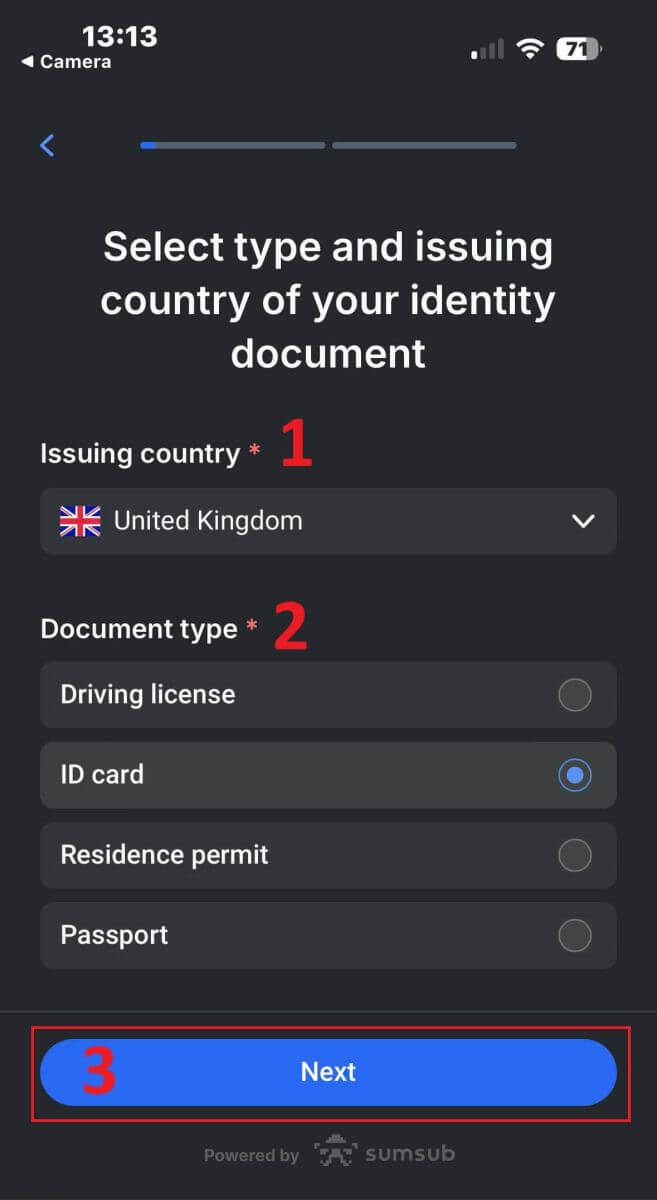
At this step, you will need to upload documents using images. You have two options:
-
Upload a colored photo or file.
-
Take a photo in a well-lit area.
-
Do not edit the images of your documents.
Review these instructions carefully, then tap "Continue" to start the upload process.
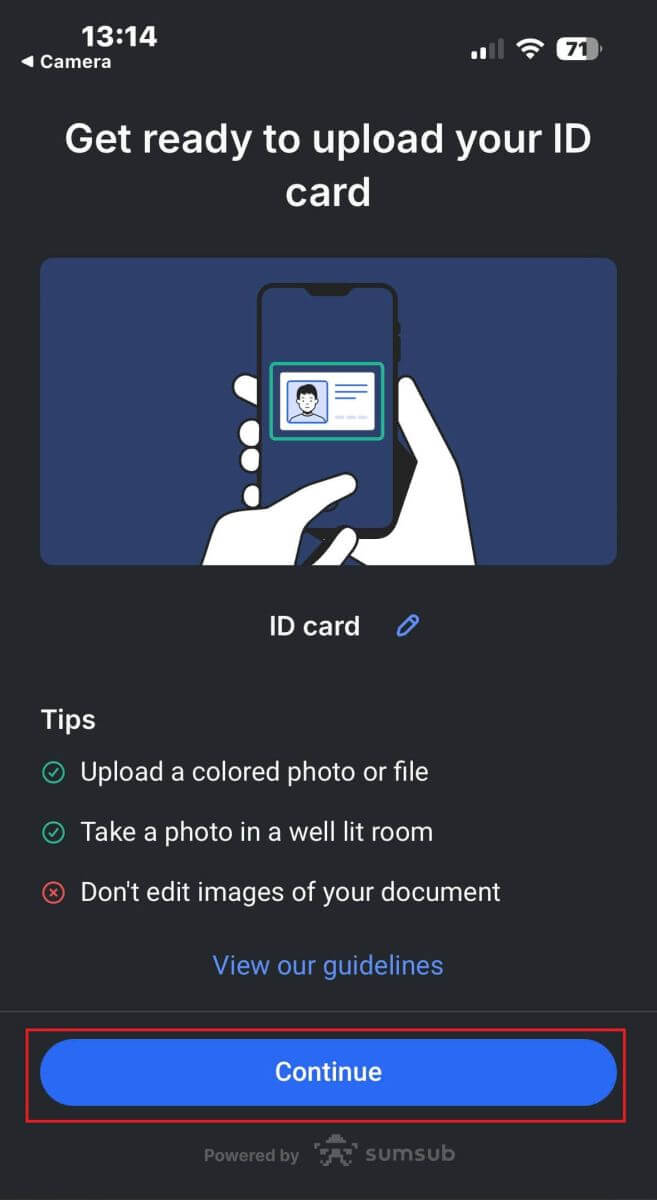
Here are some tips to help you achieve better results:
Good Lightning
The environment with good lighting helps with recognizing the characters in the image. When the image is too dark or too bright, the document can be not validated.
Avoid Reflections
Don’t use the flashlight from your device. Avoid reflections from lamps or environmental lights. Reflections on the image interfere with processing and extracting data.
Focus and Sharpness
Make sure the images are clear and there are no blurred areas.
Angle
The document should not be titled more than 10 degrees in the horizontal or vertical direction.
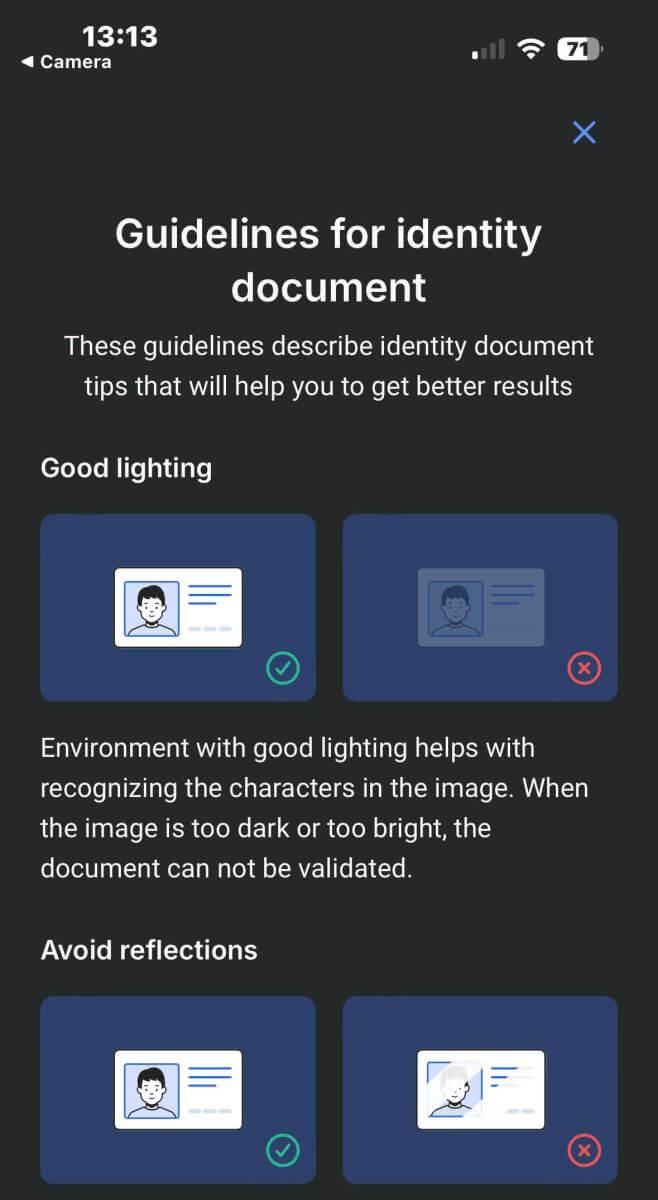
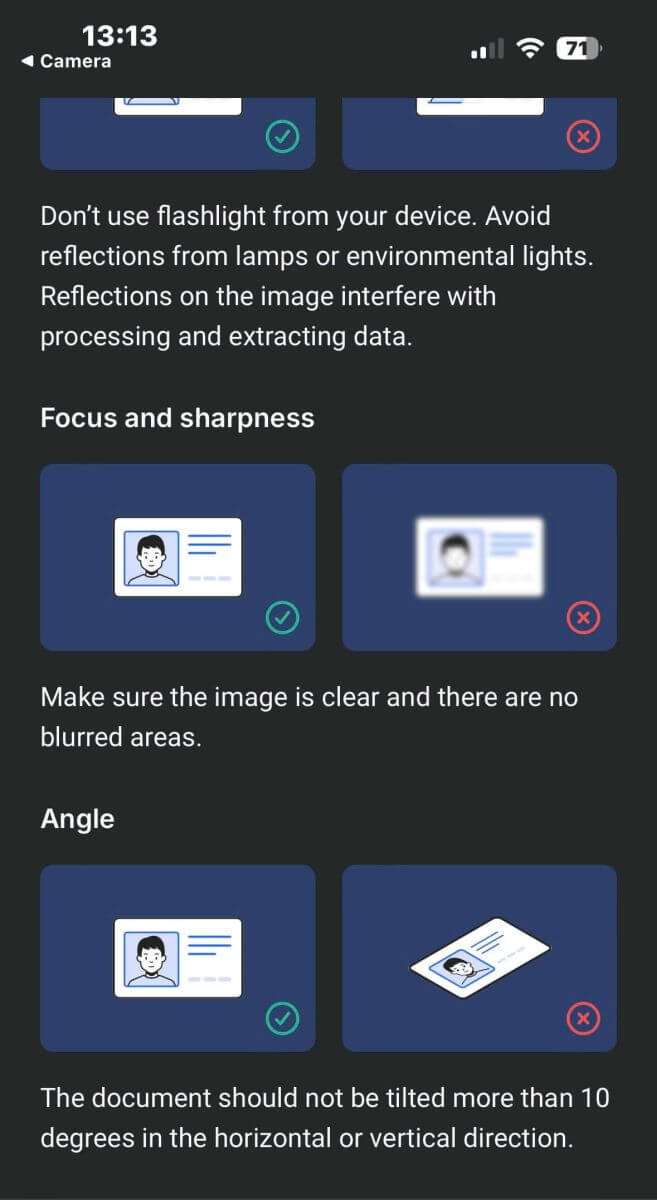
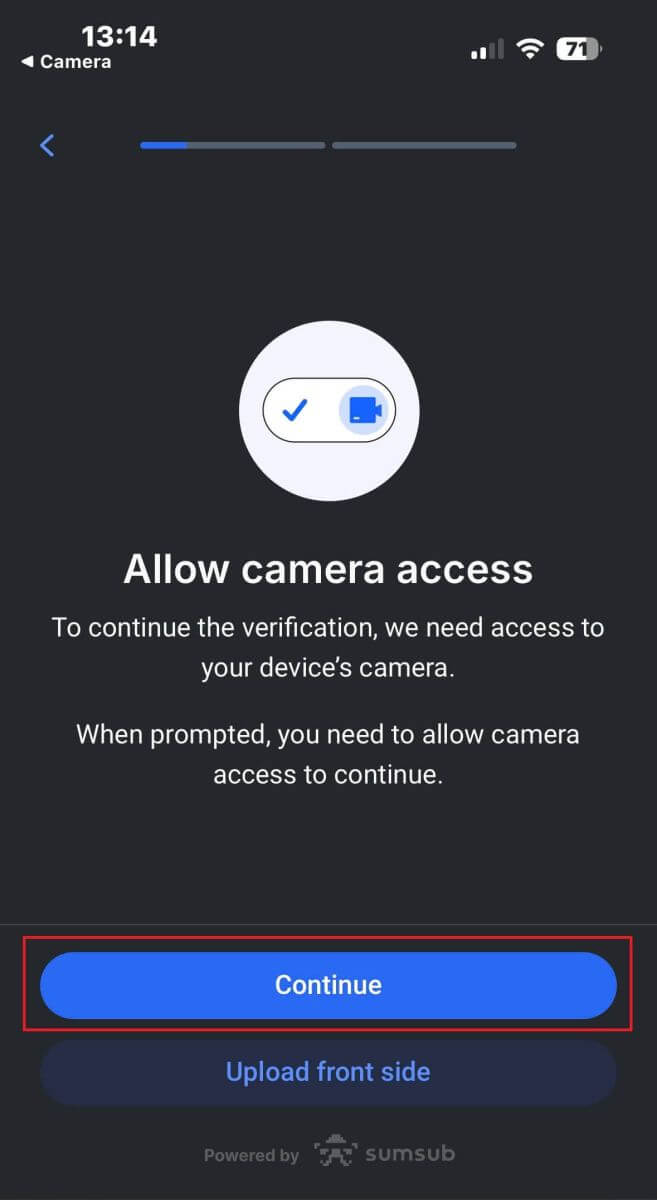
Also, ensure that you allow the device’s camera access, as this is a mandatory requirement.
Afterward, click "Continue" to start the upload process.
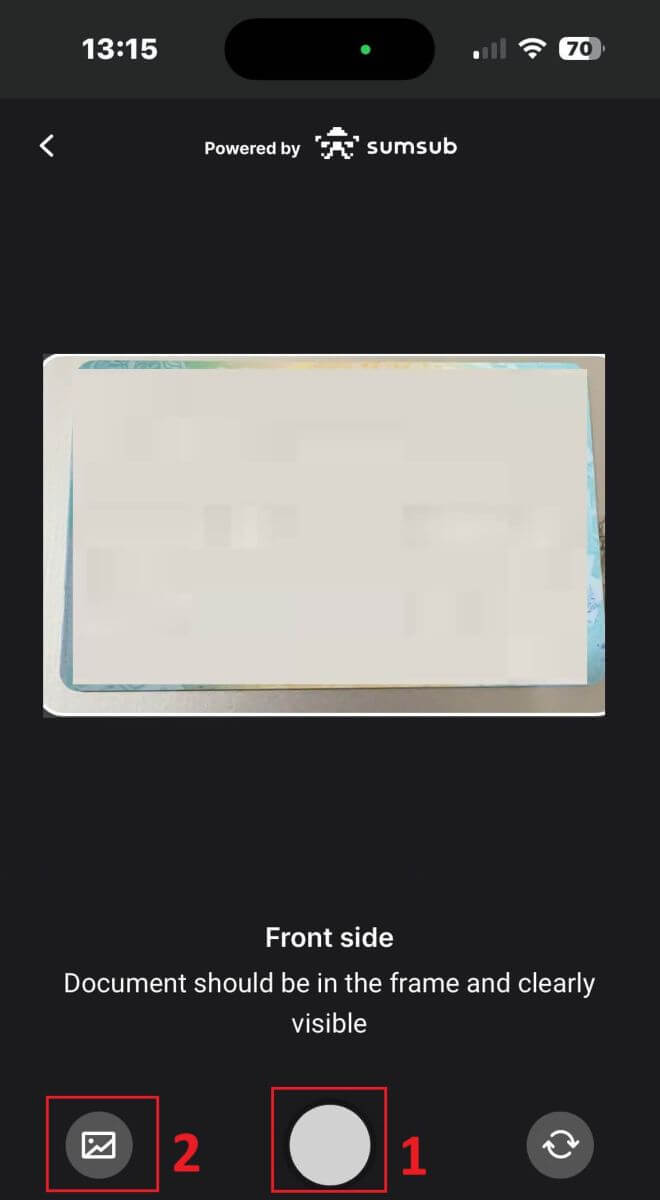
You will have two options for uploading your document images:
-
Align the document within the frame on the screen and then tap the white circular button at the bottom (labeled as number 1 in the image) to capture and save the image.
-
Choose the button with the icon shown in the image (labeled as number 2) to upload a photo from your device’s existing photo library.
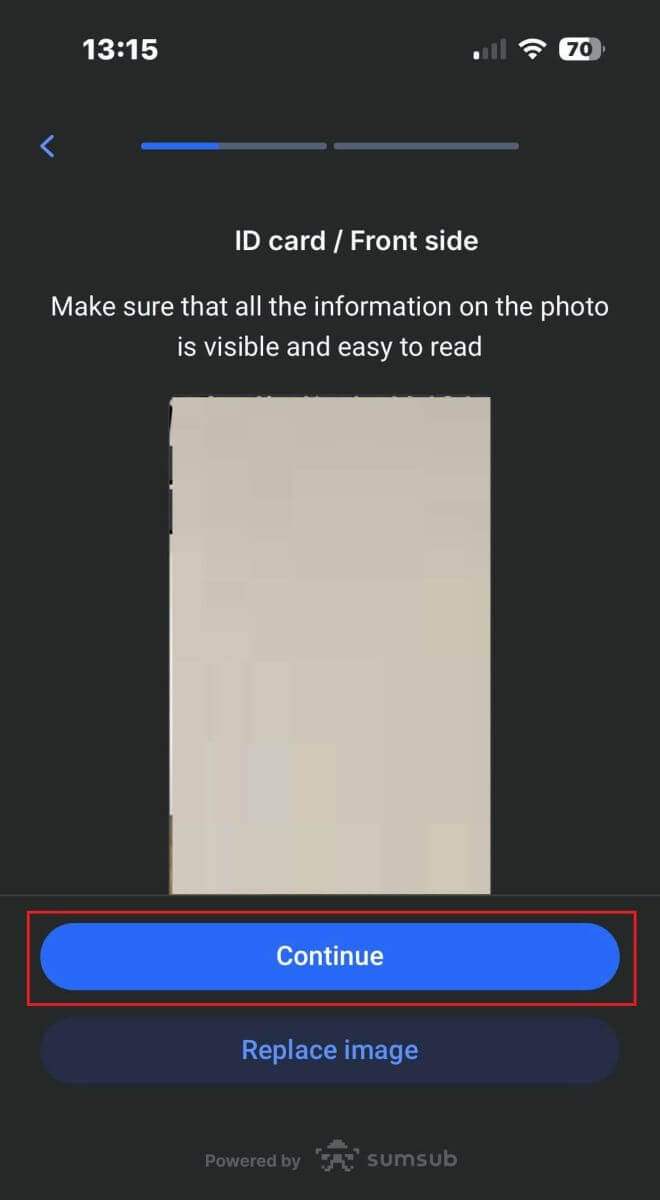
Next, ensure that the image is clear and readable. Repeat the process for any remaining sides of the document, depending on the type of verification document you selected.
If the images meet the standards, tap "Continue" to proceed to the next step.
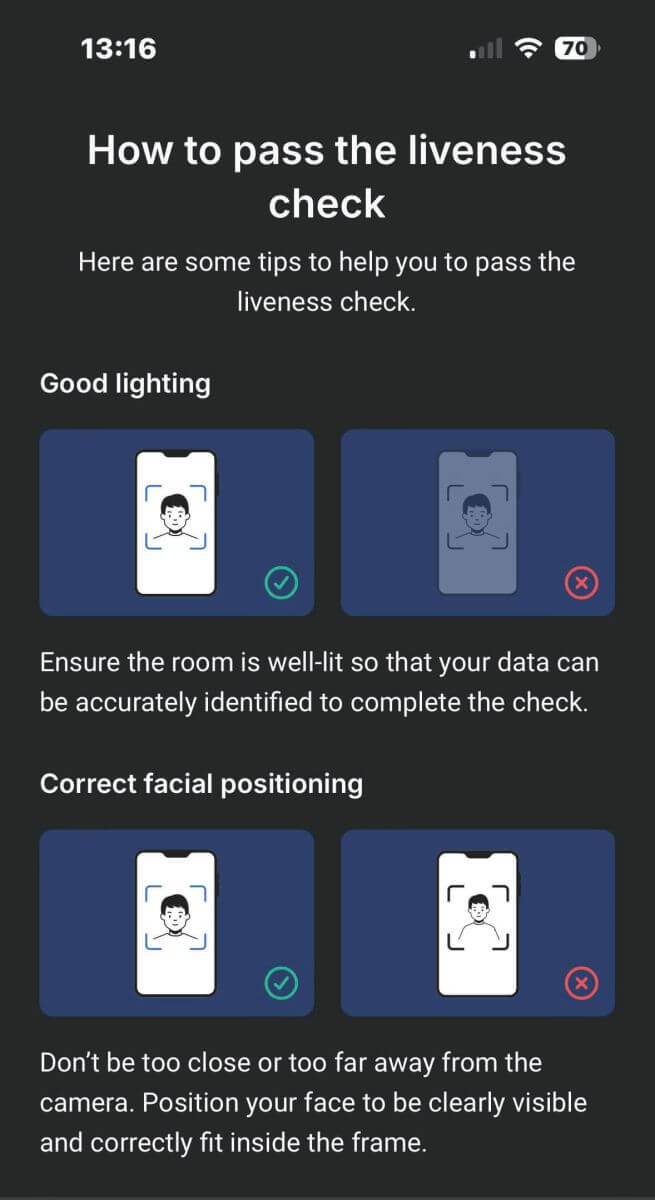
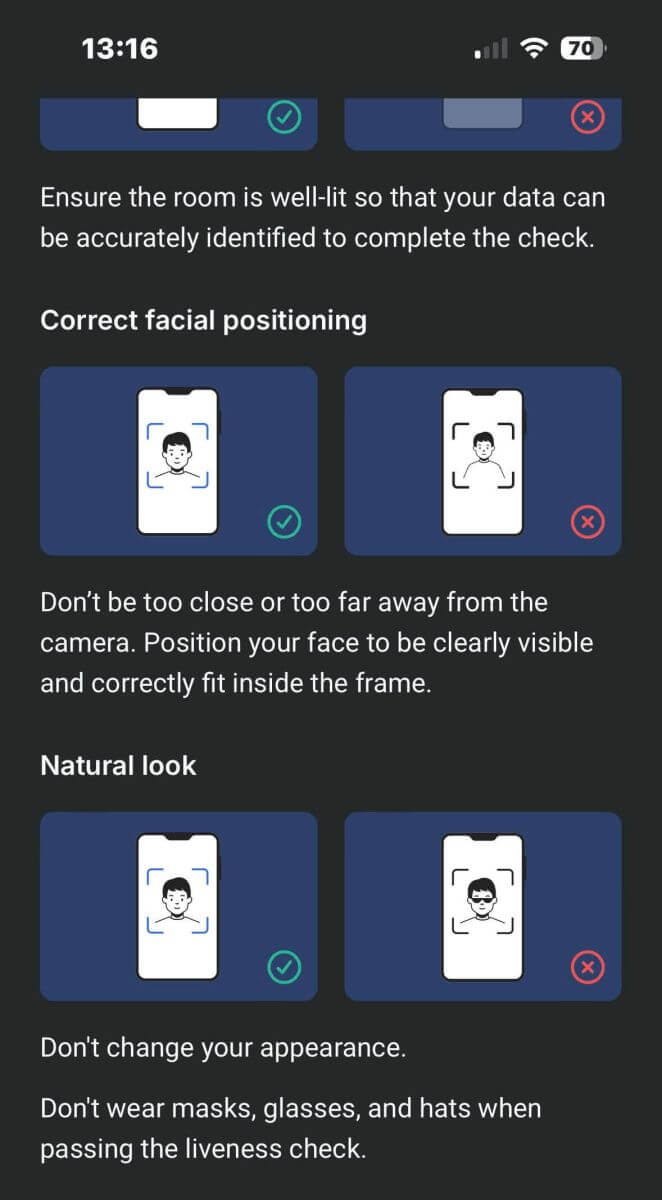
The next step will be the Liveness Check. Below are some tips to help you complete this step smoothly:
Good Lighting
Ensure the room is well-lit so that your data can be accurately identified to complete the check.
Correct facial positioning
Please don’t be too close or too far away from the camera. Position your face to be clearly visible and correctly fit inside the frame.
Natural Look
Don’t change your appearance. Don’t wear masks, glasses, and hats when passing the liveness check.
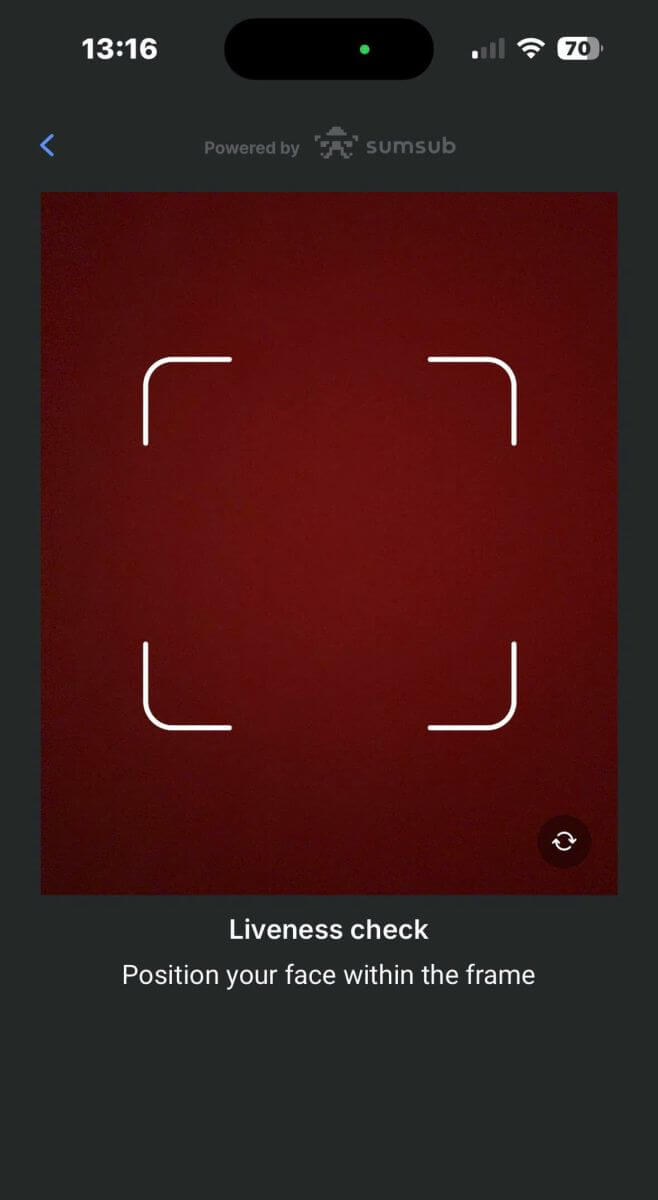
Position your face within the frame and remain still for 2 to 5 seconds for the system to identify you. If successful, you will be automatically redirected to the next screen.
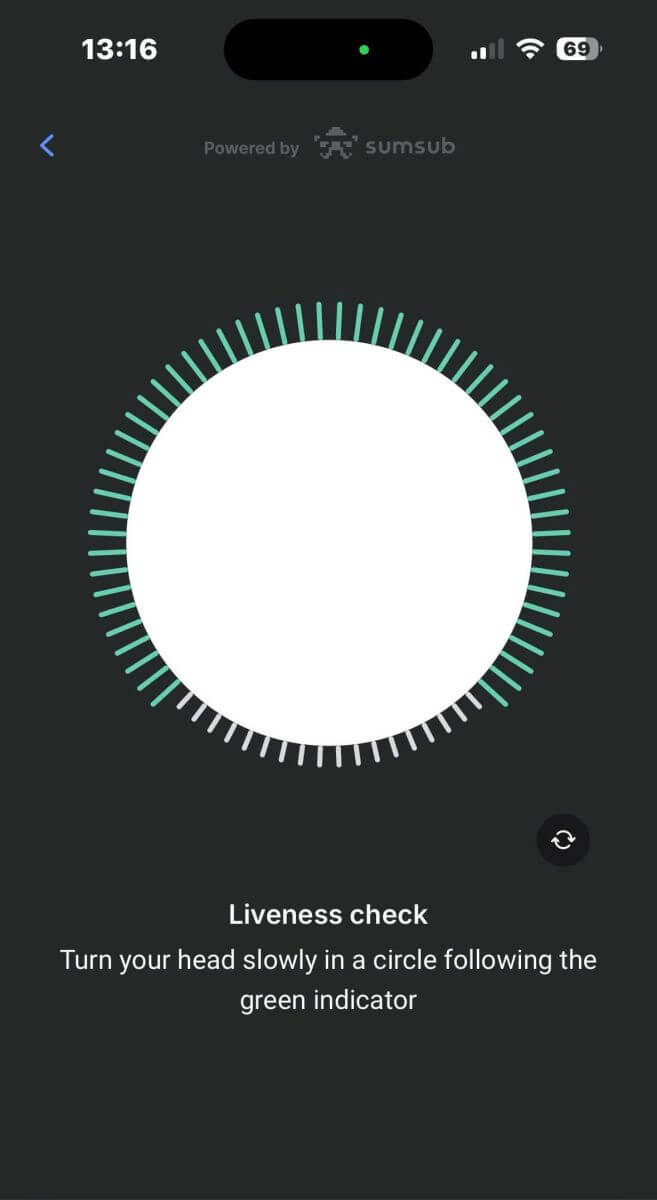
On this page, keep your face within the frame and slowly turn your head in a circular motion following the green indicator.
Congratulations on successfully completing the Liveness Check!
Please wait for 5 to 10 seconds while the system processes your data and displays the results on the screen.
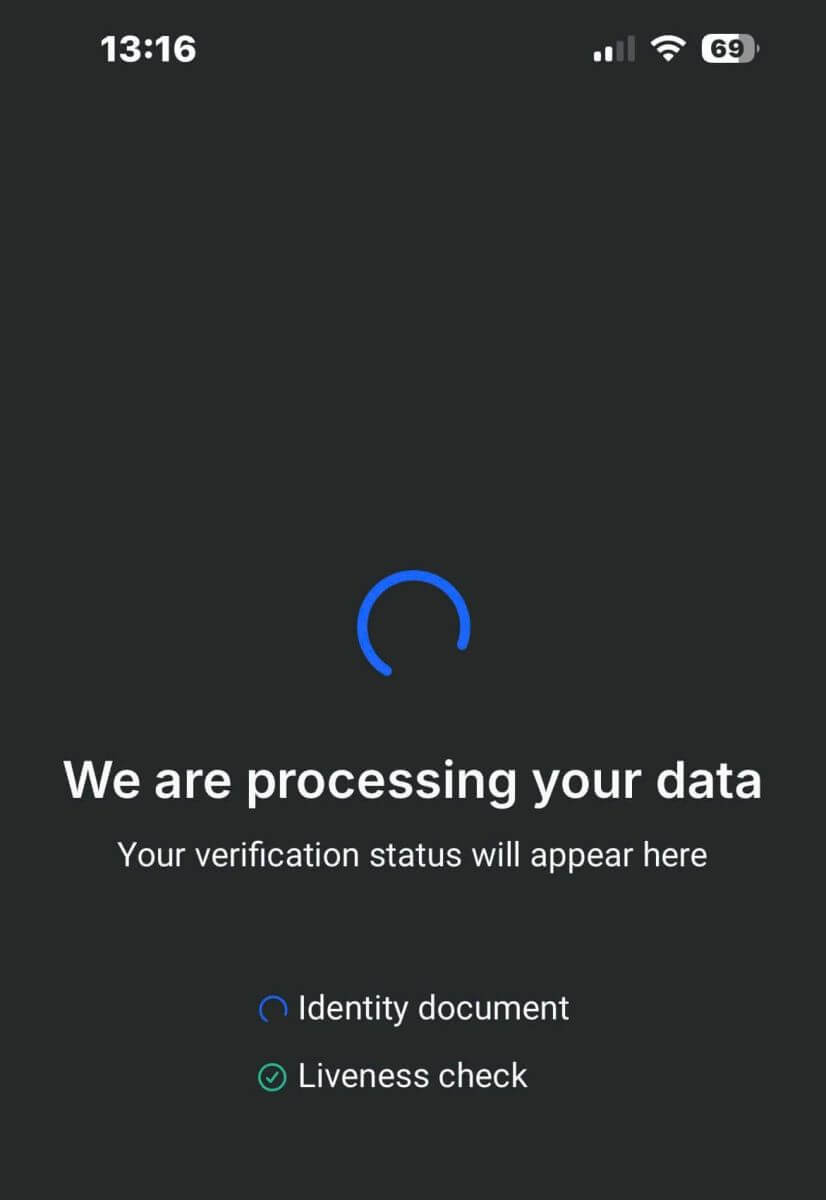
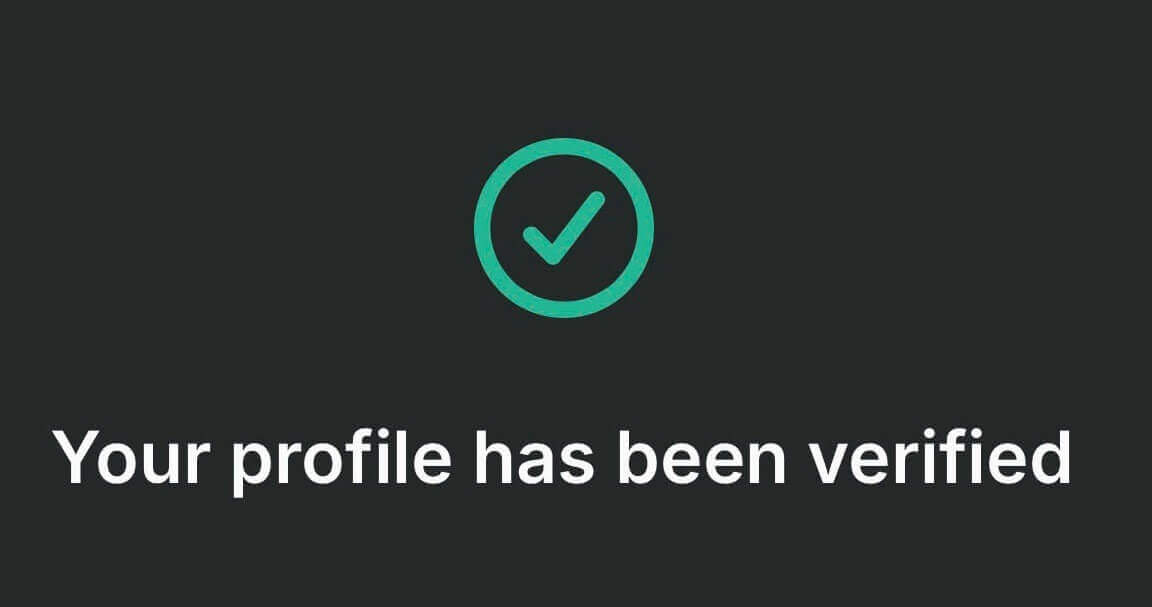
Congratulations on successfully verifying your profile with FxPro! Such a straightforward and quick process.
Frequently Asked Questions (FAQ)
What documents do you require?
We require a copy of your valid International Passport, National ID card, or Driver’s Licence to verify your identity.
We may also request a Proof of residence document showing your name and address, issued within the last 6 months.
The document(s) required and their current verification status can be seen at any time via FxPro Direct.
Are my personal details secure with you?
FxPro takes serious precautionary measures to ensure that your personal details are held in absolute confidence. Your passwords are encrypted and your personal details are stored on secure servers and cannot be accessed by anyone, except a very small number of authorized members of staff.
What should I do if I fail the appropriateness test?
As a regulated broker, we are required to assess the suitability of our clients regarding their understanding of CFDs and knowledge of the risks involved.
If it is deemed that you do not currently have the experience required, you can proceed with a demo account creation. Once you feel that you are ready and experienced enough to open a live account, and are fully aware of the risks involved, please contact us so we can reassess your suitability.
If the information you provided to us on the registration form was inaccurate, please let us know so we can contact you to clarify any errors.
Conclusion: Secure and Efficient Account Management with FxPro
Logging in and verifying your account on FxPro is designed to be both secure and user-friendly. These steps not only protect your personal information but also ensure compliance with industry regulations, giving you peace of mind as you trade. With your account verified, you can confidently explore all the features FxPro has to offer, knowing that your trading environment is both safe and efficient.