FxPro Sign In and Withdrawal — Access Your Account & Withdraw Funds

Expect clear, practical steps to sign in to your FxPro account, recover access if credentials fail, and complete common two-step authentication procedures. The withdrawal section explains supported payout channels, how to prepare standard KYC documents, typical processing timeframes and common rejection reasons with simple fixes. It also highlights safety steps—confirming payment destinations, saving transaction receipts and using secure devices—so you can complete withdrawals more reliably without unnecessary hold-ups.

How to Sign in to FxPro
How to Sign in to FxPro [Web]
First, visit the FxPro homepage and click the "Login" button at the top right corner of the screen to be directed to the signing-in page.

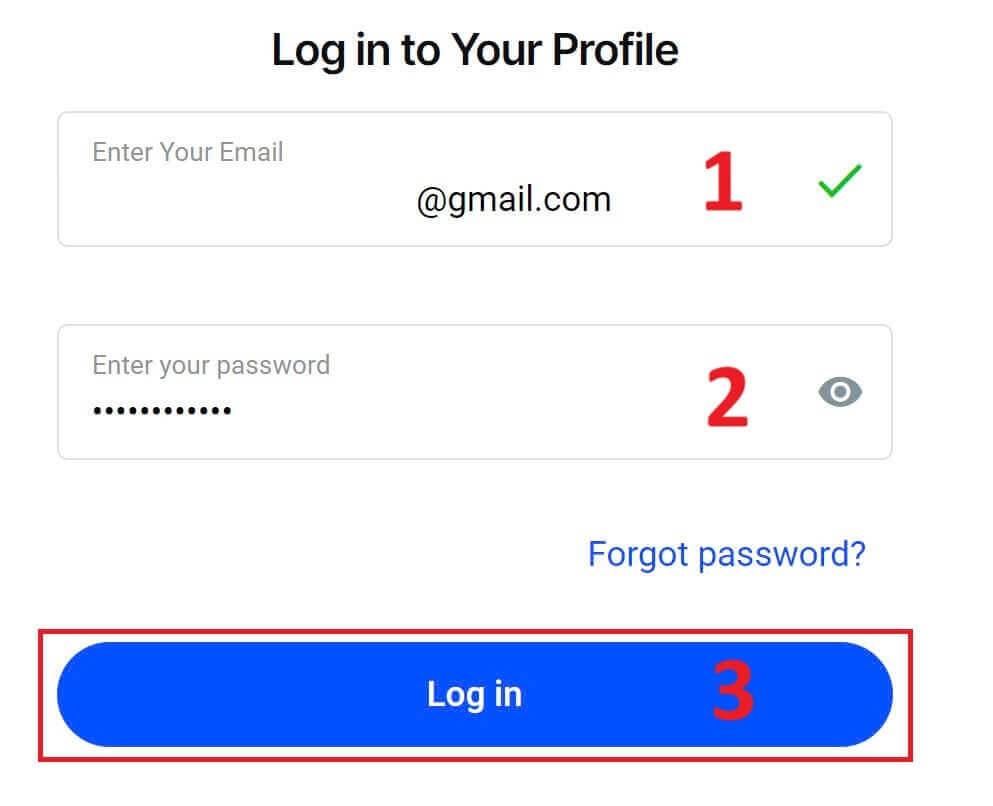
You will then be directed to the signing-in page where you will sign in with the email address and password you used to register. Once you finished, click "Log in" to complete the signing-in process.
If you don’t have an account with FxPro yet, follow the instructions in the following article: How to Register Account on FxPro.
Signing in FxPro is easy—join us now!
How to Sign in to Trading Platform: MT4
To sign in to FxPro MT4, you first need the signing-in credentials that FxPro sent to your email when you registered your account and created new trading accounts. Be sure to check your email carefully.
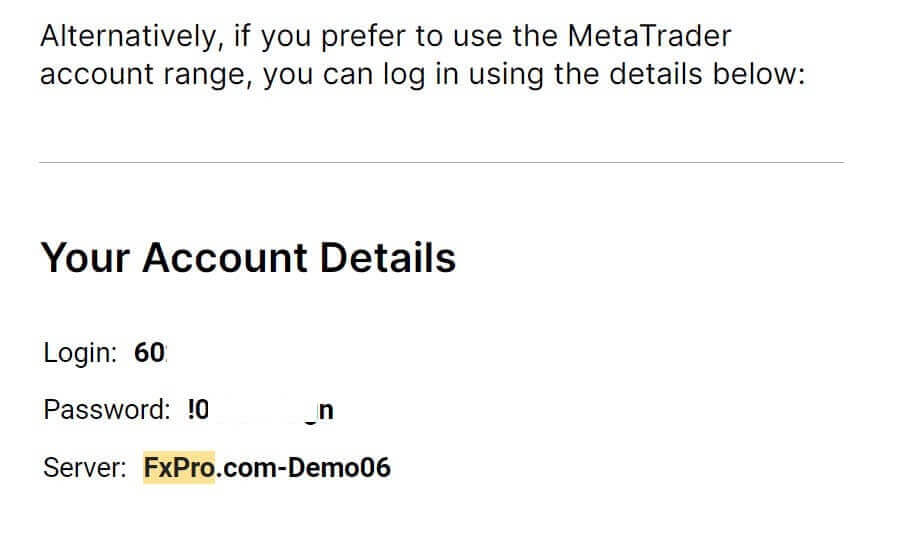
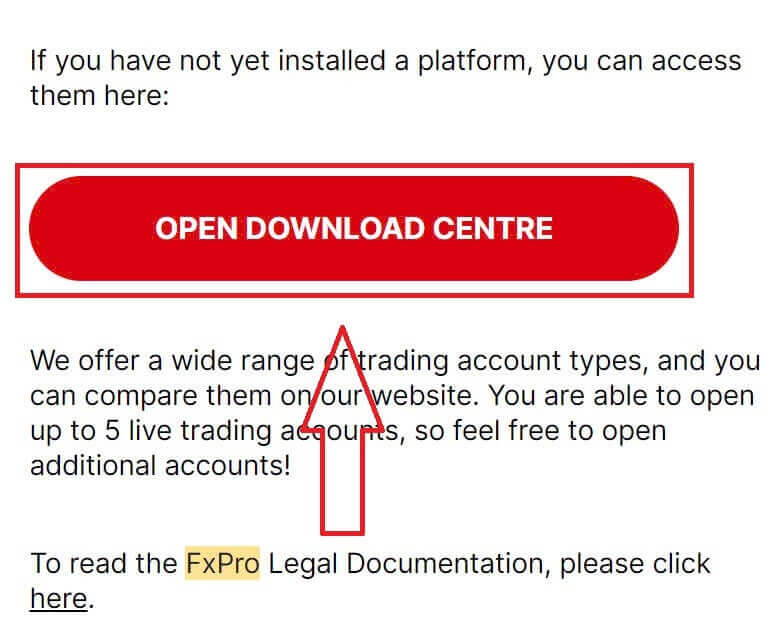
Right below your signing-in information, select the "OPEN DOWNLOAD CENTRE" button to access the trading platform.
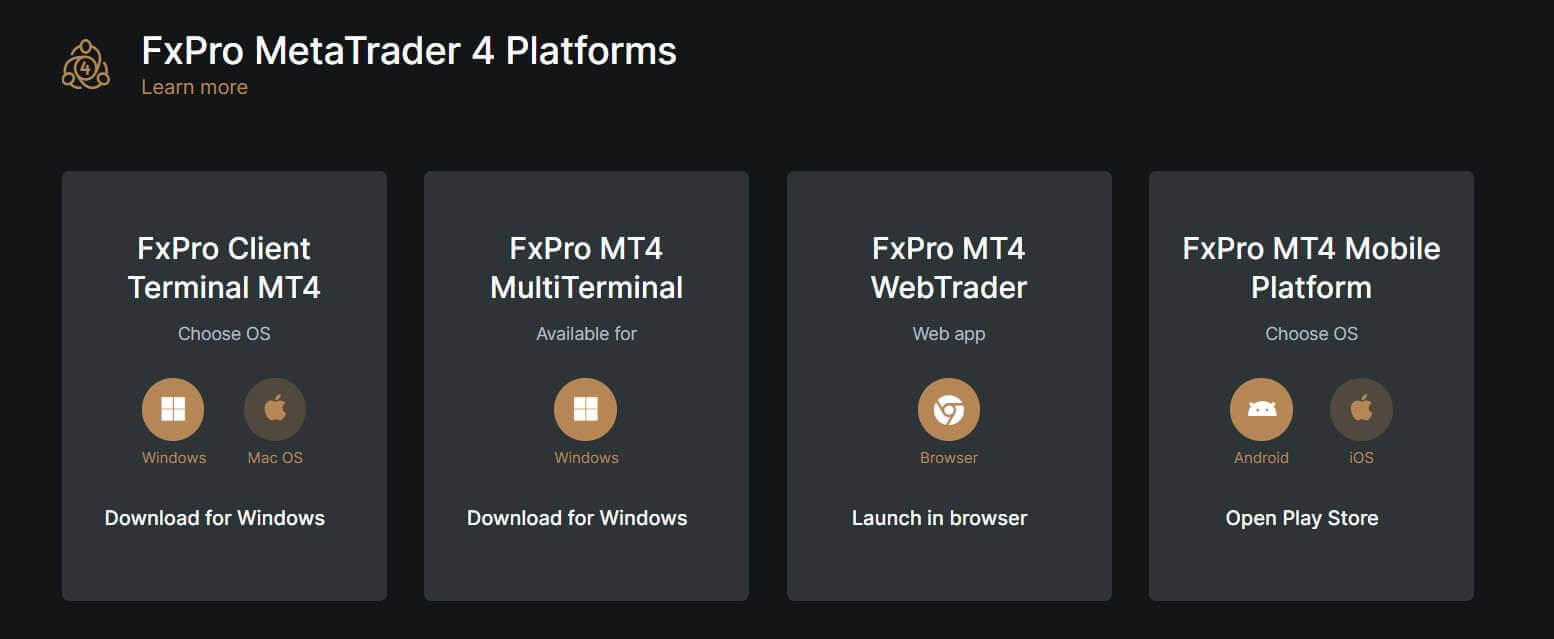
Depending on the platform, FxPro supports users with various trading options to ensure the most convenient experience, including:
-
Client Terminal Download.
-
MultiTerminal Download.
-
WebTrader Browser.
-
Mobile Platform.
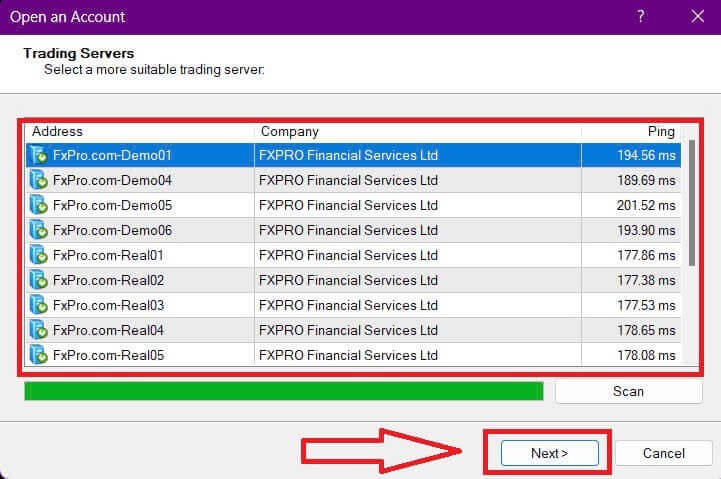
After selecting the most convenient option for yourself, open MT4 and start by choosing the server (please note that the server must match the server specified in your signing-in credentials from the registration email).
Once you finish, please click "Next" to proceed.
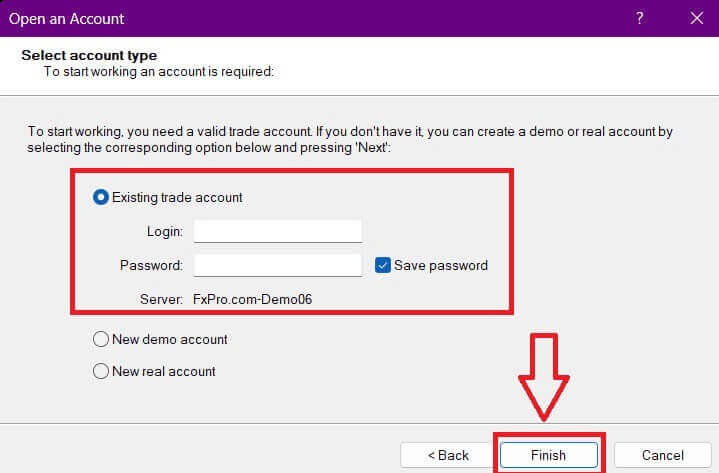
Then, in the second window that appears, select "Existing trade account" and enter your signing-in credentials into the corresponding fields.
Click "Finish" after completing the information.
Congratulations! Now you can trade on MT4.
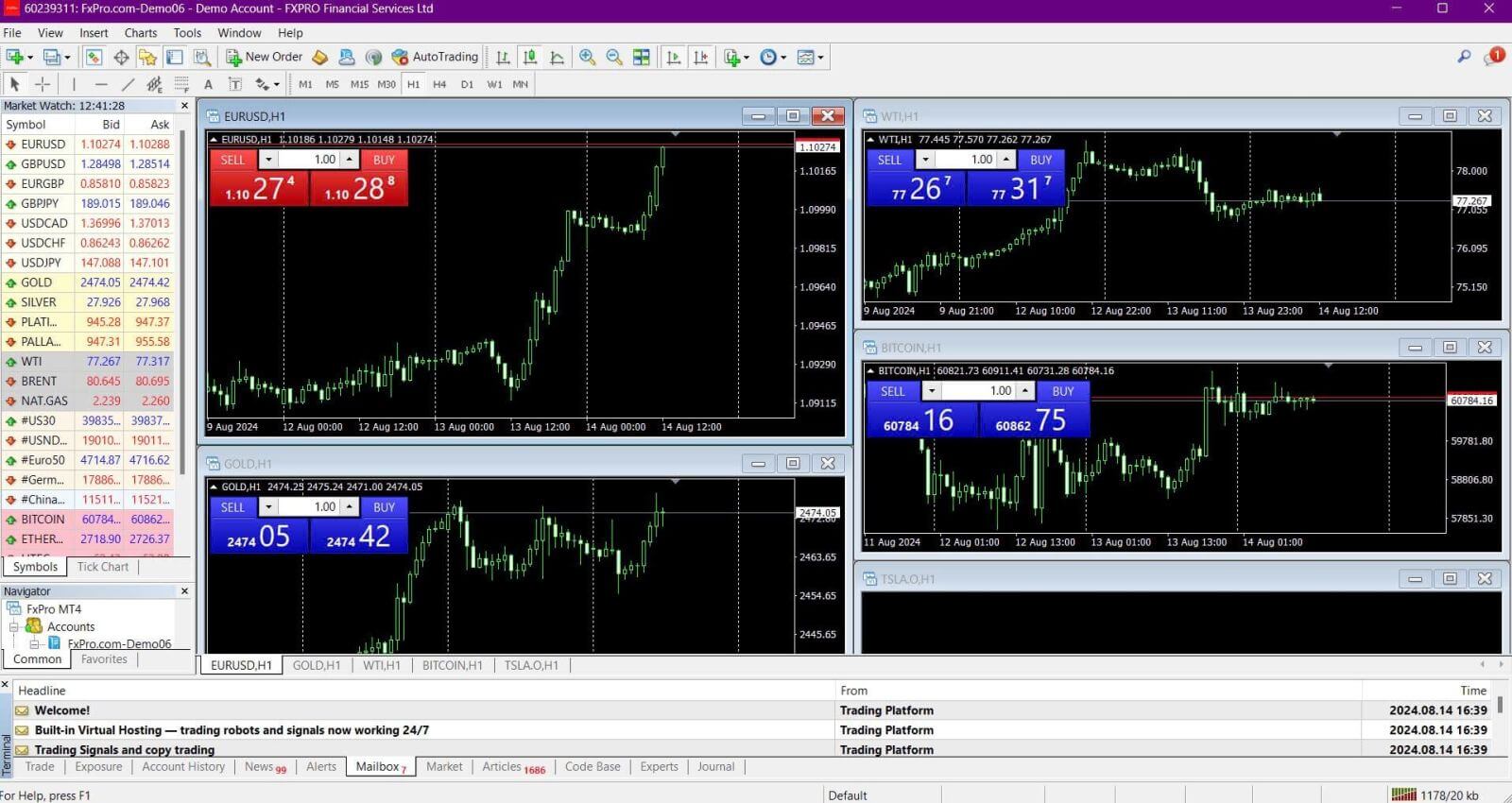
How to Sign in to Trading Platform: MT5
To sign in to FxPro MT5, you’ll need the signing-in credentials that FxPro sent to your email when you registered and set up your trading accounts. Make sure to check your email thoroughly.
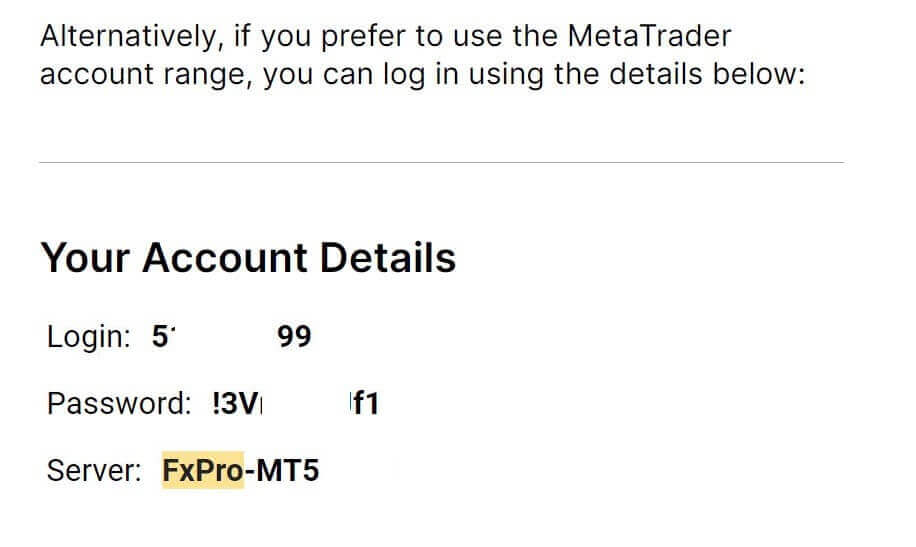
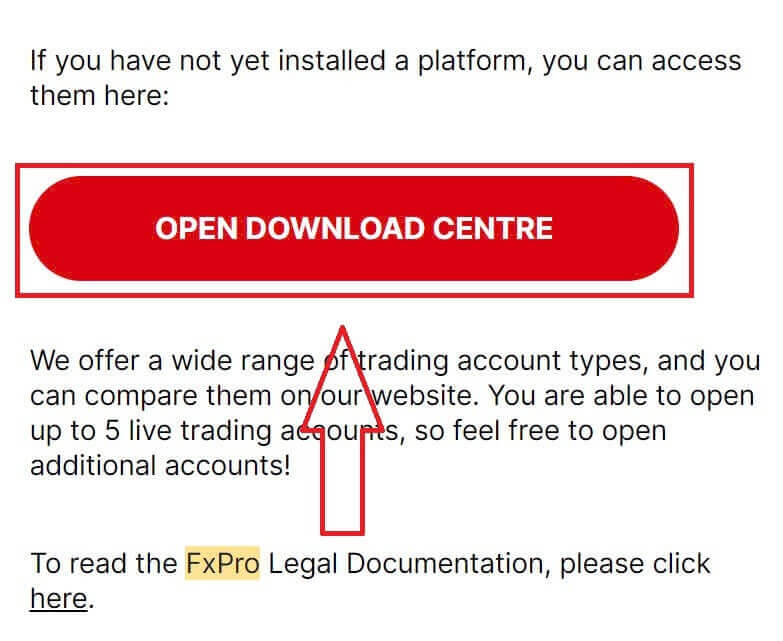
Just below your signing-in information, click the "OPEN DOWNLOAD CENTRE" button to access the trading platform.
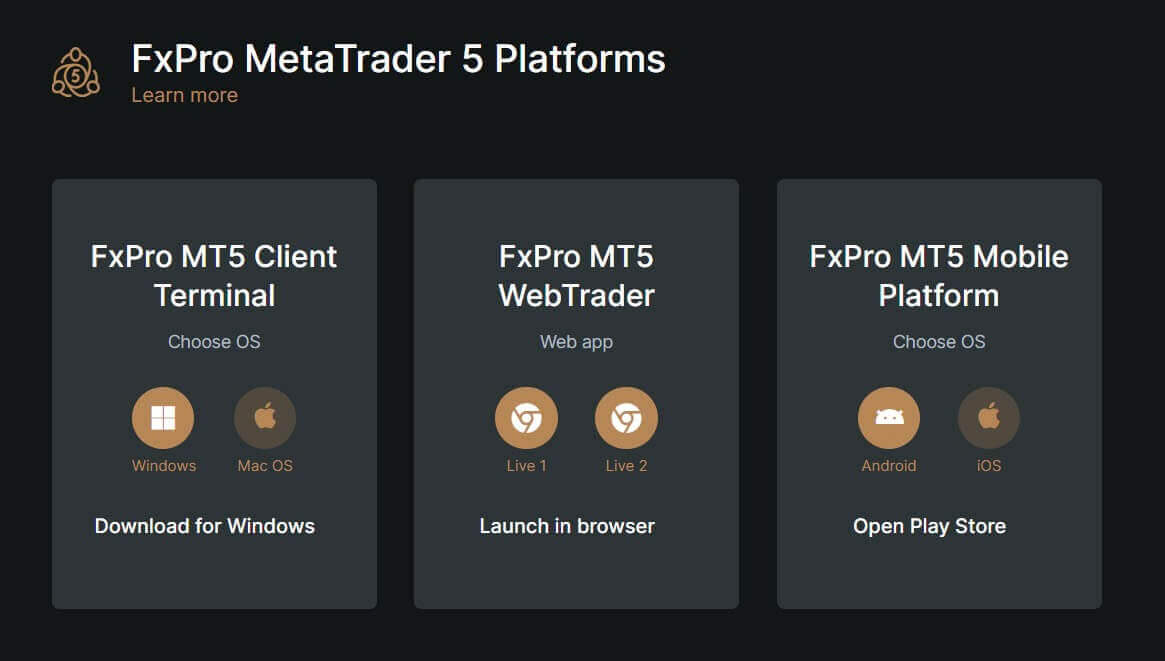
Depending on the platform, FxPro offers several trading options to provide a convenient experience, including:
-
Client Terminal Download.
-
MultiTerminal Download.
-
WebTrader Browser.
-
Mobile Platform.
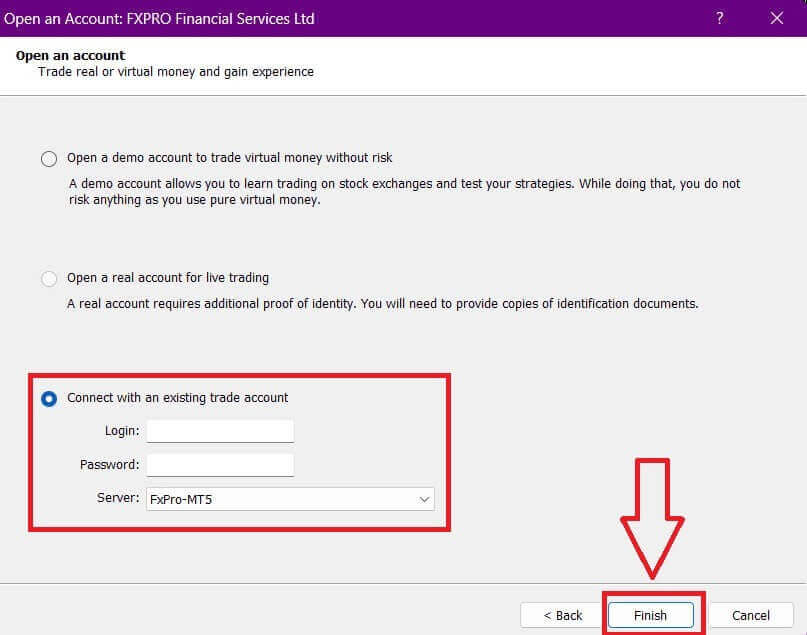
After accessing MT5, select the option "Connect with an existing trade account" and enter your signing-in information as well as choose the server that matches the one in your email. Then, click "Finish" to complete the process.
Congratulations on successfully signing in MT5 with FxPro. Wishing you great success on your journey to becoming a trading master!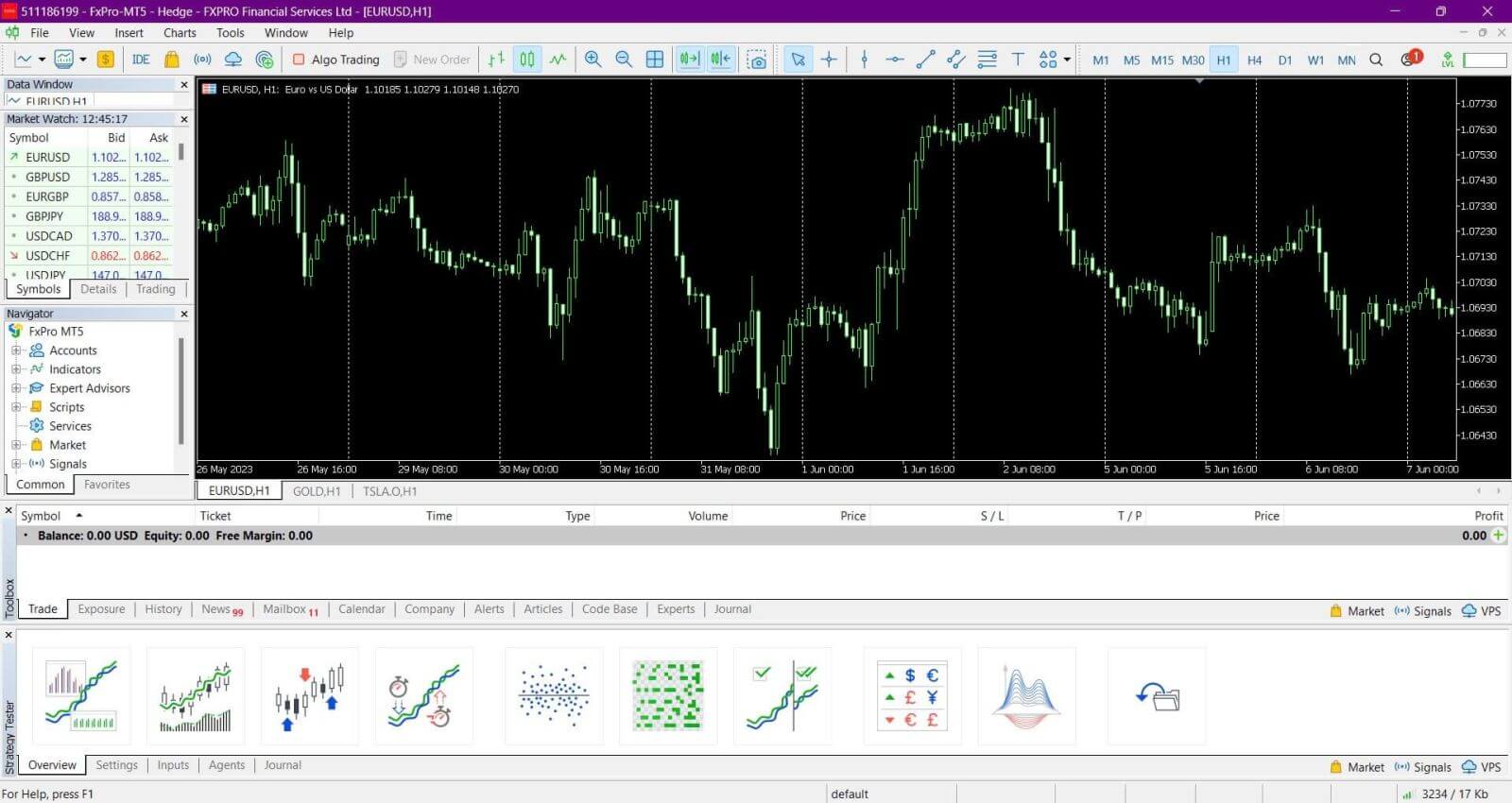
How to Sign in to FxPro [App]
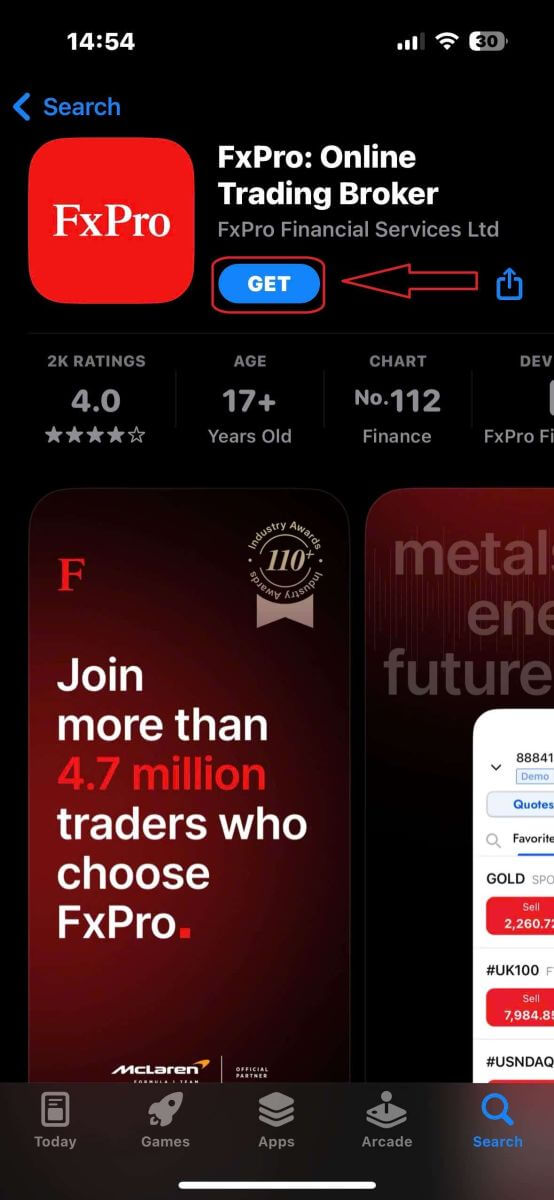
First, open the App Store or Google Play on your mobile device, then search for "FxPro: Online Trading Broker" and download the app.
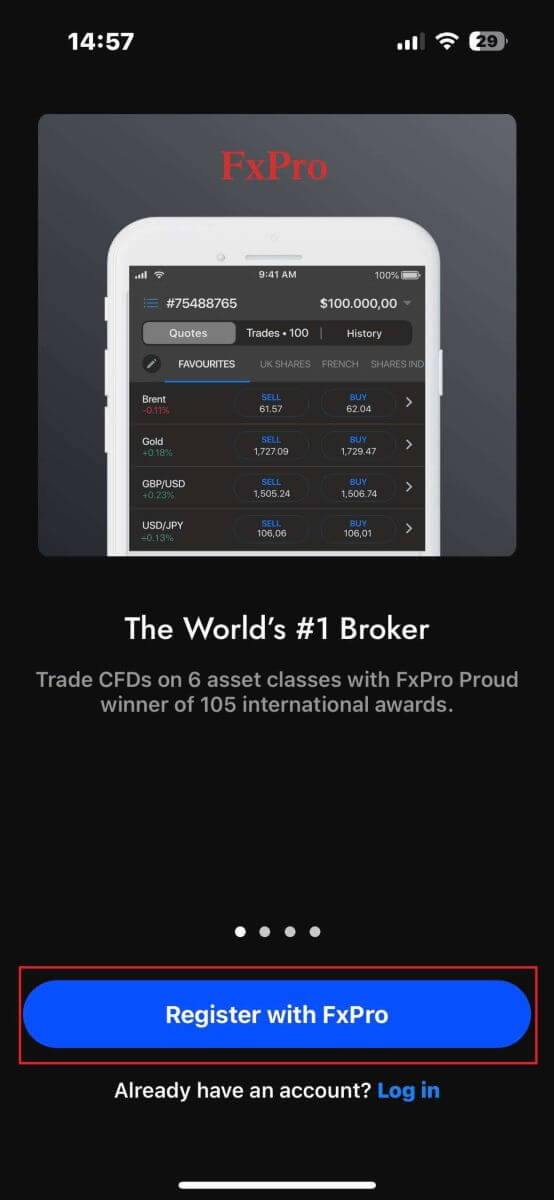
After installing the app, open it and select "Register with FxPro" to begin the account registration process.
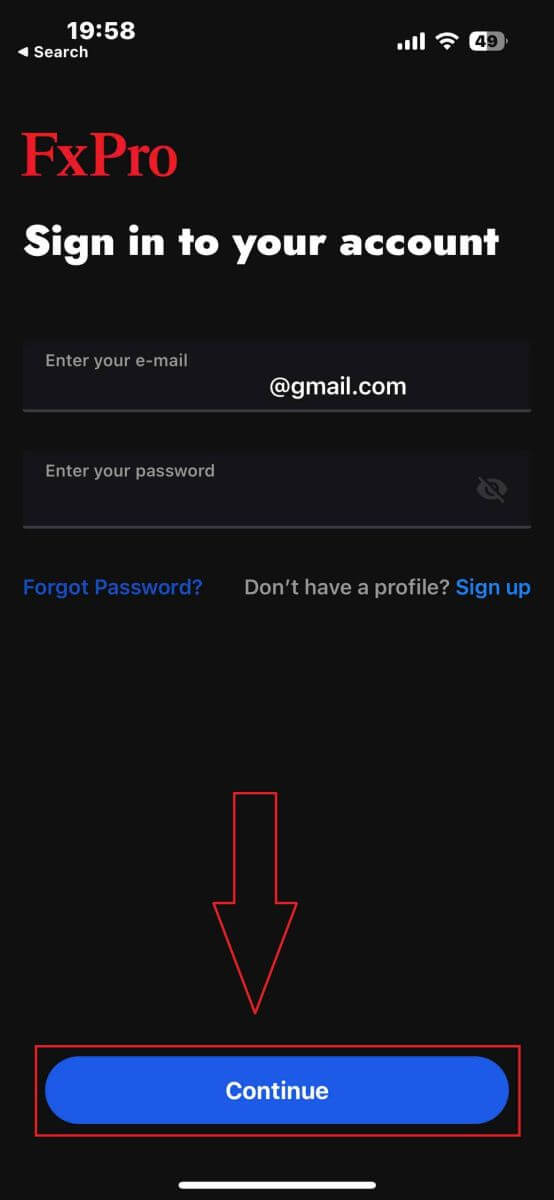
Having installed the mobile app, please sign in with the email address and password you used to register. Once you finished, tap "Log in" to complete the signing-in process.
If you don’t have an account with FxPro yet, follow the instructions in the following article: How to Register Account on FxPro.
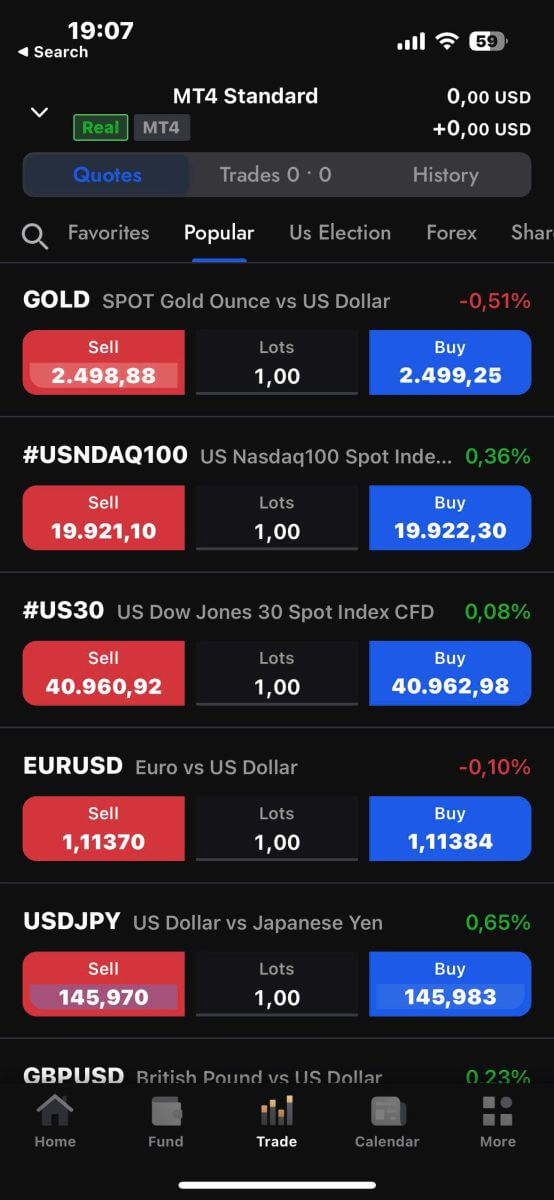
Congratulations on successfully signing in the FxPro Mobile App. Join us and trade anytime, anywhere!
How to Recover your FxPro password
To recover your password, start by visiting the FxPro website and clicking the "Login" button at the top right corner of the page.

You will then be directed to the signing-in page. Here, click on the "Forgot password?" link (as shown in the descriptive image) to start the process.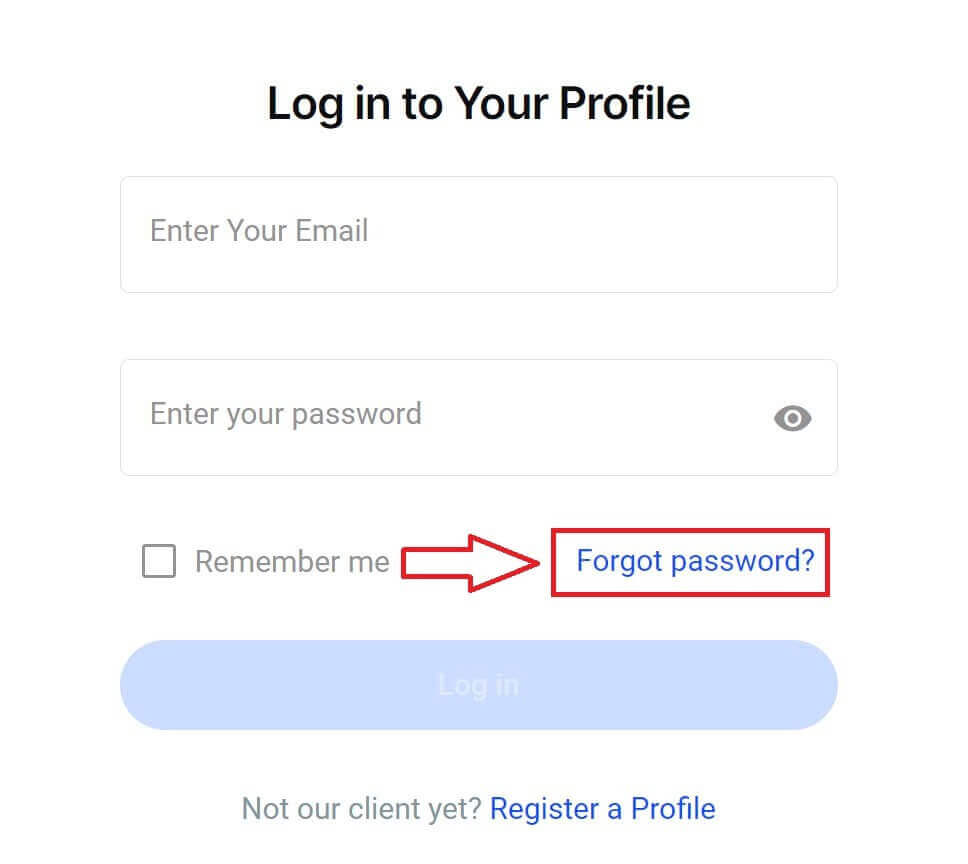
To begin, first, enter the email address you used to register your account. Then select "Reset Password."
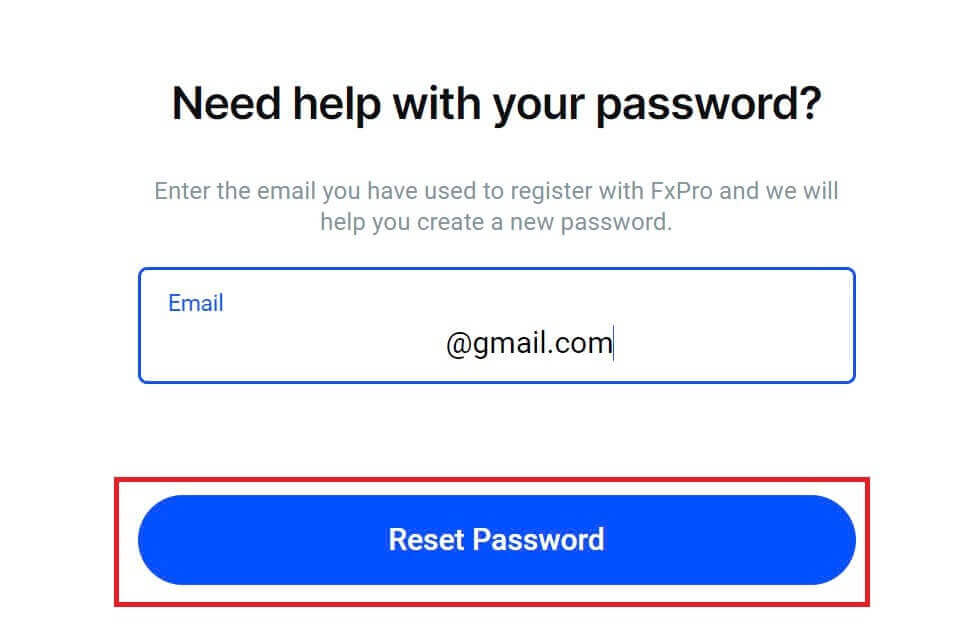
Immediately, an email with instructions to reset your password will be sent to that email address. Be sure to check your inbox carefully.

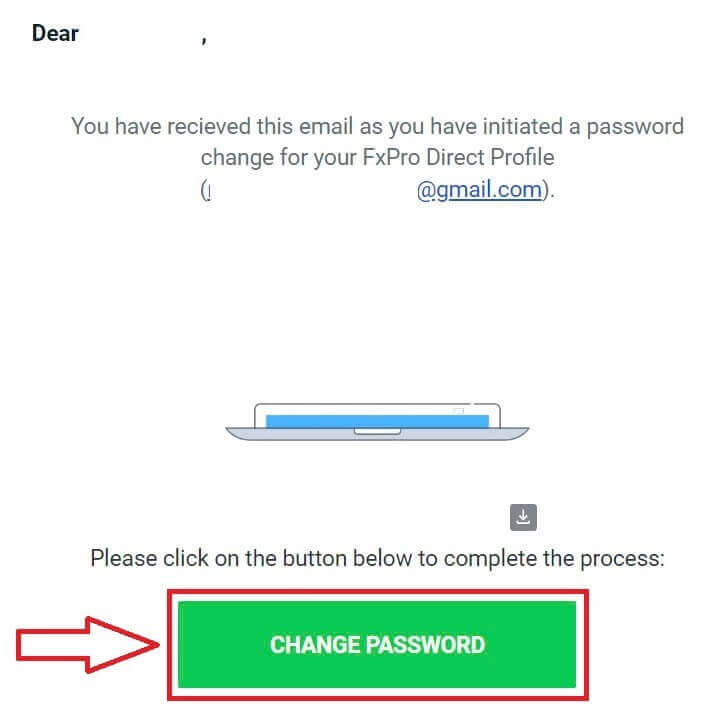
In the email you just received, scroll down and click the "CHANGE PASSWORD" button to be directed to the password reset page.
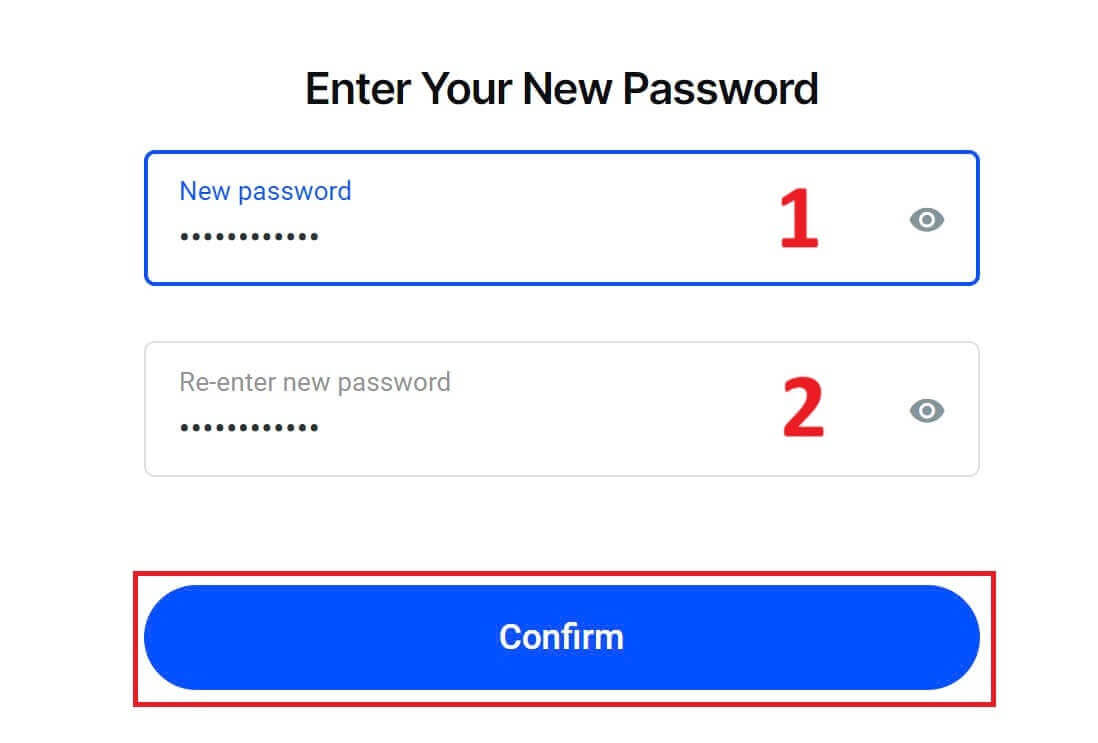
On this page, enter your new password into both fields (note that your password must be at least 8 characters long, including at least 1 uppercase letter, 1 number, and 1 special character—this is a mandatory requirement).
Congratulations on successfully resetting your password with FxPro. It’s great to see that FxPro prioritizes the safety and security of its users.

I can’t Sign in to my FxPro Dashboard
Experiencing difficulties signing in your Dashboard can be frustrating, but here’s a checklist to help you resolve the issue:
Username Check
Ensure you use your full registered email address as the username. Do not use a trading account number or your name.
Password Check
Use the PA password you set during registration.
-
Verify that there are no extra spaces added unintentionally, especially if you copied and pasted the password. Try entering it manually if problems persist.
-
Check if Caps Lock is on, as passwords are case-sensitive.
If you’ve forgotten your password, you can reset it using this link to reset your Personal Area password.
Account Check
If your account was previously terminated with FxPro, you will not be able to use that PA or email address again. Create a new PA with a different email address to register afresh.
We hope this helps! If you encounter any further issues, please contact our Support Team for assistance.
Frequently Asked Questions (FAQ)
How do I change the leverage of my trading account?
Sign in toFxPro Direct, go to ‘My Accounts’, click on the Pencil icon next to your account number, and select ‘Change Leverage’ from the drop-down menu.
Please note that for the leverage of your trading account to be changed, all open positions must be closed.
Note: The maximum leverage available to you may vary depending on your jurisdiction.
How can I reactivate my account?
Please note that live accounts are disabled after 3 months of inactivity, but you may, however, reactivate them. Unfortunately, demo accounts cannot be reactivated, but you may open additional ones via FxPro Direct.
Are your platforms compatible with Mac?
The FxPro MT4 and FxPro MT5 trading platforms are both compatible with Mac and can be downloaded from our Download Centre. Please note that the web-based FxPro cTrader and FxPro cTrader platforms are also available on MAC.
Do you allow the use of trading algorithms on your platforms?
Yes. Expert Advisors are fully compatible with our FxPro MT4 and FxPro MT5 platforms, and cTrader Automate can be used on our FxPro cTrader platform. If you have any questions regarding Expert Advisors and cTrader Automate, please contact our Customer Support at [email protected].
How to download trading platforms MT4-MT5?
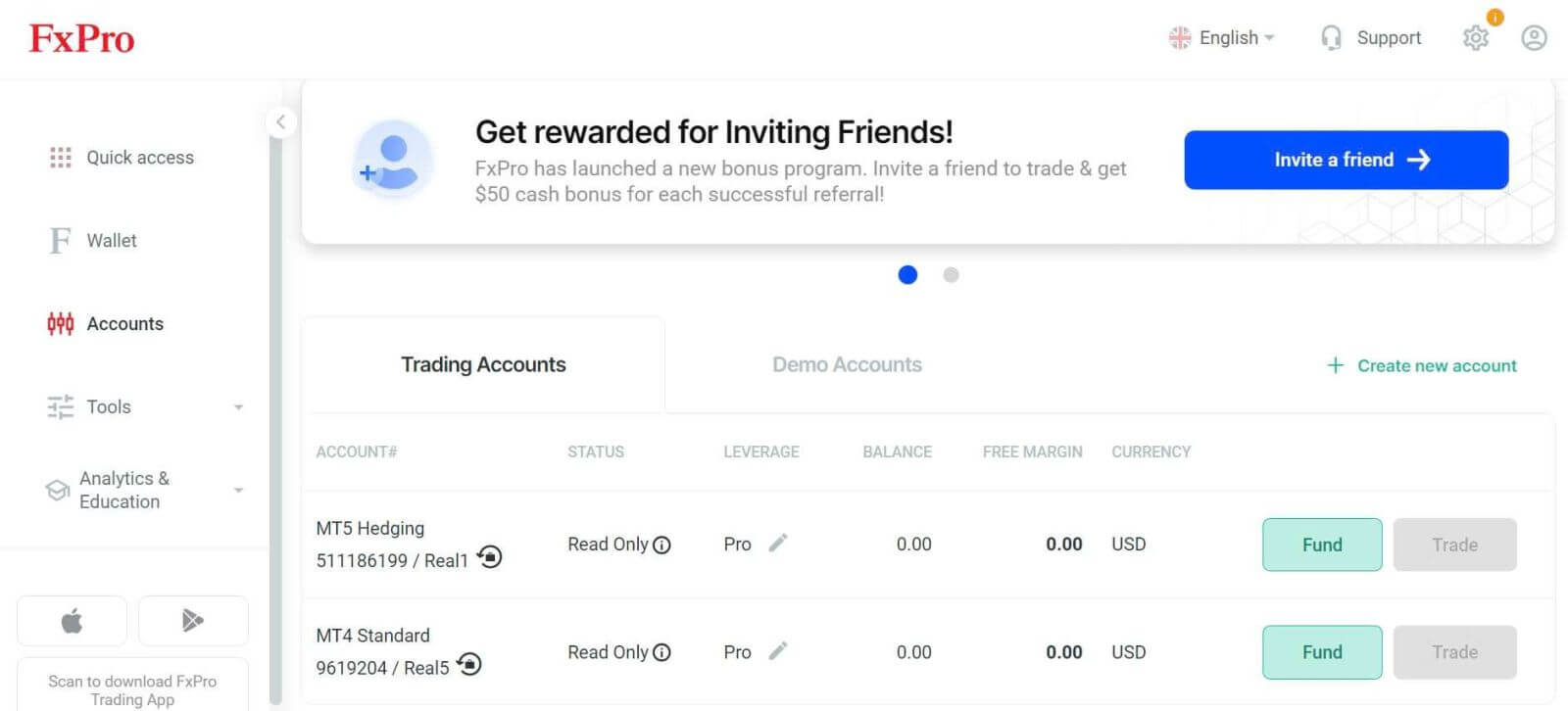
After you register and sign in FxPro Direct, you will see the relevant platform links conveniently displayed on your ’Accounts’ page, next to each account number. From there you can directly install desktop platforms, open webtrader, or install mobile apps.
Alternatively, from the main website, go to the “All Tools” section and open the “Download Centre”.
Scroll down to see all the platforms available. Several types of terminals are provided: for the desktop, web version, and mobile application.
Select your operating system and click “Download”. The platform upload will start automatically.
Run the setup program from your computer and follow the prompts by clicking “Next”.
After the installation is complete, you can sign in with the specific account details that you received in your email after the trading account registration at FxPro Direct. Now your trading with FxPro can begin!
How do I sign in to the cTrader platform?
Your cTrader cTID is sent to you via email once the creation of your account has been confirmed.
cTID allows access to all FxPro cTrader accounts (demo live) using only one sign-in and password.
By default, your cTID email will be the registered email address of your profile, and you can change the password to your own preference.
Once signed in with the cTID, you will be able to switch between any FxPro cTrader accounts registered under your profile.
How to Withdraw Money from FxPro
Withdrawal rules
Withdrawals are available 24/7, giving you constant access to your funds. To withdraw, visit the Withdrawal section in your FxPro Wallet, where you can also check the status of your transaction under Transaction History.
However, keep in mind the following general rules for withdrawals:
-
The maximum withdrawal amount is 15,999.00 USD (this is applied for all the withdrawal methods).
-
Kindly be informed that to withdraw via the Bank Wire method, you should first refund all your recent Credit Card, PayPal, and Skrill deposits. The funding methods that need to be refunded will be clearly displayed to you in your FxPro Direct.
-
Please note that for the withdrawal to be successful, you should transfer your funds to your FxPro Wallet. For the method using Bank Cards and Cryptocurrencies, the withdrawal amount must be equal to the deposit amount, while the profit will be automatically transferred via Bank Transfer.
-
You must follow our withdrawal policy which instructs that clients must withdraw via the same method used to deposit unless that method has been fully refunded or refund limits have expired. In this case, you may use a bank wire method, or an e-wallet previously used to fund (as long as it can accept payments) to withdraw profits.
-
FxPro does not charge any fees/commission on deposits/withdrawals, however, you may be subject to fees from banks involved in the case of bank transfers. Please note that for e-wallets, there may be a fee for withdrawals, if you have not traded.
Withdraw Money from FxPro [Web]
Bank Card
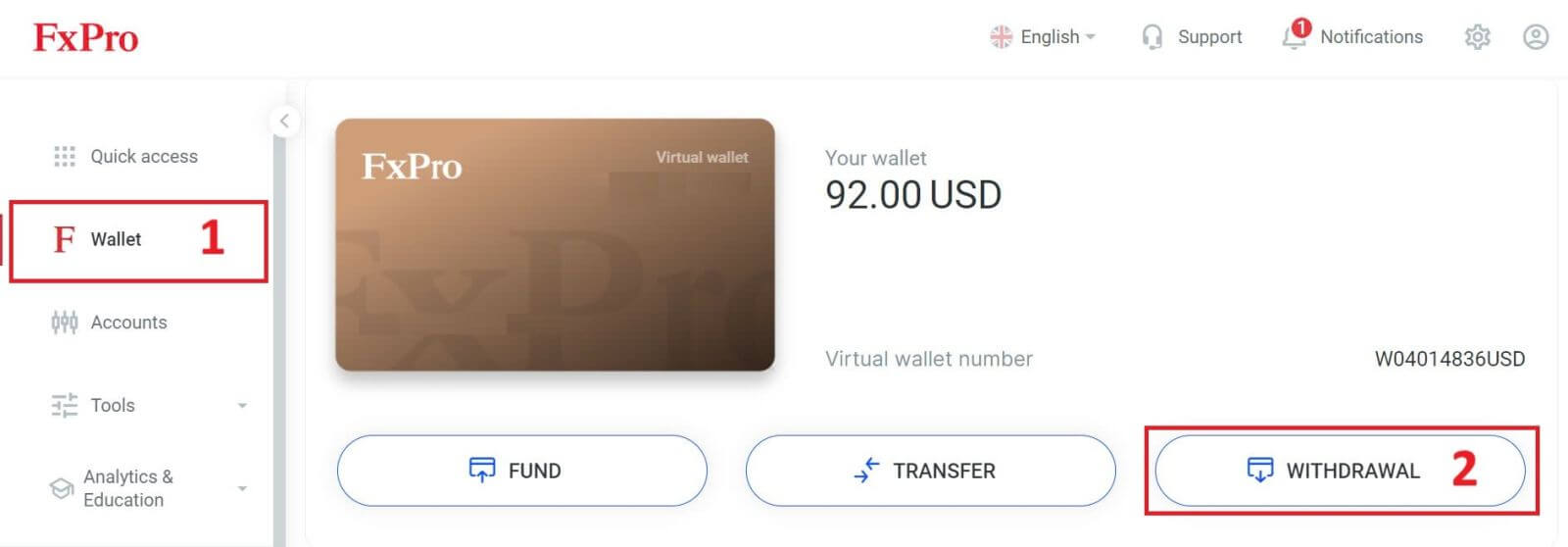
First, log in to your FxPro Dashboard. Then, select FxPro Wallet from the left sidebar and click the "Withdrawal" button to start.
Please note that we accept Credit/Debit cards including Visa, Visa Electron, Visa Delta, MasterCard, Maestro International, and Maestro UK.
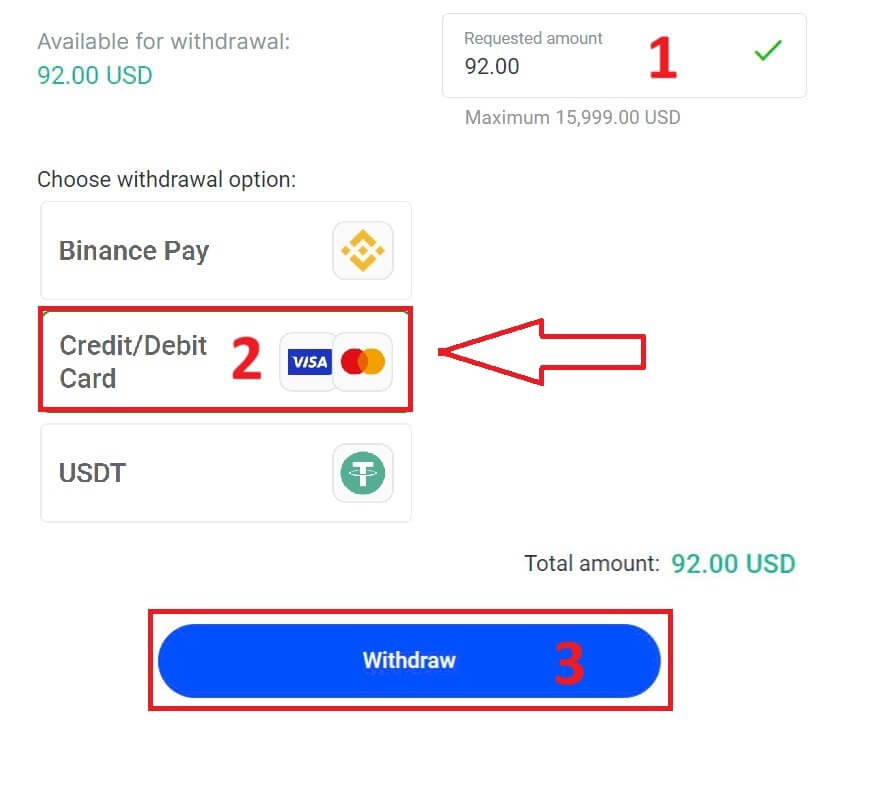
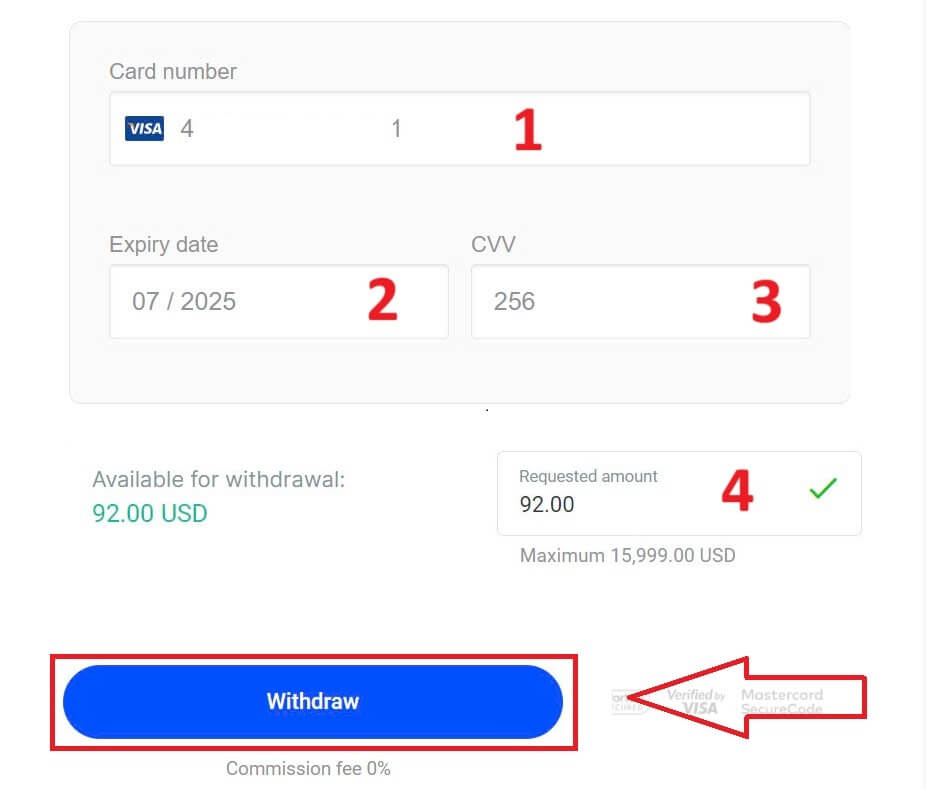
Next, enter the amount you wish to withdraw in the corresponding field. Then, select the "Withdraw" option as "Credit/Debit Card" and click the "Withdraw" button to continue.
Next, a form will appear for you to enter your card information (if you’re using the same card that you previously used to deposit, you can skip this step):
-
Card number
-
Expiry date.
-
CVV.
-
Please carefully check again the withdrawal amount.
Once you make sure every field is correct, click "Withdraw" to proceed.
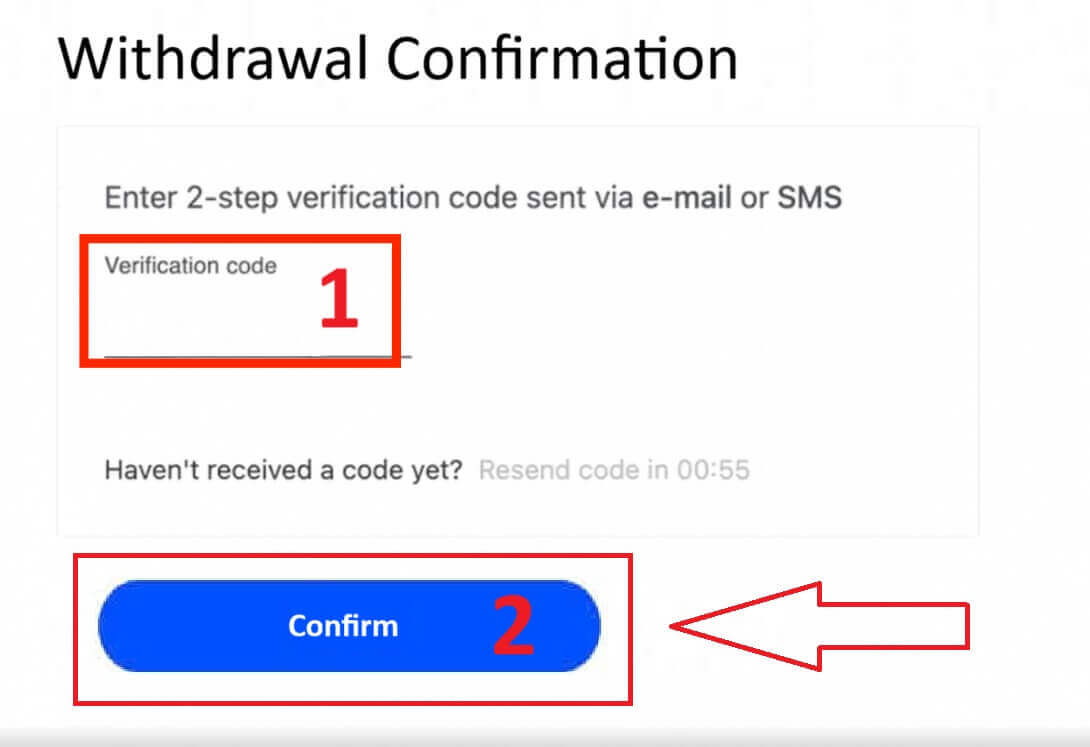
Input the verification code that was sent to you via email or SMS, and then click "Confirm".
A message will confirm the request is complete.
Electronic Payment Systems (EPS)
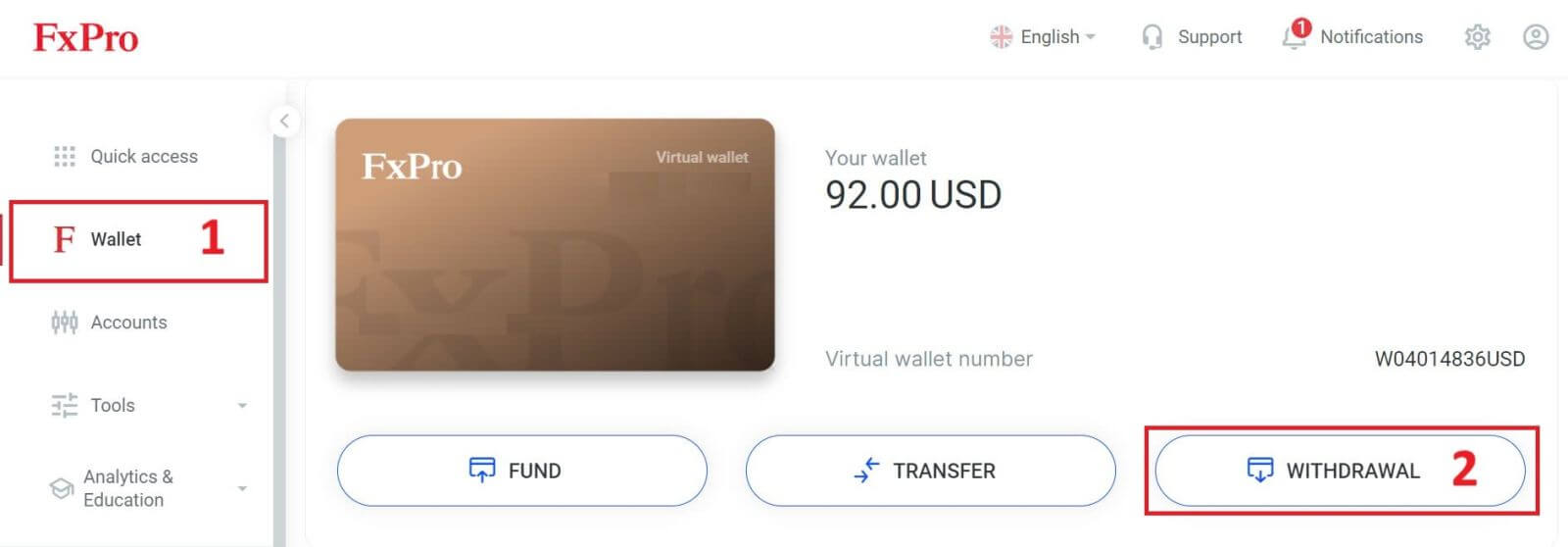
To get started, log into your FxPro Dashboard. Once inside, navigate to the left-hand sidebar, find FxPro Wallet, and hit the "Withdrawal" button to initiate the process.
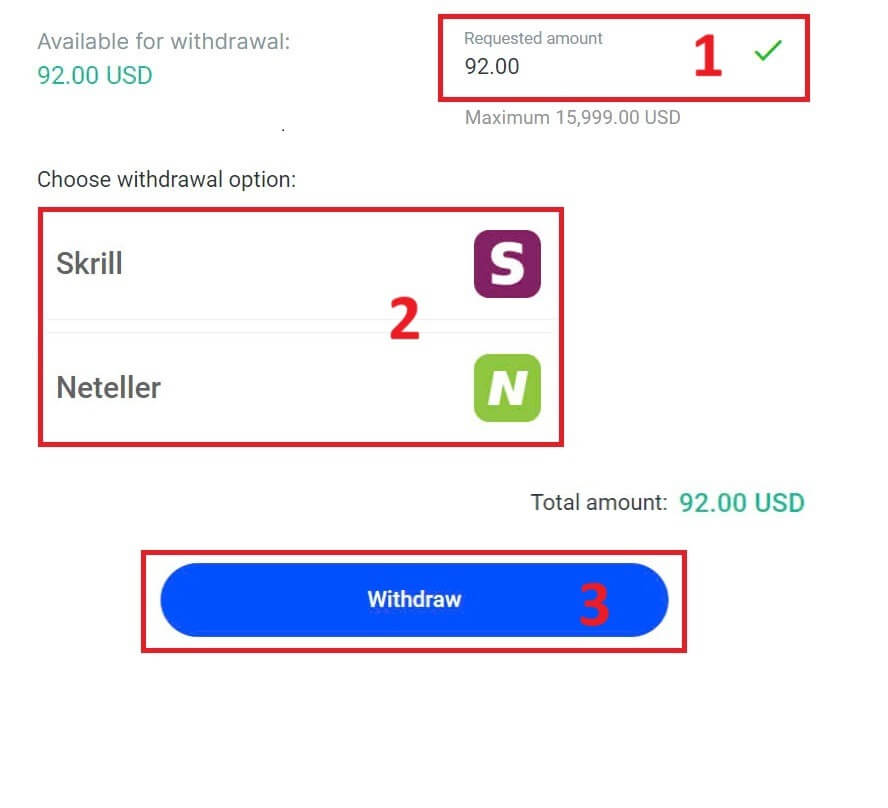
Now, input the desired withdrawal amount in the designated field. Choose one among the available EPS such as Skrill, Neteller,... as your withdrawal method, then proceed by clicking the "Withdraw" button to move forward.
Enter the verification code you received through email or SMS, and then click "Confirm" to proceed.
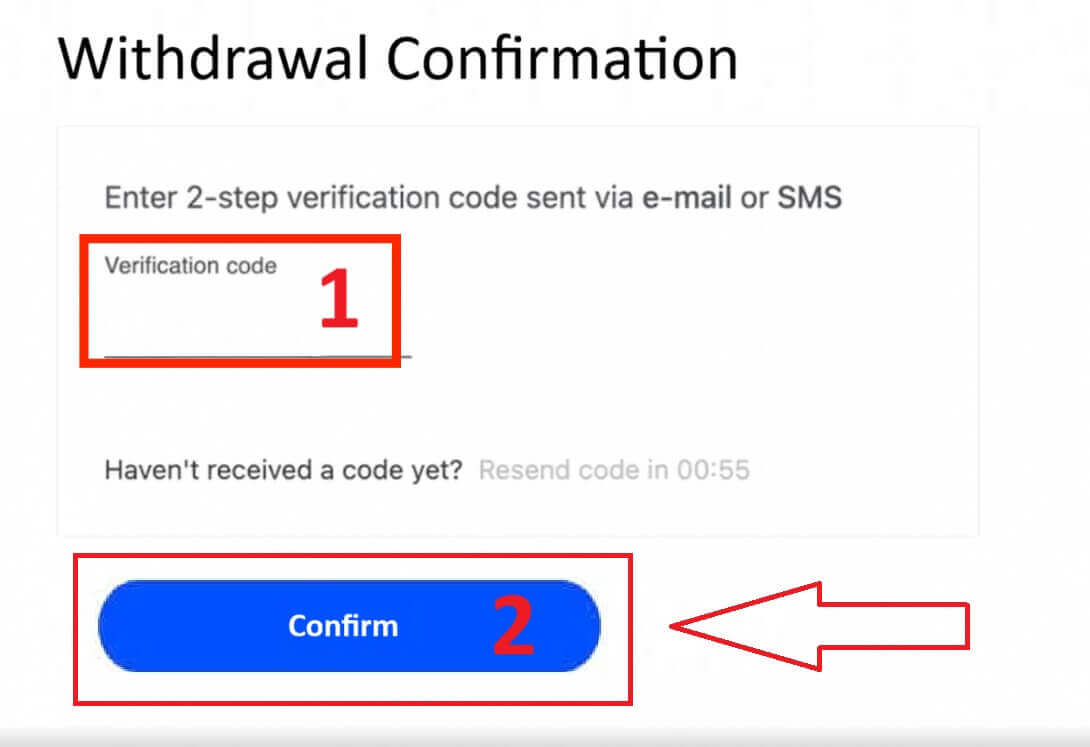
Congratulations, your withdrawal will now begin processing.
Cryptocurrencies
To begin, access your FxPro Dashboard. From there, locate the left-hand sidebar, find FxPro Wallet, and press the "Withdrawal" button to initiate the withdrawal process.
Please note that the External Wallet you used for your deposit will also be the default destination for your withdrawal (this is mandatory).
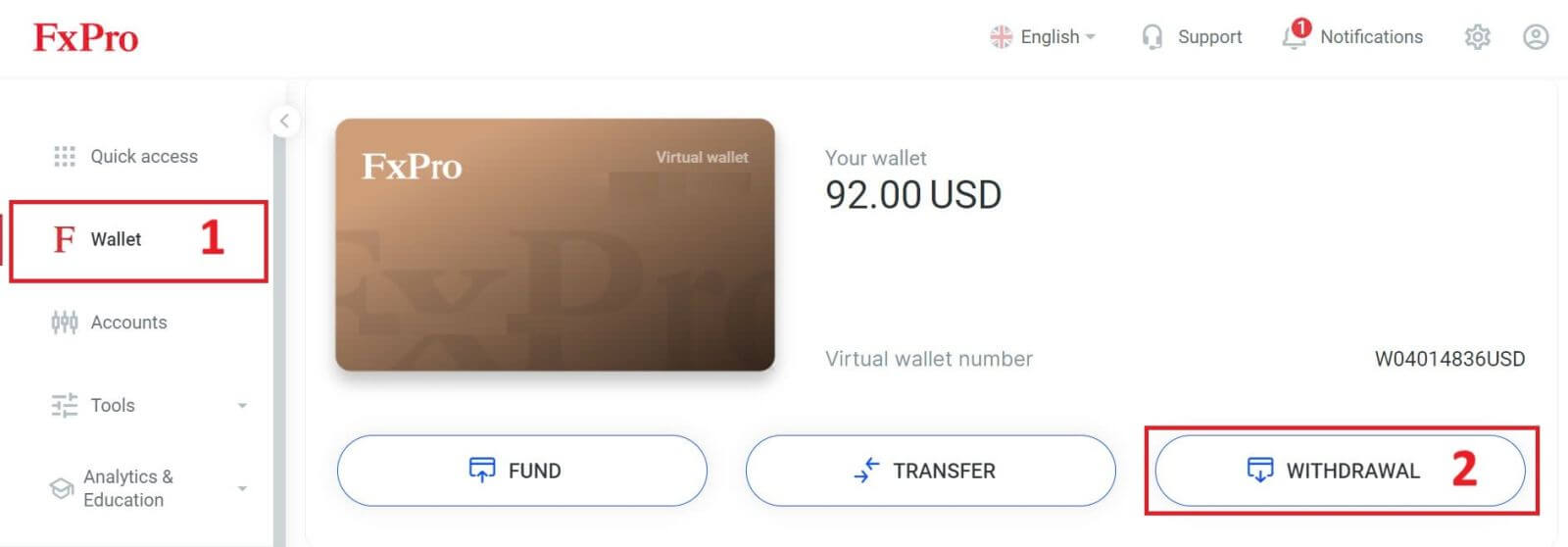
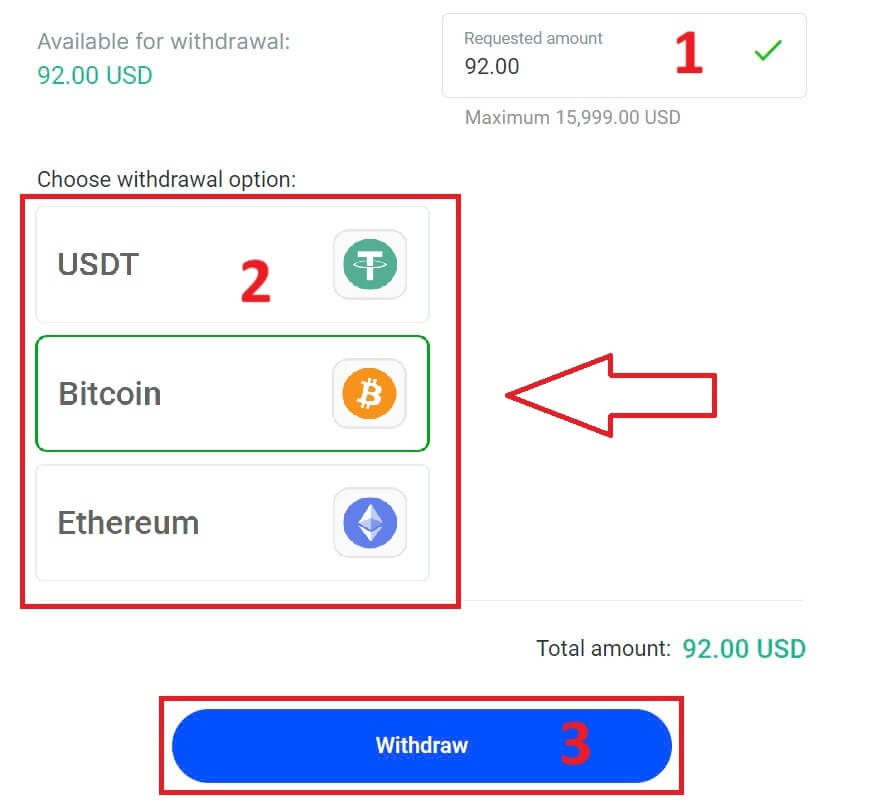
Now, enter the amount you wish to withdraw in the designated field. Select one of the available currency options like Bitcoin, USDT, or Ethereum as your withdrawal method, and then click the "Withdraw" button to proceed.
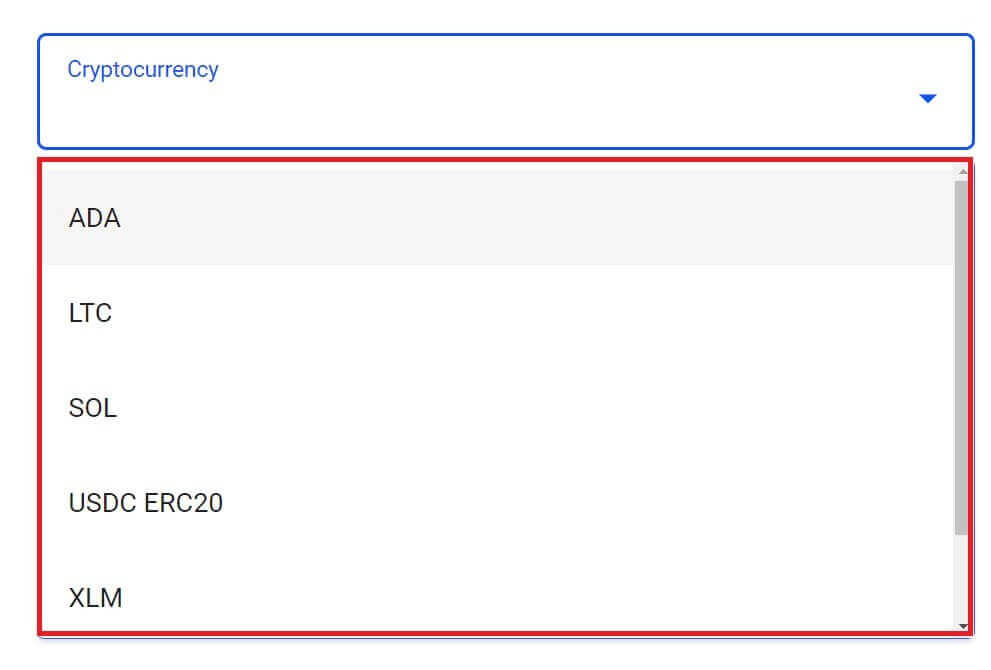
You can also refer to some other cryptocurrencies in the "CryptoPay" section. Please click "Proceed" to come to the scroll-down menu.
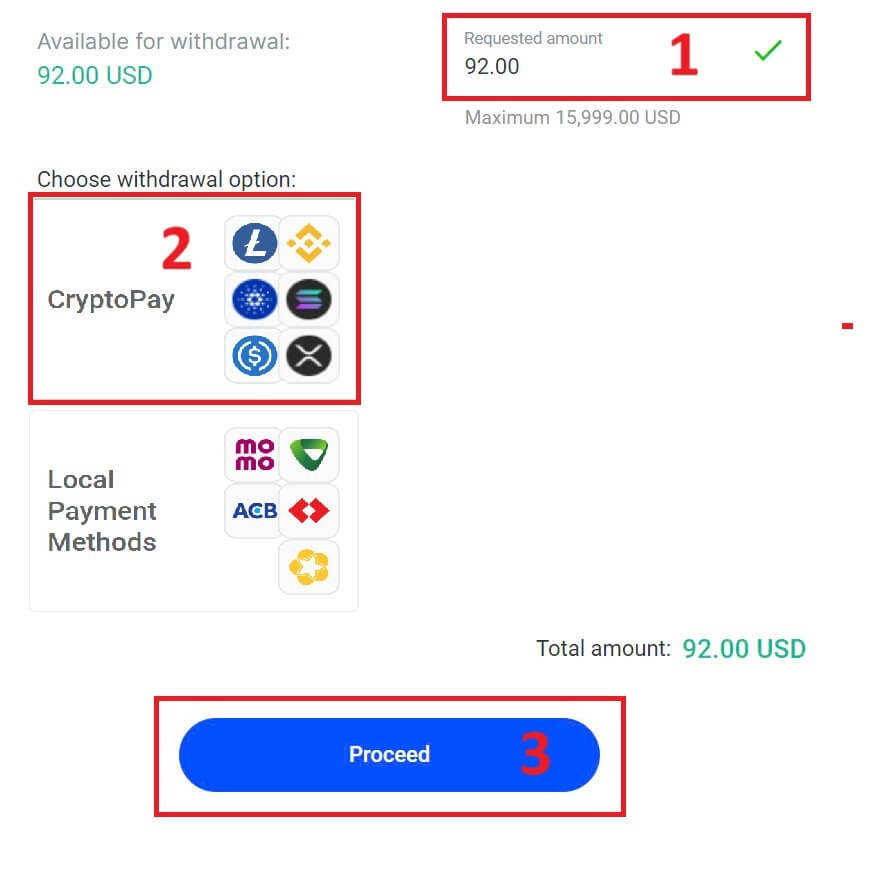
They have a variety of cryptocurrencies for you to select.
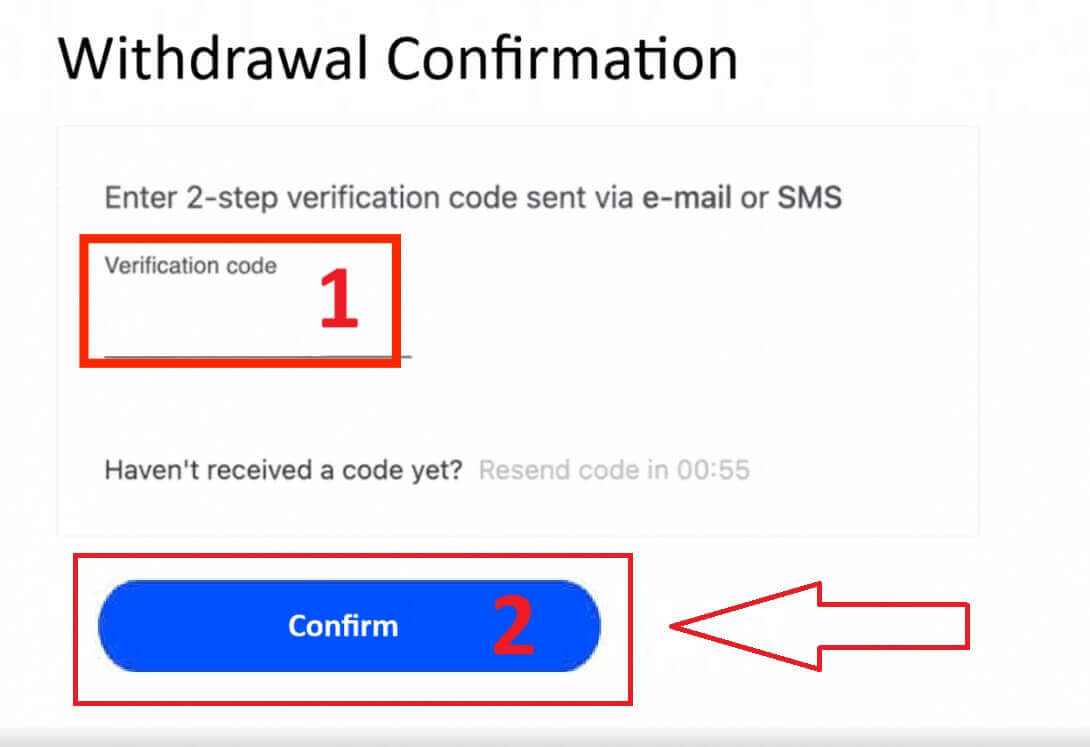
Next, please input the verification code sent to you via email or SMS, and then click "Confirm" to continue.
Local Payment - Bank Transfers
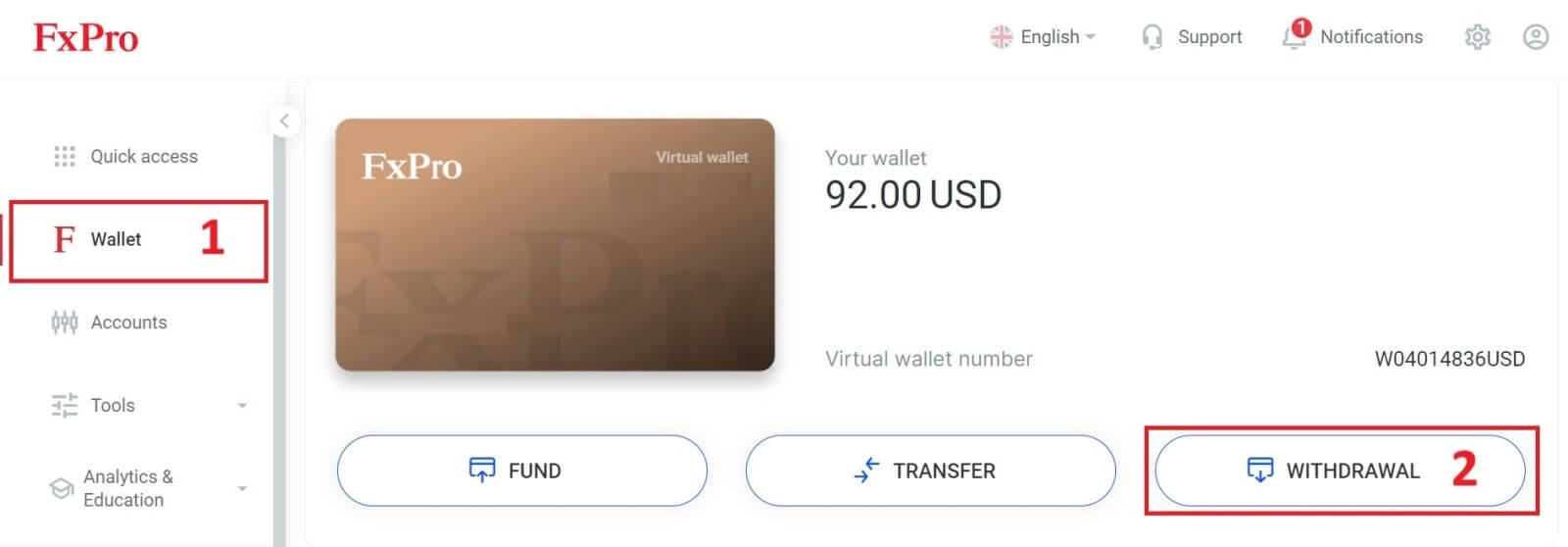
To get started, log into your FxPro Dashboard. Once inside, navigate to the left-hand sidebar, find FxPro Wallet, and hit the "Withdrawal" button to initiate the process.
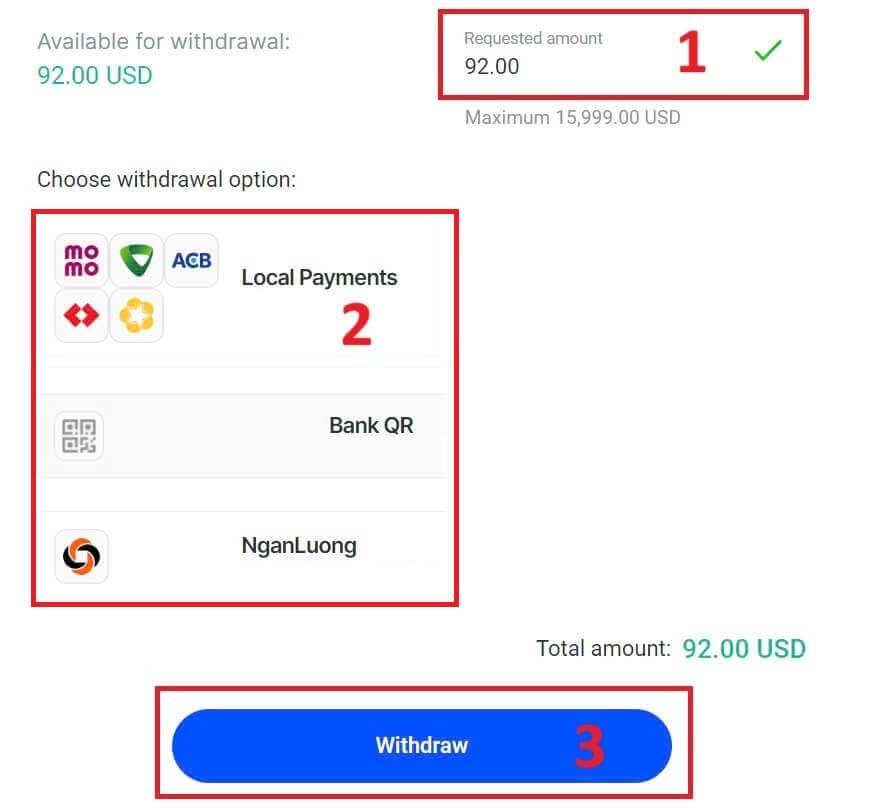
Now, input the desired withdrawal amount in the designated field. Choose one among the available options in Local Payment or Bank Transfer as your withdrawal method, then proceed by clicking the "Withdraw" button to move forward.
On the next page, a form will appear for you to fill in (if you chose the bank details same as the one you used to deposit, you can skip this form):
-
Bank Province.
-
Bank City.
-
Bank Branch Name.
-
Bank Account Number
-
Bank Account Name.
-
Bank Name.
Once you complete the form as well as make sure every field is correct, please finish by clicking the "Withdraw" button.
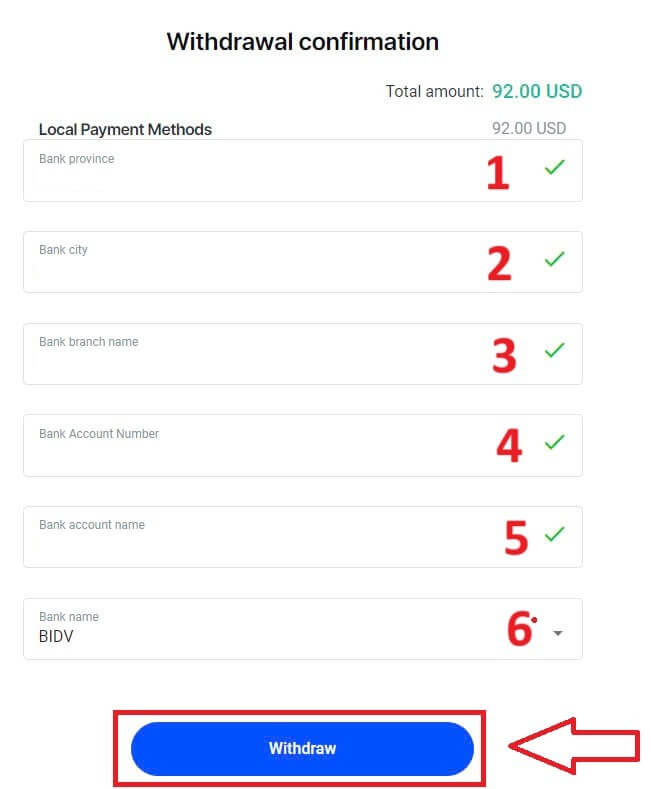
A final screen will confirm that the withdrawal action is complete and the funds will be reflected in your bank account once processed.
You can always track the transaction status in the Transaction History section.
Withdraw Money from FxPro [App]
To begin, please open the FxPro Mobile App on your mobile devices, then click the "Withdraw" button in the FxPro Wallet section.
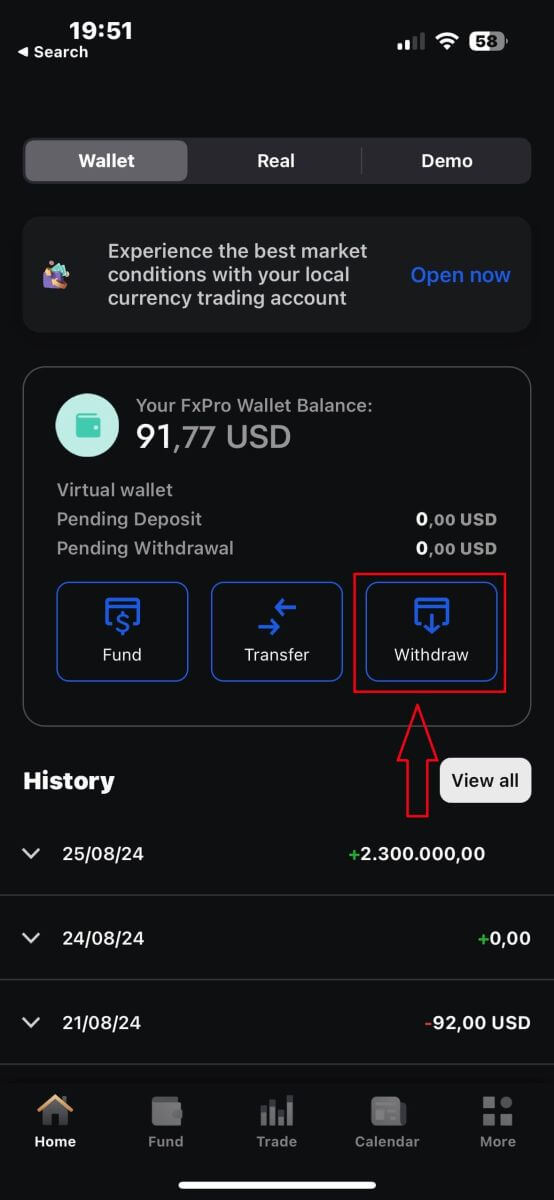
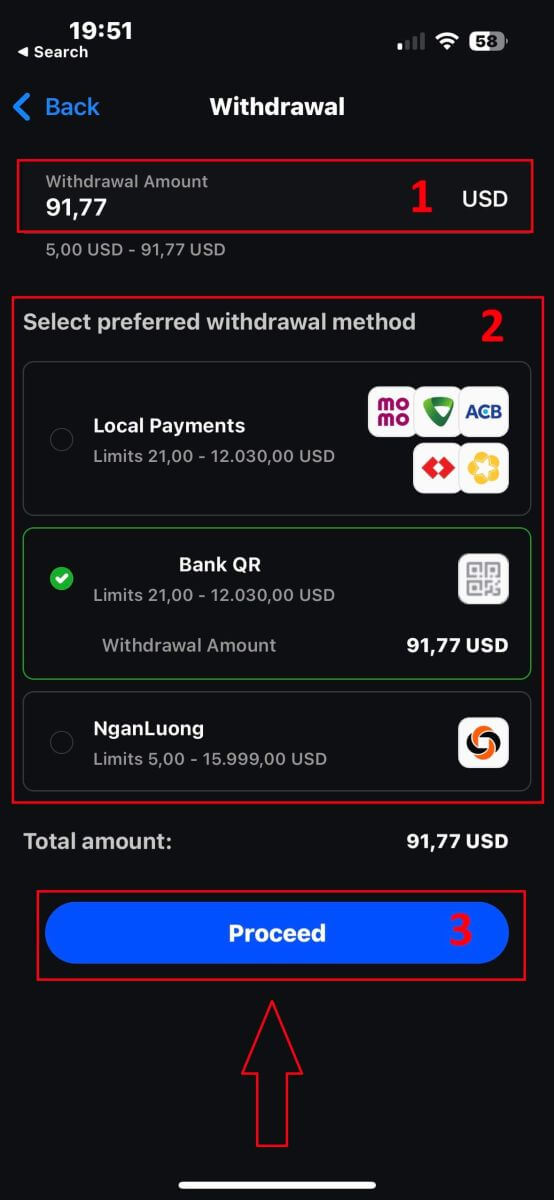
On the next page, you will need to:
-
Fill in the field the amount of money that you wish to withdraw, which must be at least 5.00 USD and less than 15.999 USD, or your FxPro Wallet balance (the minimum and maximum of the withdrawal amount would vary up to the withdrawal method).
-
Please select the payment method that you wish to use. However, please note that you can only choose the ones that you used to deposit (this is mandatory).
Once you finish, please click "Proceed" to go to the next page.
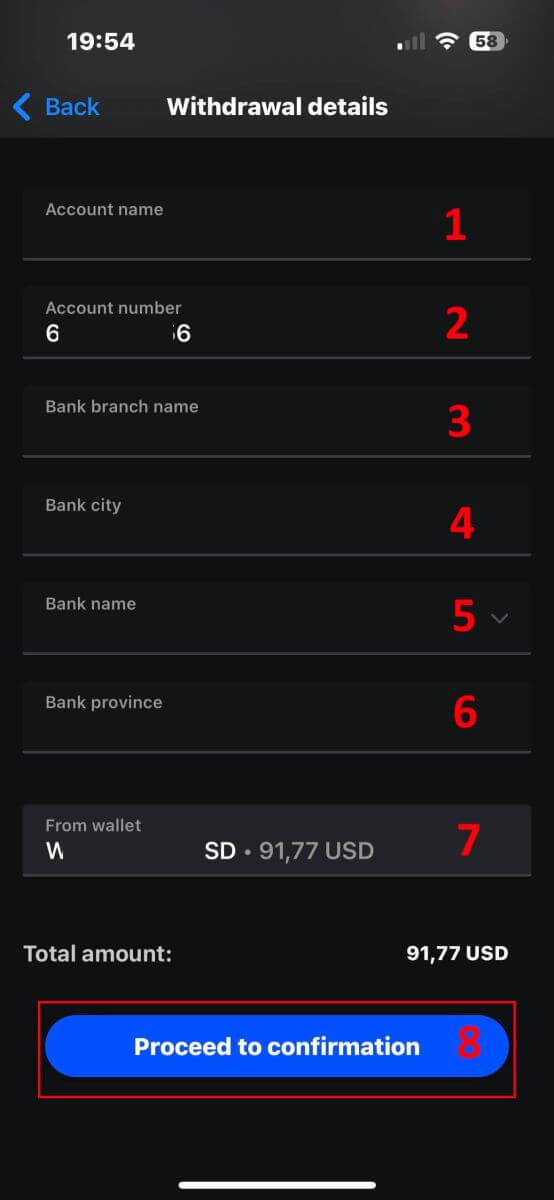
Depending on your withdrawal method, the system would require some necessary information.
With the QR Bank Transfer, we have to provide:
-
Account name.
-
Account number.
-
Bank branch name.
-
Bank city.
-
Bank name.
-
Bank Province.
-
The Wallet you wish to withdraw from.
After carefully checking all the fields and making sure they are correct, please tap the "Proceed to confirmation" to finish the process.
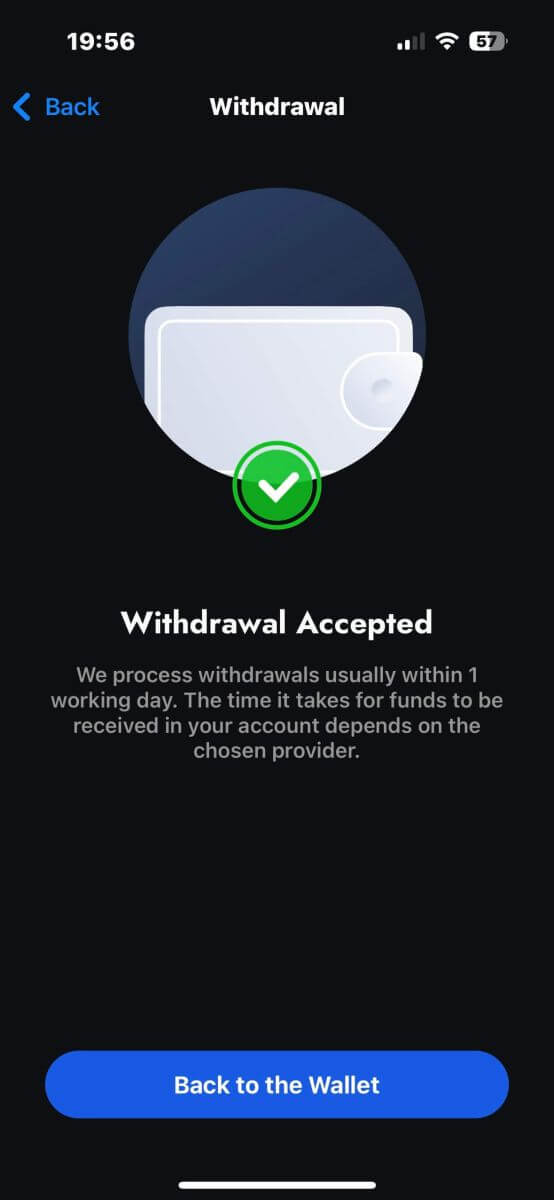
Congratulations! With just a few simple steps, you now can withdraw your funds from the FxPro Wallet so quickly with the mobile app!
Frequently Asked Questions (FAQ)
Can I change my FxPro Wallet (Vault) currency?
To avoid potential conversion fees, your FxPro Wallet should be in the same currency as your deposits and withdrawals.
What conversion rates do you use?
FxPro clients benefit from some of the most competitive exchange rates on the market.
For deposits from an external funding source (i.e., from your credit card to your FxPro Wallet in another currency) and withdrawals to an external funding source ( i.e., from your FxPro Wallet to a credit card in another currency), funds will be converted as per the daily bank rate.
For transfers from your FxPro Wallet to a trading account of a different currency, and vice versa, the conversion will be made as per the rate displayed on the pop-up screen at the time you click confirm.
How long should I wait for my withdrawal to reach my bank account?
Withdrawal requests are processed by our Client Accounting Department within 1 working day. However, the time needed for the funds to be transferred will vary, depending on your payment method.
International Bank Wire withdrawals may take 3-5 working days.
SEPA and local bank transfers may take up to 2 working days.
Card withdrawals may take around 10 working days to reflect
All other payment method withdrawals are usually received within 1 working day.
How long does it take to process my withdrawal request?
During normal working hours, withdrawals are usually processed within a few hours. If the withdrawal request is received outside working hours, it will be processed the next working day.
Bear in mind that once processed by us, the time taken for your withdrawal to reflect will depend on the payment method.
Card withdrawals can take around 10 working days and International Bank Transfers may take 3-5 business days depending on your bank. SEPA and local transfers usually reflect within the same business day, as do e-wallet transfers.
Please note that although card deposits are processed immediately, this does not mean that funds have already been received in our bank account as the bank clearing procure usually takes some days. However, we credit your funds immediately to be able to trade instantly and protect open positions. Unlike deposits, the withdrawal procedure takes longer.
What should I do if I have not received my withdrawal?
If you have made a withdrawal request via Bank Transfer and have not received your funds within 5 working days, please contact our Client Accounting Department at [email protected], and we will provide you with a Swift Copy.
If you have made a withdrawal request via Credit/Debit Card and have not received your funds within 10 working days, please contact our Client Accounting Department at [email protected] and we will provide you with the ARN number.
Conclusion: Effortless Forex Trading and Easy Withdrawals on FxPro
Trading forex and withdrawing your earnings on FxPro is a hassle-free experience, designed to keep your focus on the market. The platform’s user-friendly tools ensure that executing trades is straightforward, while withdrawals are processed quickly and securely. Whether you’re moving profits to your bank account or reinvesting them, FxPro offers a smooth and reliable process, helping you manage your trading activities with confidence and ease.