FxPro Demo Account

This guide shows the practical steps to open a demo account, pick the right platform (MetaTrader, cTrader or web terminal), and place practice trades. It also covers common access problems, how to reset or top up virtual funds, and when identity checks or a funded live account become necessary. Read on to get demo-ready and reduce surprises when you switch to live trading.

How to Open a Demo Account on FxPro [Web]
How to register an account
To Open a demo account, you must first register an account on FxPro (this is a mandatory step).
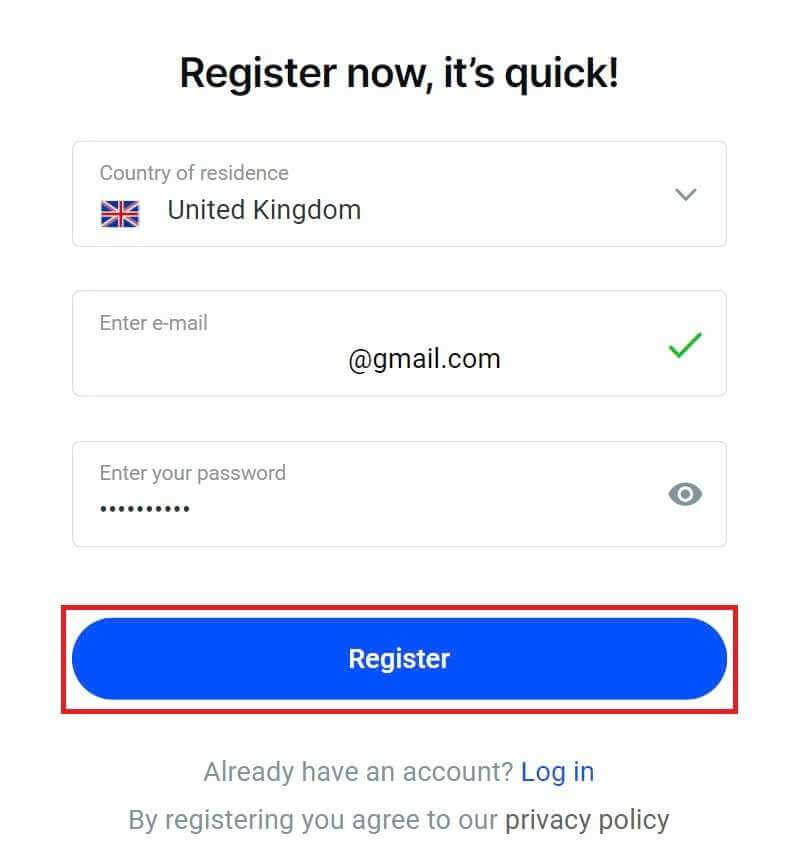
First, visit the FxPro homepage and select "Register" to begin the account registration process.

You will immediately be directed to the account registration page. On the first registration page, please provide FxPro with some basic information, including:
-
Country of residence.
-
Email.
-
Your password (Please note that your password must meet certain security requirements, such as having at least 8 characters, including 1 uppercase letter, 1 number, and 1 special character).
After providing all the required information, select "Register" to continue.
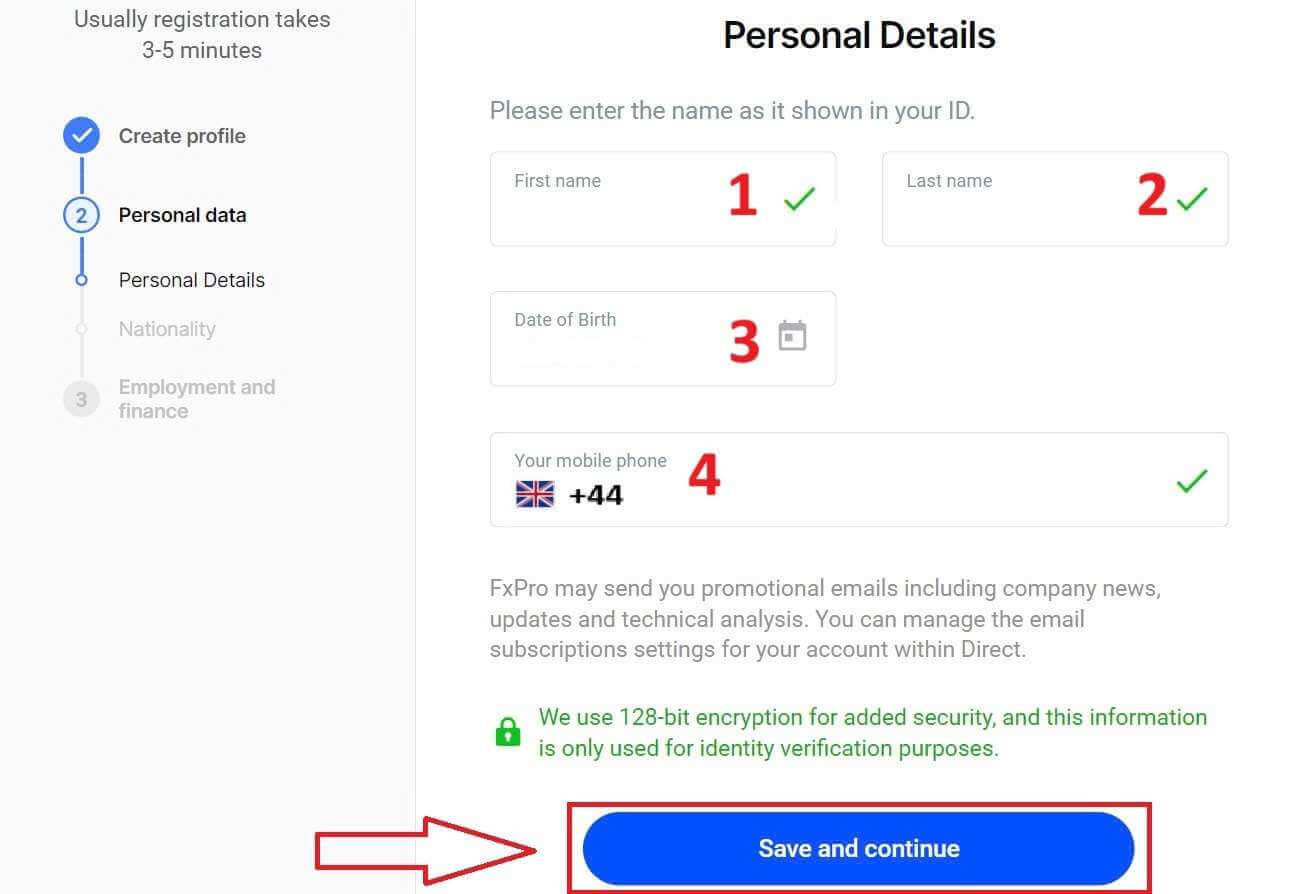
On the next registration page, you will provide information under "Personal Details" with fields such as:
-
First name.
-
Last name.
-
Date of Birth.
-
Your mobile number.
After completing the form, select "Save and continue" to proceed.
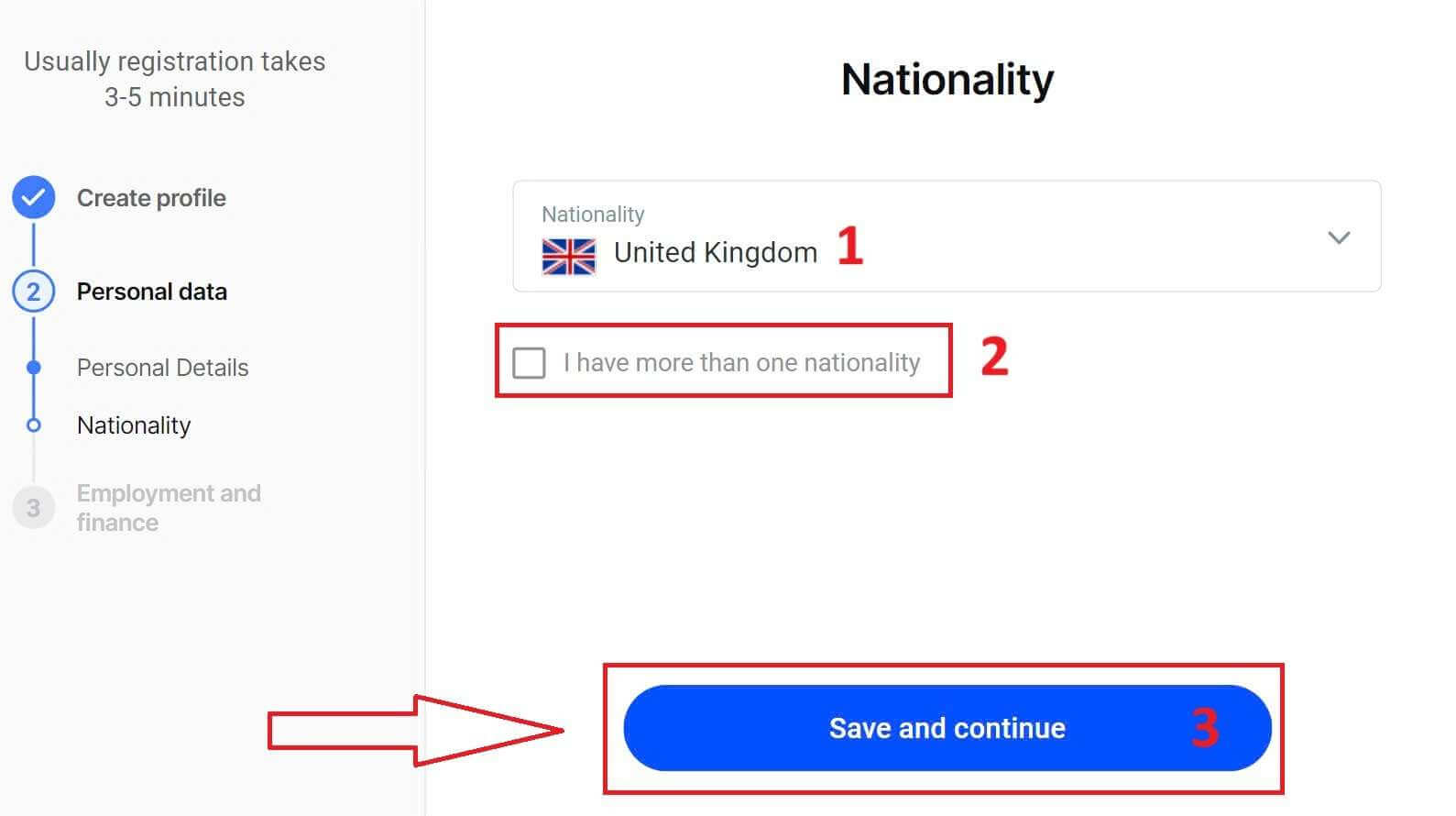
The next step is to specify your nationality under the "Nationality" section. If you have more than one nationality, check the box I have more than one nationality and select the additional nationalities. Then, select "Save and continue" to proceed with the registration process.
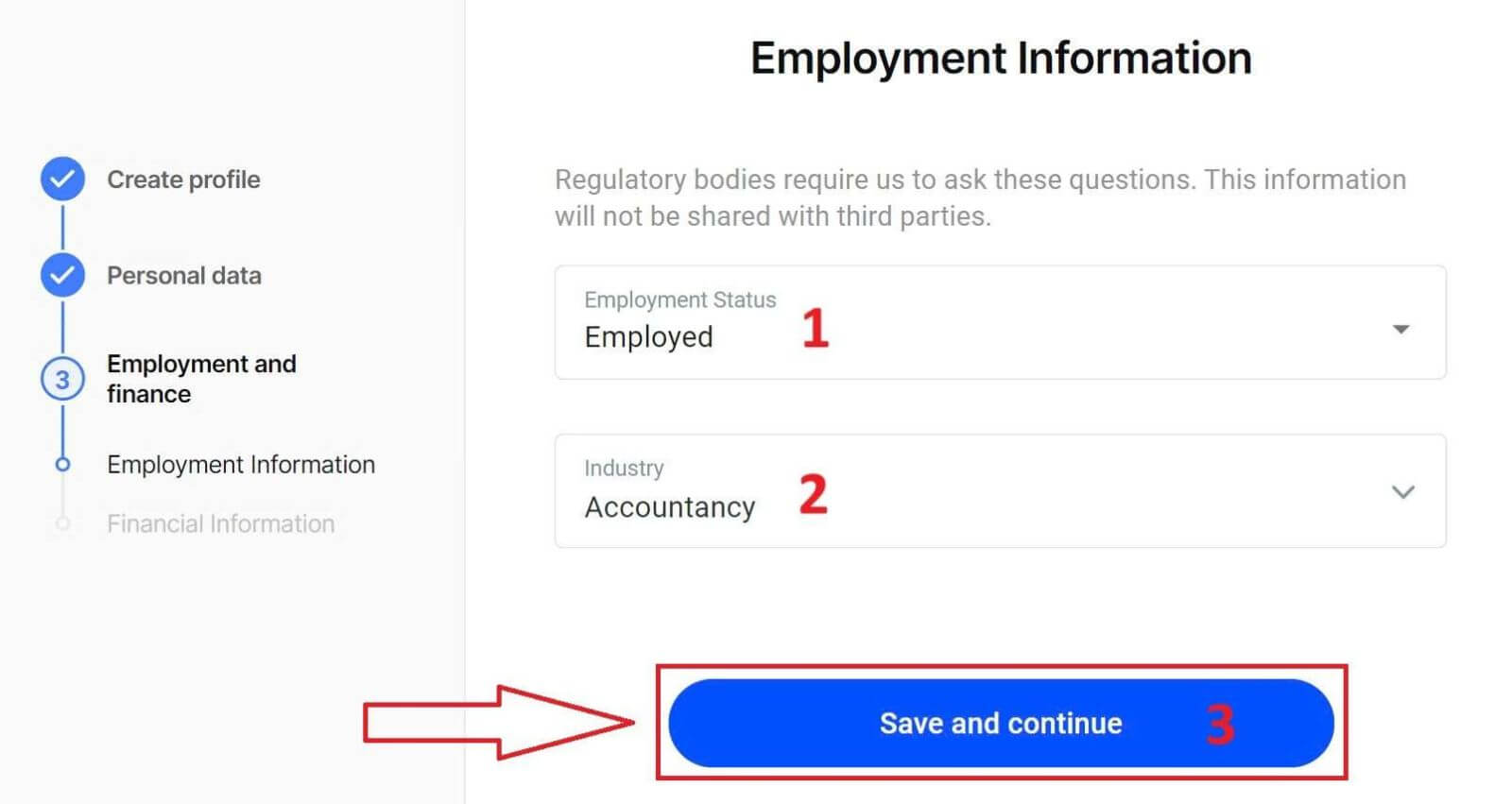
On this page, you must provide FxPro with information about your Employment Status and Industry in the Employment Information Section. Once you finish, click "Save and continue" to move to the next page.
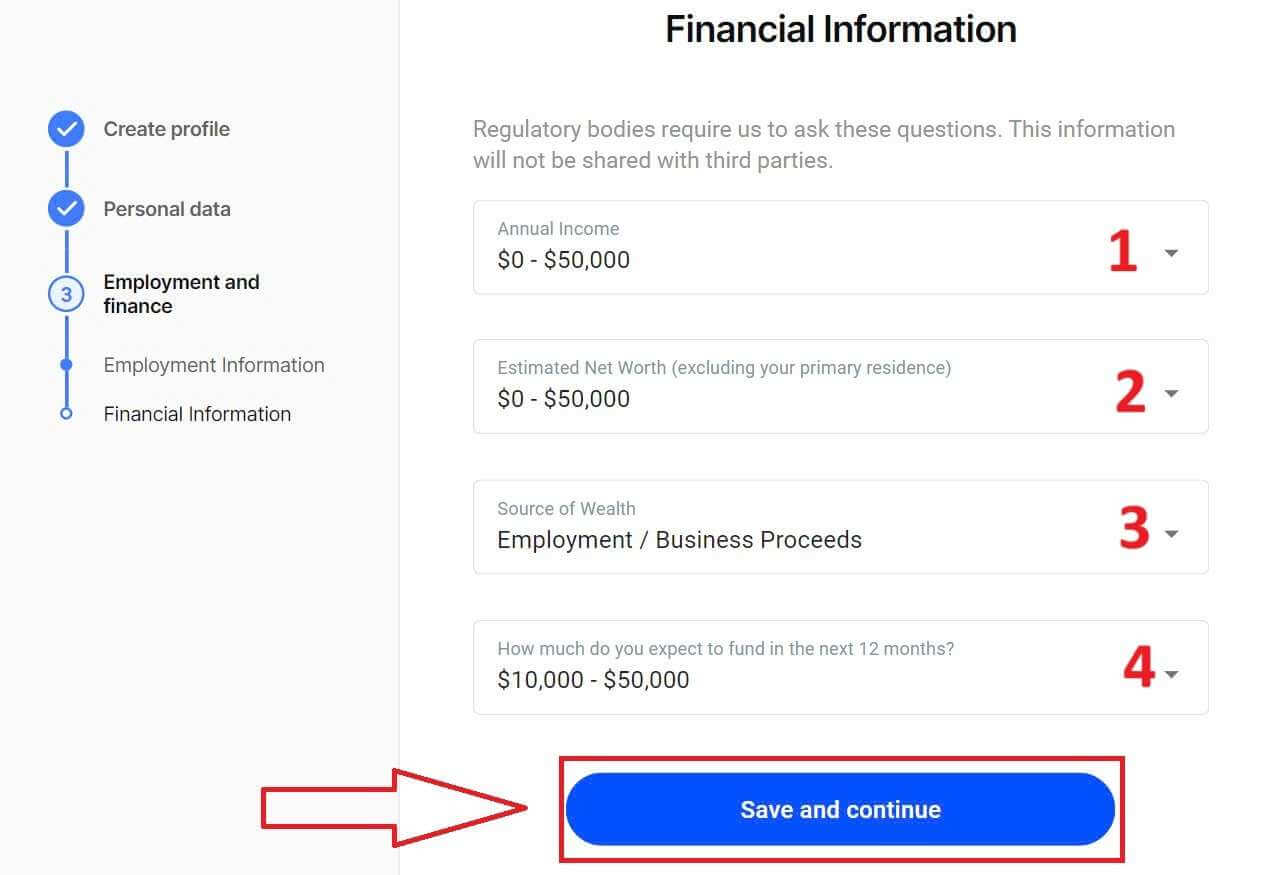
On this page, you will need to provide FxPro with some information about Financial Information such as:
-
Annual Income.
-
Estimated Net Worth (excluding your primary residence).
-
Source of Wealth.
-
How much do you expect to fund in the next 12 months?
After completing the information fields, select "Save and continue" to complete the registration process.
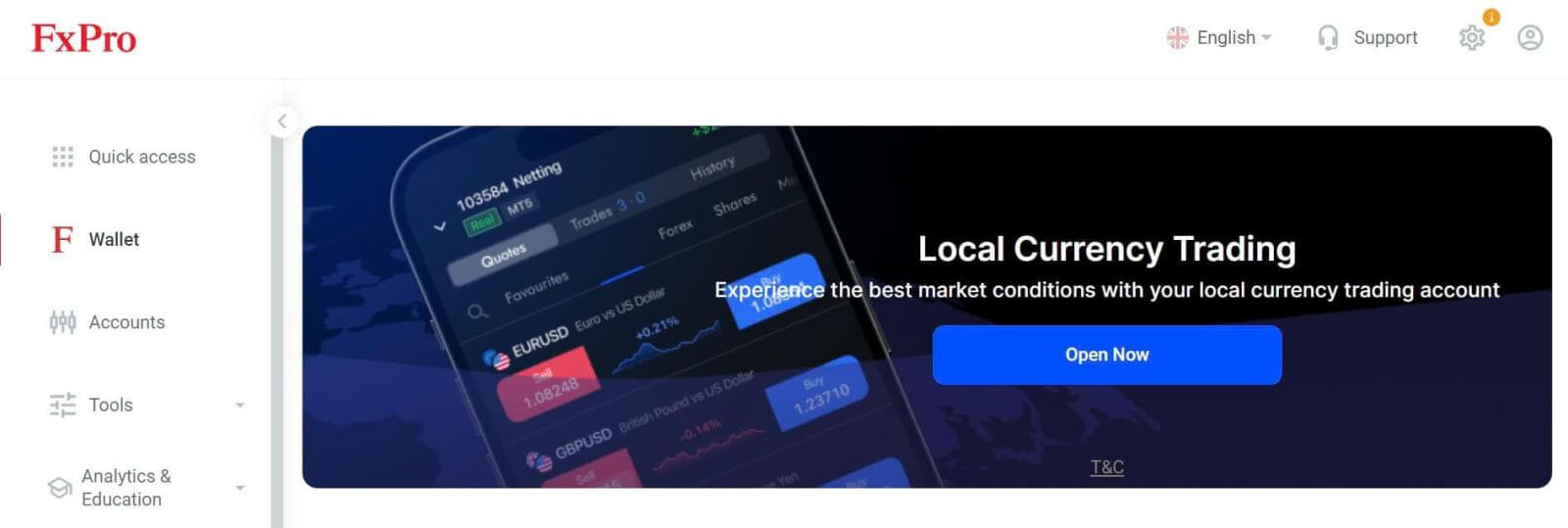
Congratulations on successfully registering an account with FxPro. Don’t hesitate any longer—start trading now!
How to create a demo trading account
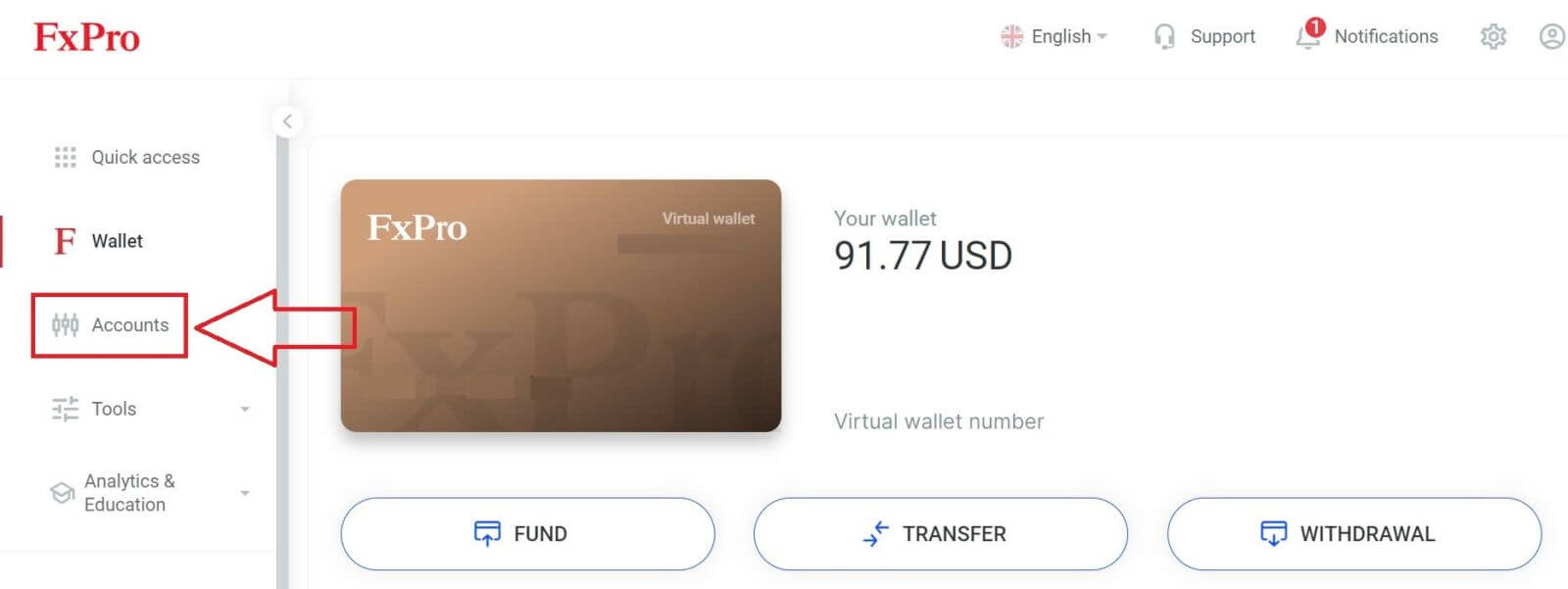
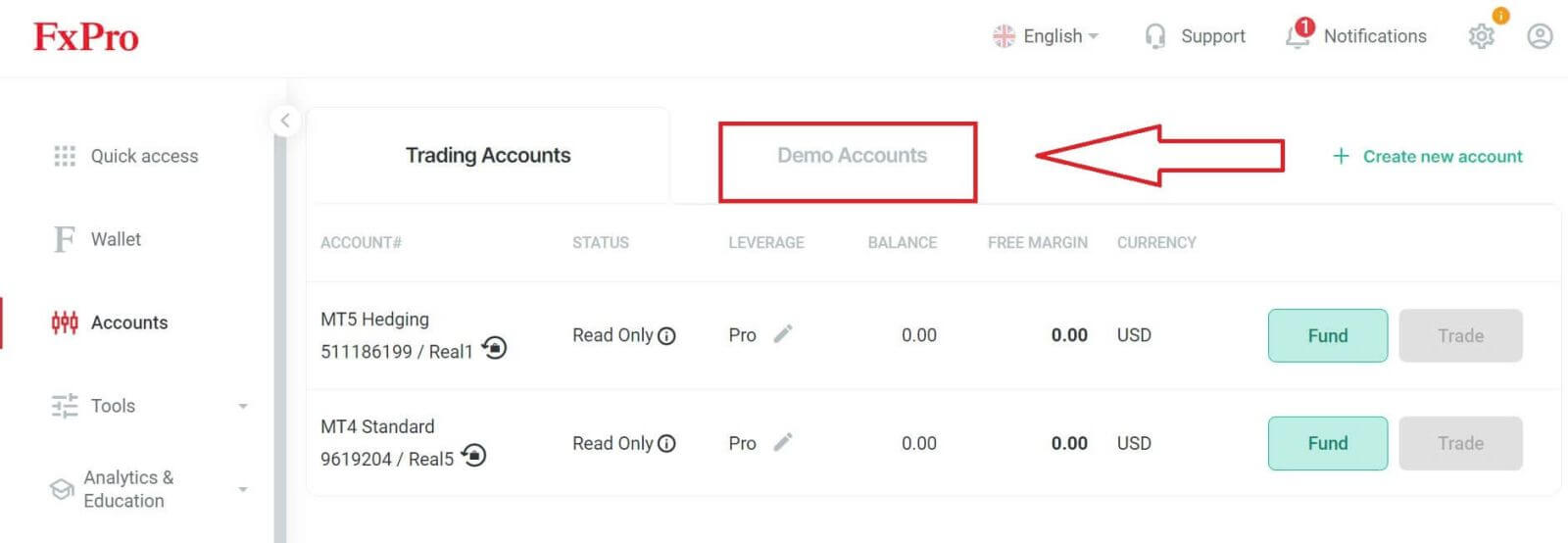
On the main interface after registering with FxPro, select the "Accounts" tab on the vertical menu on the left side of the screen
Then, click the "Demo Accounts" option on the small toolbar within the "Accounts" tab (as shown in the descriptive image).
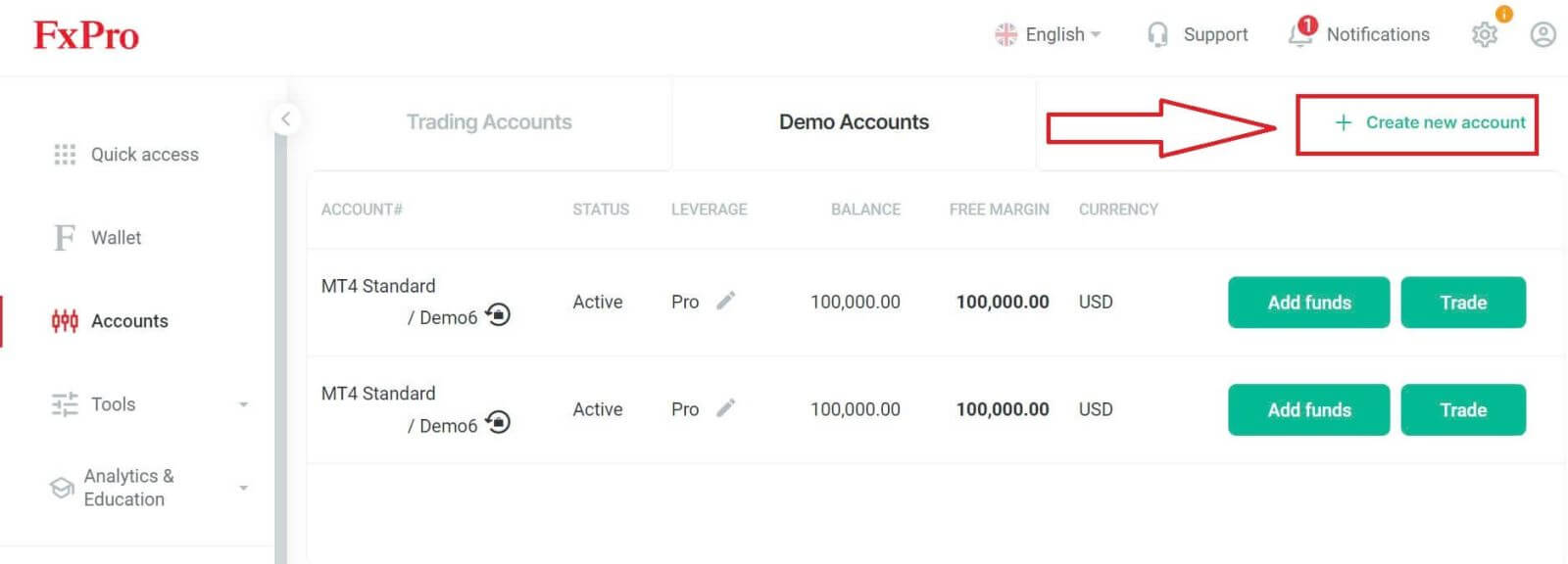
On this page, look at the top right corner of the screen and click the "Create new account" button to be directed to the demo account registration page.
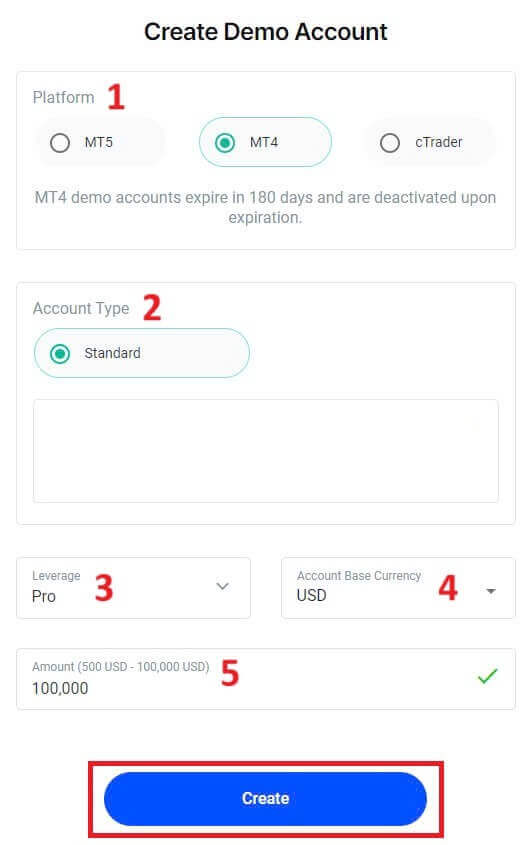
At this moment, a demo account registration form will appear for you to fill in some necessary information, such as:
-
The Platform (MT5/ MT4/ cTrader).
-
Account Type (this may vary depending on the platform you chose in the previous field).
-
The Leverage.
-
The Account Base Currency.
-
The amount of balance you wish (valid from 500 USD to 100.000 USD).
Once you finish, click the "Create" button at the end of the form to complete the process.
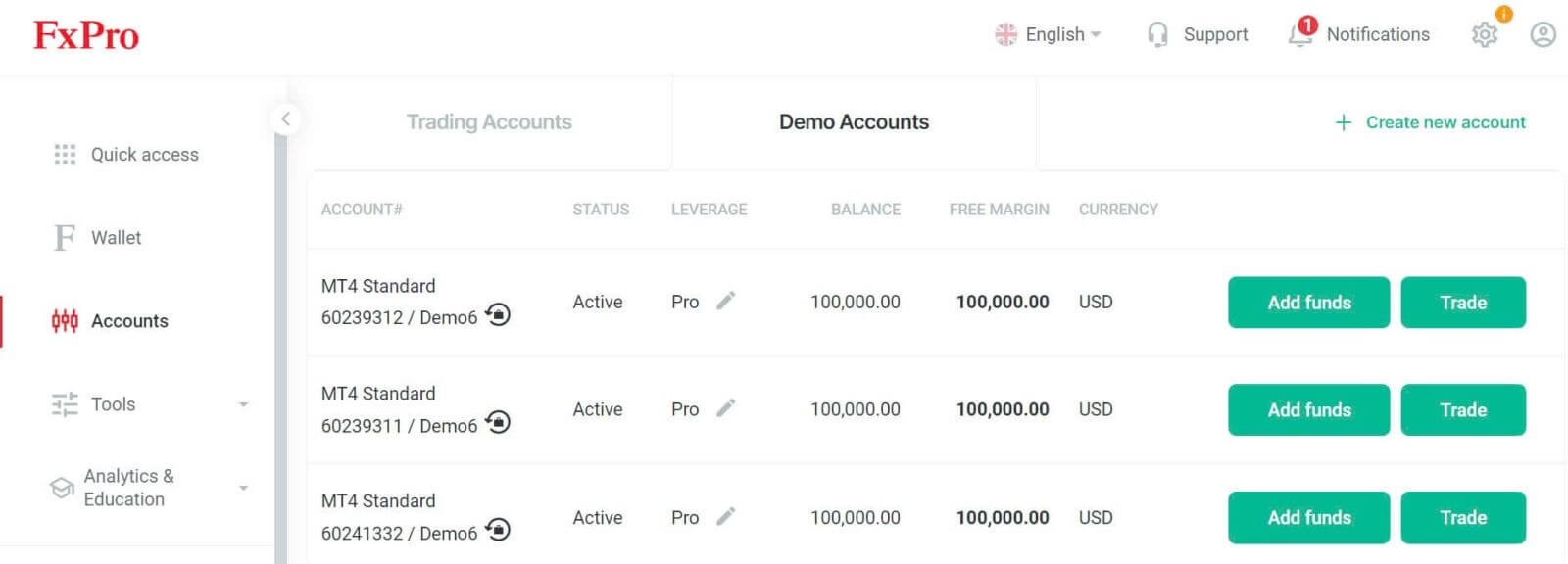
Congratulations on successfully registering a demo account with FxPro. Join us to experience the simple yet exciting trading process right away!
How to Open a Demo Account on FxPro [App]
Set up and Register
To Open a demo account, you must first register an account on FxPro (this is a mandatory step).
First, open the App Store or Google Play on your mobile device, then search for "FxPro: Online Trading Broker" and download the app.
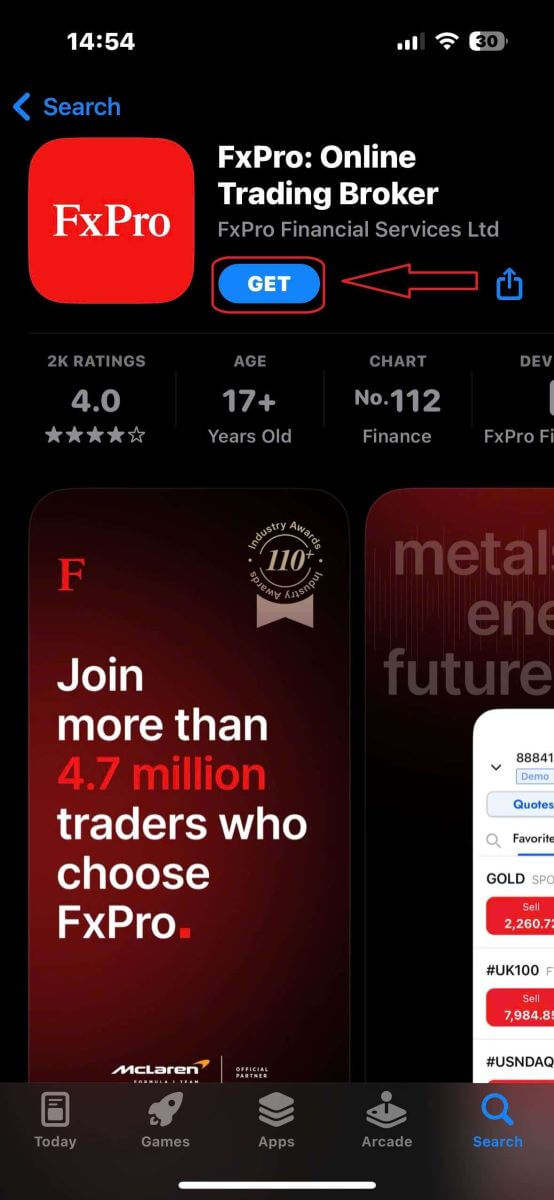
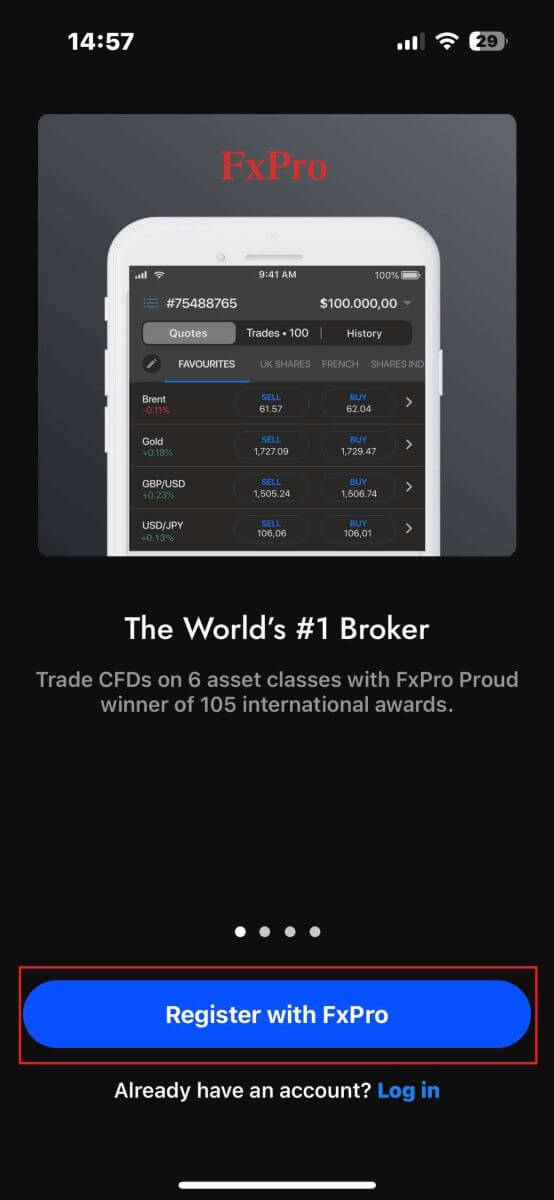
After installing the app, open it and select "Register with FxPro" to begin the account registration process.
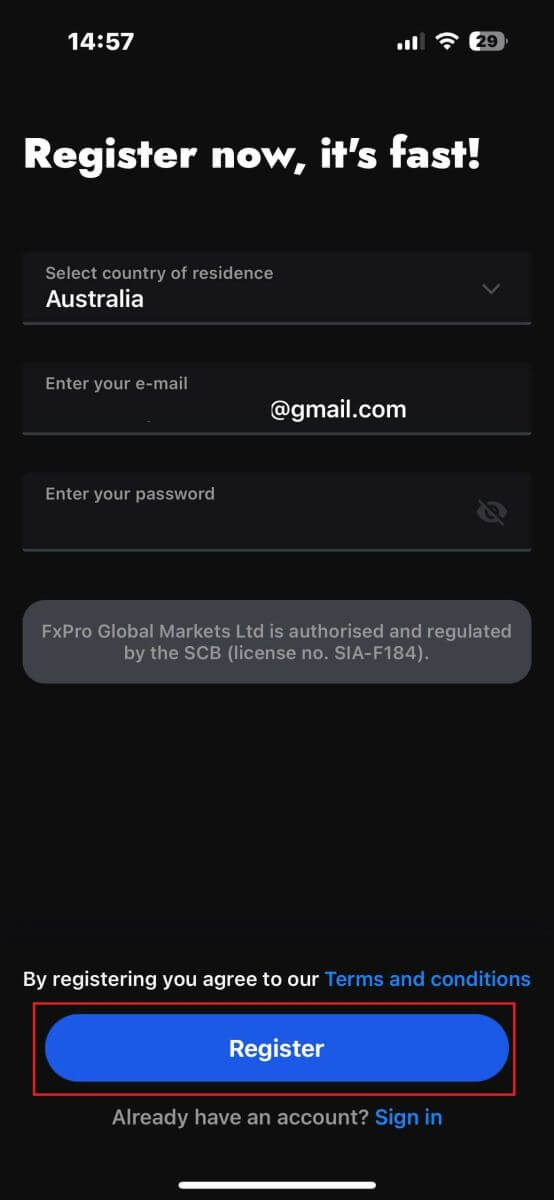
You will be redirected to the account registration page right away. On the initial registration page, you need to provide FxPro with some essential details, including:
-
Your country of residence.
-
Your email address.
-
A password (Make sure your password meets security criteria, such as being at least 8 characters long and including 1 uppercase letter, 1 number, and 1 special character).
Once you have entered all the necessary information, click "Register" to proceed.
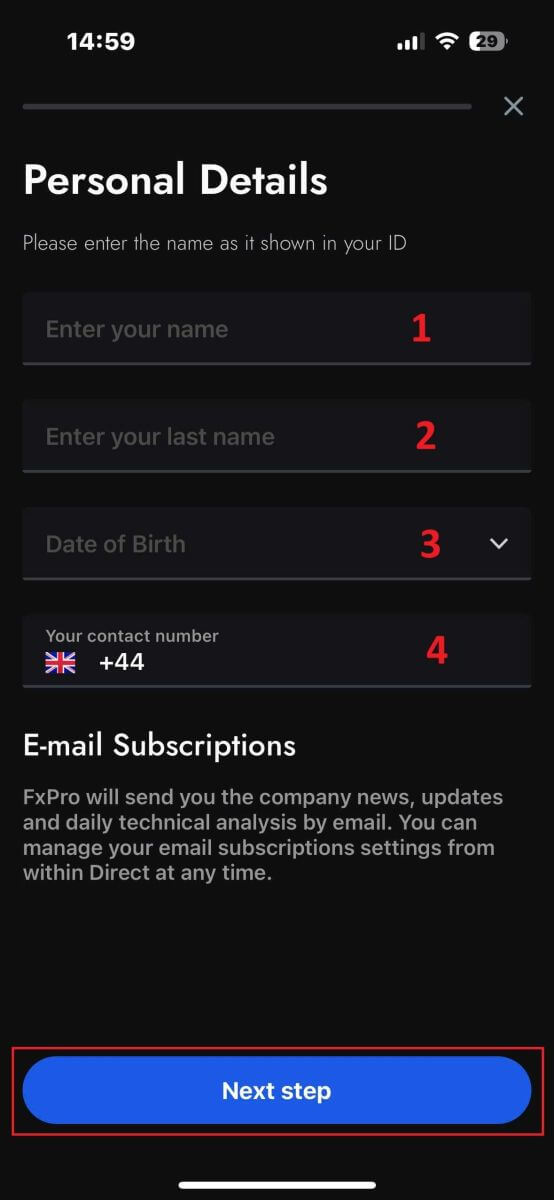
On the subsequent registration page, you will need to fill out the "Personal Details" section, which includes fields for:
-
First name.
-
Last name.
-
Date of Birth.
-
Contact number.
After filling out the form, click "Next step" to move forward.
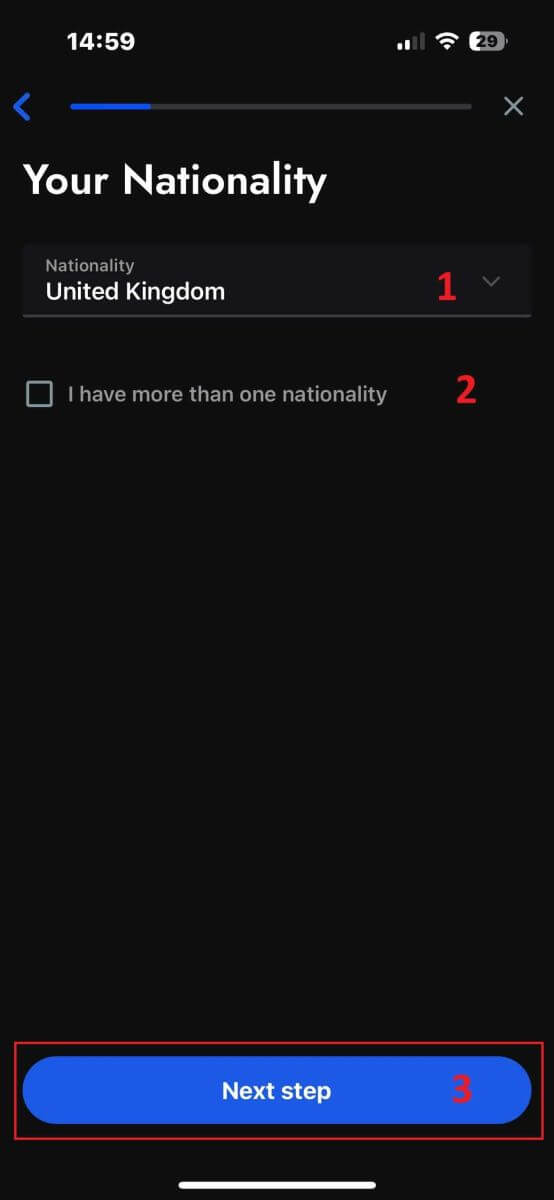
In the following step, indicate your nationality in the "Nationality" section. If you hold multiple nationalities, check the box for "I have more than one nationality" and select the additional nationalities.
Afterward, click "Next step" to advance in the registration process.
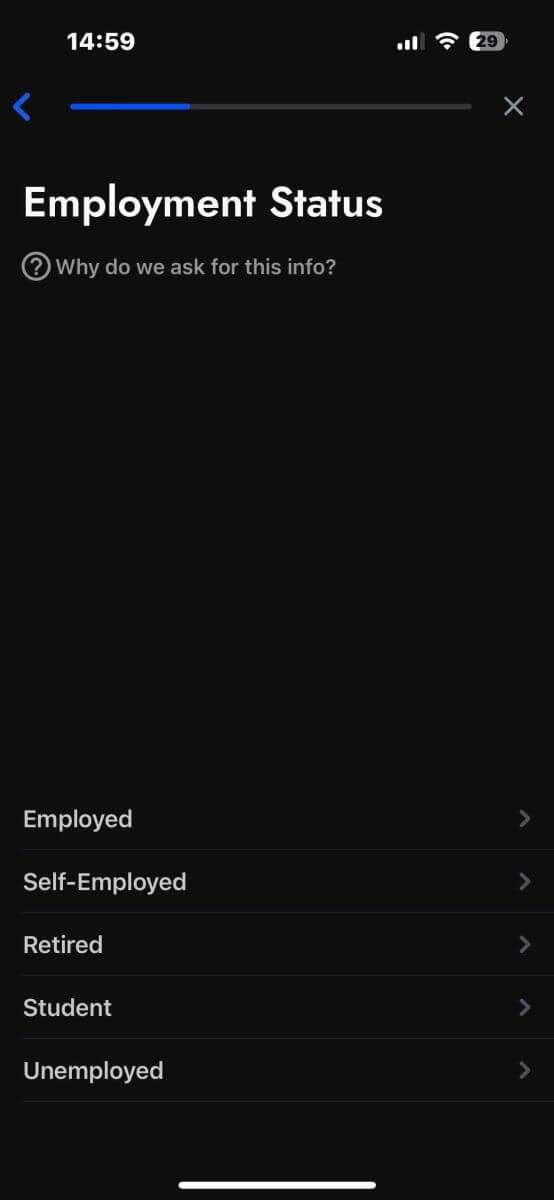
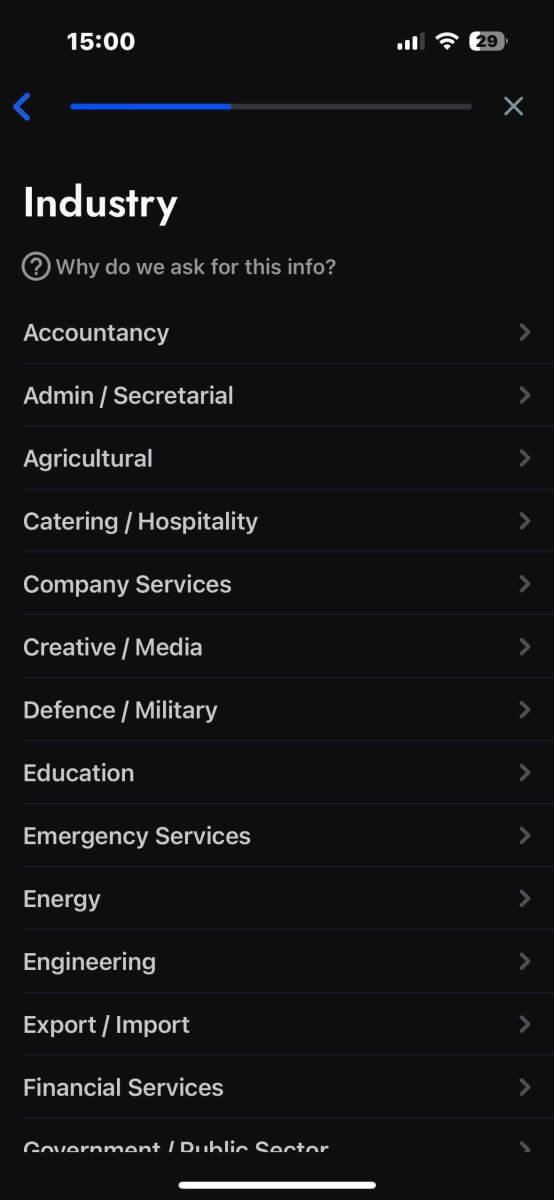
On this page, you need to provide FxPro with details about your Employment Status and Industry.
Once you have completed this, click "Next step" to proceed to the next page.
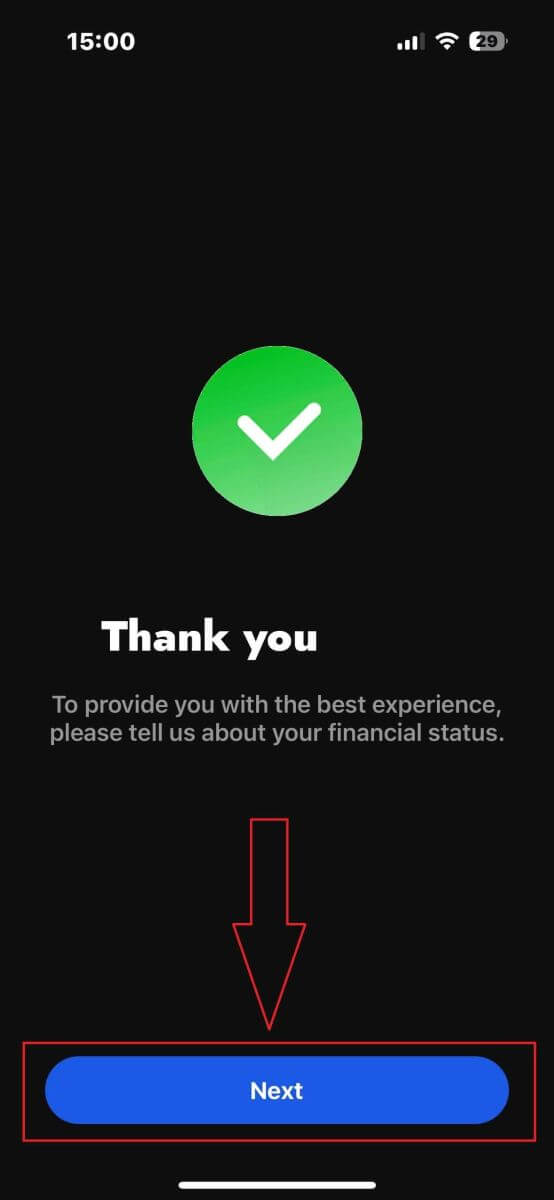
Congratulations on nearly completing the account registration process with FxPro on your mobile device!
Next, you will need to provide information about your Financial Status. Please tap "Next" to proceed.
On this page, you’ll need to provide FxPro with details about your Financial Information, including:
-
Annual Income.
-
Estimated Net Worth (excluding your primary residence).
-
Source of Wealth.
-
Expected funding amount for the next 12 months.
Once you’ve filled out the information, click "Next step" to finalize the registration process.
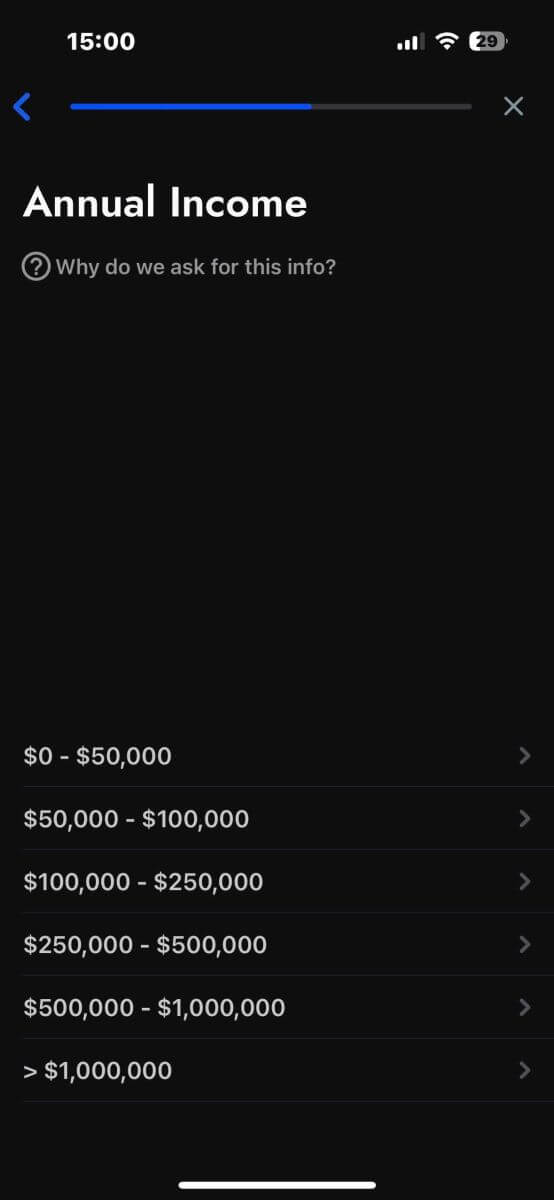
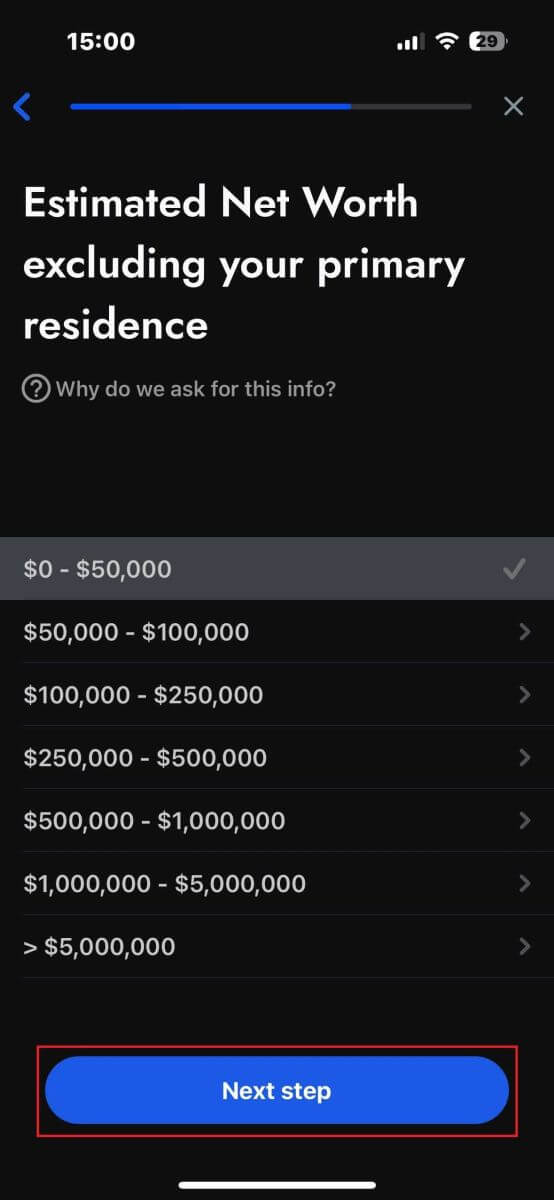
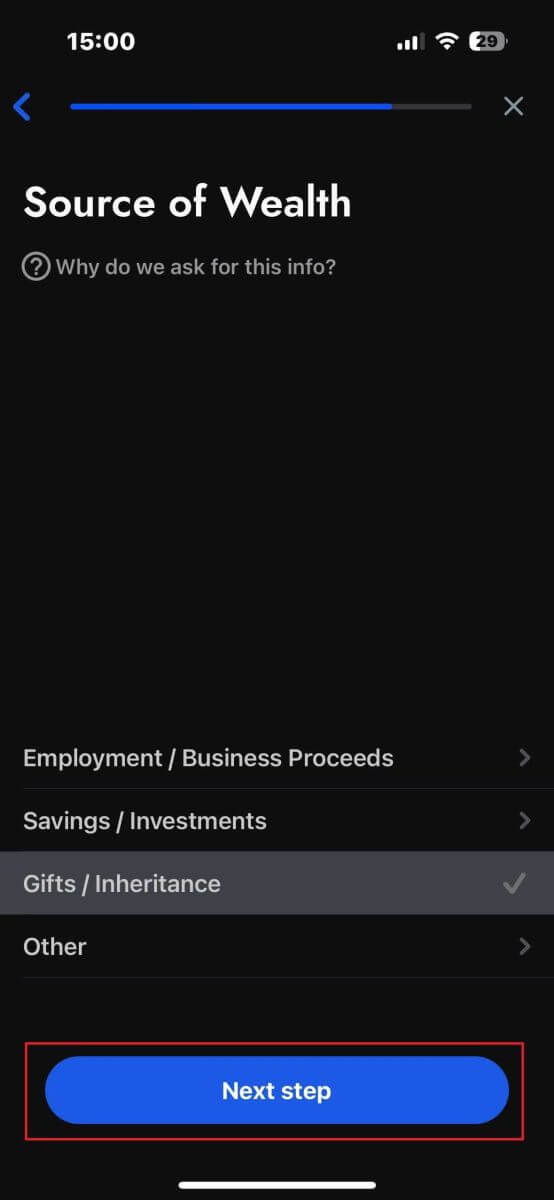
After completing the survey questions in this section, select "Next step" to finish the account registration process.
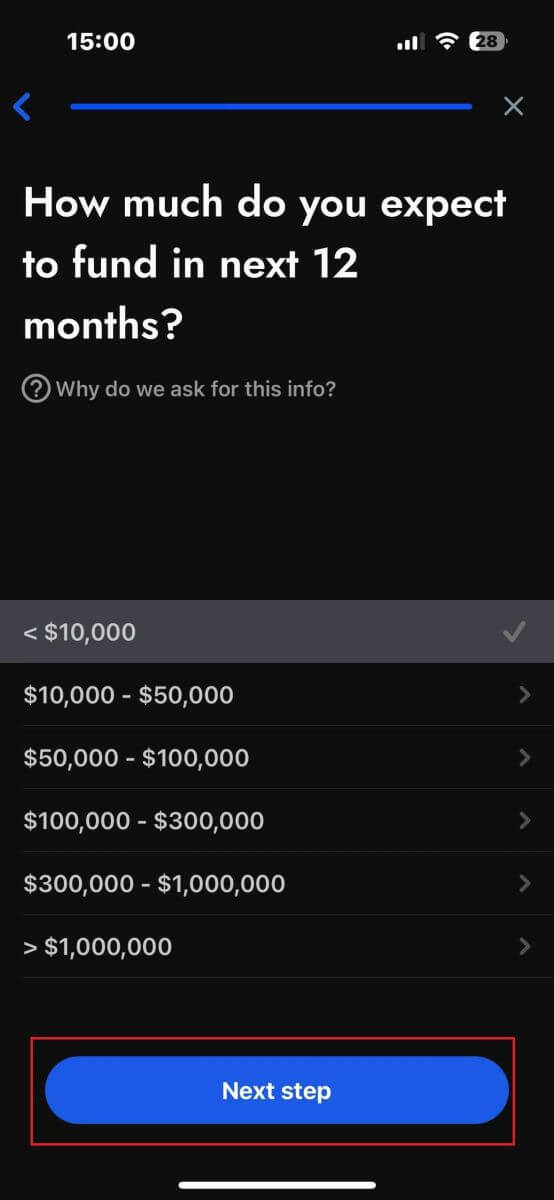
Congratulations on successfully registering your account! Trading is now easy with FxPro, allowing you to trade anytime, anywhere with your mobile device. Join us now!
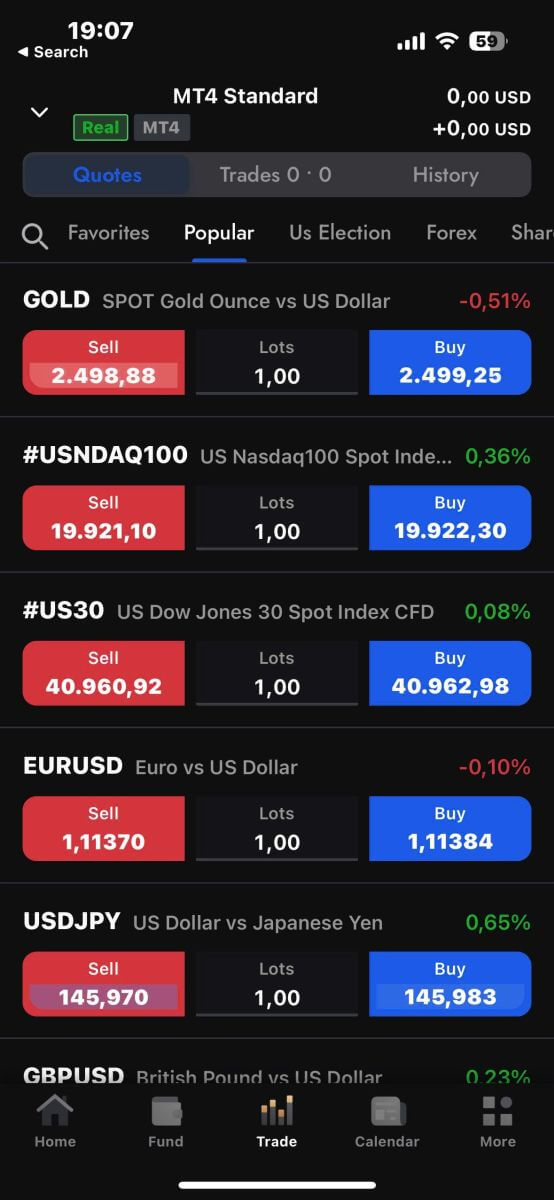
How to create a demo trading account
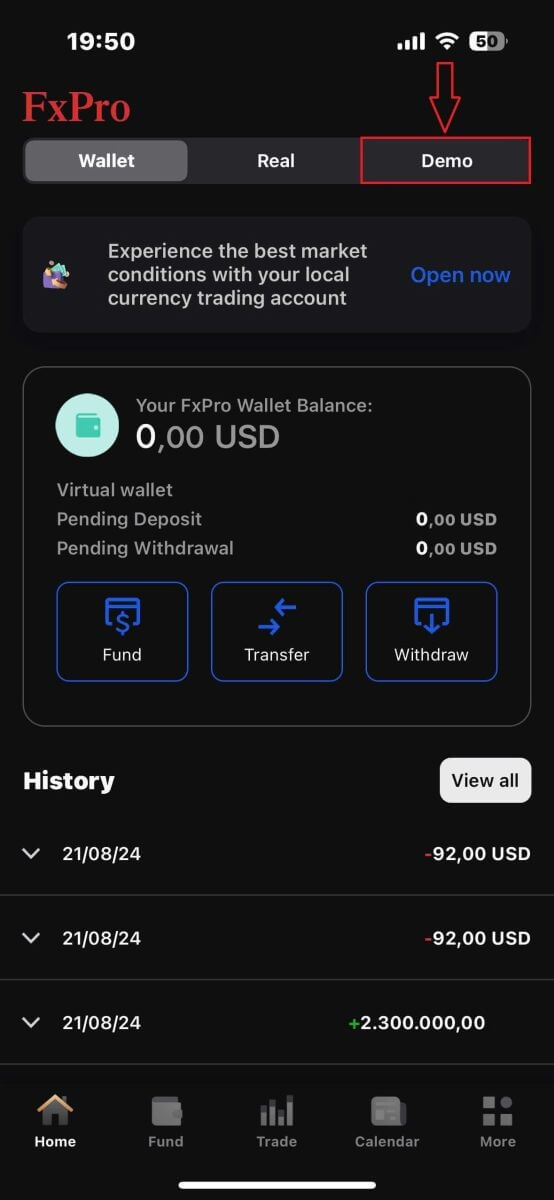
After successfully registering a real account on the FxPro mobile app, on the app’s main interface, select the "DEMO" tab at the top right corner of the screen to get started.
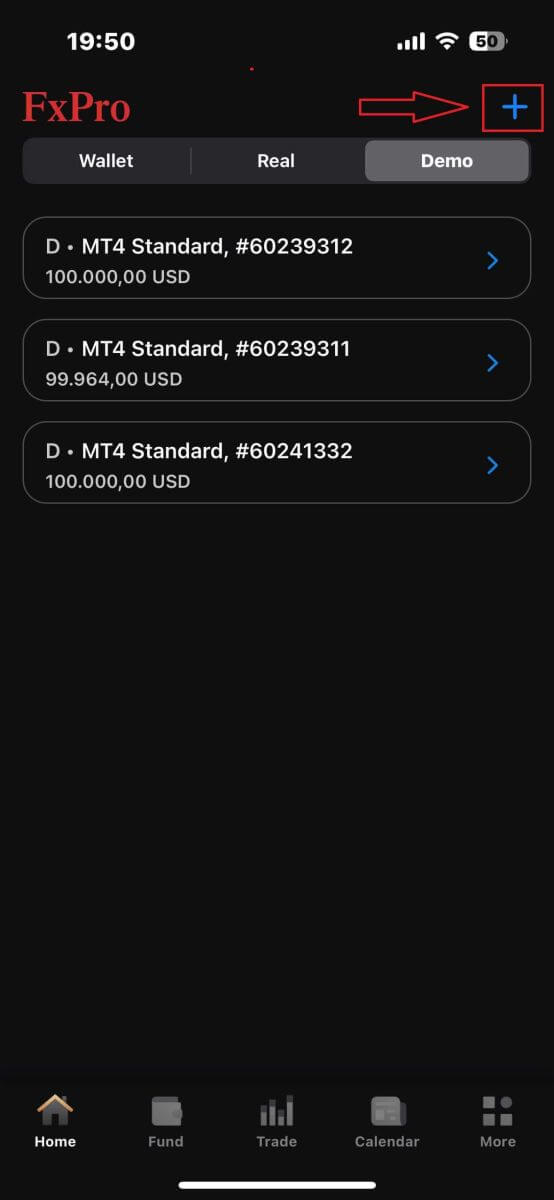
At this point, a demo account registration form will appear for you to enter the following details:
-
The Platform (MT5, MT4, or cTrader).
-
Account Type (which may vary based on the chosen platform).
-
Leverage.
-
Currency.
-
The desired balance amount (between 500 USD and 100,000 USD).
After completing the form, tap the "Create" button at the bottom to finalize the process.
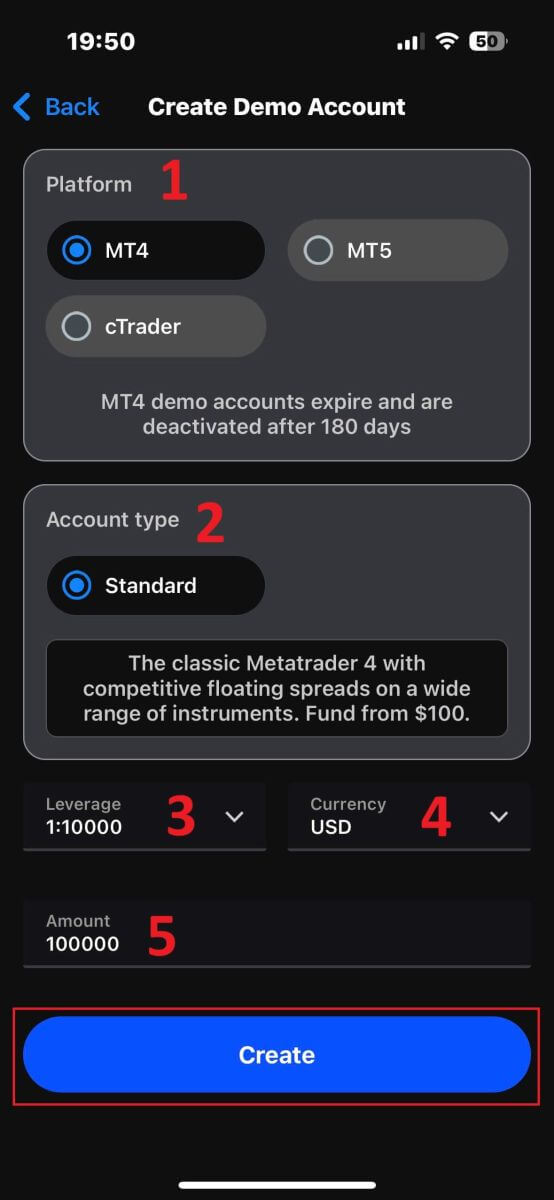
Congratulations on successfully setting up your demo account with FxPro! Start experiencing the straightforward and exciting trading process now!
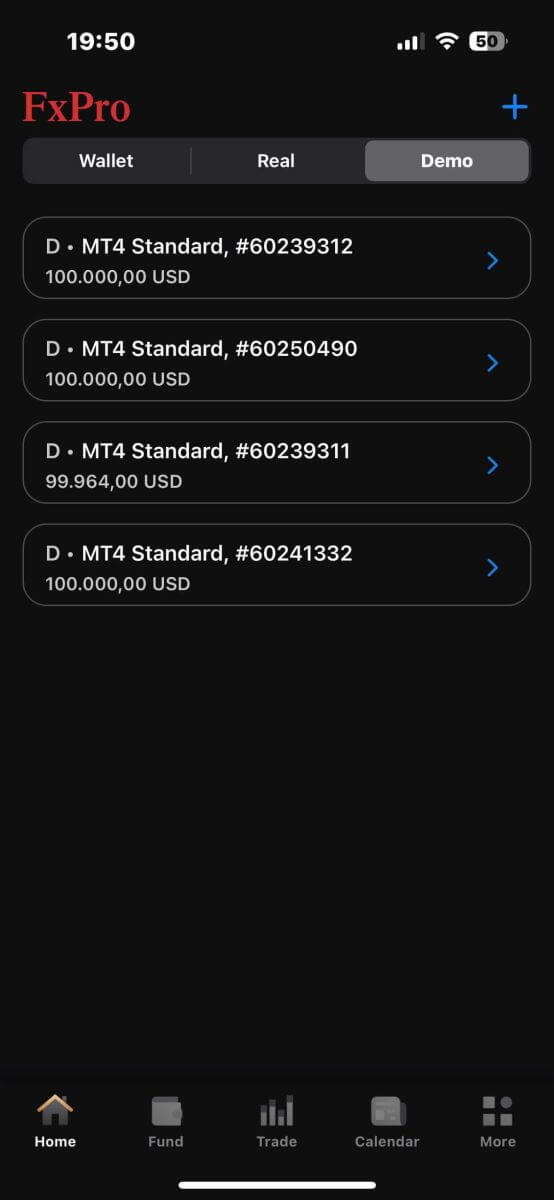
What is the difference between a Real and a Demo account?
The main distinction is that Real accounts involve trading with actual funds, whereas Demo accounts use virtual money with no real value.
Aside from this, market conditions for Demo accounts are identical to those for Real accounts, making them perfect for practicing strategies.
Conclusion: Practice Smart Trading with FxPro’s Demo Account
Opening a demo account on FxPro is a smart move for anyone wanting to experience trading without financial risk. The demo account replicates real market conditions, allowing you to practice and refine your trading strategies. With virtual funds and access to all the trading tools FxPro offers, you can build your confidence and skills before transitioning to a live account. This makes FxPro’s demo account an invaluable resource for both new traders and seasoned professionals testing new strategies.