FxPro Download App

The steps that follow cover locating the official FxPro listing, installing on Android and iOS, granting required permissions, and signing in to demo or live accounts. You’ll also find practical tips for verifying the app’s authenticity, handling common install errors, and keeping the app updated so trading access remains smooth and secure.

FxPro: Online Trading Broker App
Set up and Register
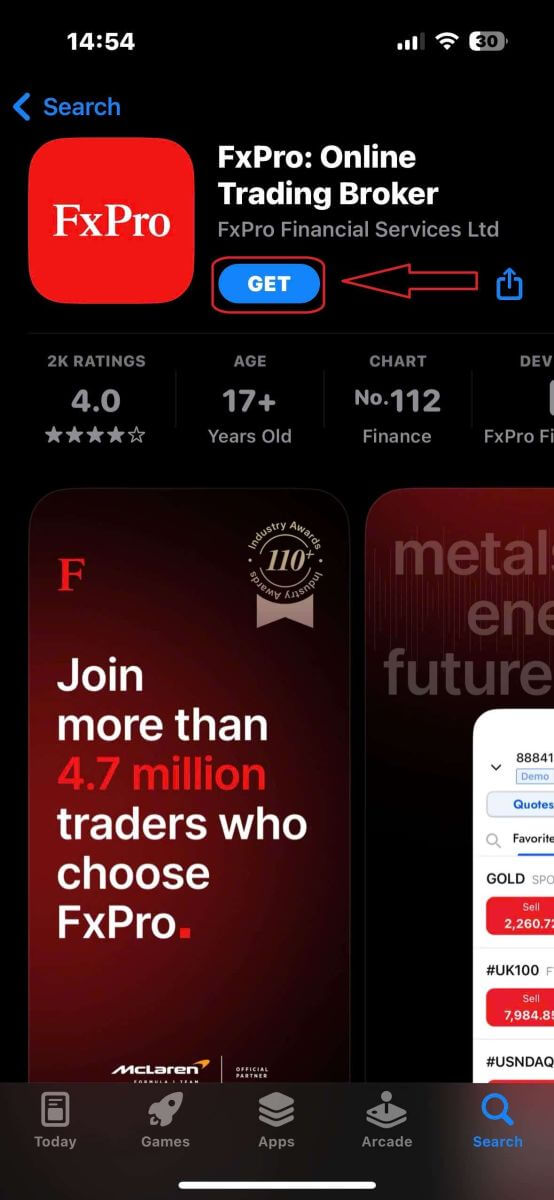
First, open the App Store or Google Play on your mobile device, then search for "FxPro: Online Trading Broker" and download the app.
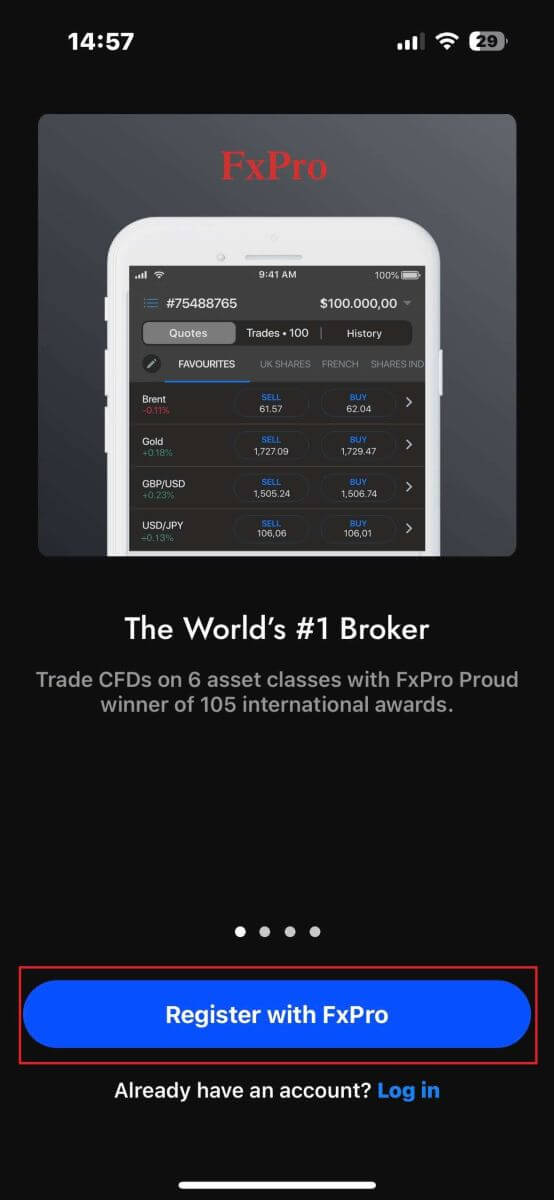
After installing the app, open it and select "Register with FxPro" to begin the account registration process.
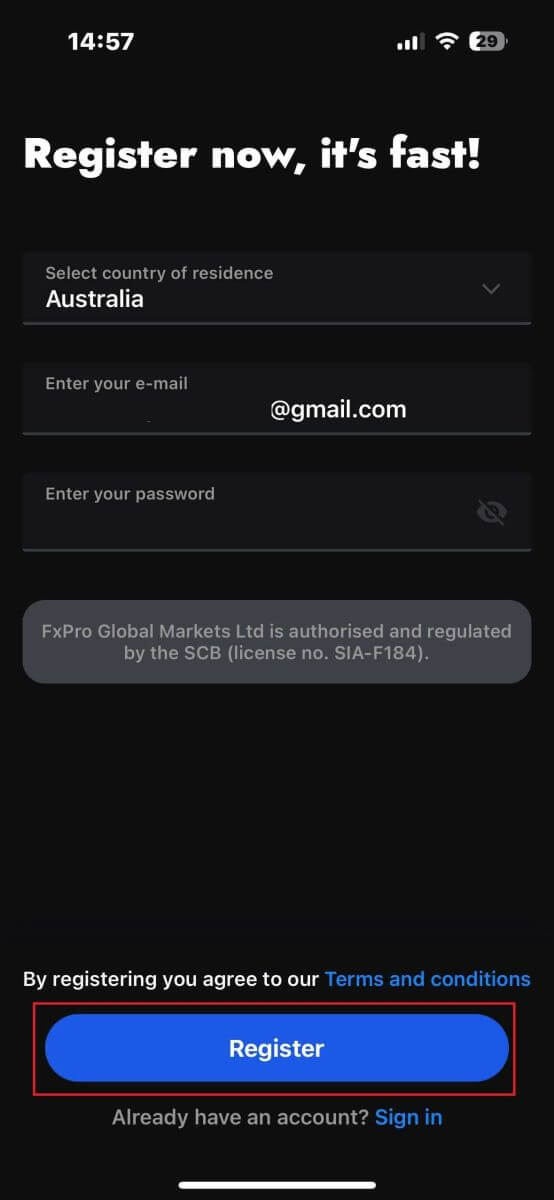
You will be redirected to the account registration page right away. On the initial registration page, you need to provide FxPro with some essential details, including:
-
Your country of residence.
-
Your email address.
-
A password (Make sure your password meets security criteria, such as being at least 8 characters long and including 1 uppercase letter, 1 number, and 1 special character).
Once you have entered all the necessary information, click "Register" to proceed.
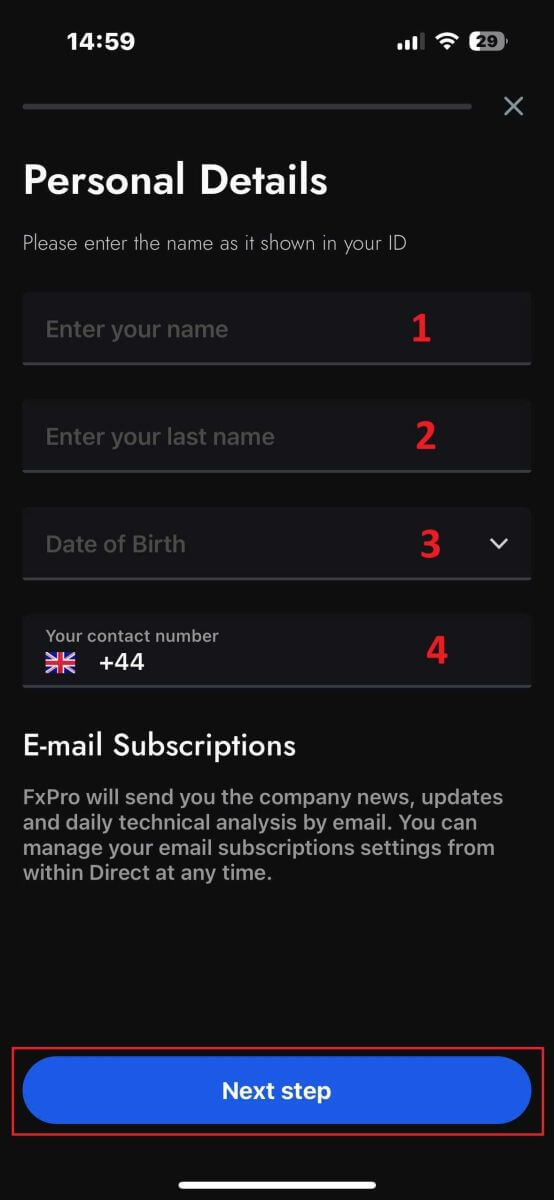
On the subsequent registration page, you will need to fill out the "Personal Details" section, which includes fields for:
-
First name.
-
Last name.
-
Date of Birth.
-
Contact number.
After filling out the form, click "Next step" to move forward.
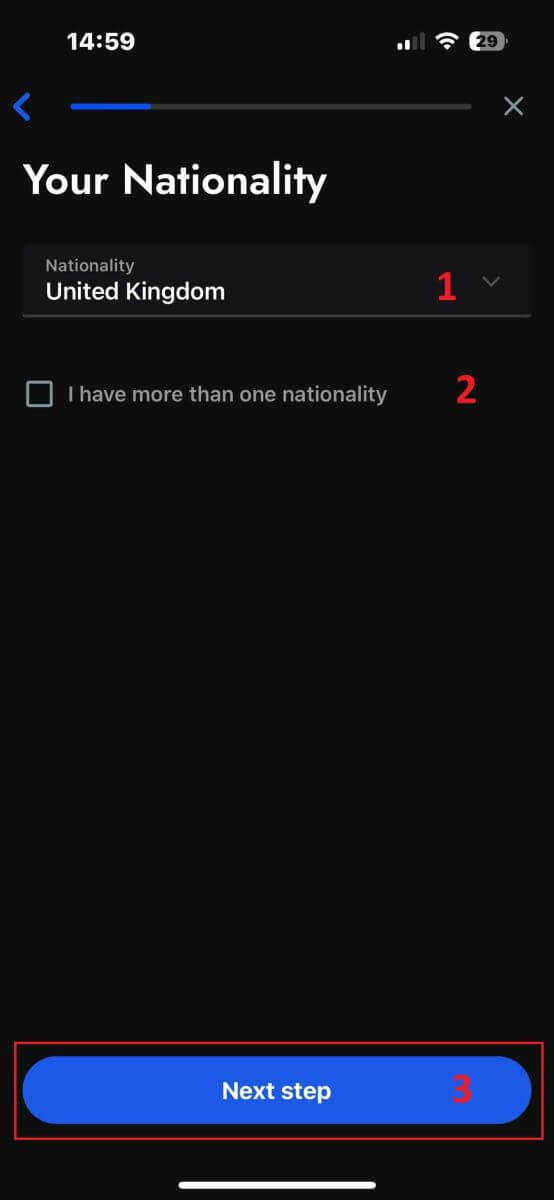
In the following step, indicate your nationality in the "Nationality" section. If you hold multiple nationalities, check the box for "I have more than one nationality" and select the additional nationalities.
Afterward, click "Next step" to advance in the registration process.
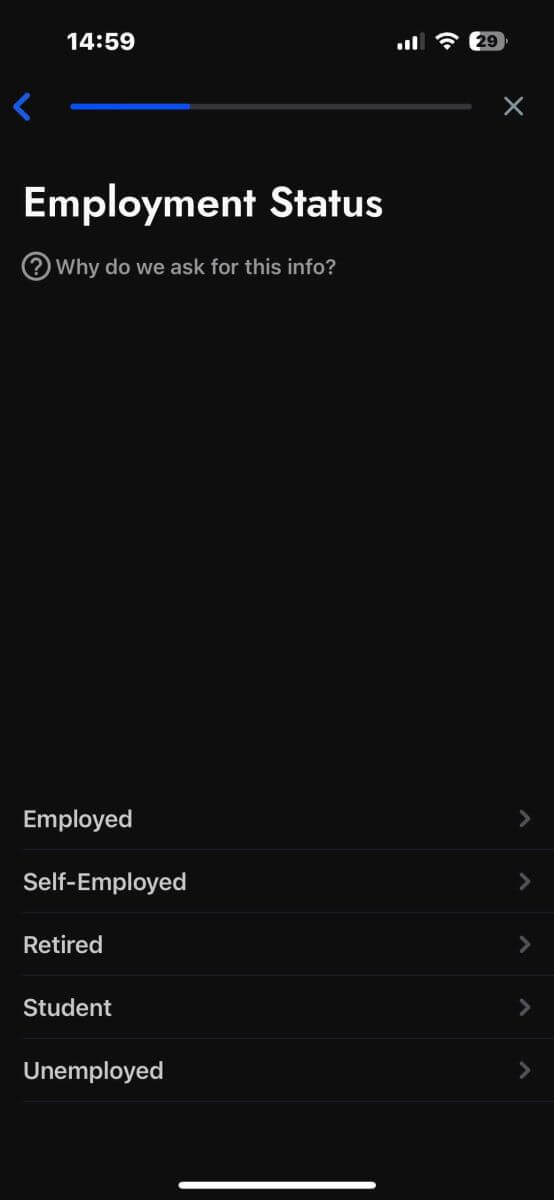
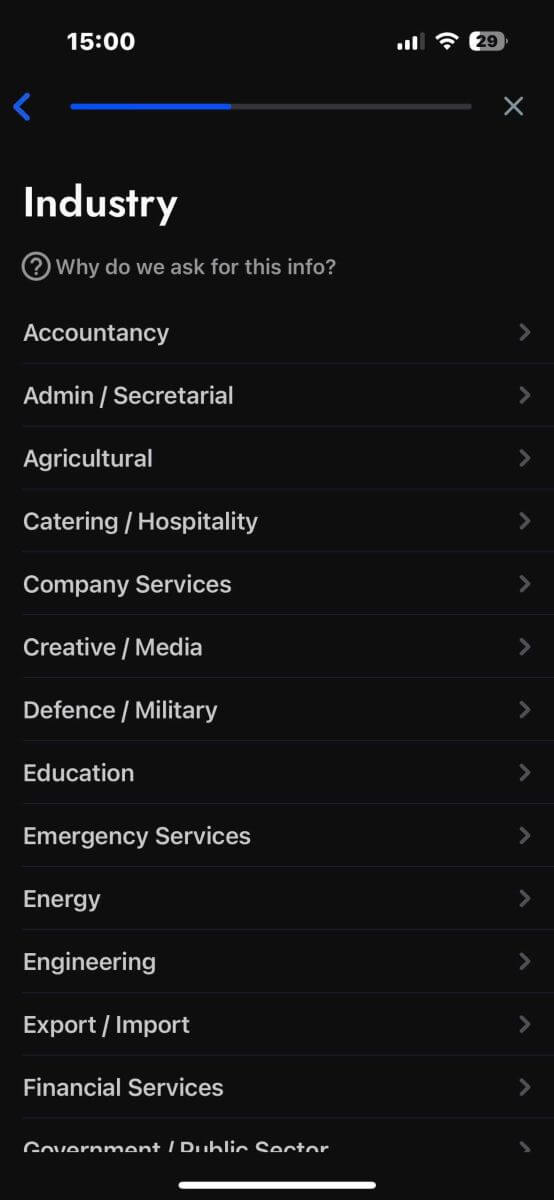
On this page, you need to provide FxPro with details about your Employment Status and Industry.
Once you have completed this, click "Next step" to proceed to the next page.
Congratulations on nearly completing the account registration process with FxPro on your mobile device!
Next, you will need to provide information about your Financial Status. Please tap "Next" to proceed.
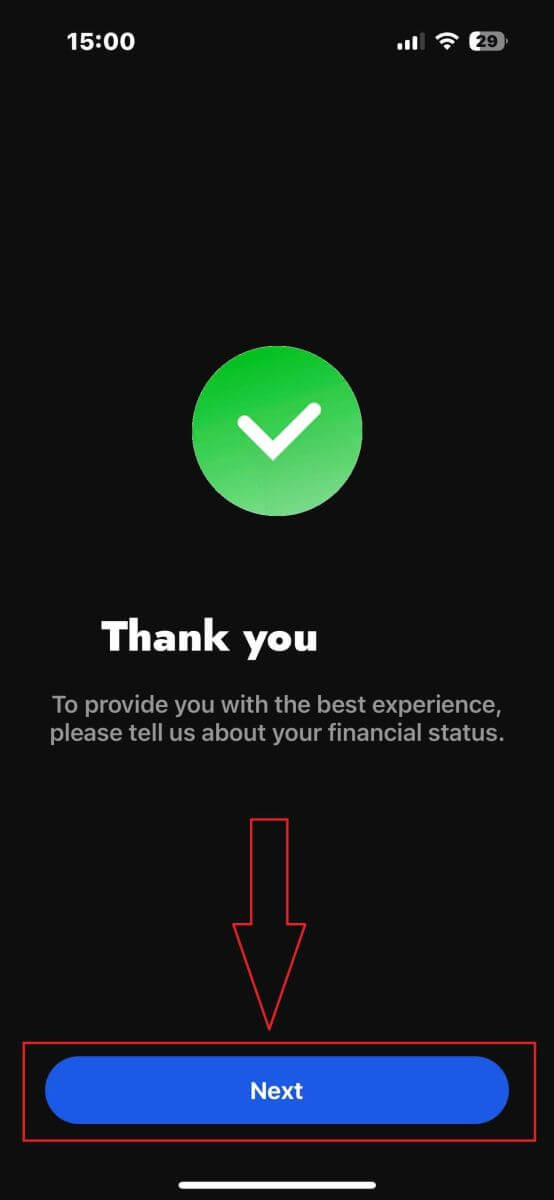
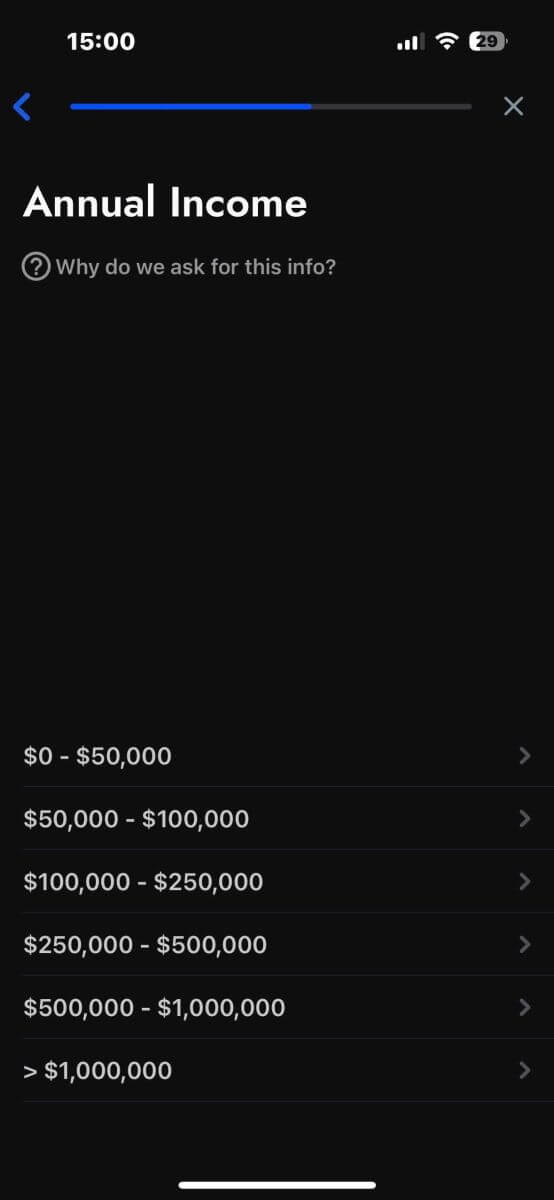
On this page, you’ll need to provide FxPro with details about your Financial Information, including:
-
Annual Income.
-
Estimated Net Worth (excluding your primary residence).
-
Source of Wealth.
-
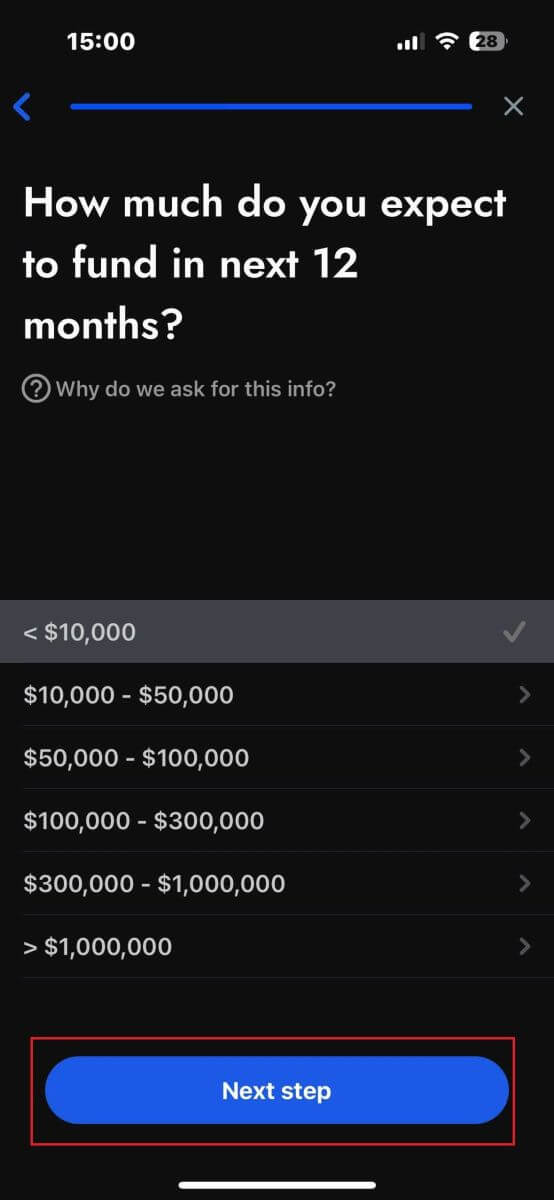
Expected funding amount for the next 12 months.
Once you’ve filled out the information, click "Next step" to finalize the registration process.
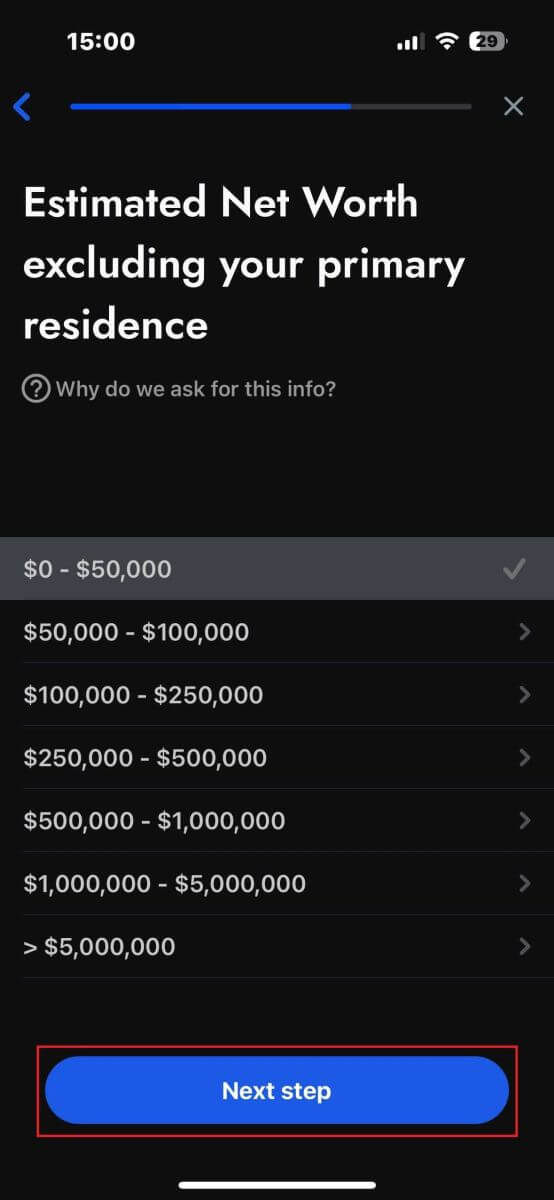
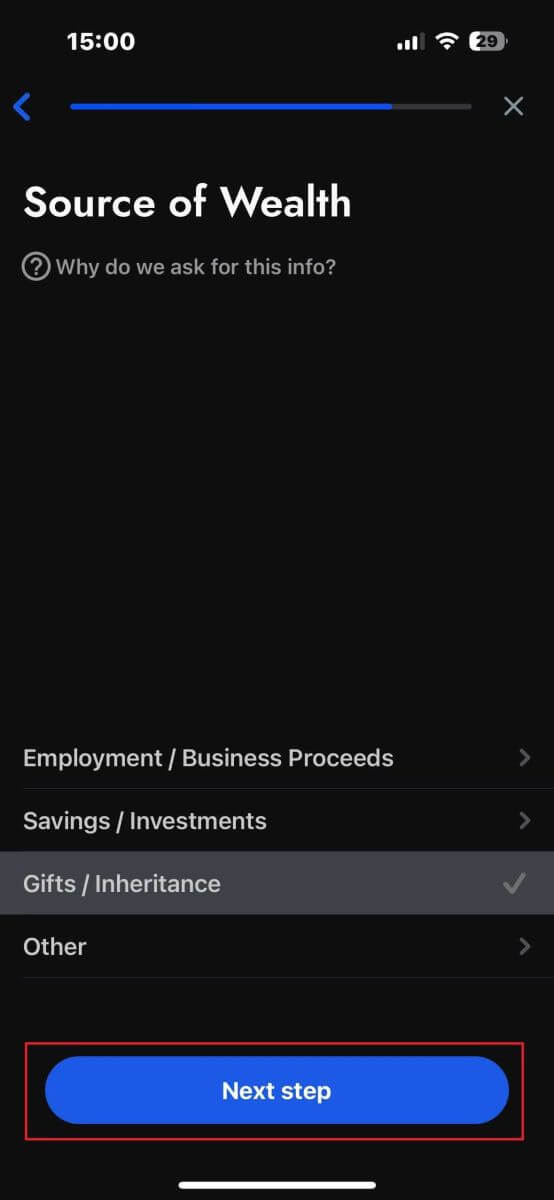
After completing the survey questions in this section, select "Next step" to finish the account registration process.
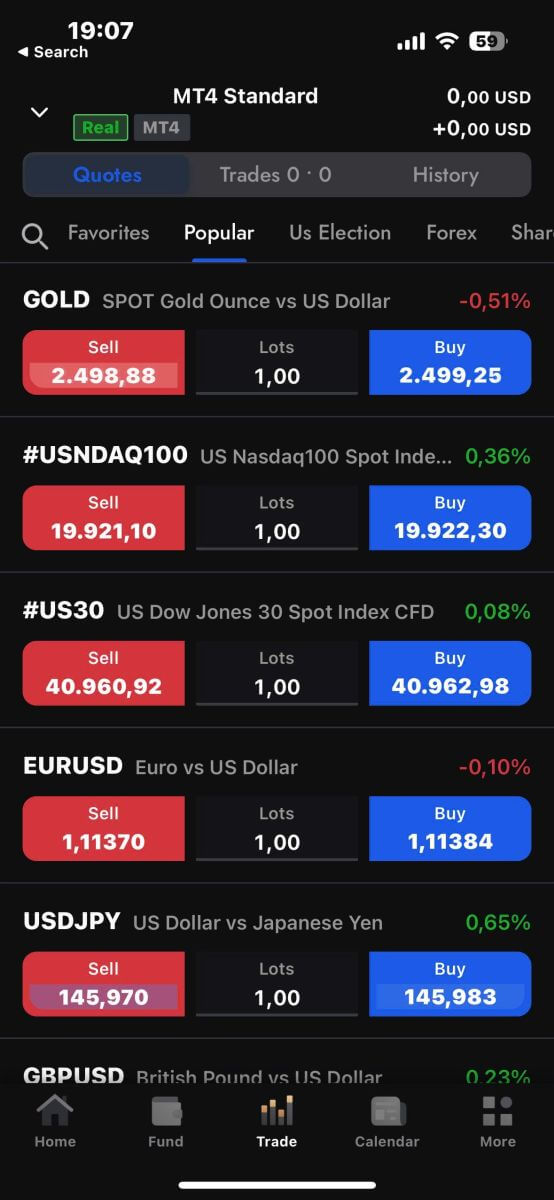
Congratulations on successfully registering your account! Trading is now easy with FxPro, allowing you to trade anytime, anywhere with your mobile device. Join us now!
How to create a new trading account
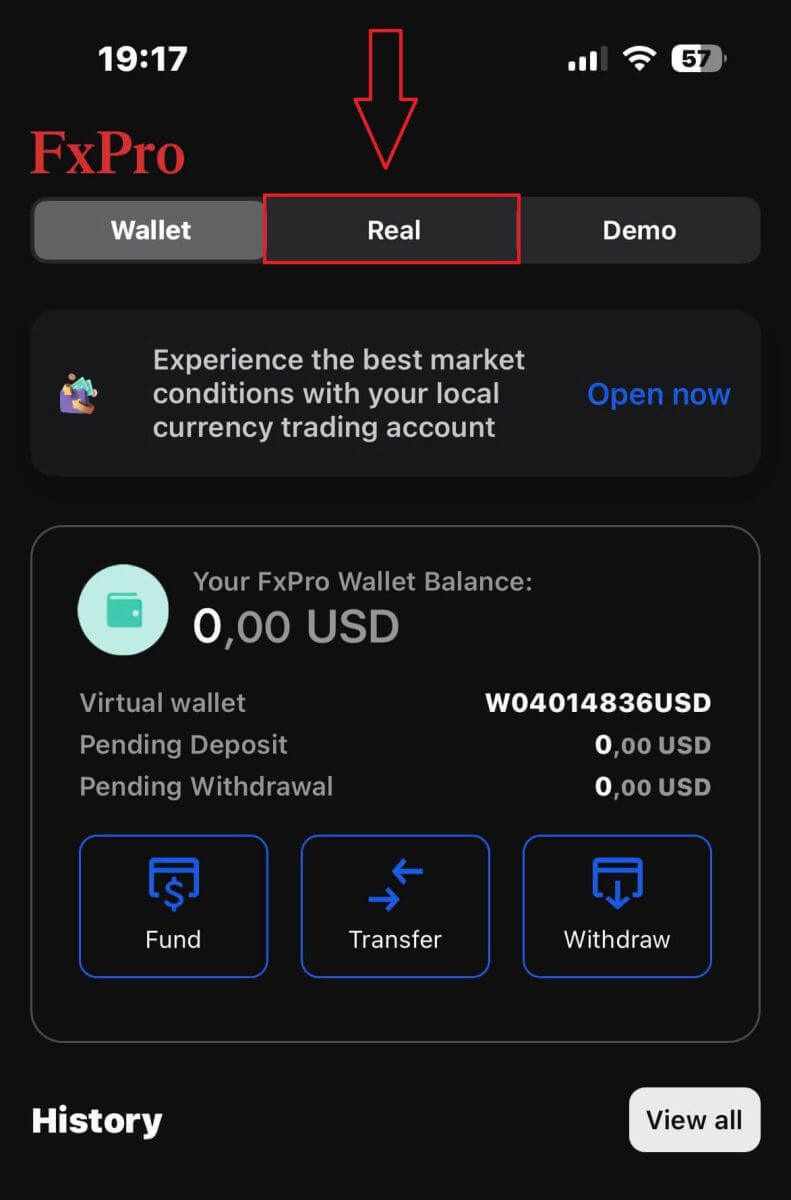
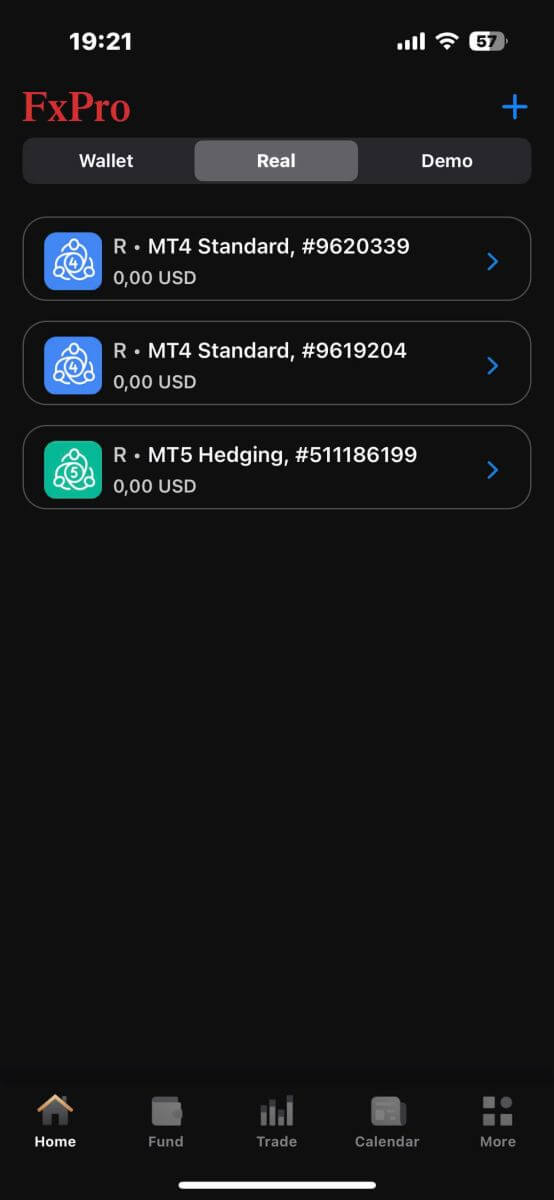
First, to create new trading accounts in the FxPro mobile app, select the "REAL" tab (as shown in the descriptive image) to access your trading account list.
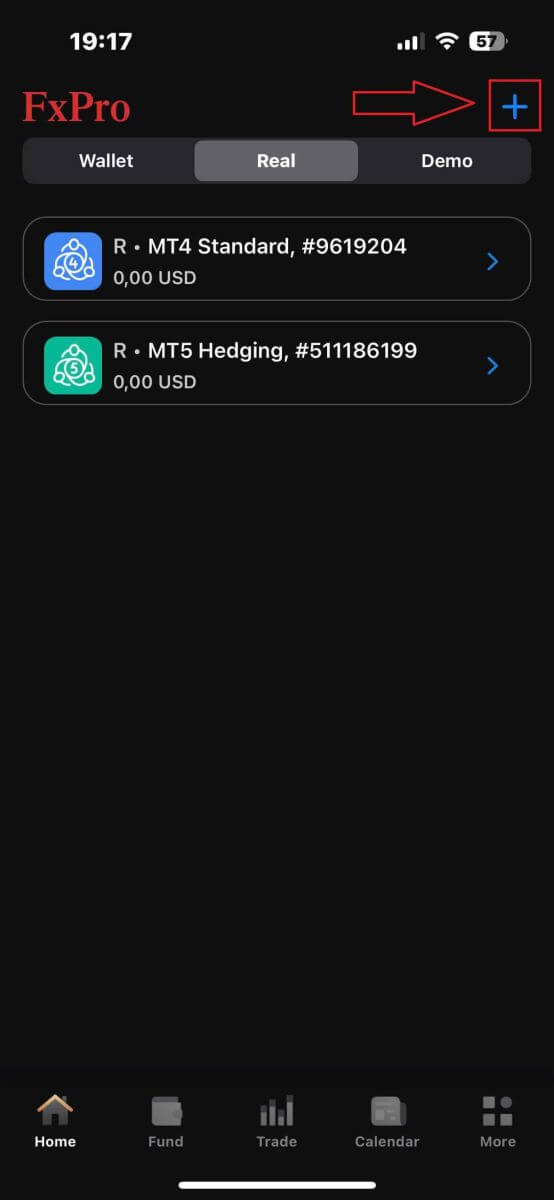
Then, tap the + icon at the top right corner of the screen to create new trading accounts.
To set up new trading accounts, you’ll need to choose the following details:
-
The Platform (MT4, cTrader, or MT5).
-
The Account Type (which may vary based on the chosen platform).
-
The Leverage.
-
The Account Base Currency.
After filling in the required information, click the "Create" button to complete the process.
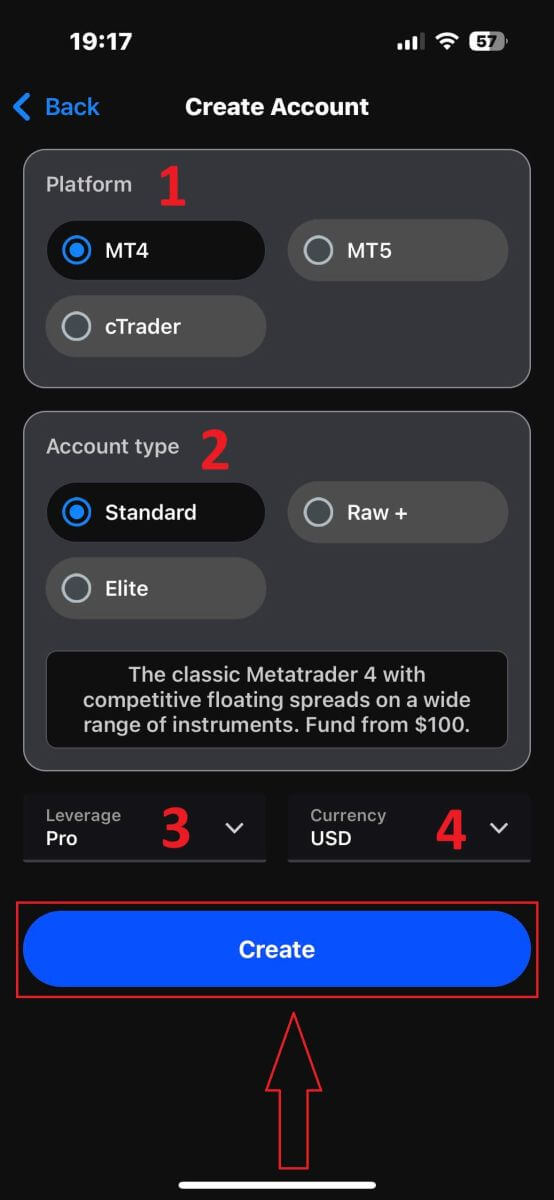
Congratulations on completing the process! Creating new trading accounts on the FxPro mobile app is easy, so don’t hesitate—start experiencing it now.
MetaTrader 4
Download MT4 for iPhone/iPad
First, open the App Store on your iPhone or iPad, search for "MetaTrader 4", and then select the download button for the app.
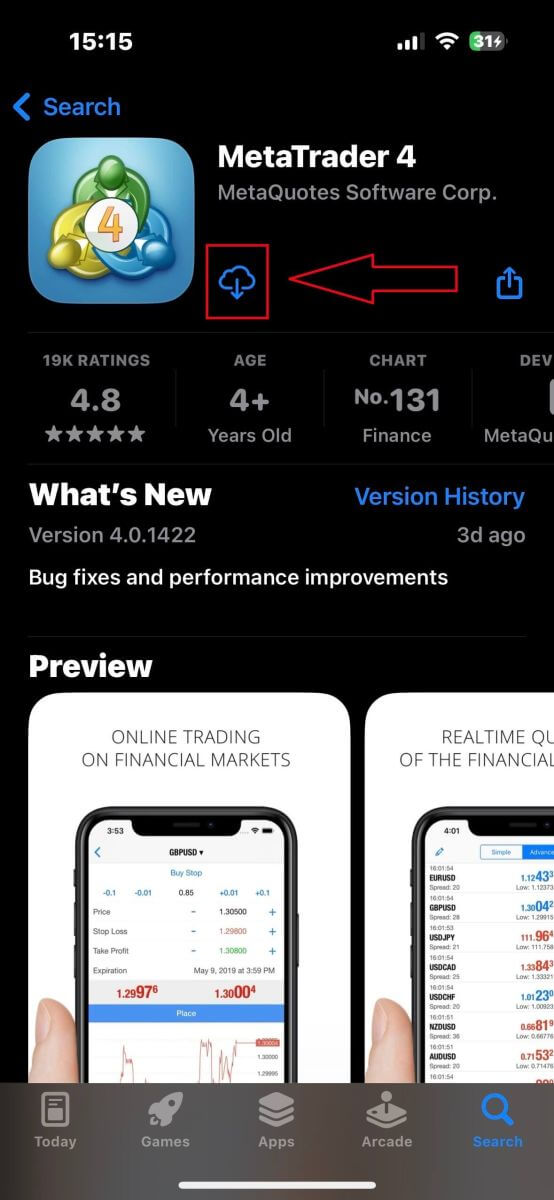
After downloading and installing the app, open it and select the "Login to an existing account" button to proceed with logging in.
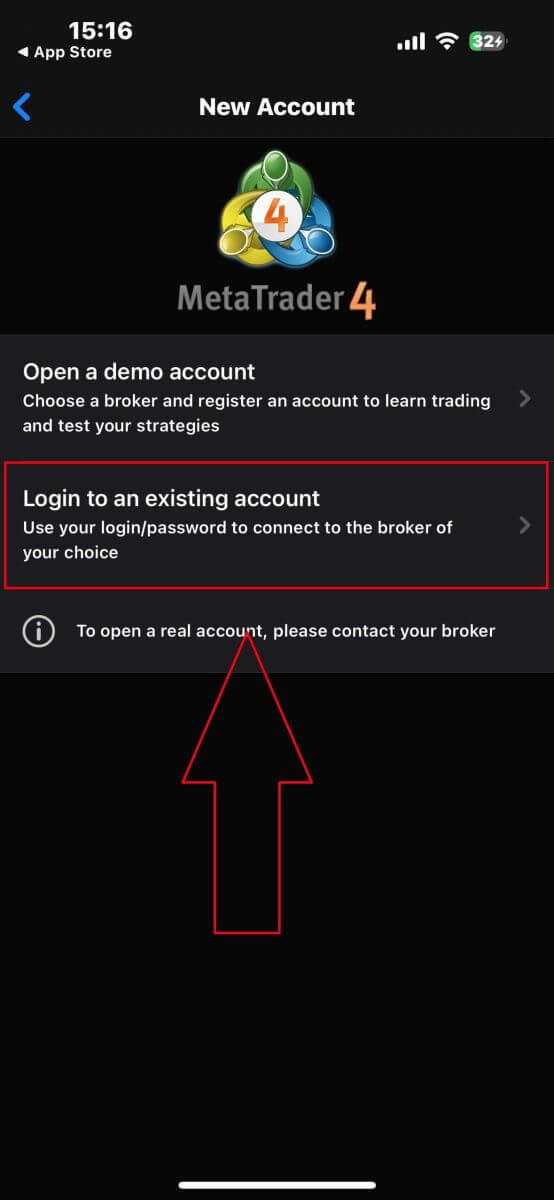
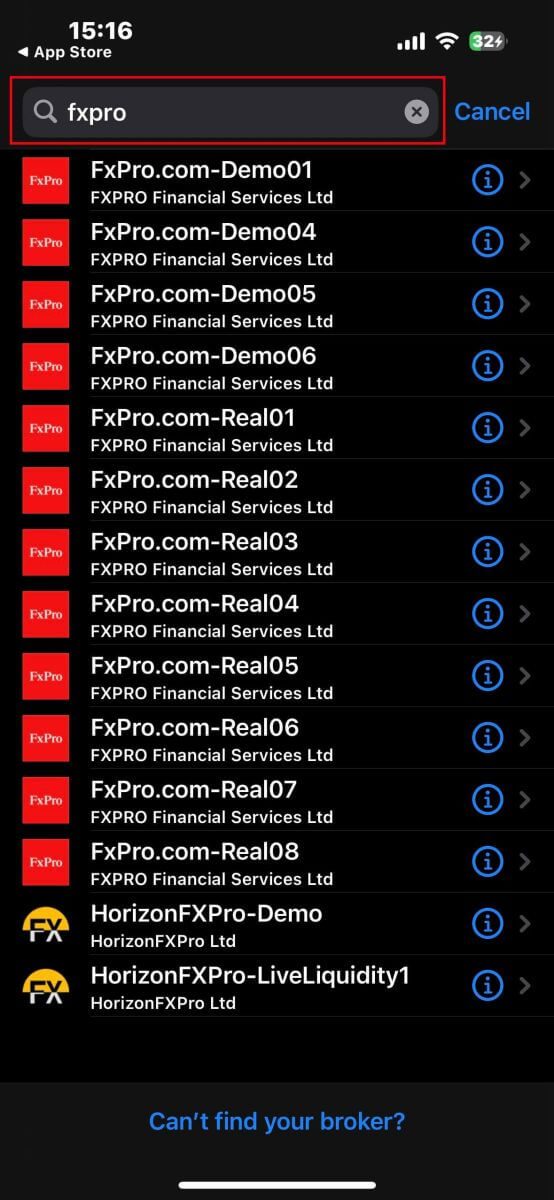
The next step is to select the server (matching the server provided by FxPro in the Login Credentials section of your registration email).
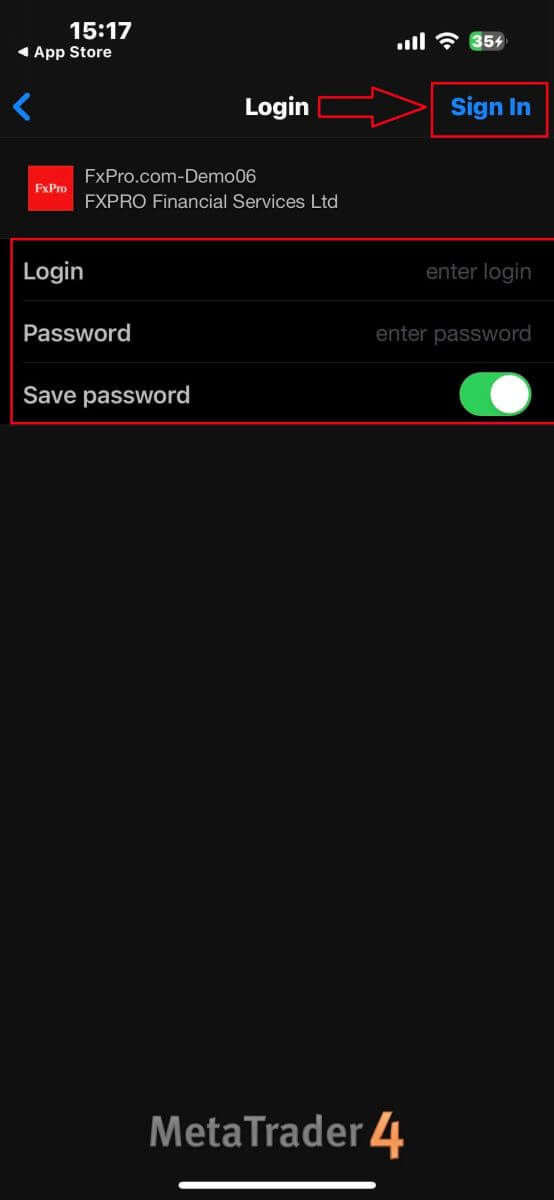
After that, you must enter the login credentials from your registration email into the corresponding fields (you can save the password to store your login information).
Once you finish, tap "Sign In" to complete.
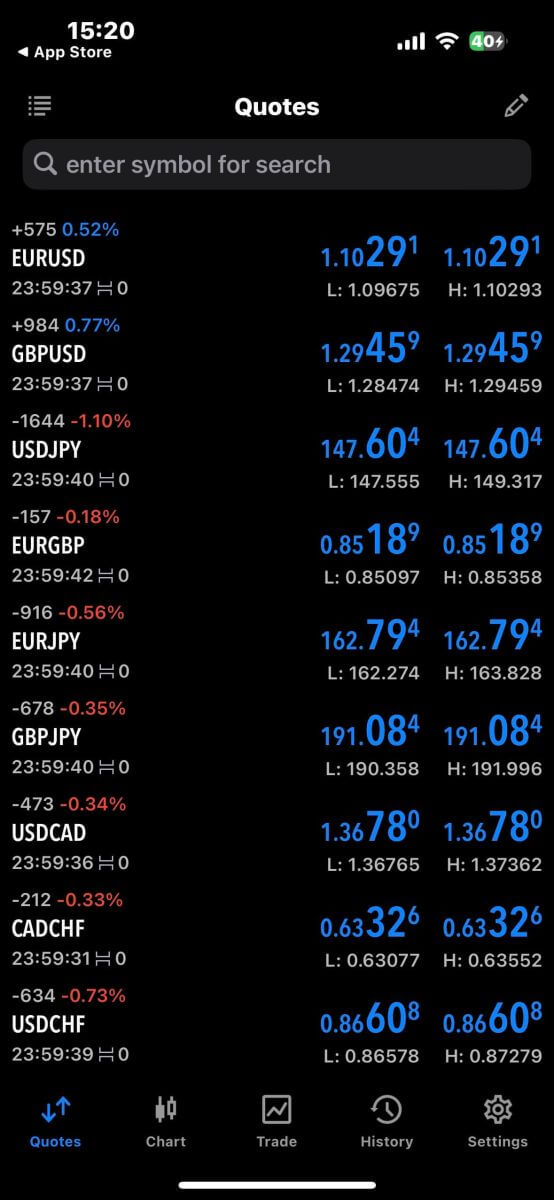
Congratulations! Your MT4 is ready now.
Don’t hesitate any longer! Join us now.
Download MT4 for Android
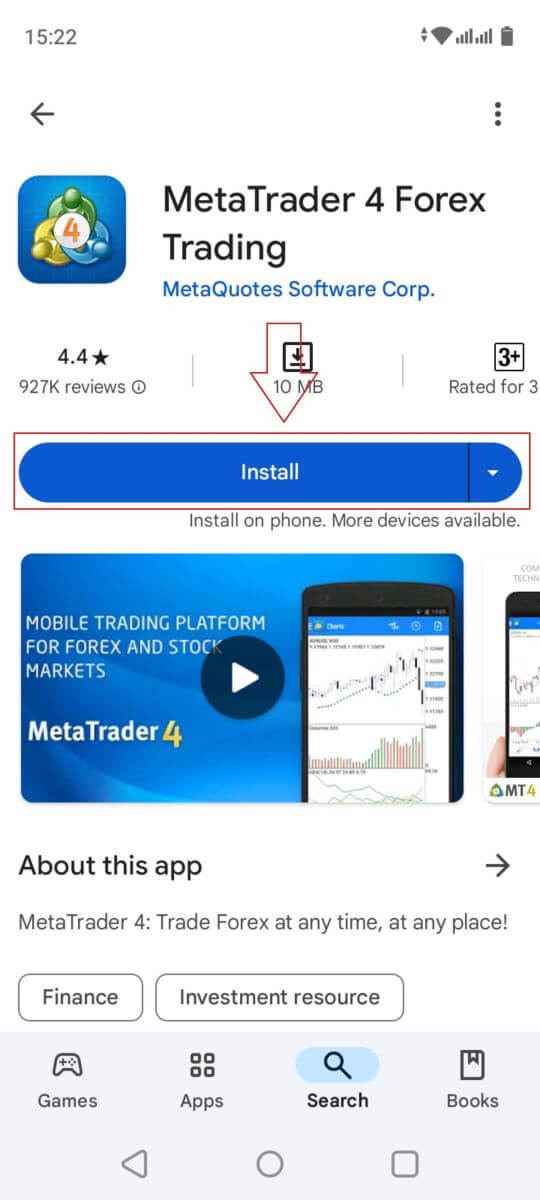
First, open Google Play on your Android devices, search for "MetaTrader 4", and then tap the download button for the app.
After downloading and installing the app, open it and tap the "Login to an existing account" button to log in.
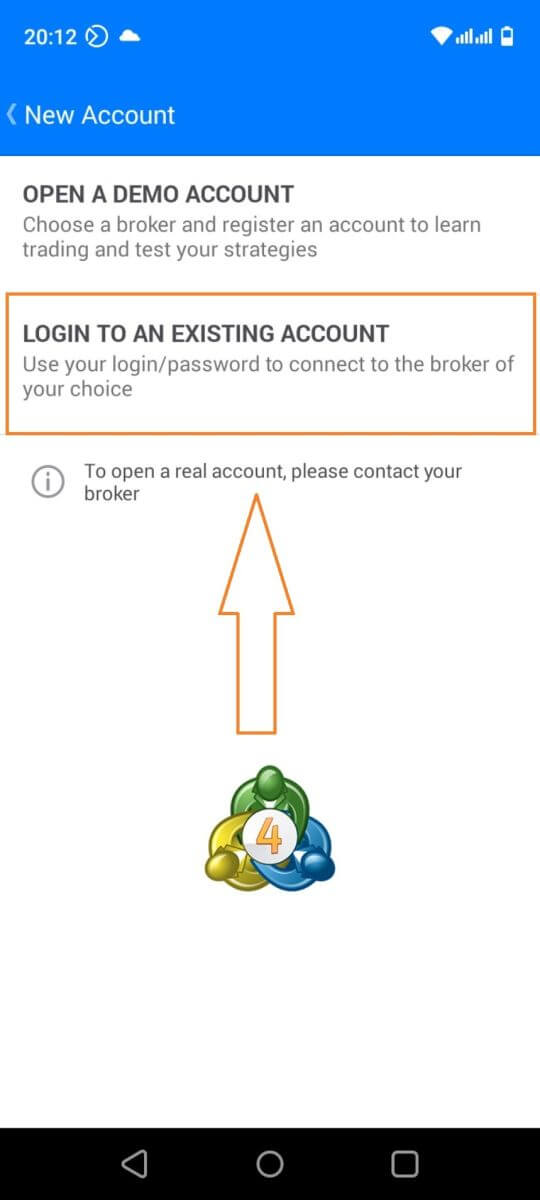
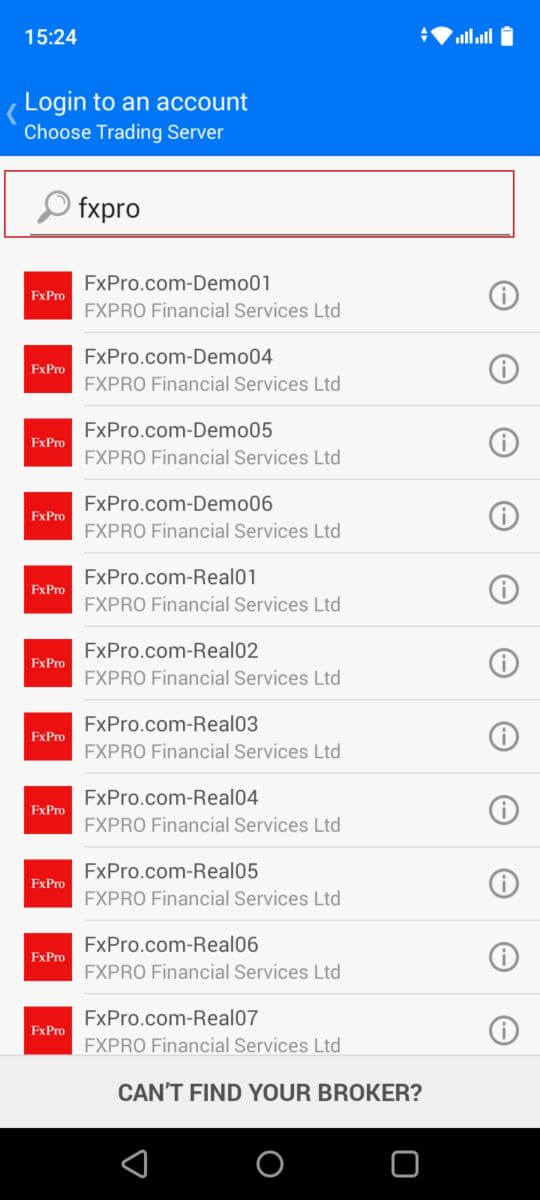
The next step is to choose the server that matches the one provided by FxPro in the Login Credentials section of your registration email using the search bar.
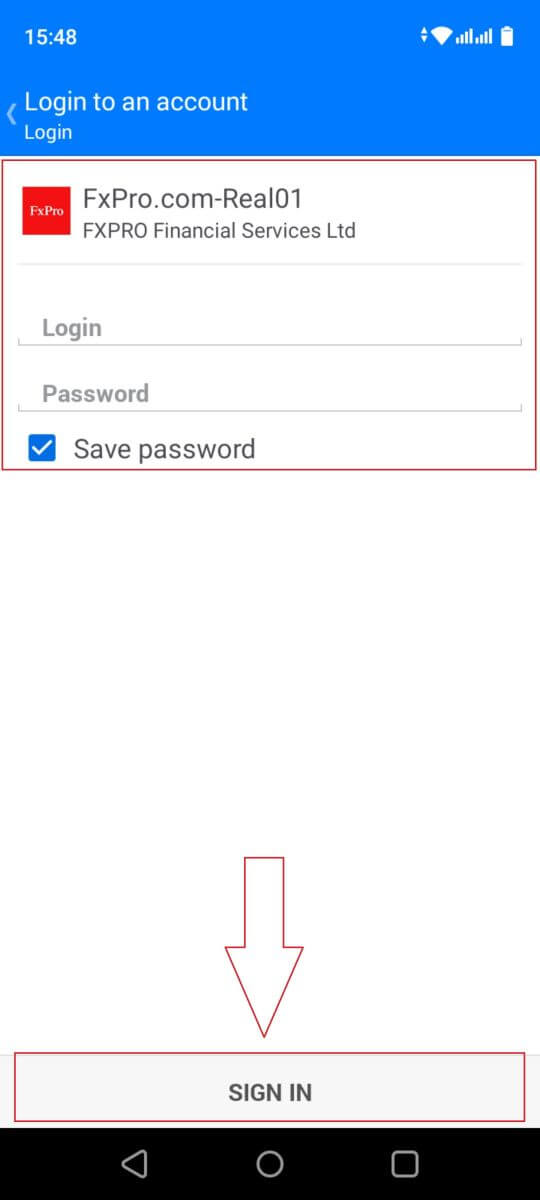
Next, simply enter the login credentials from your registration email into the corresponding fields.
You can choose to save the password to store your login information. Then tap "SIGN IN".
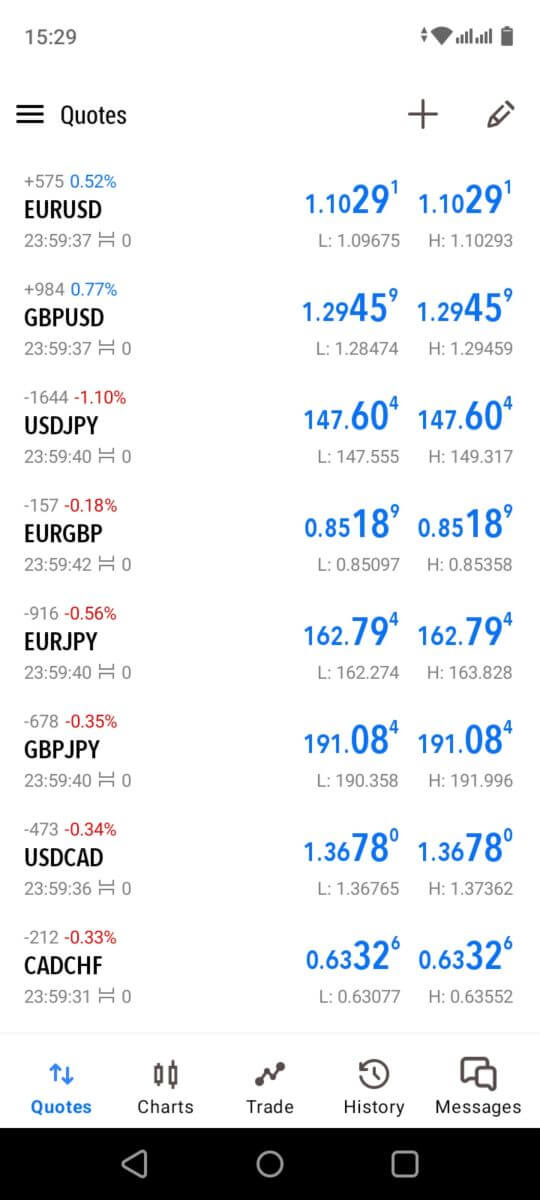
Congrats to you on successfully activating the MT4!
MetaTrader 5
Download MT5 for iPhone/iPad
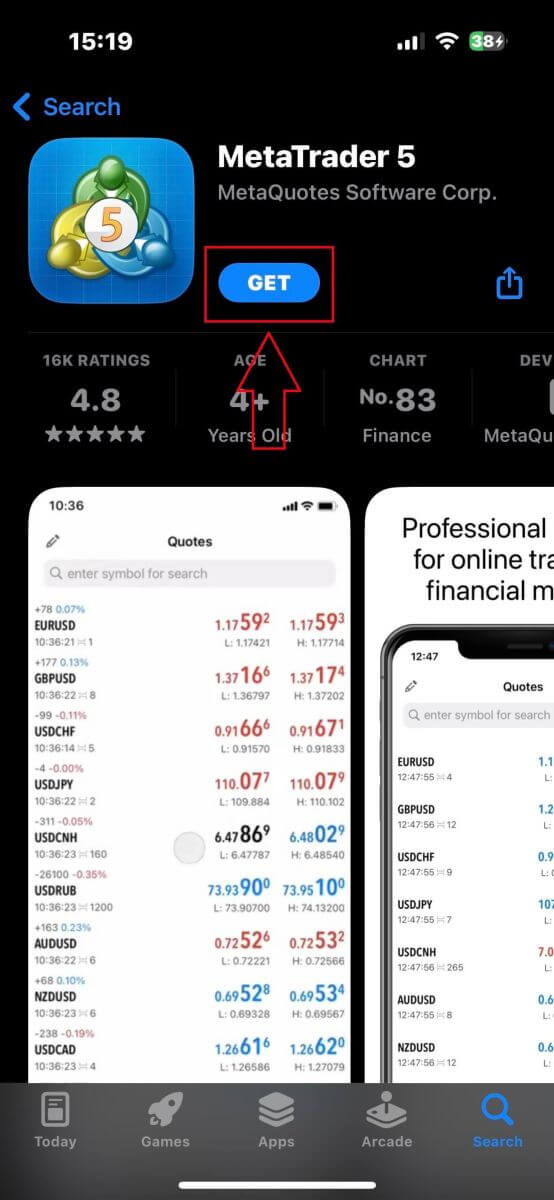
First, open the App Store on your iPhone or iPad, search for "MetaTrader 5", and then select the download button for the app.
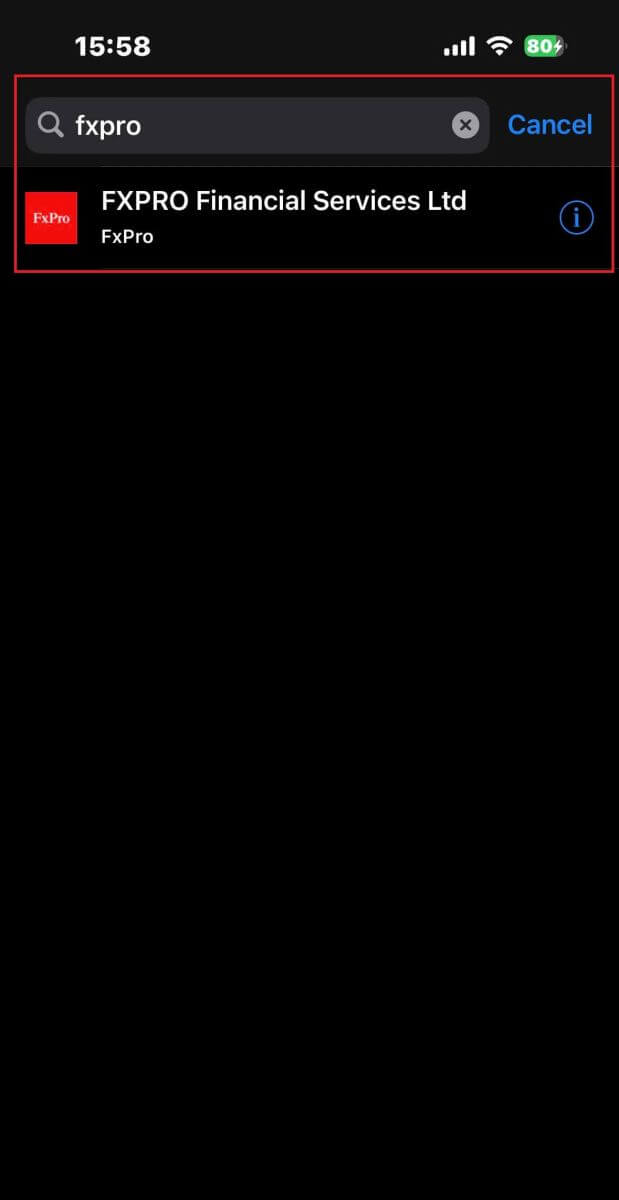
The next is using the search to select the trading server (the one that matches your MT5 login credentials in your registration mail before).
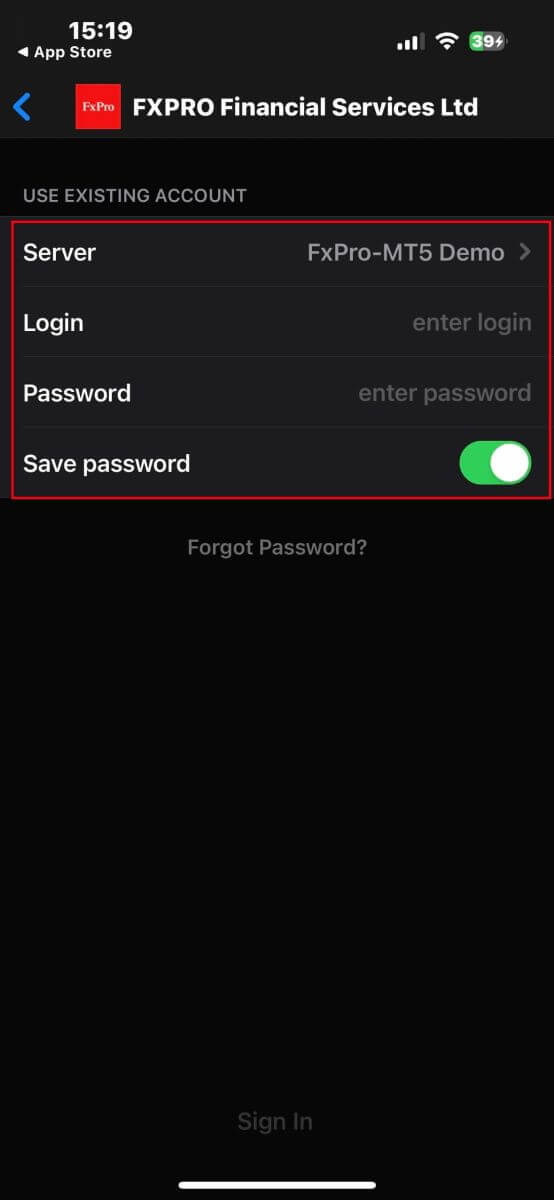
Enter the login credentials from your registration email into the corresponding fields. You can choose to save the password to store your login information.
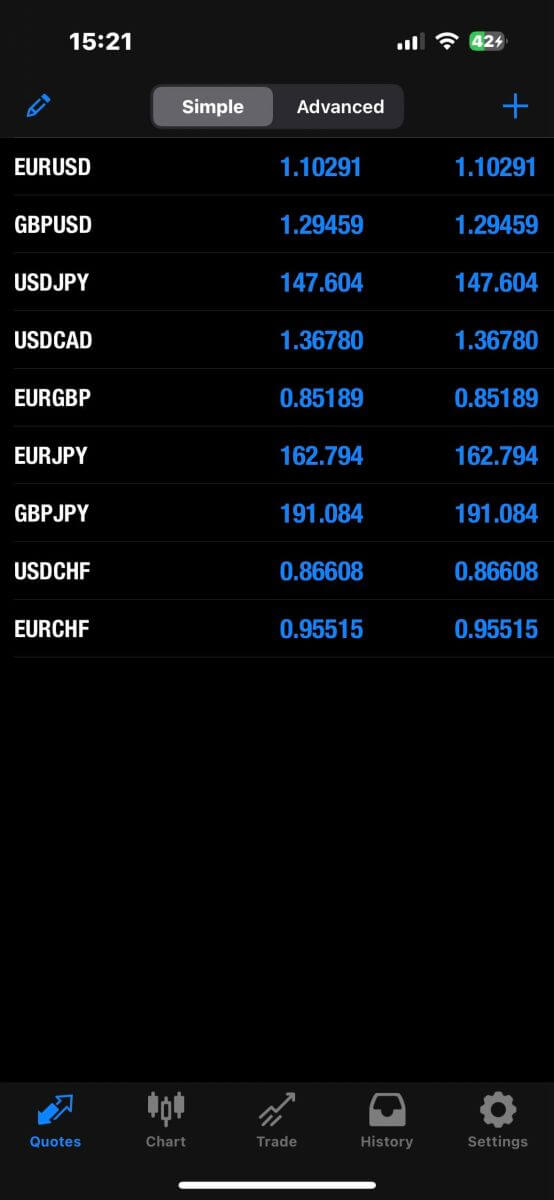
You now can trade on MT5!
Download MT5 for Android
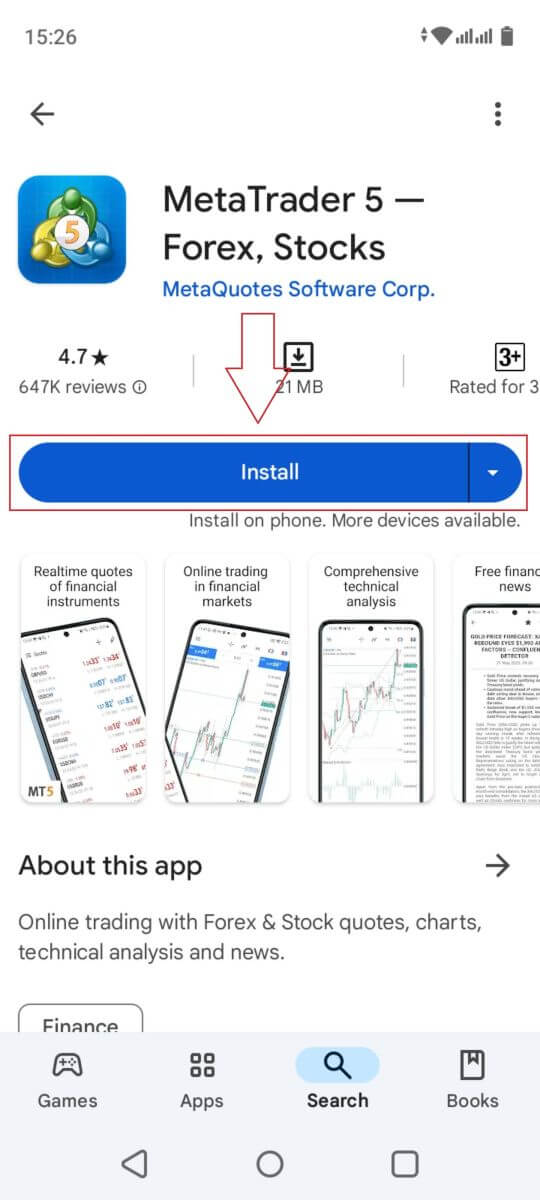
First, open Google Play on your Android devices, search for "MetaTrader 5", and then tap the download button for the app.
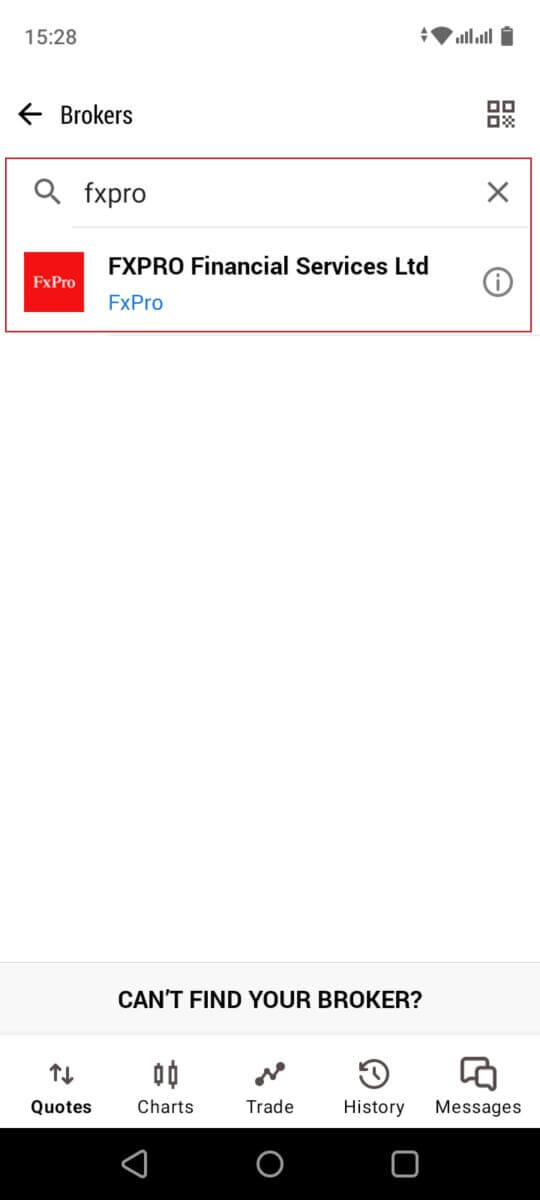
Next, use the search function to select the trading server that matches your MT5 login credentials from your registration email.
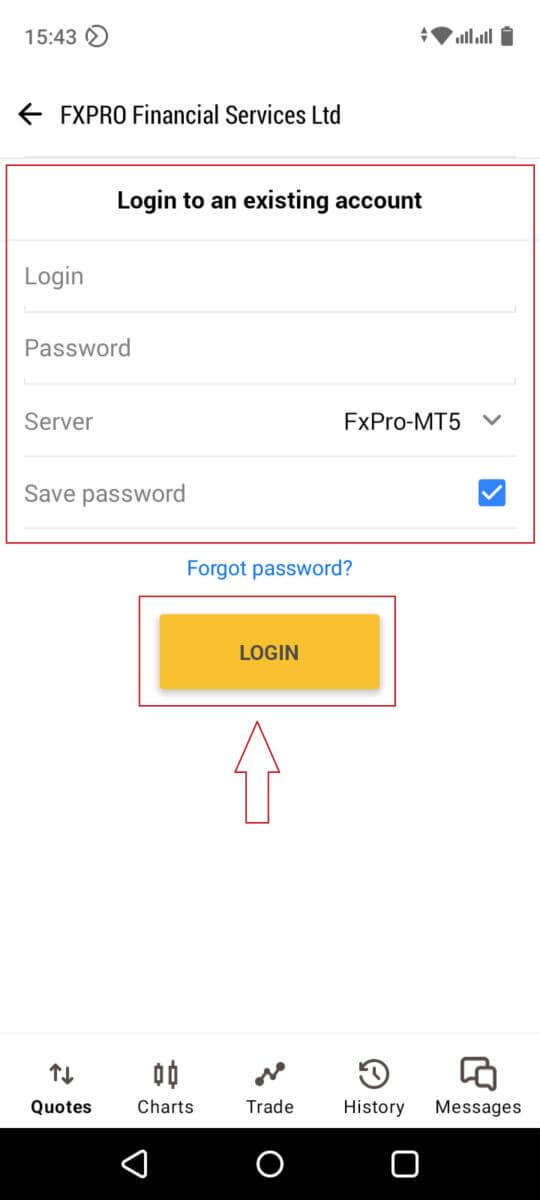
Enter the login credentials from your registration email into the corresponding fields. You can choose to save the password to keep your login information stored.
Then tap "LOGIN".
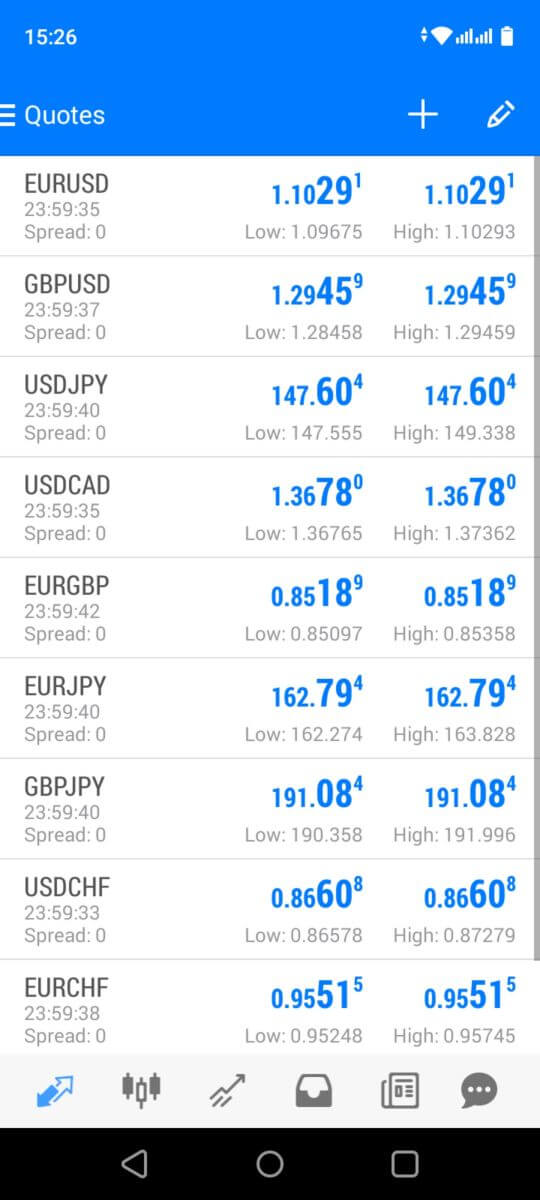
What a simple process! Enjoy your MT5
Conclusion: Convenient Mobile Trading with FxPro
Downloading and installing the FxPro mobile app on your Android or iOS device is designed to be a quick and straightforward process. The app offers the full range of FxPro’s trading features, providing a seamless experience whether you’re at home or on the move. With its user-friendly interface and efficient setup, the FxPro app ensures that you have easy access to your trading account anytime, anywhere. This convenience allows you to stay connected to the markets and manage your trades with ease, directly from your mobile phone.