FxPro Register

The registration workflow is straightforward: create your client profile, complete personal and financial sections, upload verification documents and confirm your email. Expect instant access to the client area but allow time for identity checks. The next sections break down required documents, likely processing times, frequent errors to avoid and simple security steps to protect your account during and after onboarding.

How to Register a FxPro Account [Web]
How to register an account
First, visit the FxPro homepage and select "Register" to begin the account registration process.

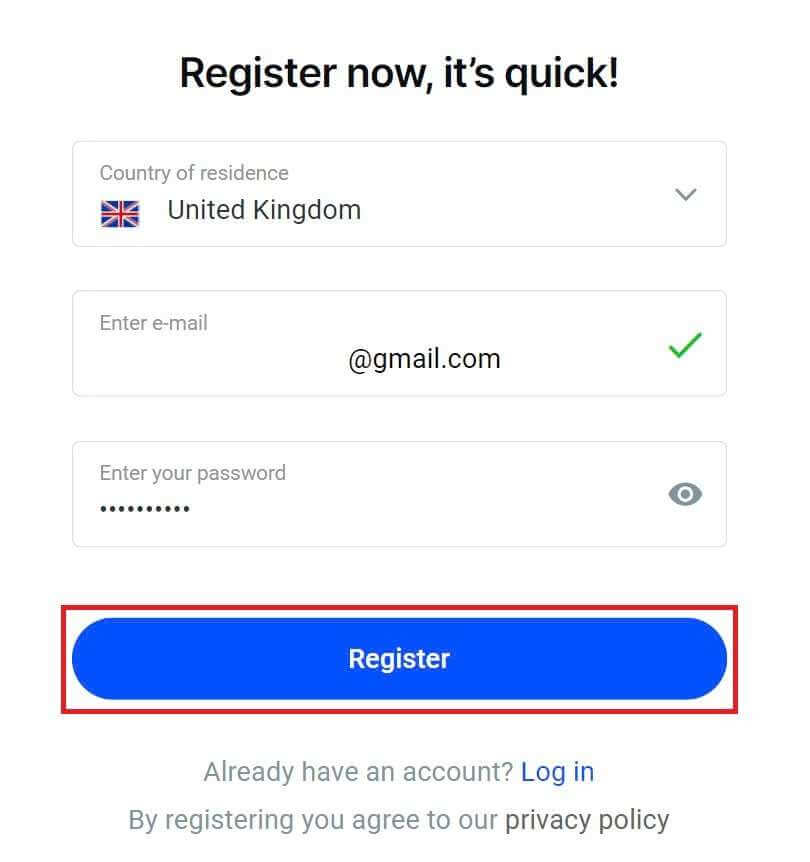
You will immediately be directed to the account registration page. On the first registration page, please provide FxPro with some basic information, including:
-
Country of residence.
-
Email.
-
Your password (Please note that your password must meet certain security requirements, such as having at least 8 characters, including 1 uppercase letter, 1 number, and 1 special character).
After providing all the required information, select "Register" to continue.
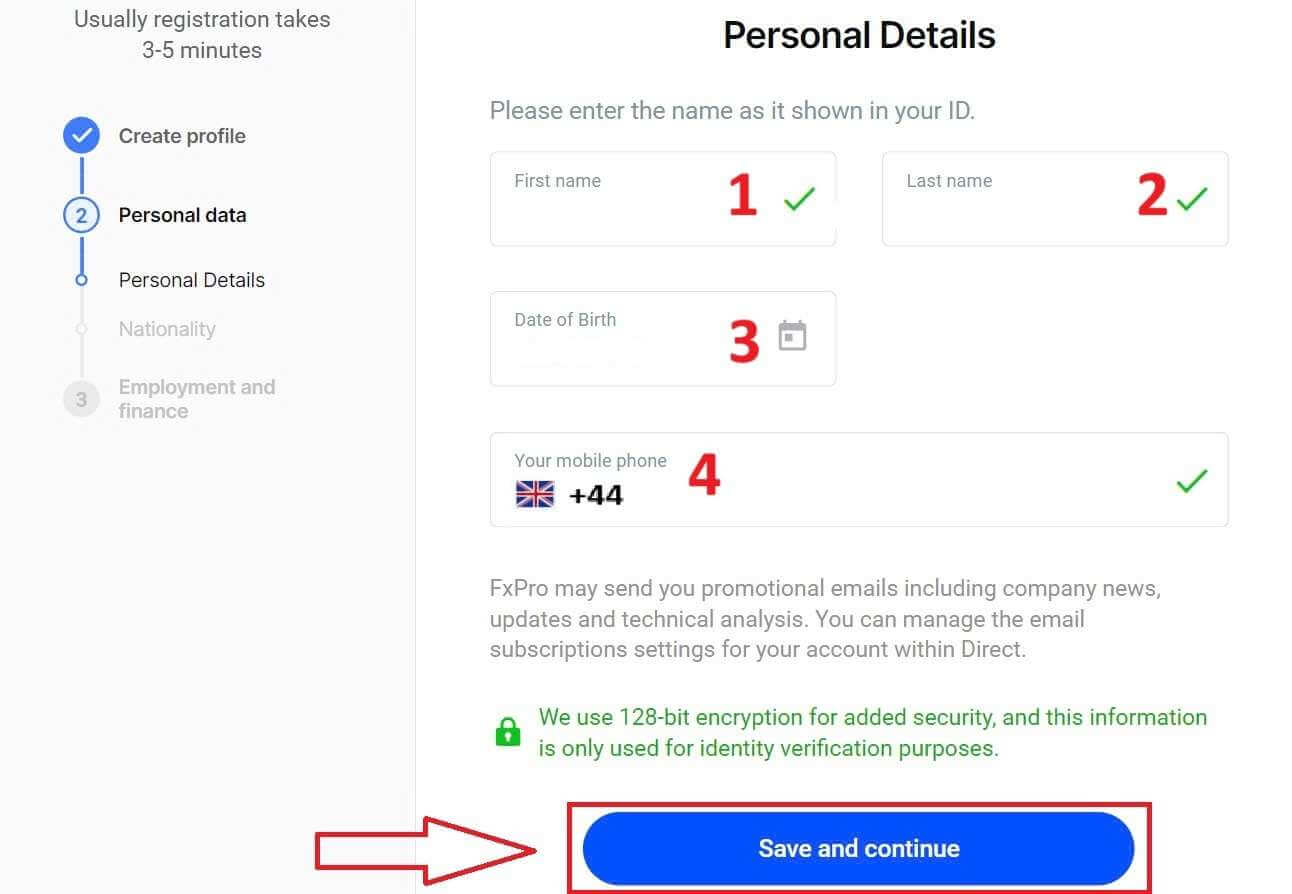
On the next registration page, you will provide information under "Personal Details" with fields such as:
-
First name.
-
Last name.
-
Date of Birth.
-
Your mobile number.
After completing the form, select "Save and Continue" to proceed.
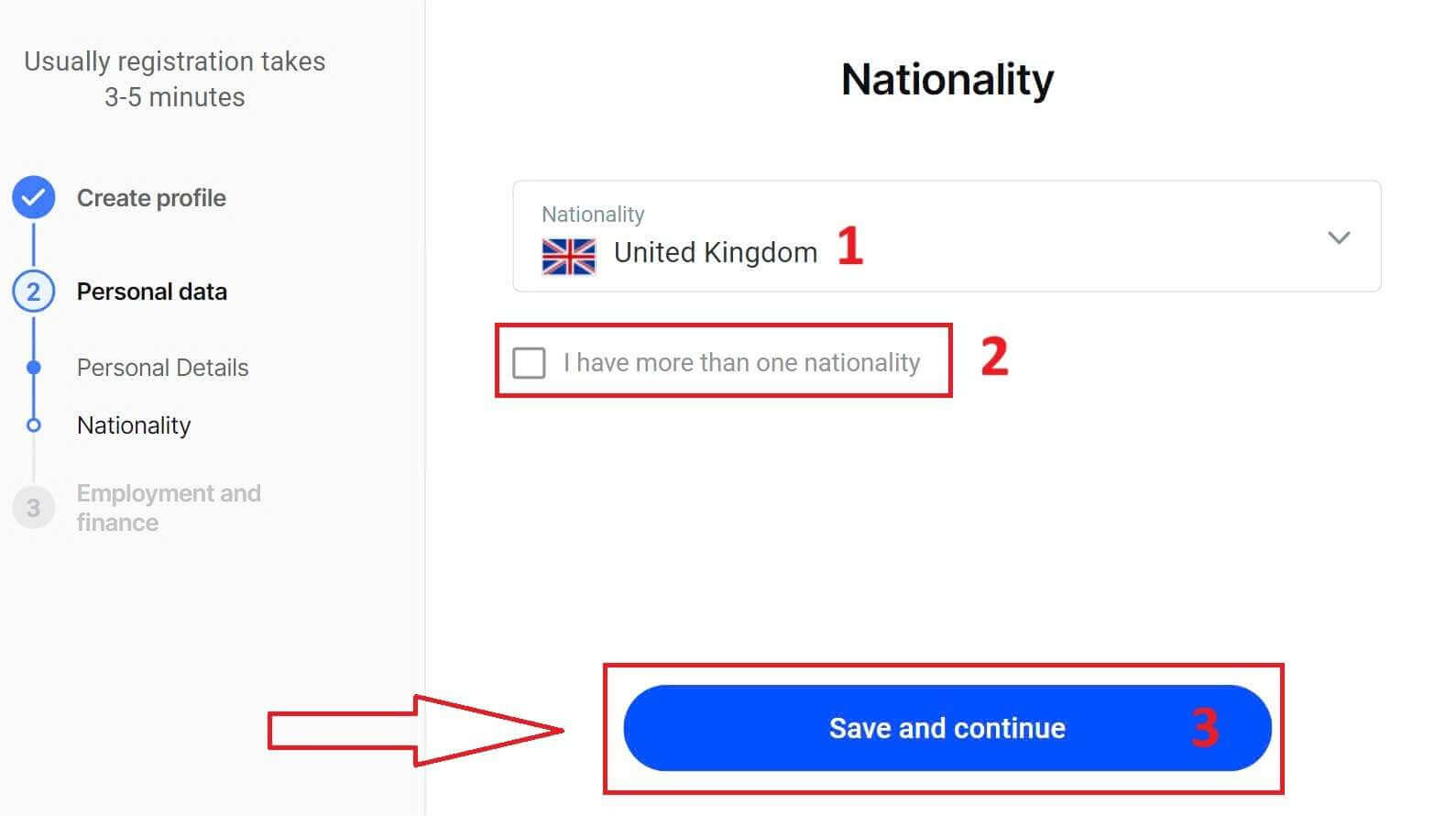
The next step is to specify your nationality under the "Nationality" section. If you have more than one nationality, check the box I have more than one nationality and select the additional nationalities. Then, select "Save and continue" to proceed with the registration process.
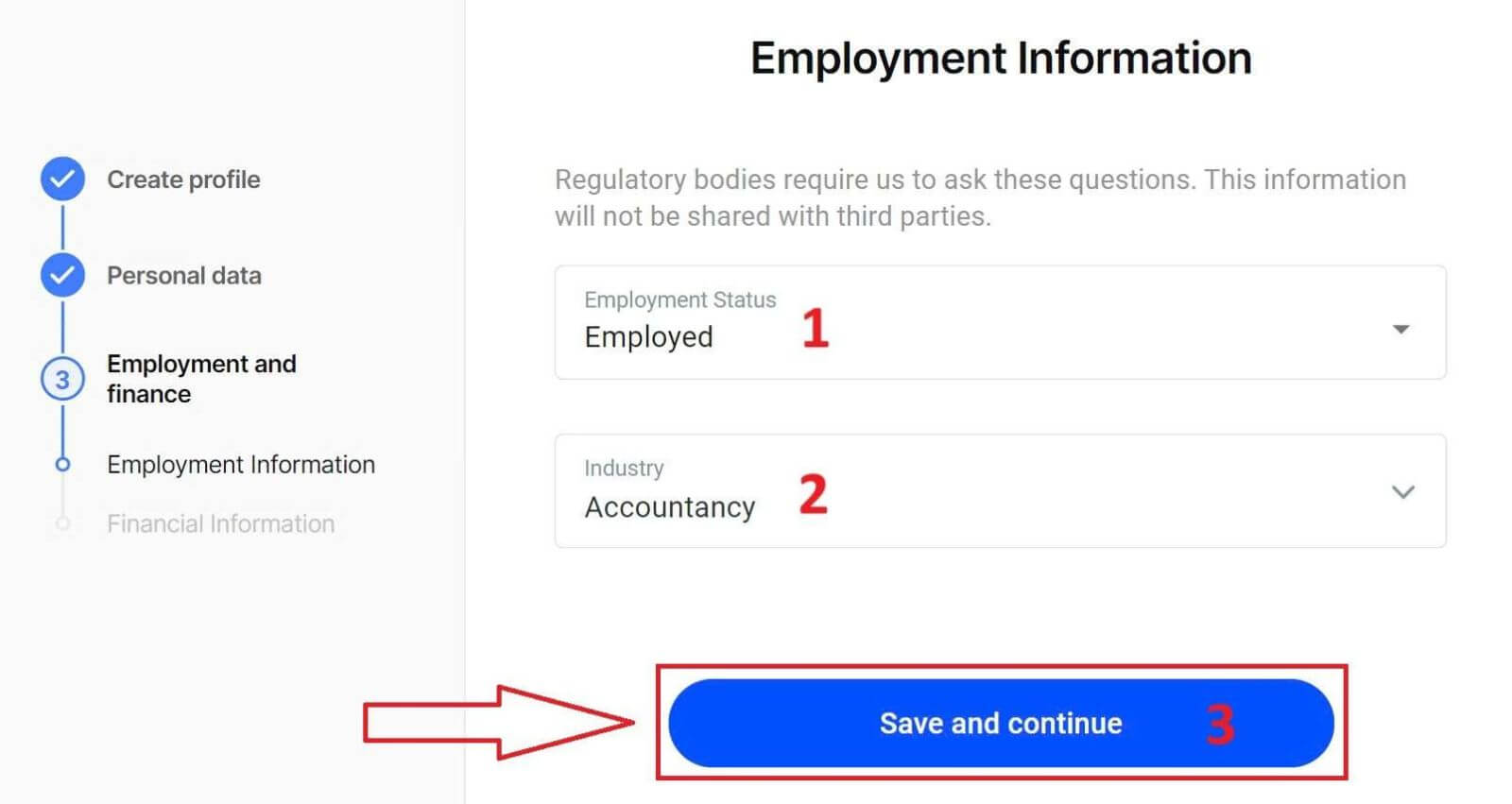
On this page, you must provide FxPro with information about your Employment Status and Industry in the Employment Information Section. Once you finish, click "Save and continue" to move to the next page.
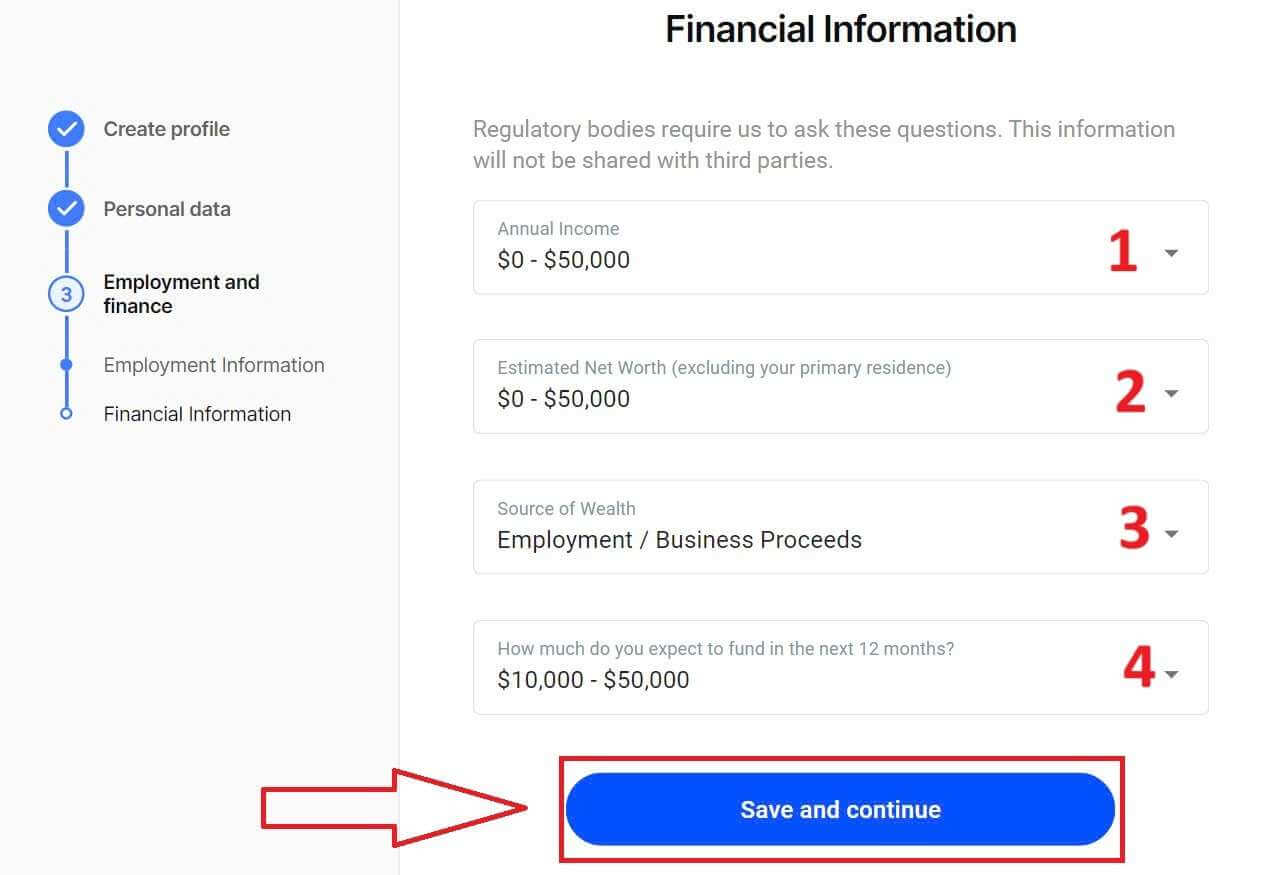
On this page, you will need to provide FxPro with some information about Financial Information such as:
-
Annual Income.
-
Estimated Net Worth (excluding your primary residence).
-
Source of Wealth.
-
How much do you expect to fund in the next 12 months?
After completing the information fields, select "Save and continue" to complete the registration process.
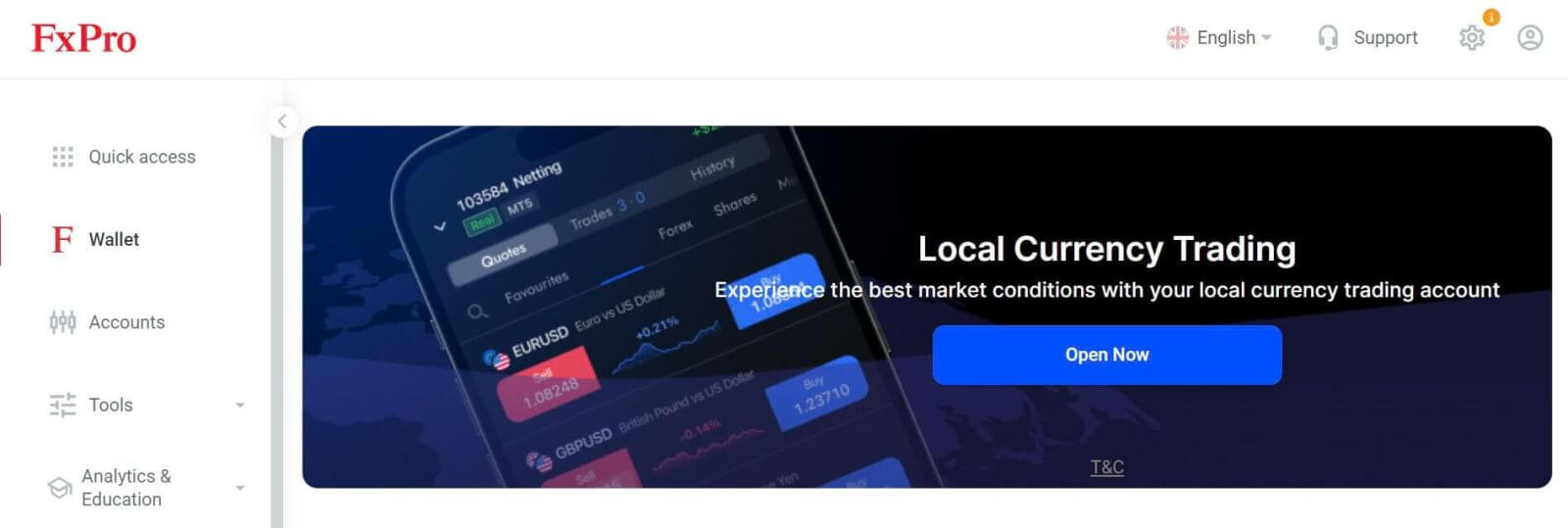
Congratulations on successfully registering an account with FxPro. Don’t hesitate any longer—start trading now!
How to create a new trading account
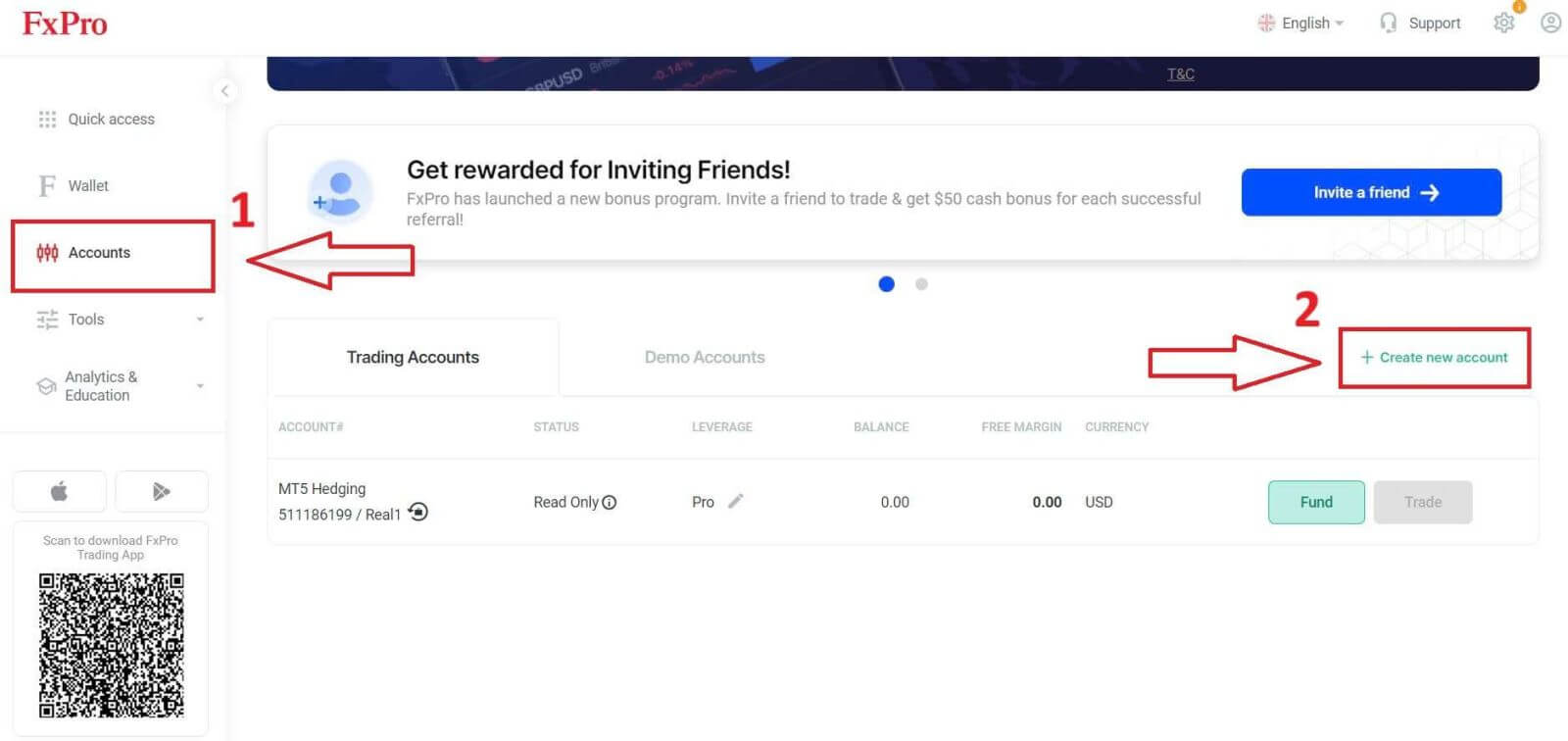
To create additional trading accounts, on the main interface of FxPro, select the Accounts section on the left side of the screen and then click the "Create new account" button to start creating new trading accounts.
To create new trading accounts, you will need to select the following necessary information:
-
The Platform (MT4/ cTrader/ MT5).
-
The Account Type (this may vary according to the trading platform you choose in the previous field).
-
The Leverage.
-
The Account Base Currency.
After completing the required fields, select the "Create" button to finish the process.
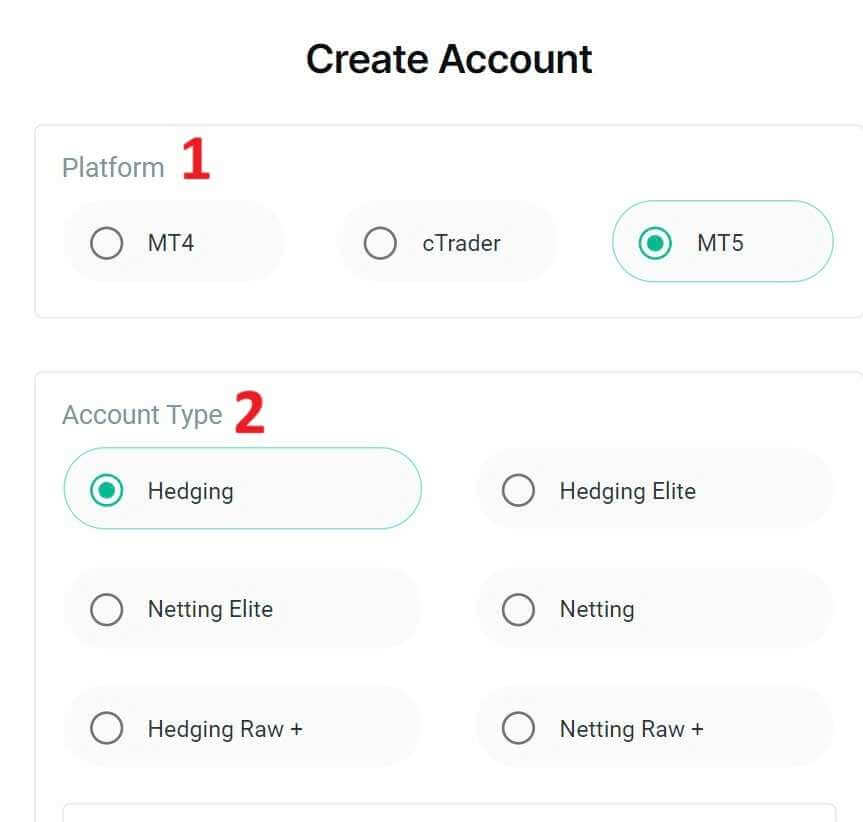
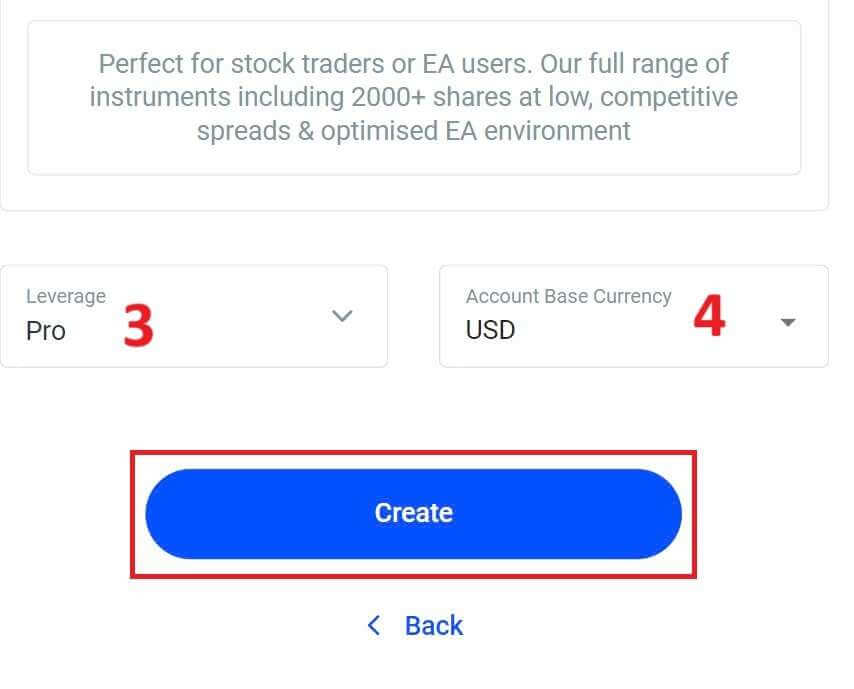
Congratulations! You have created new trading accounts with FxPro with just a few simple steps. Join now and experience the dynamic market.
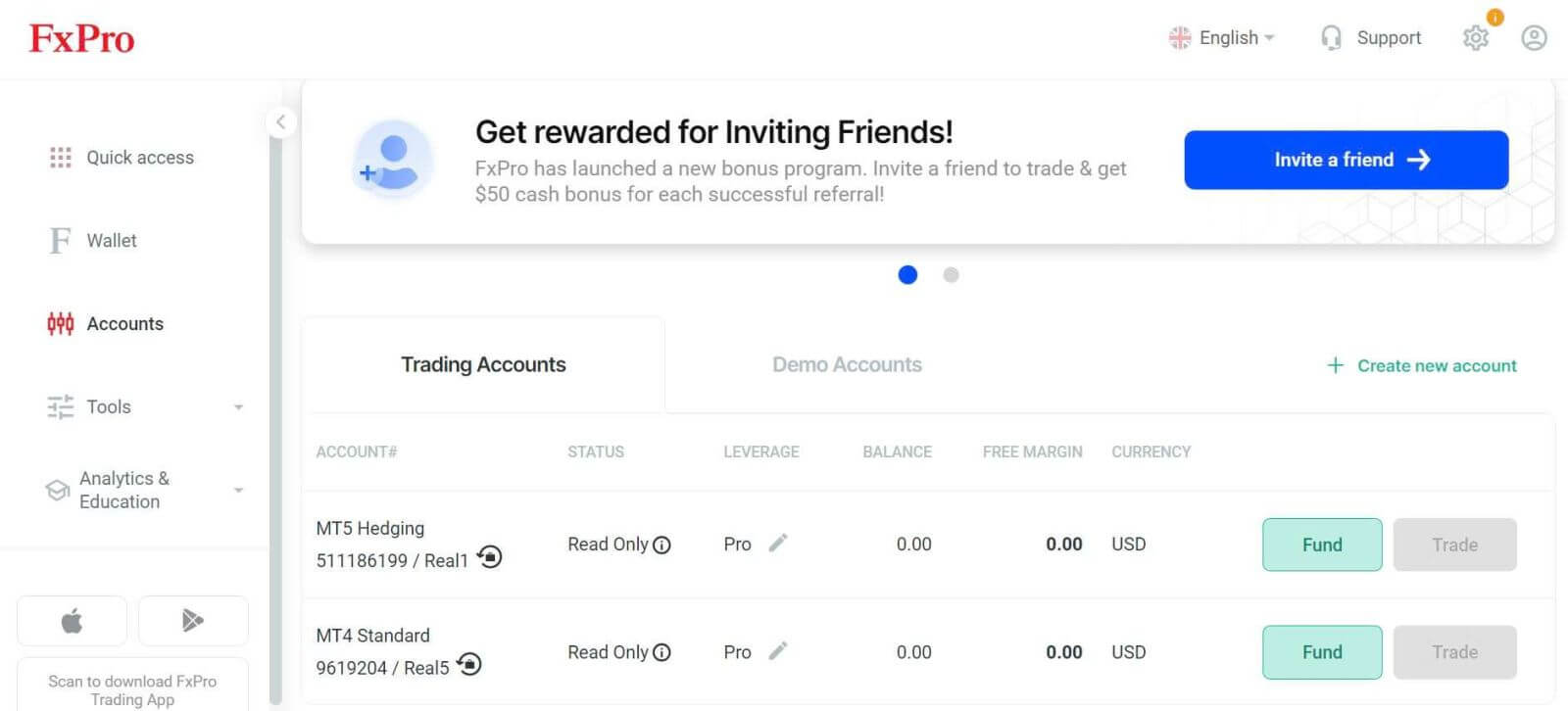
How to Register a FxPro Account [App]
Set up and Register
First, open the App Store or Google Play on your mobile device, then search for "FxPro: Online Trading Broker" and download the app.
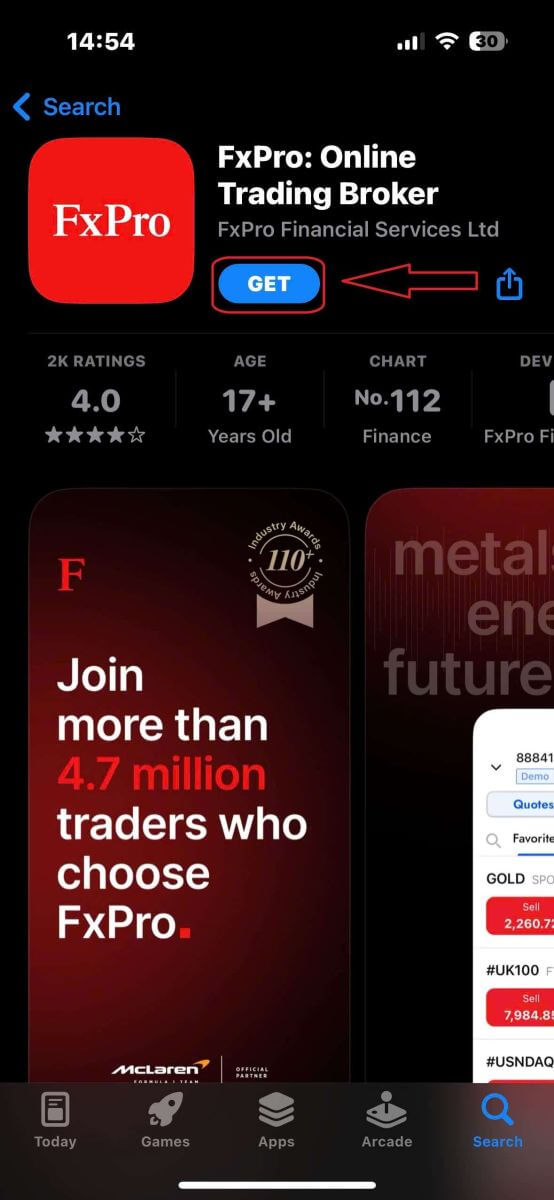
After installing the app, open it and select "Register with FxPro" to begin the account registration process.
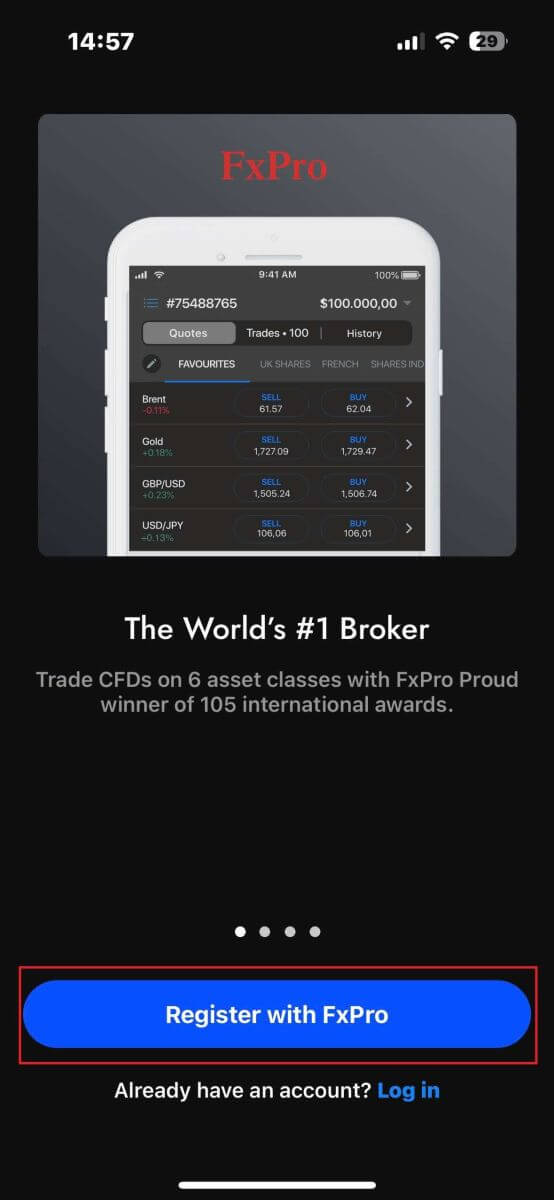
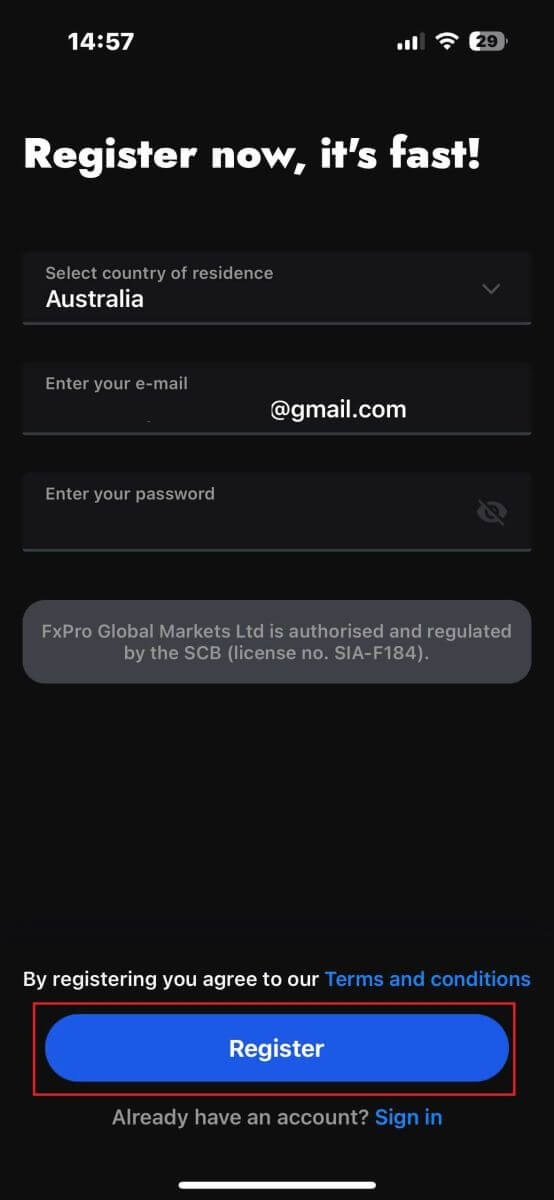
You will be redirected to the account registration page right away. On the initial registration page, you need to provide FxPro with some essential details, including:
-
Your country of residence.
-
Your email address.
-
A password (Make sure your password meets security criteria, such as being at least 8 characters long and including 1 uppercase letter, 1 number, and 1 special character).
Once you have entered all the necessary information, click "Register" to proceed.
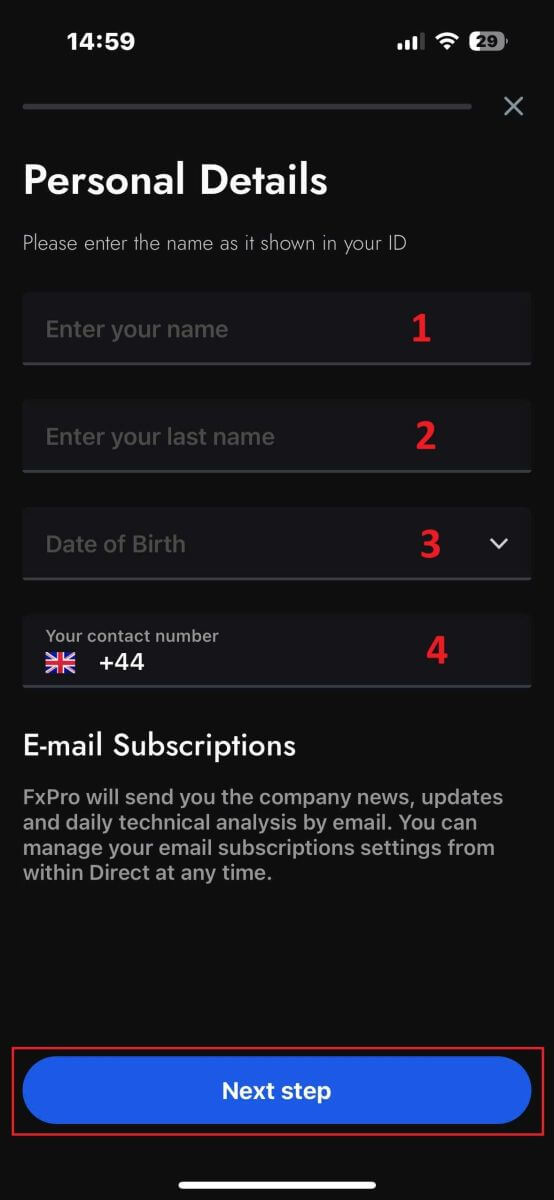
On the subsequent registration page, you will need to fill out the "Personal Details" section, which includes fields for:
-
First name.
-
Last name.
-
Date of Birth.
-
Contact number.
After filling out the form, click "Next step" to move forward.
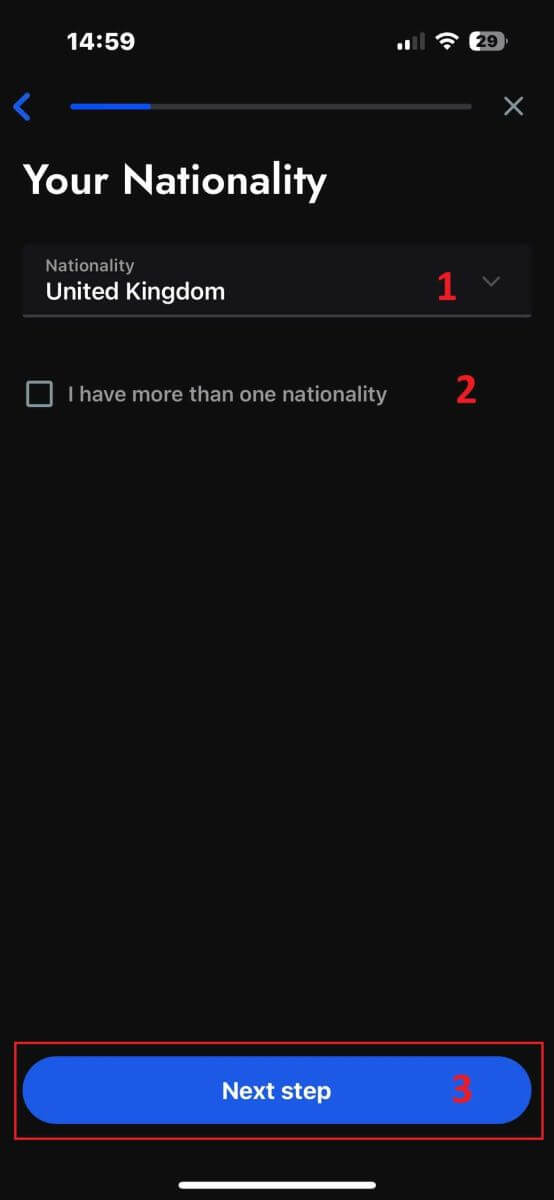
In the following step, indicate your nationality in the "Nationality" section. If you hold multiple nationalities, check the box for "I have more than one nationality" and select the additional nationalities.
Afterward, click "Next step" to advance in the registration process.
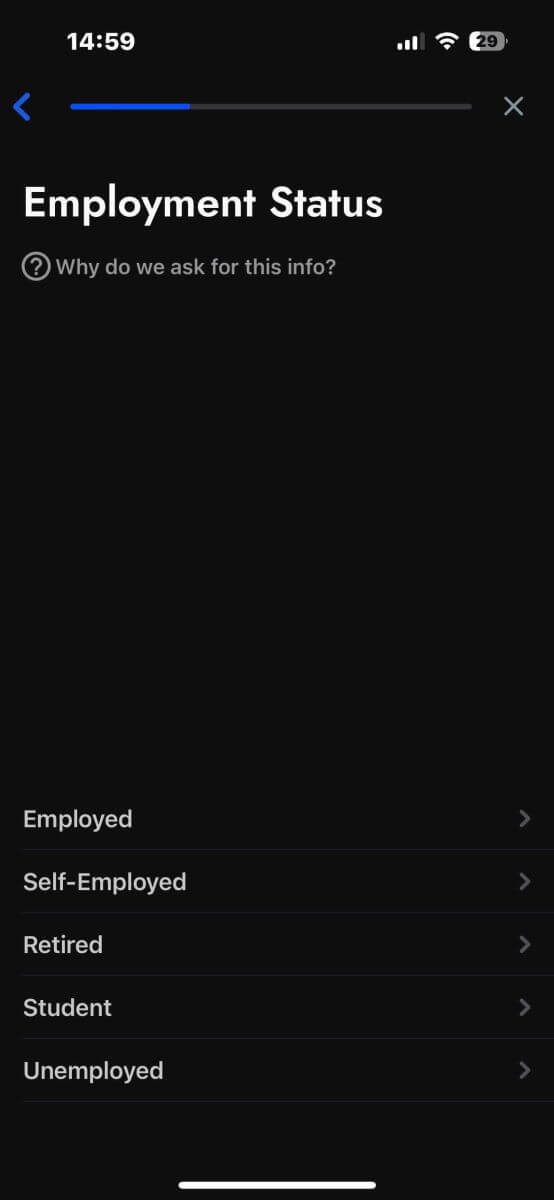
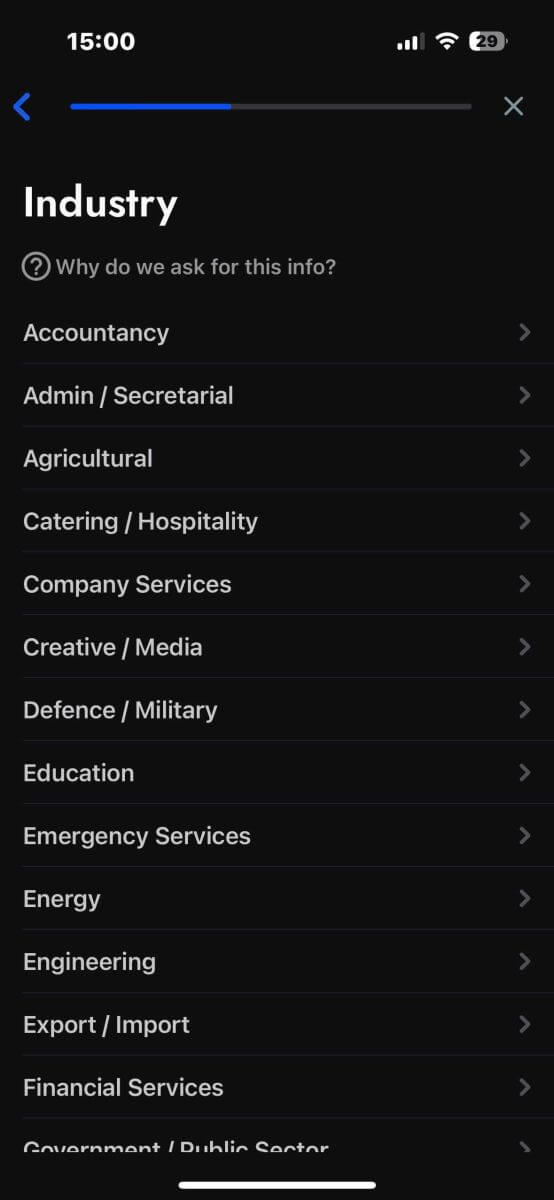
On this page, you need to provide FxPro with details about your Employment Status and Industry.
Once you have completed this, click "Next step" to proceed to the next page.
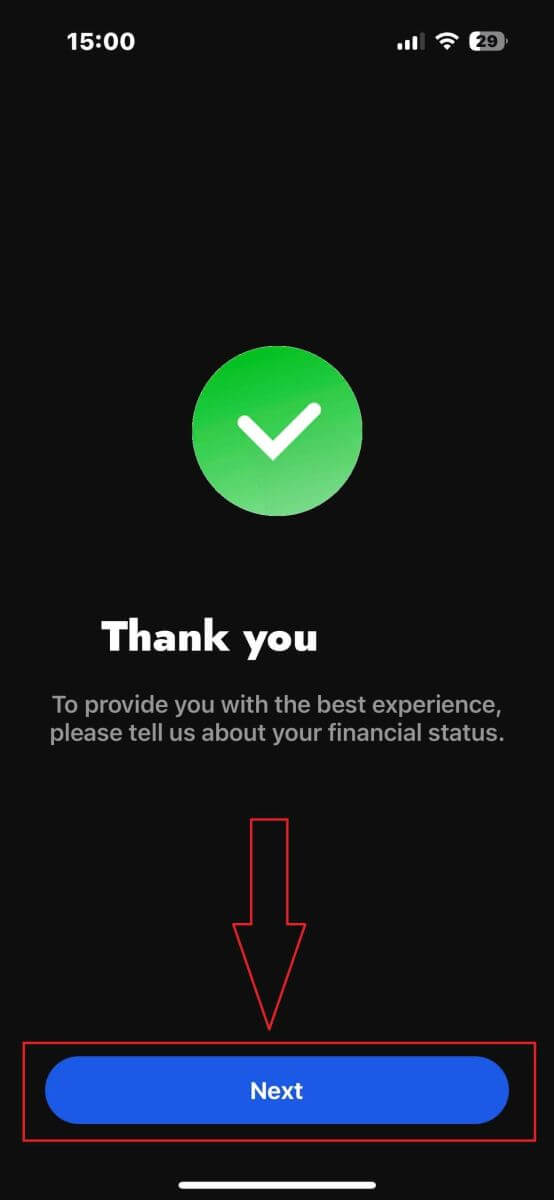
Congratulations on nearly completing the account registration process with FxPro on your mobile device!
Next, you will need to provide information about your Financial Status. Please tap "Next" to proceed.
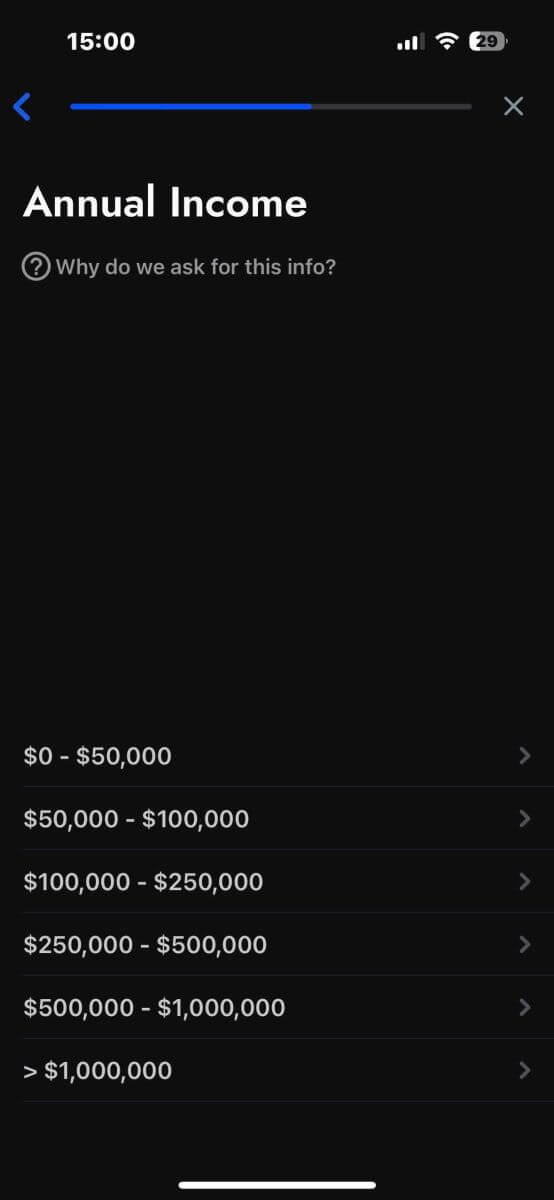
On this page, you’ll need to provide FxPro with details about your Financial Information, including:
-
Annual Income.
-
Estimated Net Worth (excluding your primary residence).
-
Source of Wealth.
-
Expected funding amount for the next 12 months.
Once you’ve filled out the information, click "Next step" to finalize the registration process.
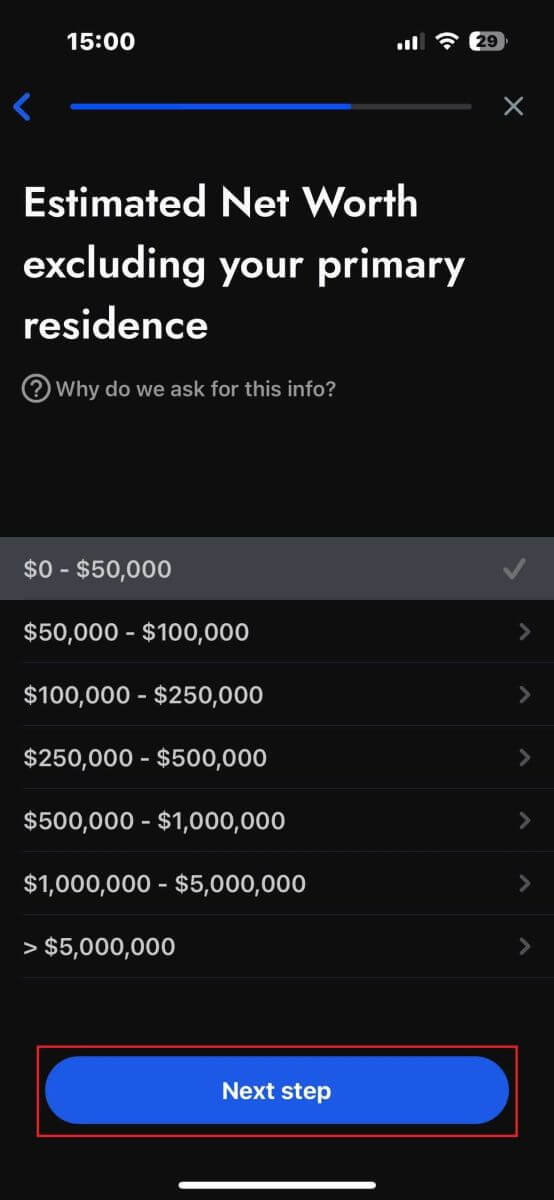
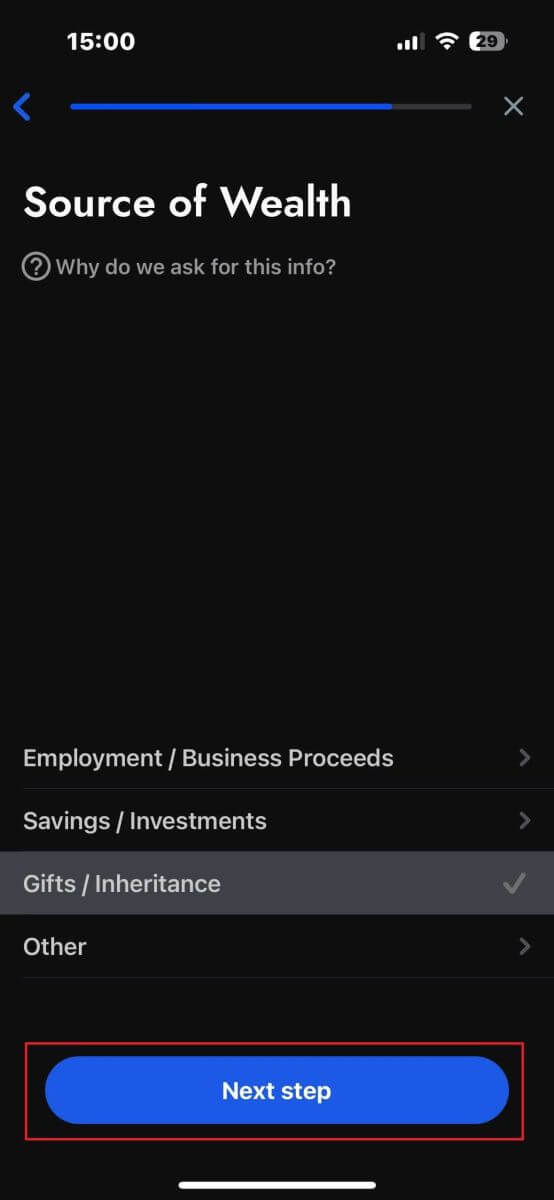
After completing the survey questions in this section, select "Next step" to finish the account registration process.
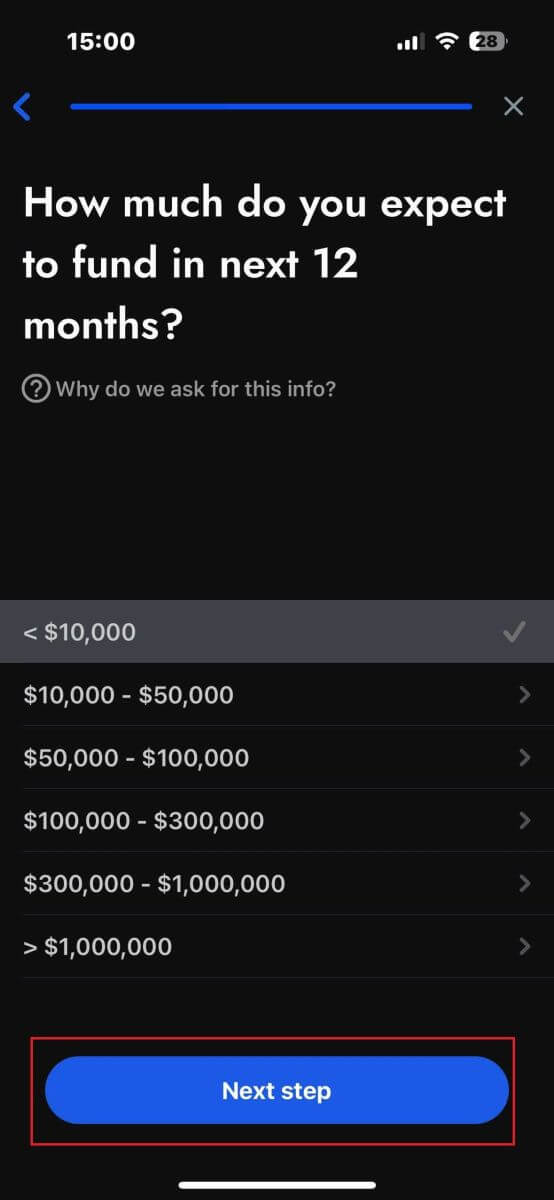
Congratulations on successfully registering your account! Trading is now easy with FxPro, allowing you to trade anytime, anywhere with your mobile device. Join us now!
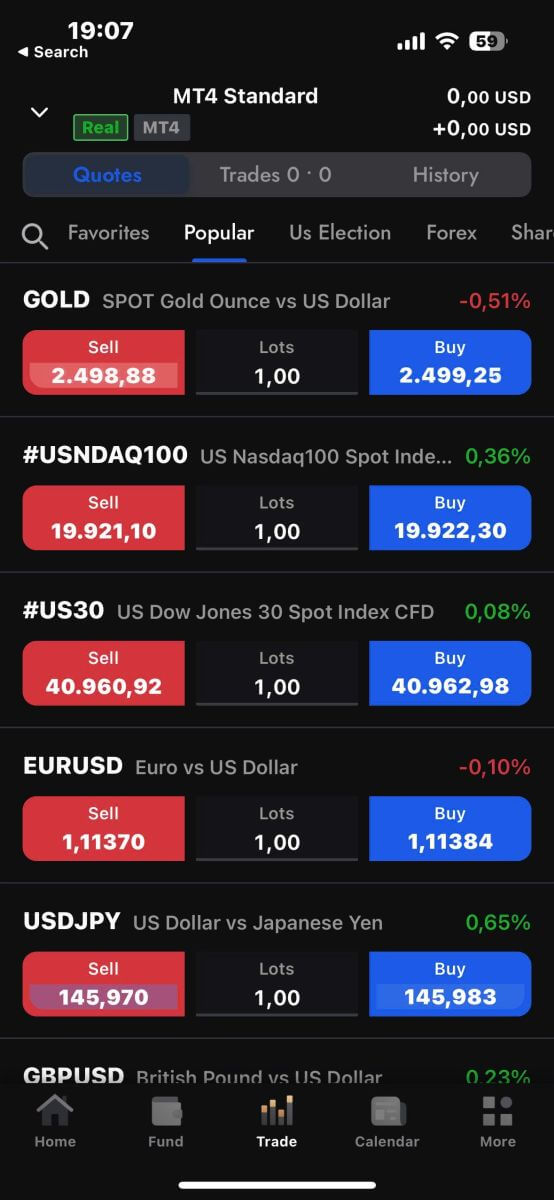
How to create a new trading account
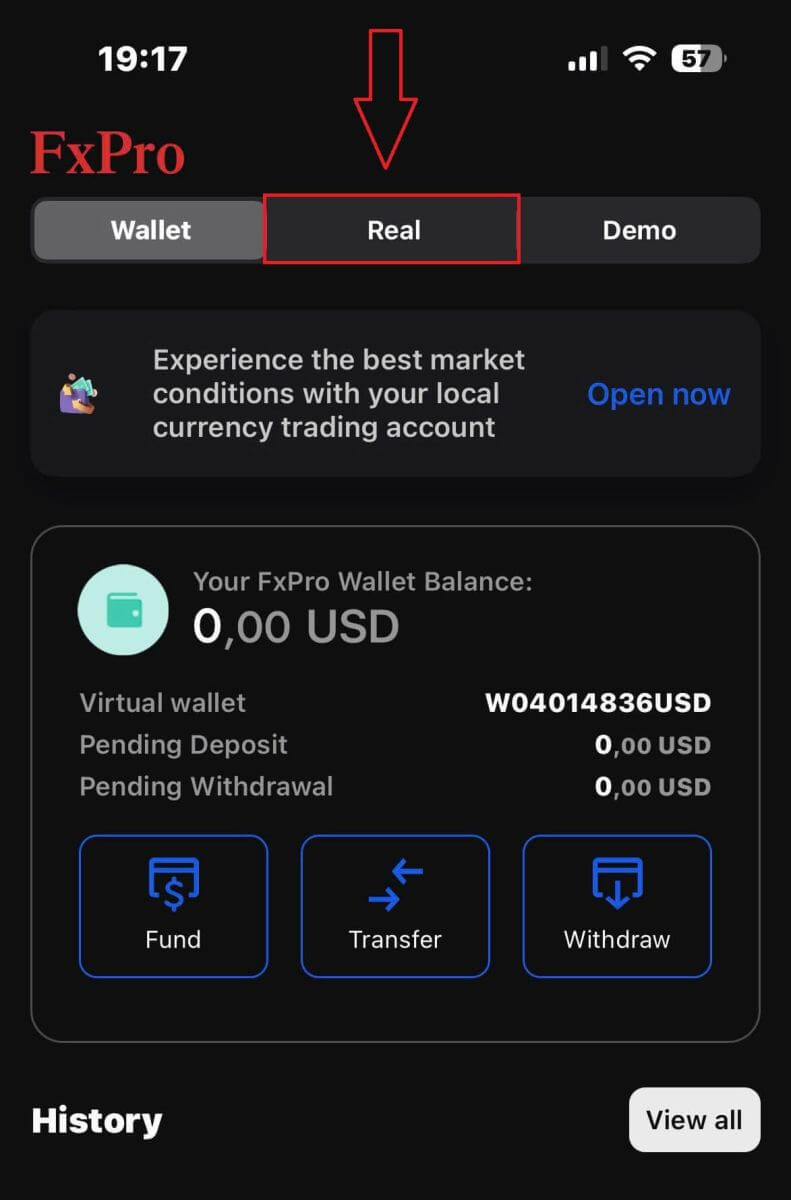
First, to create new trading accounts in the FxPro mobile app, select the "REAL" tab (as shown in the descriptive image) to access your trading account list.
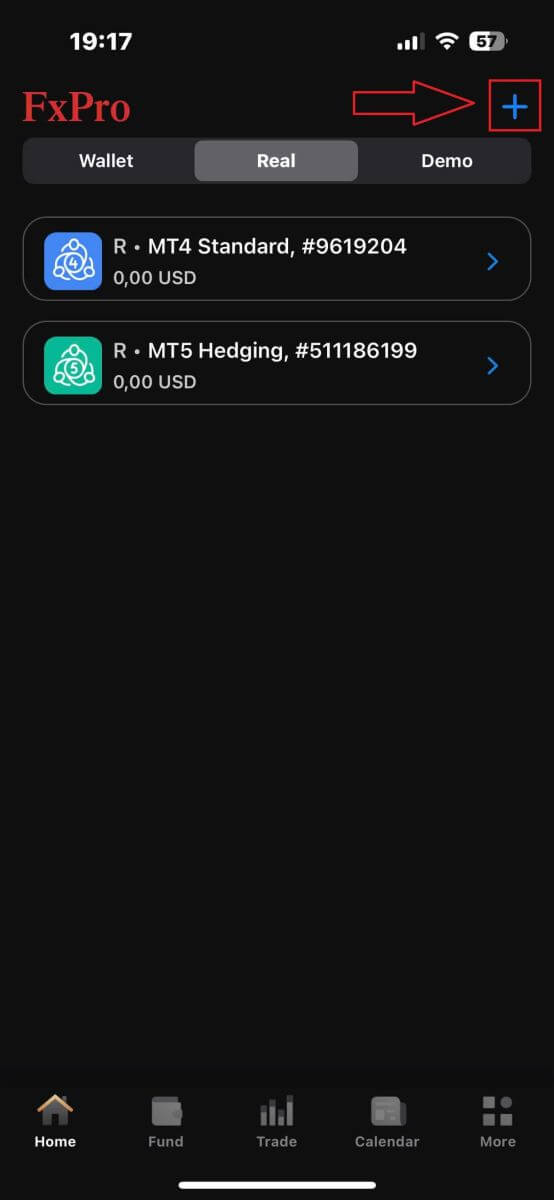
Then, tap the + icon at the top right corner of the screen to create new trading accounts.
To set up new trading accounts, you’ll need to choose the following details:
-
The Platform (MT4, cTrader, or MT5).
-
The Account Type (which may vary based on the chosen platform).
-
The Leverage.
-
The Account Base Currency.
After filling in the required information, click the "Create" button to complete the process.
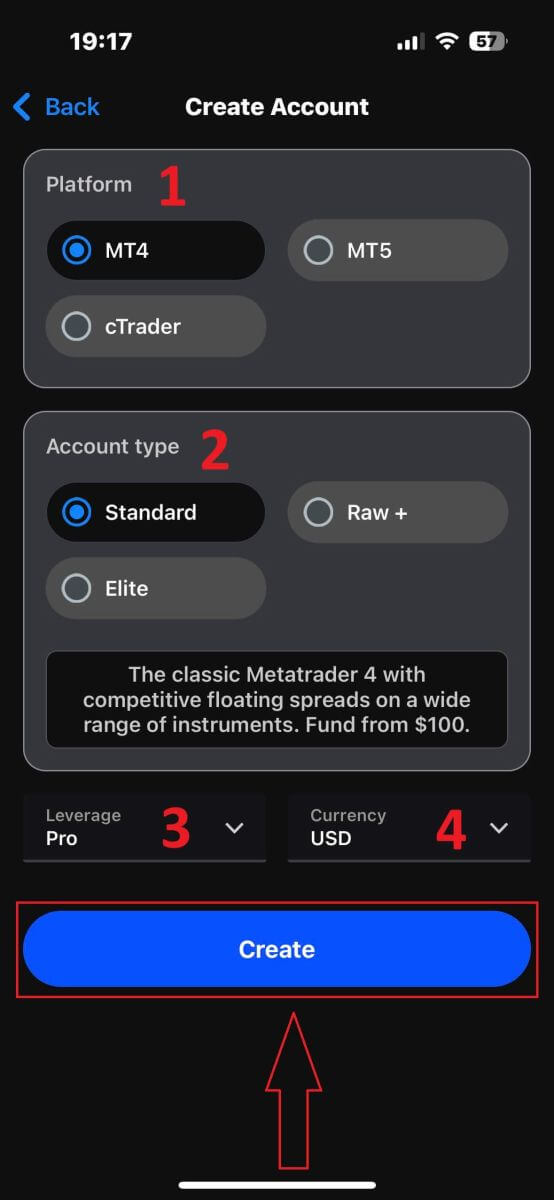
Congratulations on completing the process! Creating new trading accounts on the FxPro mobile app is easy, so don’t hesitate—start experiencing it now.
Frequently Asked Questions (FAQ)
Can I open a corporate account?
You can open a trading account on your company name via our usual sign-up procedure. Please enter the personal details of the person who will be the authorized representative and then log into FxPro Direct to upload official company documentation such as a certificate of incorporation, articles of association, etc. Once we receive all necessary documents, our Back Office Department will review them and assist in the completion of the application.
Can I open more than one account with FxPro?
Yes, FxPro allows up to 5 different trading accounts. You may open additional trading accounts via your FxPro Direct.
What base currencies can I open an account in?
Clients of FxPro UK Limited may open a trading account in USD, EUR, GBP, AUD, CHF, JPY, and PLN.
Clients of FxPro Financial Services Limited FxPro Global Markets Limited may open a trading account in EUR, USD, GBP, AUD, CHF, JPY, PLN, and ZAR.
It is recommended that you select a Wallet currency in the same currency as your deposits and withdrawals to avoid any conversion fees, however, you can select different base currencies for your Trading Accounts. When transferring between a Wallet and an account in a different currency, a live conversion rate will be displayed to you.
Do you offer swap-free accounts?
FxPro offers swap-free accounts for religious purposes. However, fees may be applied once trades on certain instruments are open for a specific number of days. To apply for a swap-free account, please send an email request to our Back Office Department at [email protected]. For further details on FxPro swap-free accounts, please contact our Customer Support.
Can I open a joint account?
Yes. To open a joint account, each person must first open an individual FxPro account and then fill out a Joint Account Request Form which can be obtained by contacting our Back Office Department at [email protected].
Please note that joint accounts are only available to married couples or first-degree relatives.
How many trading accounts can I open in the FxPro App?
You can create up to five live trading accounts with different settings in the FxPro App. They can be in different currencies and on various platforms.
Simply select one of the available trading platforms (MT4, MT5, cTrader, or the integrated FxPro platform), and choose the preferred leverage and account currency (AUD, CHF, EUR, GBP, JPY, PLN, USD, or ZAR). You can also transfer funds between the accounts using your FxPro Wallet.
For newcomers, FxPro provides comprehensive instructions on how to install the MT4, MT5, and cTrader applications with direct links to AppStore and Google Play.
Please note, that if you need additional accounts (including a Demo account), you can open them through FxPro Direct Web or by contacting our Customer Service Team.
Conclusion: Quick and Efficient Registration with FxPro
Registering an account on FxPro is designed to be a smooth and efficient process. The registration steps are straightforward, allowing you to quickly set up your account and start trading. With FxPro’s intuitive platform and strong security measures, you can confidently manage your account from the start. The streamlined registration process ensures you can begin trading with minimal delay, while FxPro’s comprehensive support and resources help you make the most of your trading experience.